Key Takeaways
- Setting your max FPS 3 frames below your monitor's refresh rate minimizes screen tearing without the latency penalty of traditional V-Sync
- G-Sync and FreeSync monitors benefit most from this technique when combined with V-Sync enabled in the GPU control panel
- You can cap frame rates through Nvidia Control Panel, AMD Adrenaline, or third-party tools like RivaTuner
The single most effective tweak for PC gaming smoothness isn't a new GPU or a faster monitor. It's capping your frame rate 3 frames below your display's maximum refresh rate, then leaving V-Sync alone. This trick, often called the "Holy Trinity" among enthusiasts, eliminates screen tearing while keeping input lag far lower than traditional V-Sync.
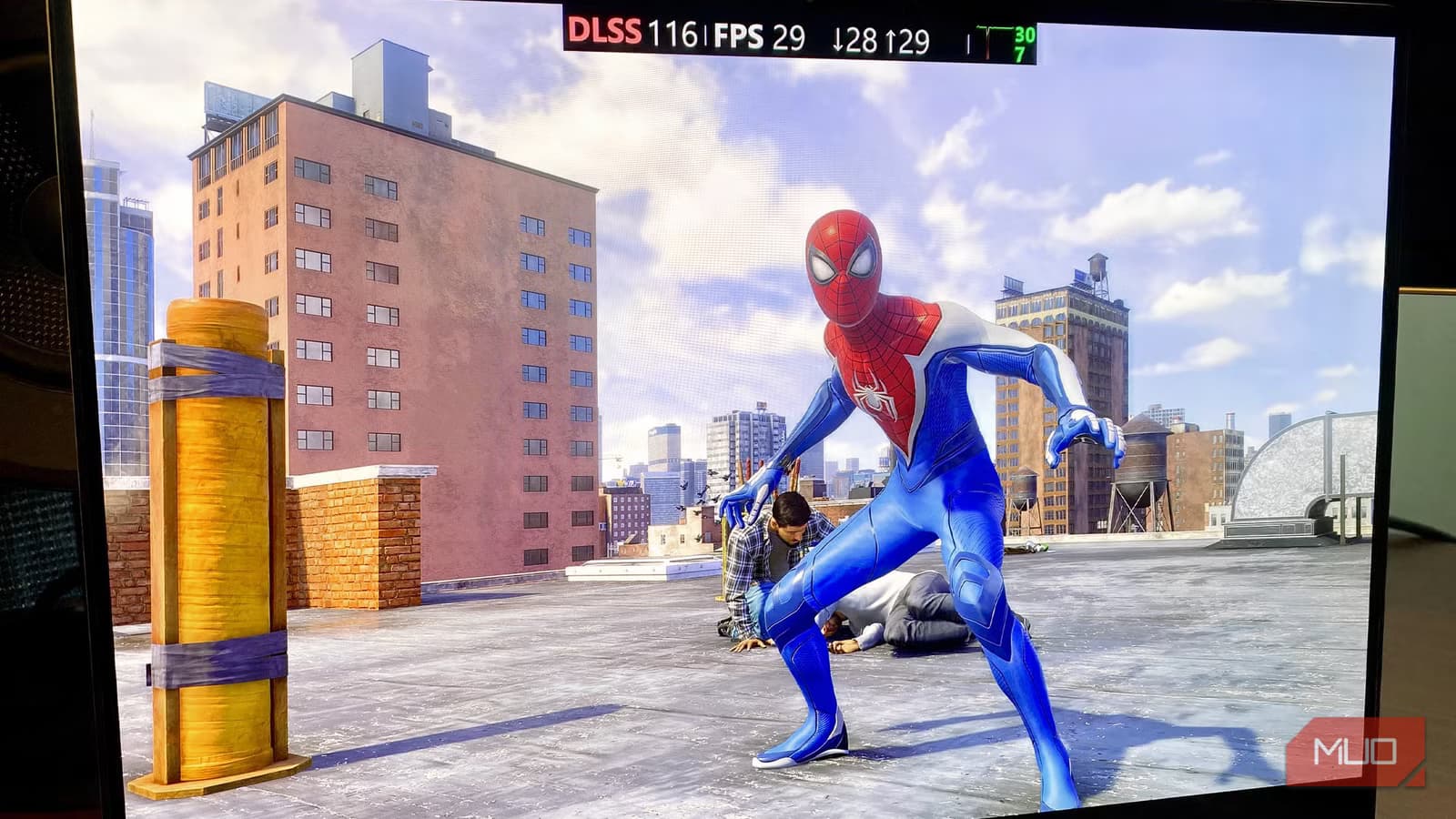
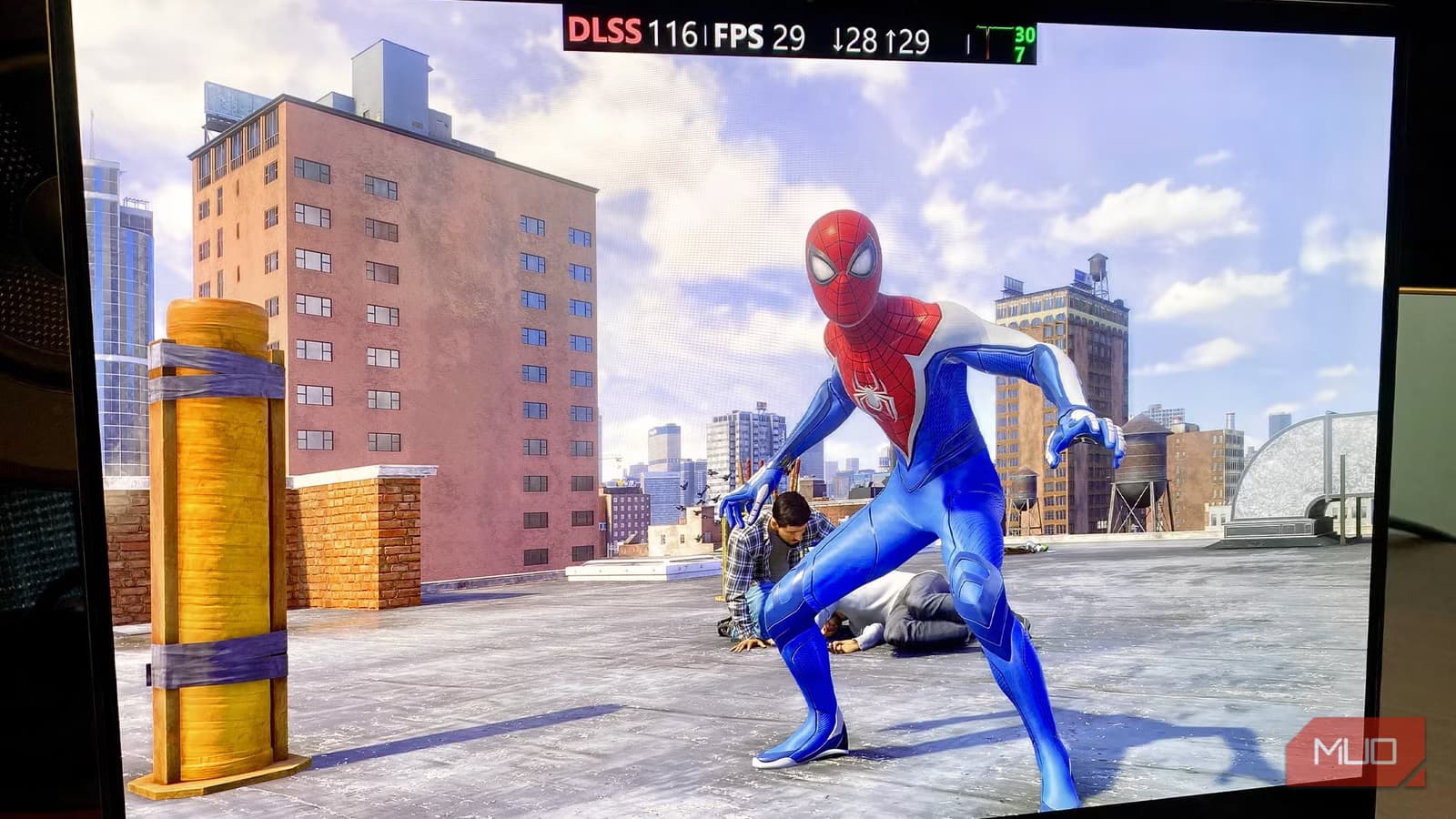
Dave Meikleham at MakeUseOf tested this on a 120Hz OLED TV, setting his Nvidia Control Panel to cap frames at 117 FPS. The result: fewer tear lines and snappier controls than running V-Sync by itself.
Why does V-Sync add so much input lag?
Traditional V-Sync forces your GPU to wait until your monitor finishes scanning the current image before sending the next frame. On a 60Hz screen, each refresh cycle takes 16.7 milliseconds. On 120Hz panels, that drops to 8.3ms. The longer the cycle, the longer you wait for the next frame to appear.
This waiting game creates perceptible lag, especially in fast-paced shooters where every millisecond counts. Worse, if your frame rate dips below the refresh rate, V-Sync introduces stutter as the GPU struggles to keep pace.
The 3-FPS buffer explained
Screen tearing happens when your GPU pushes more frames than your monitor can display in a single refresh cycle. The frames arrive out of sync, creating visible horizontal lines where two frames overlap.
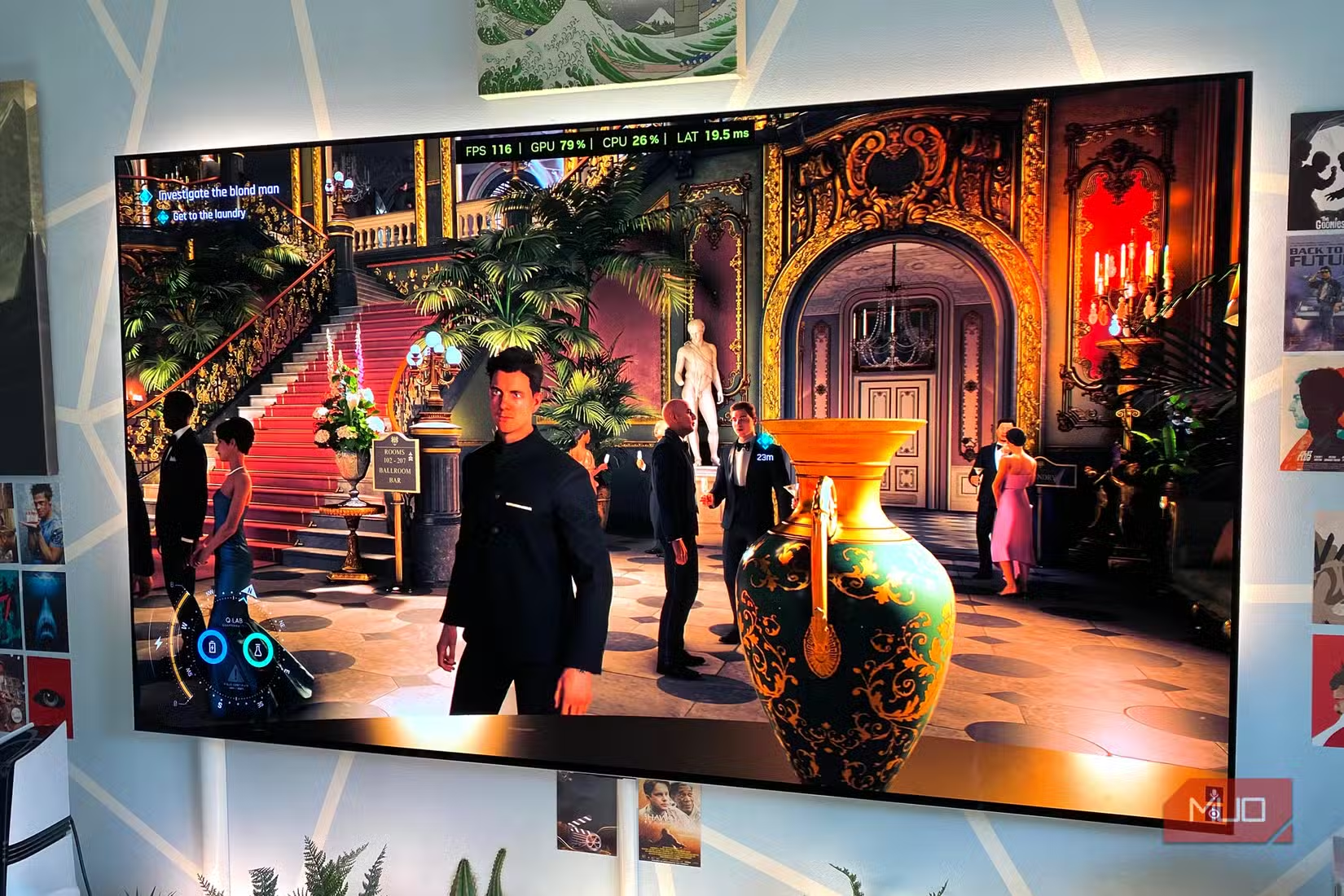
By capping your frame rate just below the refresh ceiling, you prevent frames from stacking up. Your GPU never races ahead of the display. The 3-FPS margin gives the system breathing room without sacrificing visible smoothness.
Blur Busters, a site dedicated to display technology research, calls this the "holy grail" configuration for G-Sync users. Their testing confirms that the 3-FPS limit keeps variable refresh rate active while avoiding the latency spike that occurs when frames hit the V-Sync ceiling.
How to set up the frame cap on Nvidia and AMD
For Nvidia users, open the Nvidia Control Panel, navigate to Manage 3D Settings, and find Max Frame Rate. Set it to your monitor's refresh rate minus three. A 144Hz monitor gets a 141 FPS cap. A 120Hz display gets 117.
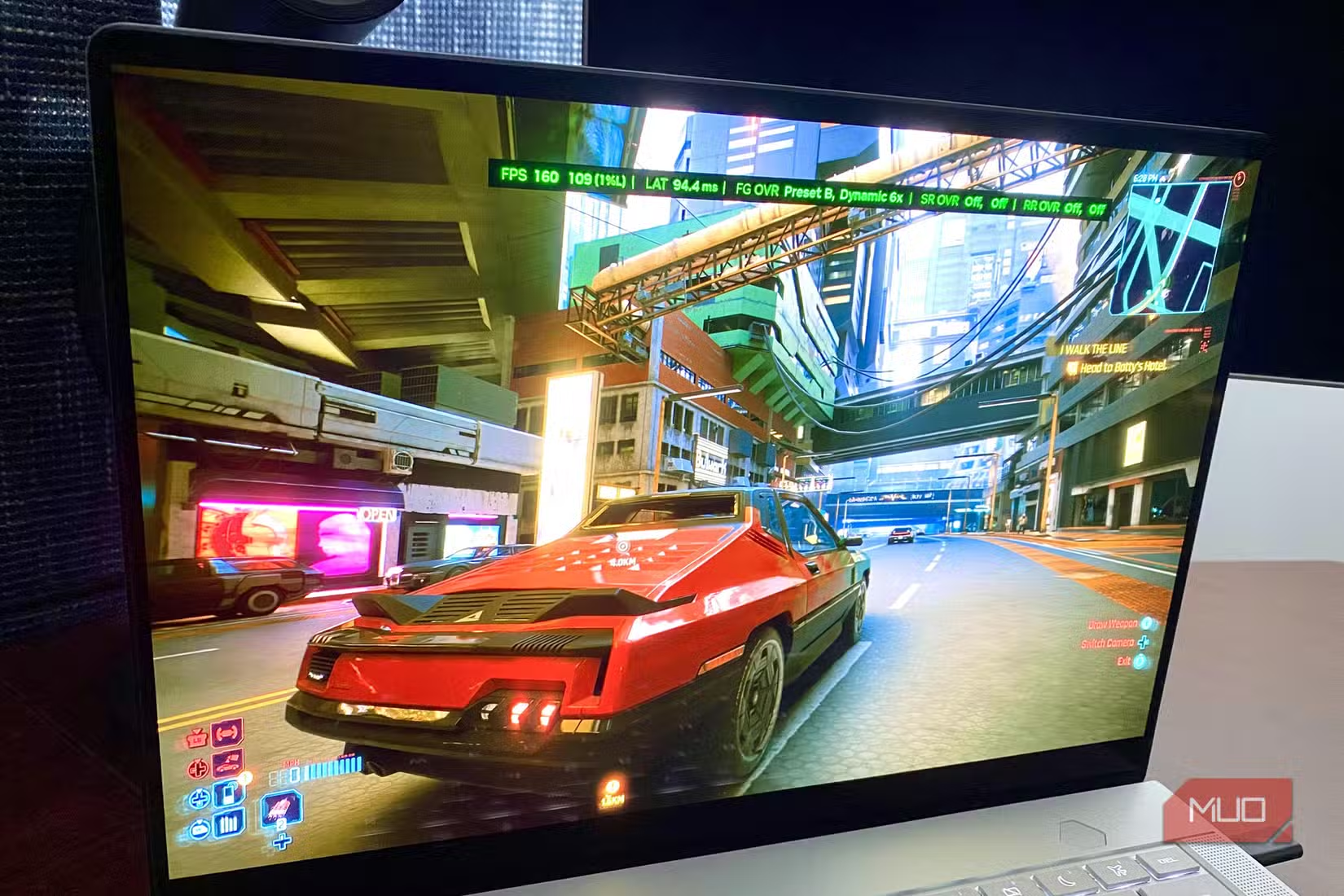
AMD users should open AMD Software: Adrenaline Edition and apply the same logic through the Frame Rate Target Control setting. Third-party tools like RivaTuner Statistics Server also work reliably if you prefer a vendor-neutral approach.
If you own a G-Sync or FreeSync monitor, keep V-Sync enabled in the GPU control panel. This sounds counterintuitive, but it acts as a safety net. The frame cap prevents you from hitting the V-Sync ceiling, so you get tear-free visuals without the input penalty.
What if you don't have G-Sync or FreeSync?
Older monitors without variable refresh rate still benefit from the frame cap method. Disable V-Sync entirely, then set your cap 2-3 frames below the panel's maximum. You won't eliminate tearing completely, but you'll reduce it significantly while keeping input lag lower than V-Sync would allow.
This approach works best for slower-paced, story-driven games where occasional tearing is less offensive than constant lag. Competitive multiplayer titles still demand the lowest possible latency, which means either upgrading to a VRR display or accepting some visual compromise.
Budget-friendly display with VRR support for console and PC gaming
Does this actually make a noticeable difference?
Reddit threads in r/pcmasterrace describe the change as "night and day." Users report smoother panning, tighter mouse response, and the elimination of micro-stutters that plagued their V-Sync configurations. The improvement is most obvious in games with frequent camera movement.
Battle(non)sense, a YouTube channel specializing in latency testing, has published data confirming these claims. Their measurements show that mismatched frame rates and refresh rates increase input delay measurably, while the 3-FPS limit keeps latency near baseline.
Affordable cooling for high-performance builds that hit frame rate targets
The bottom line on V-Sync in 2026
V-Sync isn't inherently bad. It remains the most reliable way to eliminate tearing on displays without variable refresh rate. The problem is using it alone, without the frame cap that prevents you from hitting its latency ceiling.
The optimal setup for most gamers in 2026: enable G-Sync or FreeSync, turn on V-Sync in your GPU control panel, and cap your frame rate 3 FPS below your monitor's maximum. Total configuration time is about two minutes. The payoff lasts for every game you play.
New hardware with integrated graphics benefits from proper frame pacing
Frequently Asked Questions
Should I enable V-Sync with G-Sync or FreeSync?
Yes. When combined with a frame rate cap below your refresh rate, V-Sync acts as a backup that prevents tearing without adding input lag, since you never hit the V-Sync ceiling.
What happens if my frame rate drops below the cap?
G-Sync and FreeSync handle this automatically by adjusting the monitor's refresh rate to match your current FPS. Without VRR, you may see some stutter during frame drops.
Why 3 FPS specifically and not 5 or 10?
The 3-FPS buffer provides enough headroom to prevent hitting the V-Sync ceiling while keeping frame rates as high as possible. Larger buffers sacrifice smoothness unnecessarily.
Does this work with HDMI VRR on TVs?
Yes. HDMI 2.1 VRR and AMD FreeSync over HDMI both support the same frame capping technique. Set your cap 3 frames below the TV's maximum VRR range.
Can I set per-game frame caps instead of a global limit?
Both Nvidia Control Panel and AMD Adrenaline support per-application profiles. Some games also have built-in frame limiters, though external tools are generally more precise.
Logicity's Take
This technique has circulated in enthusiast forums for years, but most gamers still skip it. The Blur Busters "Holy Trinity" setup should be default behavior for anyone with a VRR monitor, yet GPU makers bury these settings several menus deep. Nvidia and AMD could ship this as a one-click profile and save millions of users from suboptimal experiences.
Need Help Implementing This?
Logicity covers hardware optimization and display technology regularly. Subscribe to our newsletter for guides on getting the most from your PC gaming setup, or reach out to our team for enterprise display and workstation consulting.
Source: MakeUseOf
Huma Shazia
Senior AI & Tech Writer
Produced with AI assistance and reviewed by the Logicity editorial team. Learn more in our Editorial Policy.






