Key Takeaways
- Android's Gallery app silently stores original copies of every edited photo and video indefinitely, not just in the trash folder.
- These pre-edit backups don't auto-delete like trash items, which purge after 30 days.
- The 'Other files' section in Android's storage menu reveals and lets you delete these hidden backups instantly.
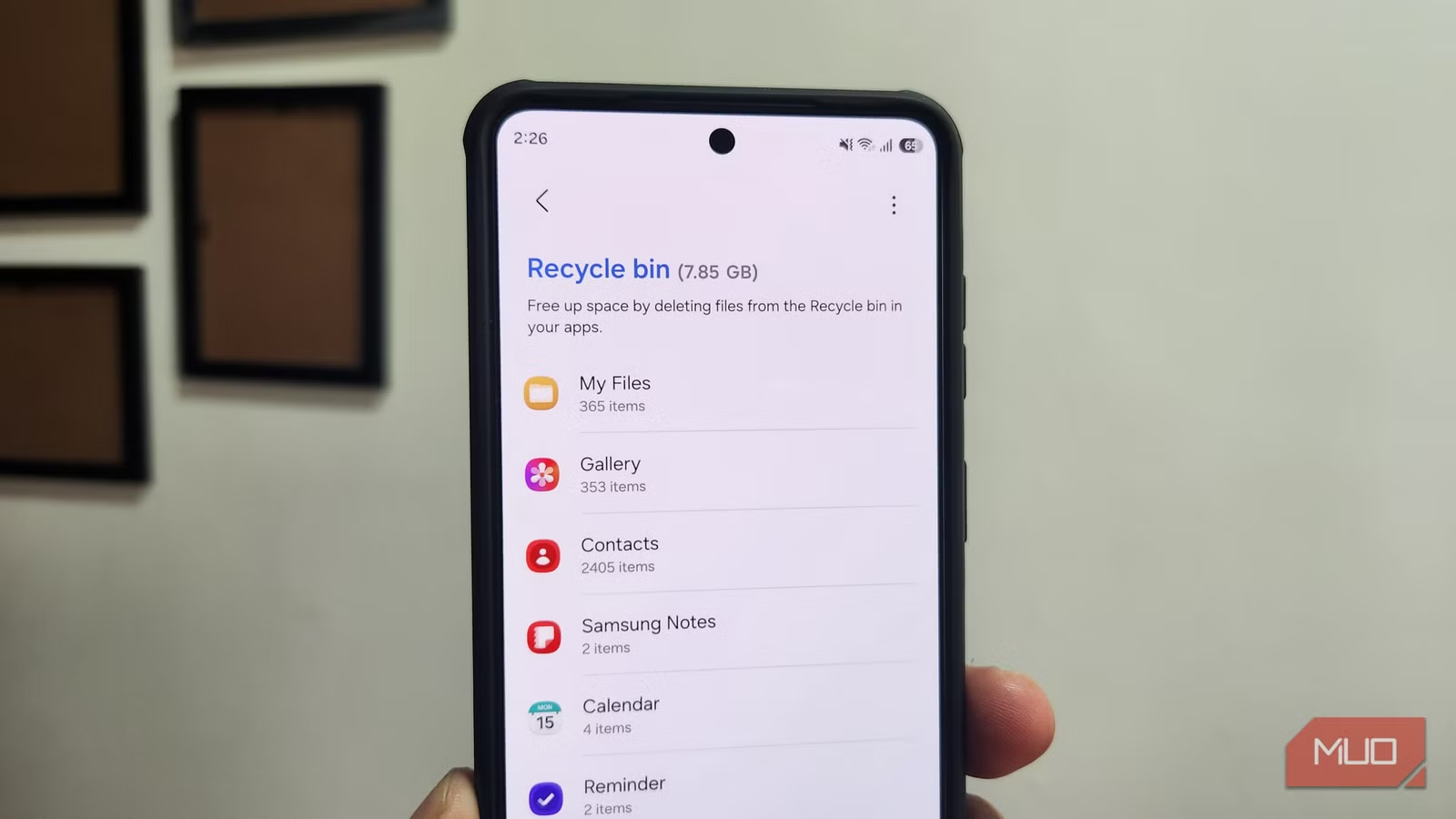
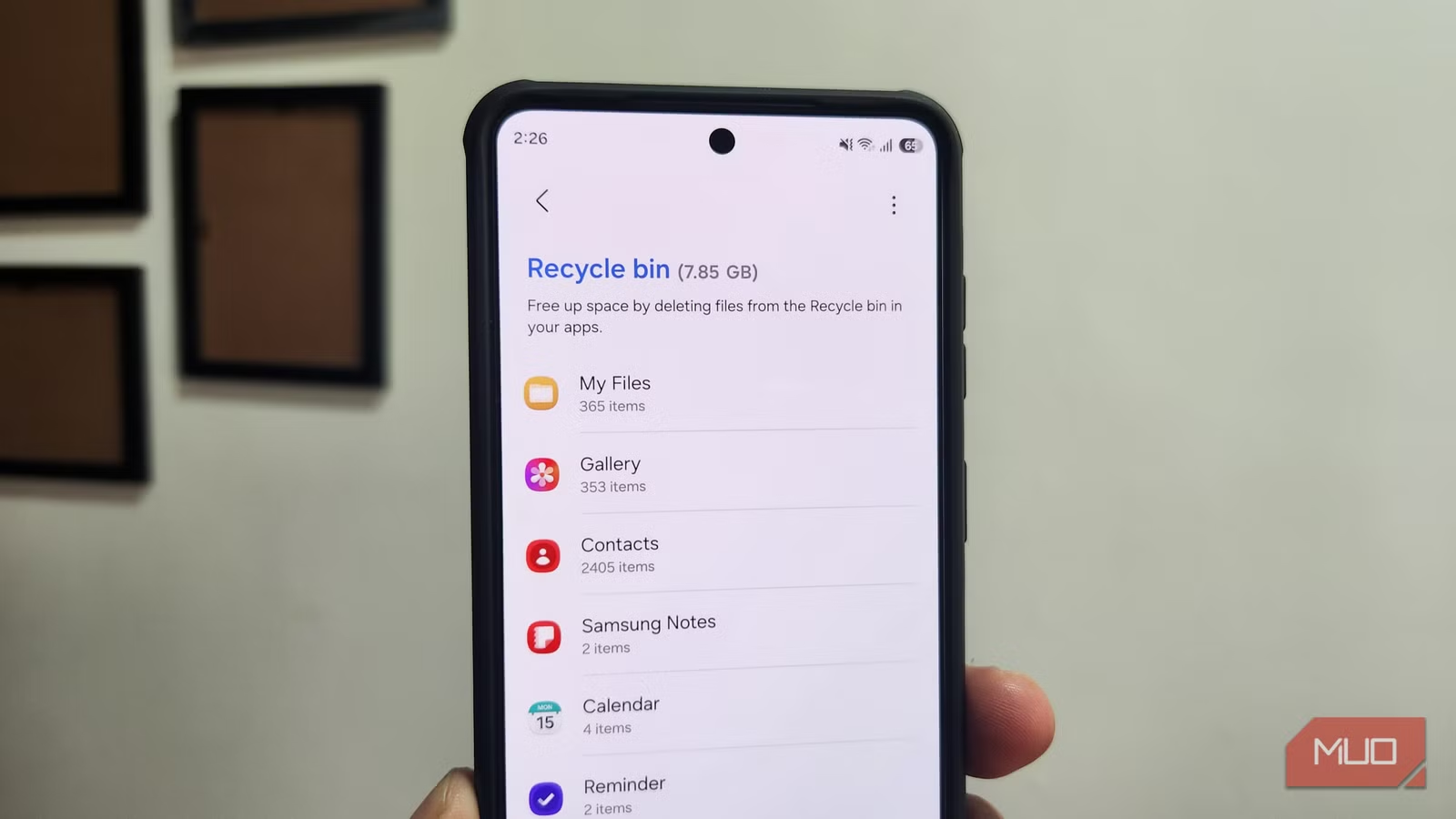
A MakeUseOf writer discovered 12GB of storage consumed by files that never appeared in any obvious location on his Samsung phone. The culprit wasn't the trash folder, cached apps, or downloaded files. It was pre-edit backups: invisible copies of every photo and video he'd ever edited in the Gallery app, saved silently so the undo function would work months later.
This Android hidden storage folder catches most users off guard. You delete photos, empty the trash, and still see "Storage Full." The disconnect isn't a bug. It's a feature designed for convenience that quietly balloons into a significant storage problem.
Why does the Gallery app keep hidden copies?
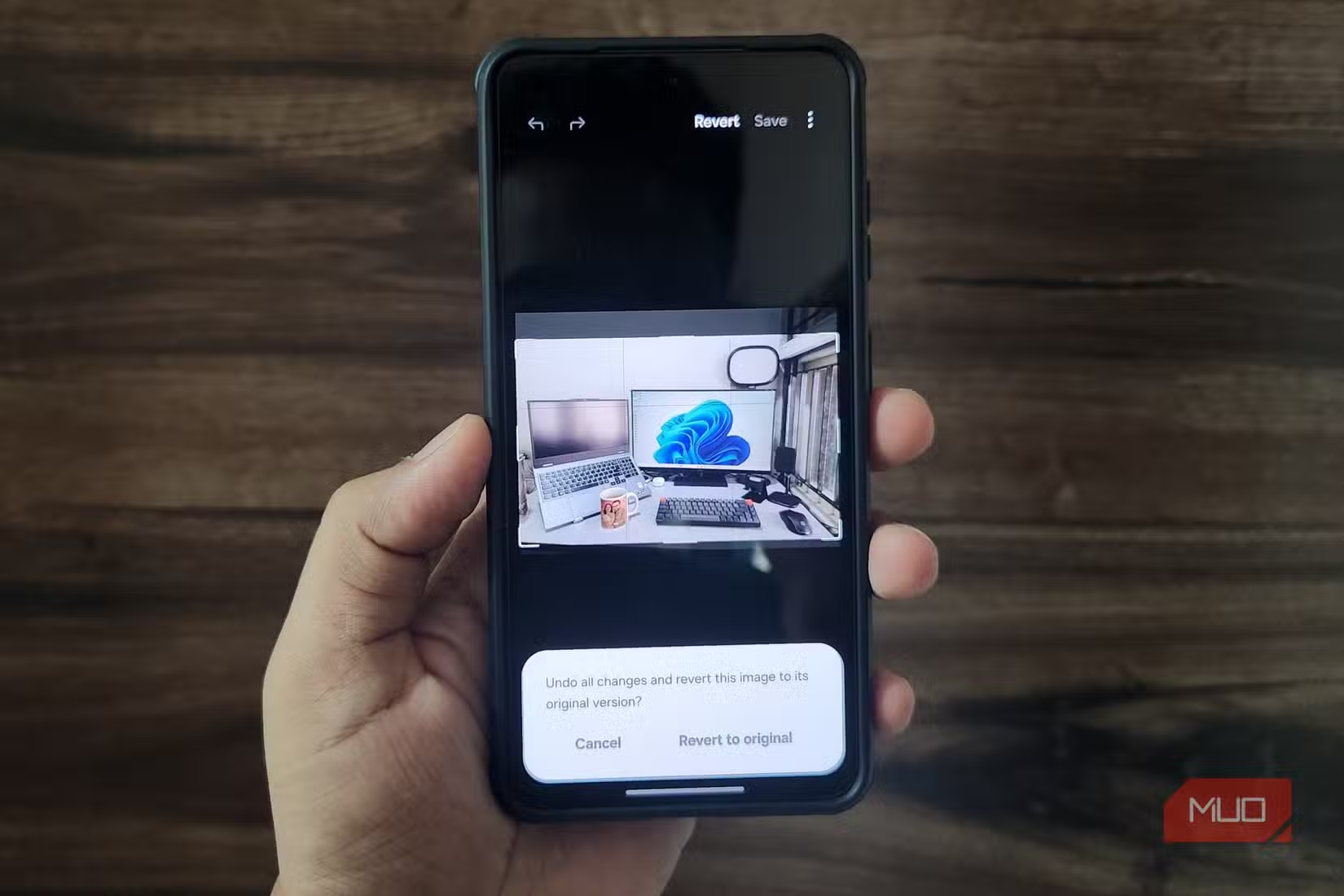
When you edit a photo in Samsung Gallery and tap "Save" instead of "Save copy," you'd expect the original to be overwritten. That's not what happens. The app preserves the original file in a hidden location so you can revert edits weeks or months later. Handy, but the original never expires.
Contrast this with the trash folder, which auto-clears after 30 days. Pre-edit backups have no such timer. A cropped vacation photo from 2022 still has its 8MB original sitting in storage. Trim a 4K video that was 500MB, and you now have nearly a gigabyte consumed by one file: the edited version plus the hidden backup.
"The modern smartphone storage experience is deceptive," says Sarah Jenkins, Lead Android Analyst at TechInsight. "Users see 512GB on the box, but OS-level 'safety nets' mean they only have access to a fraction of that until they learn where the digital trash cans are hidden."
How to find and delete pre-edit backups on Android
The process is simple once you know where to look. Open Settings, navigate to Storage, and scroll past the familiar categories: Apps, Images, Videos, System. Look for "Other files." This section is easy to skip because its name suggests miscellaneous junk.
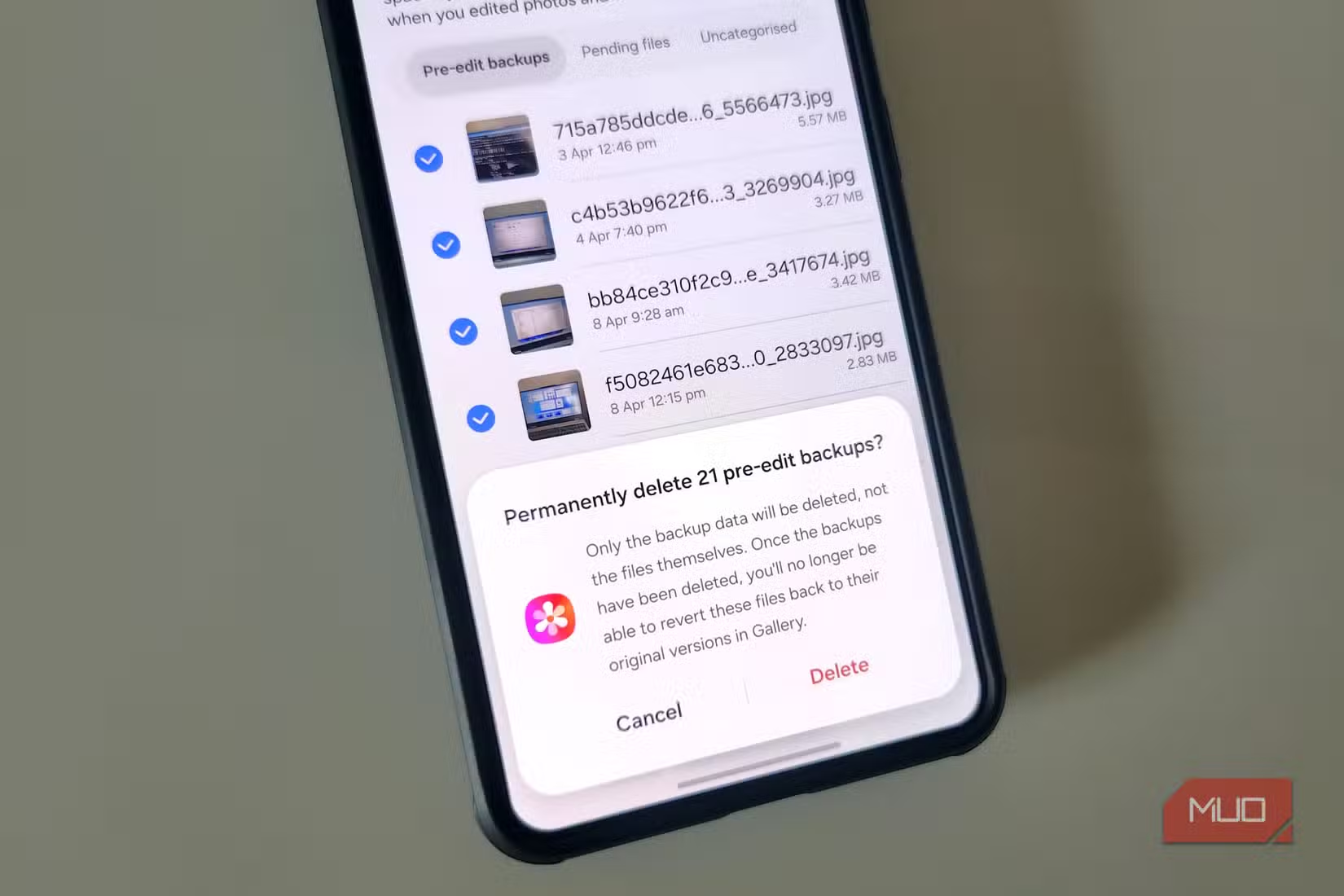
Inside "Other files," you'll find a tab specifically for pre-edit backups. The MakeUseOf writer found 12GB here, more than his entire video library. Select all, tap Delete, and they're gone immediately. Unlike trashed photos, these don't linger for 30 days.
- Open Settings > Storage on your Android phone.
- Scroll down and tap "Other files."
- Select the "Pre-edit backups" tab.
- Select all files and tap Delete.
- Check the "Pending files" and "Uncategorized" tabs for additional cleanup.
The "Pending files" tab contains downloads and uploads that failed partway through. A Chrome download that stalled at 60% still occupies that 60%. The "Uncategorized" section catches everything else. Neither can be bulk-deleted from this menu, but you can select files individually, tap Details, and remove them manually.
Other hidden storage traps on Android
Pre-edit backups are one example of a broader problem. Each Android app manages its own trash folder independently. Delete 500 photos in Google Photos, and they sit in Photos' trash for 60 days unless you manually purge them. The Files app has its own bin. So does WhatsApp.
WhatsApp is especially aggressive. Every image and video you send gets copied to a "Sent" folder that most users never see. After a year of use, the average installation accumulates over 500MB of duplicate sent media, according to recent analyses. That folder doesn't appear in your normal Gallery view.
Recent Android updates introduced App Archiving, which can reclaim up to 60% of an app's storage by removing the executable code while preserving user data. But this feature requires manual activation for each app and doesn't touch the hidden caches and backup folders that cause the most confusion.
Another practical hack for getting more out of hardware you already own.
Should you use a dedicated cleaning app?
Third-party cleanup apps promise to automate this process. Some deliver. Many are bloated with ads or duplicate the functionality Android already provides. Before installing one, check whether the built-in storage menu addresses your needs.
The storage breakdown in Settings is more detailed than most users realize. It separates apps, media types, system files, and the recycle bin. The "Other files" section is the key discovery here. It surfaces hidden storage consumers that cleanup apps often miss or misidentify.
If you frequently edit videos on your phone, this check should become routine. A single 4K video edit creates a backup measured in hundreds of megabytes. Do that weekly, and you're losing gigabytes per month to invisible files.
A simple settings tweak that improves performance without new hardware.
Frequently Asked Questions
Where is the hidden trash folder on Android?
Android doesn't have a single system-wide trash folder. Each app (Gallery, Files, WhatsApp) maintains its own. For pre-edit backups specifically, go to Settings > Storage > Other files.
How long do deleted photos stay in Android's trash?
Most Android trash folders auto-delete after 30 days. Google Photos keeps items for 60 days. Pre-edit backups have no expiration and remain indefinitely until manually deleted.
Why is my Android storage full after deleting photos?
Deleted photos move to the trash folder first and still occupy space. Additionally, edited photos create invisible backup copies that don't appear in your Gallery but consume storage.
Do cleanup apps work better than Android's built-in tools?
Not necessarily. Android's storage menu under Settings provides detailed breakdowns including the "Other files" section that reveals hidden backups. Many cleanup apps miss these or add unnecessary bloat.
Does this hidden backup issue affect all Android phones?
The pre-edit backup feature is confirmed on Samsung Galaxy devices using the Samsung Gallery app. Other manufacturers may implement similar features in their gallery apps.
Logicity's Take
This is a design failure dressed as a feature. The undo function is useful, but storing backups indefinitely with no notification and no visibility in the main Gallery app crosses into dark pattern territory. Samsung should either auto-purge these after 90 days or surface them in a "Storage used by edit history" prompt. Until then, set a calendar reminder to check your "Other files" folder quarterly.
Need Help Implementing This?
If you're managing device storage policies across an organization or building apps that handle user media, Logicity can connect you with mobile development consultants who specialize in Android storage optimization. Reach out through our contact page.
Source: MakeUseOf
Manaal Khan
Tech & Innovation Writer
Produced with AI assistance and reviewed by the Logicity editorial team. Learn more in our Editorial Policy.






