Key Takeaways

- Piping grep to less lets you page through large search results instead of watching them scroll past
- The tail -f | grep combination filters live log files in real time, perfect for monitoring servers
- history | grep finds past commands instantly, even when your shell stores 500+ entries
Why Pipes Matter
The pipe character (|) is the single feature that defines the Linux philosophy. Instead of building massive programs that do everything, Unix designers built small tools that do one thing well. The pipe connects them. Output from one command becomes input for the next.
This approach creates flexibility that monolithic programs can't match. You combine simple pieces into custom workflows. No coding required. Just a few characters between commands.
Here are nine pipelines that solve real problems you'll face in daily terminal work.
grep | less: Page Through Search Results
A typical grep search can return hundreds of lines. They scroll past faster than you can read. The last screenful is all you see.
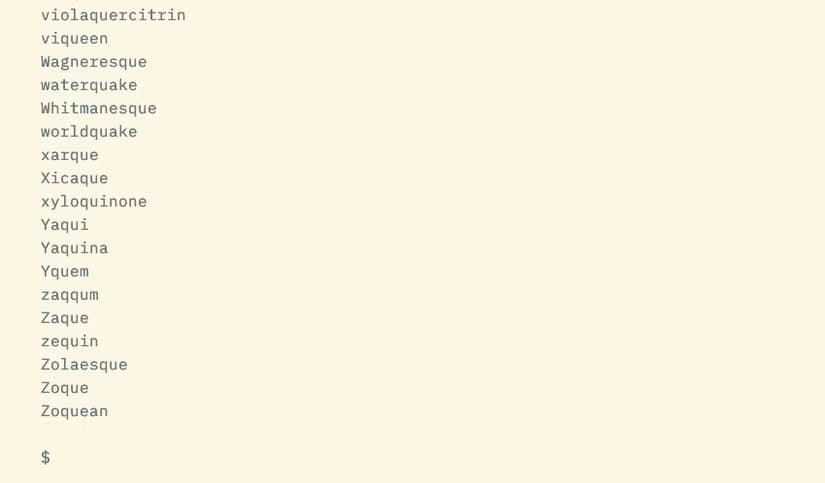
grep '[Qq]' /usr/share/dict/words | lessPiping to less gives you a pager. Use arrow keys to scroll, spacebar to jump pages, and q to quit. The grep command doesn't have a built-in pager. This pipeline adds one.
tail -f | grep: Monitor Logs in Real Time
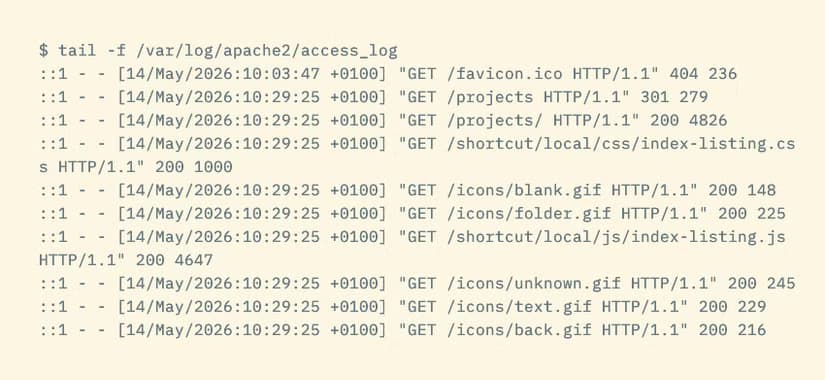
The tail -f command shows a live view of a file. As new lines appear, they print to your terminal. It's the standard way to watch log files, like Apache access logs or application output.
But raw logs are noisy. You need specific entries: certain URLs, error codes, or message types. Add grep to filter the stream.
tail -f /var/log/apache2/access.log | grep '404'This shows only 404 errors as they happen. Change the pattern to match whatever you're tracking.
One gotcha: the order matters. Piping grep to tail -f doesn't work. When tail receives piped input, it ignores the -f flag and exits immediately.

history | grep: Find Past Commands Fast
Bash stores your last 500 commands by default. Some users configure unlimited history. Either way, scrolling through all that output wastes time.
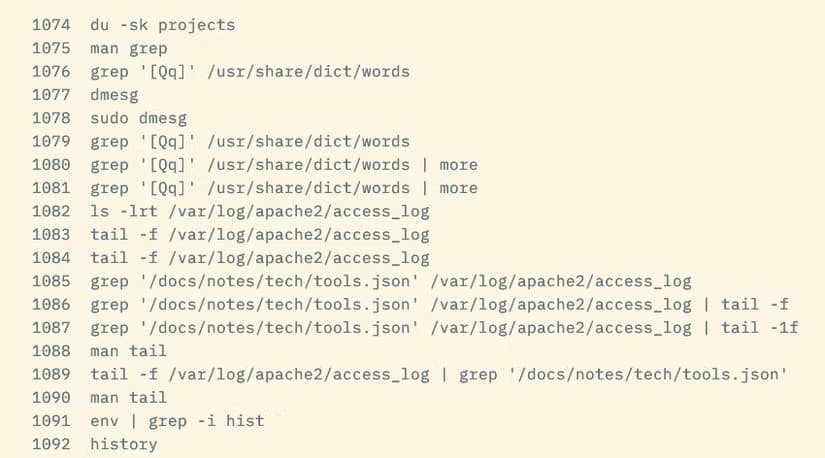
history | grep sshThis finds every SSH command you've run. Works for any command or argument pattern. Forgot the exact flags you used last time? This pipeline retrieves them.
sort | uniq: Count and Deduplicate
The uniq command removes duplicate lines. But it only catches adjacent duplicates. If the same value appears in lines 5 and 50, uniq misses it.
Sort first. Then uniq works on the entire dataset.
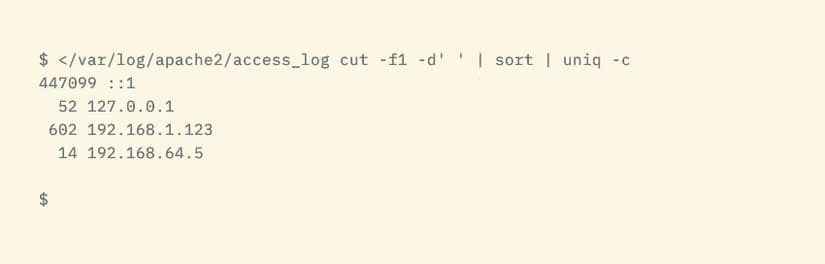
Code sample: cat access.log | cut -d' ' -f1 | sort | uniq -c | sort -rn | head
This pipeline extracts IP addresses from a log, counts occurrences, and shows the top visitors. Each pipe adds a step: extract, sort, count, rank, limit.
Building Your Own Pipelines
These examples share a pattern. Start with a command that produces output. Pipe it to a command that transforms or filters. Add more stages as needed.
- grep filters lines matching a pattern
- sort reorders lines alphabetically or numerically
- uniq removes duplicates (after sorting)
- head and tail limit output to first or last N lines
- less adds pagination to any output
- cut extracts specific columns or fields
- wc counts lines, words, or characters
Mix these tools freely. Each combination solves a different problem. The pipeline approach means you don't need to memorize specialized flags for every scenario. You assemble the tools you already know.
When Pipes Beat Scripts
You could write a Python script to filter logs. Or a bash script with loops. But for one-off tasks, pipelines are faster to type and easier to modify.
Need to change the filter pattern? Edit one word. Want to add a count? Tack on another pipe. The feedback loop is immediate. Run the command, see results, adjust, repeat.
Once you find a pipeline you use often, that's when you save it to a script or alias. The pipeline is the prototype. The script is the production version.
Logicity's Take
Frequently Asked Questions
What is the pipe character in Linux?
The pipe character (|) connects two commands, sending the output of the first command as input to the second. It lets you chain simple programs into complex workflows without writing scripts.
Why doesn't grep | tail -f work?
The tail command ignores the -f (follow) flag when receiving piped input. Use tail -f first, then pipe to grep: tail -f logfile | grep pattern.
How do I count unique values in a file?
Pipe through sort first, then uniq -c. For example: cat file.txt | sort | uniq -c will show each unique line with its count.
Can I use multiple pipes in one command?
Yes. You can chain as many pipes as needed. Each command processes the output of the previous one. Complex pipelines might have five or more stages.
More hands-on Linux and automation projects
Free tools that replace paid software
Need Help Implementing This?
Source: How-To Geek
Manaal Khan
Tech & Innovation Writer
Produced with AI assistance and reviewed by the Logicity editorial team. Learn more in our Editorial Policy.