Key Takeaways
- Schedule messages to send at specific times so you never forget a birthday text
- Snooze distracting conversations for an hour, 8 hours, a day, or forever
- Pin up to 20 important chats to the top of your inbox for quick access
Google Messages replaced Android's original messaging app in 2014. Since then, Google has quietly added features that most users never discover. If you're only using Messages for basic texting, you're missing tools that can save you time and cut through notification noise.
Andy Betts, a senior writer at How-To Geek with over 20 years in consumer tech journalism, recently shared eight features he wishes he'd known about sooner. Here's the rundown.
Schedule Messages to Send Later
You know you need to send a birthday message, but it's 11 PM and the person's birthday is tomorrow. The old solution: hope you remember in the morning. The better solution: write the message now and schedule it.
Type your message as normal, then long-press the Send button instead of tapping it. This opens the Schedule Send screen. You can pick "Later today," "Later tonight," tomorrow morning, or a custom date and time. Press Send again to confirm. You can edit the message before it goes out if you change your mind.
Snooze Conversations You Don't Want Right Now
Group chats are useful until they blow up while you're trying to focus. Google Messages lets you snooze entire conversations so they stop bothering you temporarily.
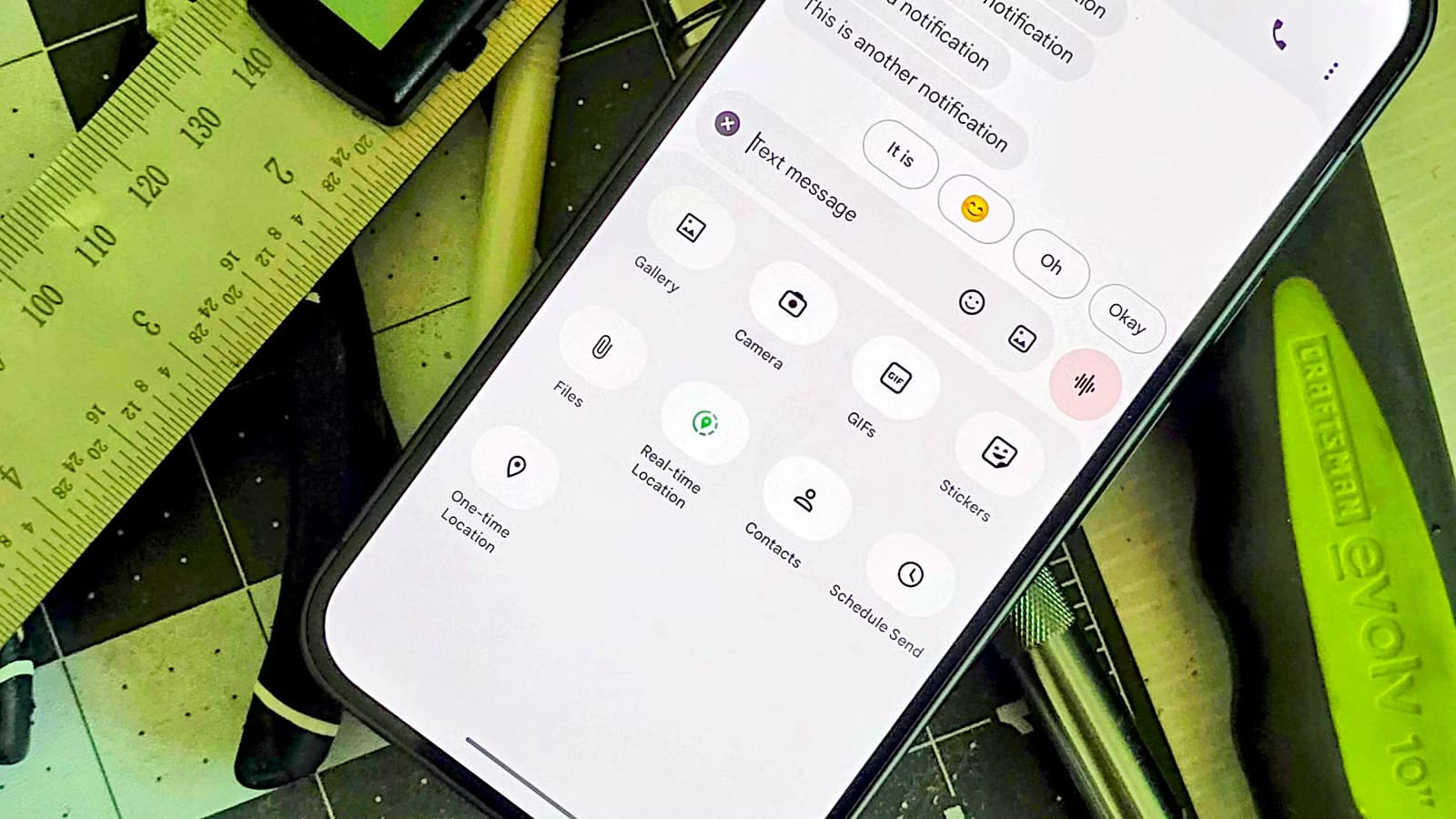
From the main screen, long-press on any conversation and tap the Snooze icon. Your options are one hour, eight hours, one day, or forever. Android also lets you snooze individual message notifications. When an alert comes through, tap Snooze and the notification will reappear at your chosen time.
Pin Important Conversations to the Top
If you mostly reply from notifications and rarely open the Messages app itself, you might lose track of important ongoing conversations. Pinning fixes this.

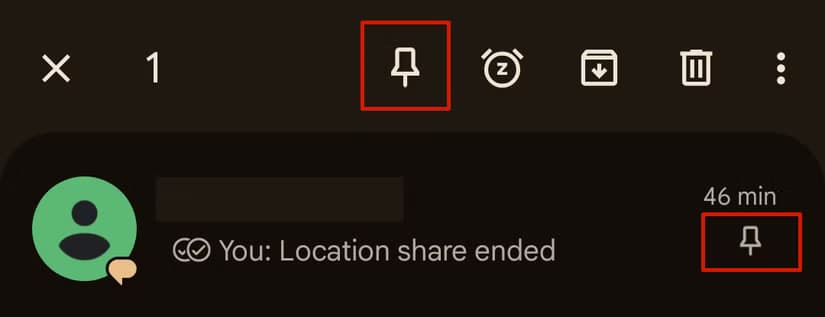
Long-press on a conversation and hit the Pin icon. That chat now stays at the top of your inbox. You can pin up to 20 conversations, though that's more than will fit on one screen. Betts recommends keeping the number small so the feature stays useful.
Star Individual Messages
Pinning keeps whole conversations accessible. Starring marks individual messages you want to find later. This is useful for addresses, confirmation codes, or anything you'll need to reference.
The article didn't include step-by-step instructions for starring, but the feature works similarly to other long-press actions in Messages.
If you're optimizing your Android experience, this suite offers lightweight alternatives to default apps
Why These Features Stay Hidden
Google doesn't surface most of these options in obvious places. Scheduling requires a long-press instead of a tap. Snoozing lives behind another long-press menu. Unless someone shows you these exist, you'll probably never find them.
This is a recurring pattern with Google apps. Features get added but not promoted. Power users stumble onto them; everyone else keeps using the basics.

Logicity's Take
Quick Reference: Where to Find Each Feature
- Schedule messages: Long-press Send button after typing
- Snooze conversations: Long-press conversation, tap Snooze icon
- Snooze notifications: Tap Snooze when notification appears
- Pin conversations: Long-press conversation, tap Pin icon
- Star messages: Long-press individual message
Frequently Asked Questions
Can I schedule a recurring message in Google Messages?
No. Google Messages only supports one-time scheduled messages. For recurring texts, you'd need a third-party app or automation tool.
How many conversations can I pin in Google Messages?
You can pin up to 20 conversations. They'll stay at the top of your inbox in the order you pinned them.
What happens when I snooze a conversation 'forever'?
The conversation is silenced indefinitely. You won't get notifications from it until you manually unsnooze it.
Do scheduled messages work without internet?
Scheduled SMS messages should send without internet, but RCS messages require a data connection at the scheduled time.
Need Help Implementing This?
Source: How-To Geek
Manaal Khan
Tech & Innovation Writer
Produced with AI assistance and reviewed by the Logicity editorial team. Learn more in our Editorial Policy.