Key Takeaways
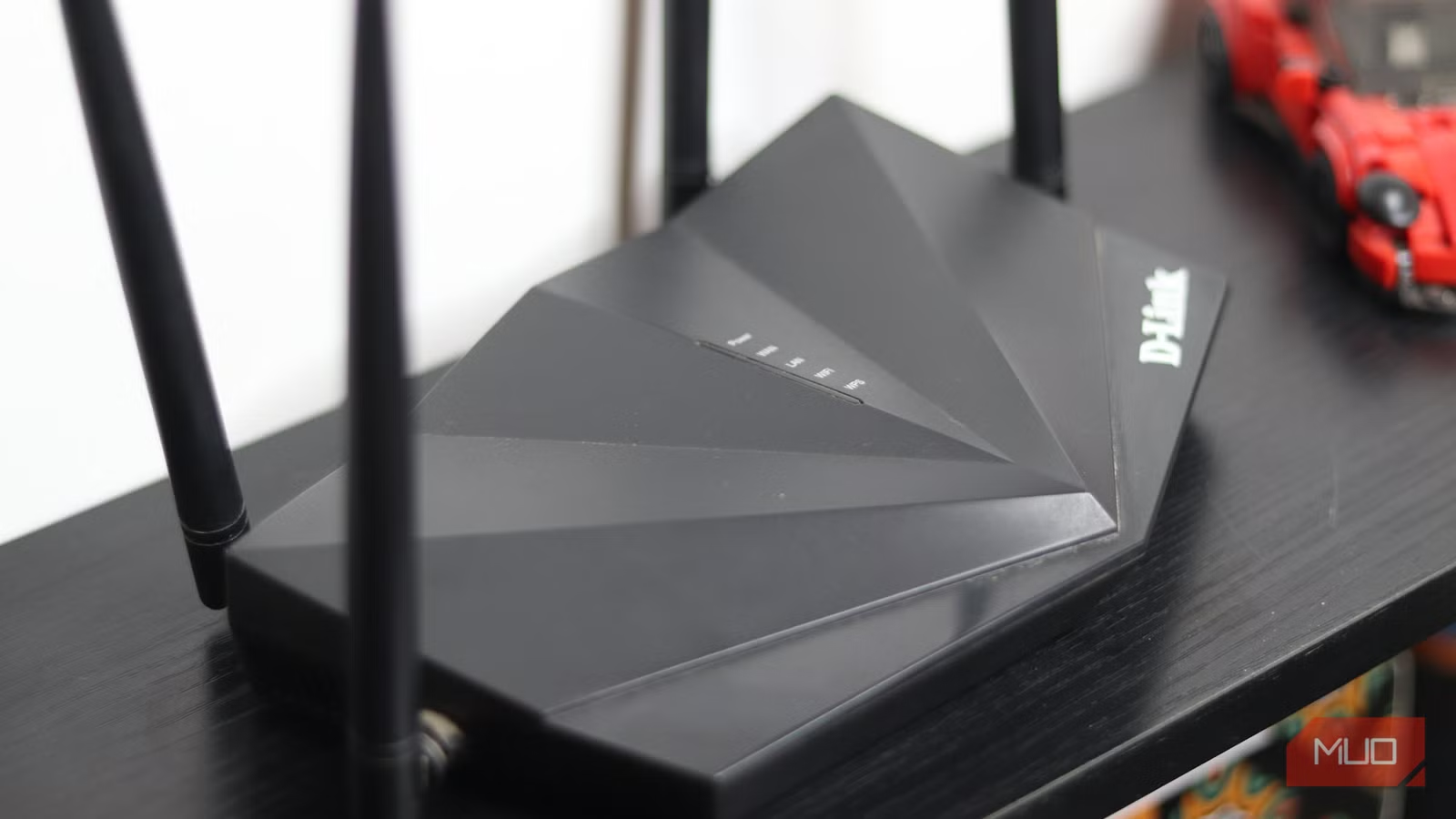
- WPS convenience comes with brute-force vulnerability; disable it if you don't use it
- QoS lets you prioritize gaming, streaming, or work devices over bandwidth-hungry background tasks
- Switching DNS at the router level applies faster, more private lookups to every connected device
Your router ships with defaults designed for easy setup, not security or performance. Most people plug it in, connect their devices, and never touch the settings again. That's a mistake. According to a Broadband Genie survey, 86% of users never change their router's default admin password, and an American Consumer Institute study found 83% of home routers run firmware with known vulnerabilities.
The settings below take about 15 minutes to change. Do it before you connect your first device.
Disable WPS unless you actually use it
Wi-Fi Protected Setup lets you connect devices without typing your password. Press a button, pair a device. Simple. The problem: WPS PIN authentication is vulnerable to brute-force attacks. An attacker with the right tools can try all possible PINs and gain network access without ever knowing your Wi-Fi password.
Most people never use WPS. If that describes you, turn it off. The convenience isn't worth leaving a backdoor open.
Use QoS to prioritize devices that matter
By default, your router treats every device equally. That sounds fair until your smart TV starts buffering mid-movie because a tablet is uploading photos to the cloud. Quality of Service (QoS) lets you tell the router which devices or traffic types get bandwidth first.
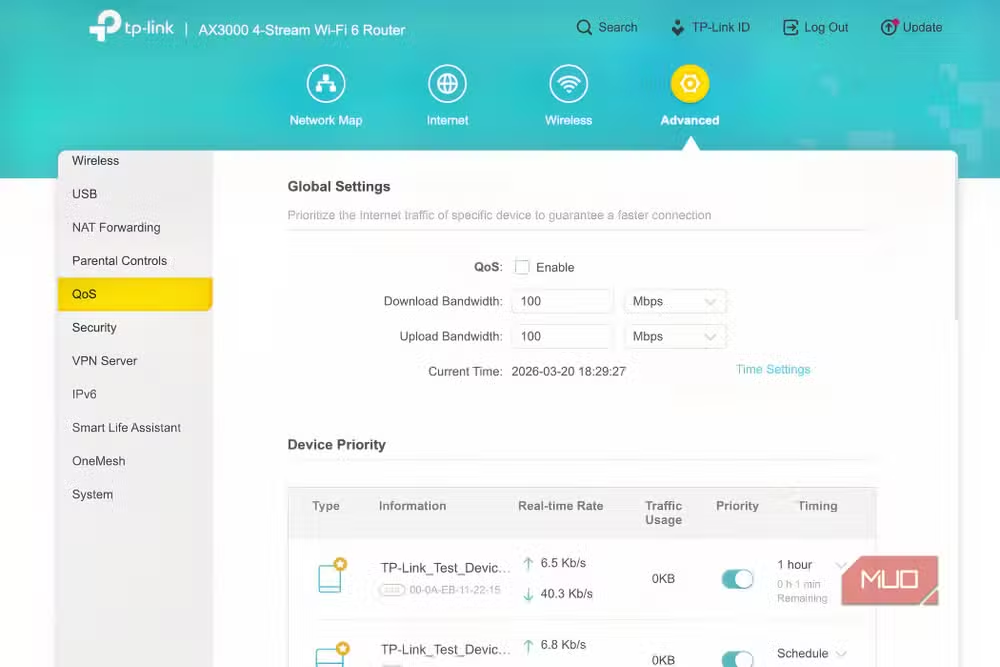
Set high priority for your gaming PC, work laptop, or video conferencing apps. Set low priority for bulk downloads and cloud backups. Some routers let you prioritize by traffic type: gaming and streaming high, web browsing medium, file transfers low.
Pick a less crowded Wi-Fi channel
Most routers auto-select a Wi-Fi channel. In a sparse neighborhood, that's fine. In an apartment building where 20 routers broadcast on the same channel, it slows everything down. The 2.4GHz band is the worst offender because it has fewer non-overlapping channels.
Switch to manual channel selection. For 2.4GHz, channels 1, 6, or 11 are your only non-overlapping options. For 5GHz, try 36, 40, 44, or 48. A free Wi-Fi analyzer app on your phone can scan nearby networks and show you which channels are congested.
Replace your ISP's DNS
DNS translates website names into IP addresses. Your router defaults to your ISP's DNS servers, which are rarely the fastest or most private option. ISP DNS servers have been caught logging queries, injecting ads, or simply being slow.
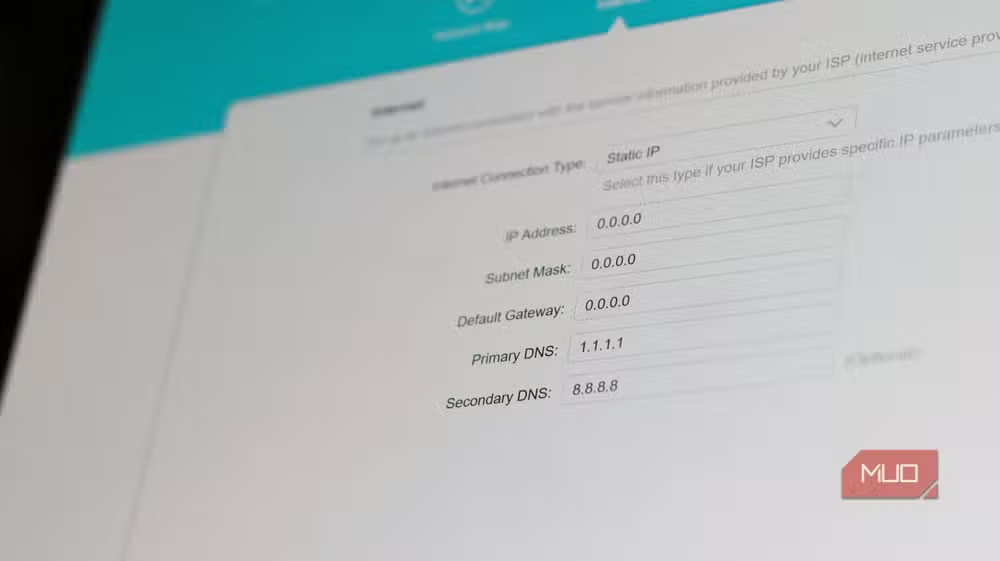
Switch to Cloudflare (1.1.1.1) or Google DNS (8.8.8.8). Both are faster for most users and offer better protection against known malicious domains. Changing DNS at the router level means every device on your network benefits automatically. No need to configure your phone, laptop, and TV separately.
Change the router's admin password
This one should be obvious, but most people skip it. Default credentials are printed in manuals, posted online, and often as simple as admin/admin. Anyone on your network, or anyone who compromises a device on your network, can log into your router and change settings, redirect traffic, or install malicious firmware.
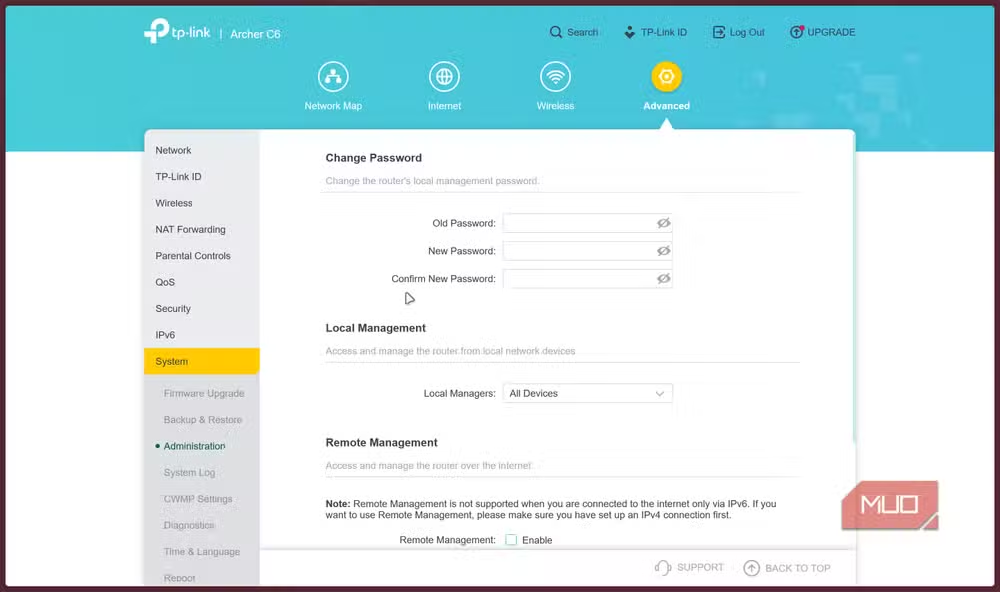
Pick a strong, unique password. Store it in a password manager. This takes 30 seconds and closes one of the easiest attack vectors.
Update the firmware
Router manufacturers release firmware updates to patch security holes. Most users never install them. Jake Williams, a former NSA hacker and cybersecurity consultant, calls firmware updates "the single most neglected aspect of home network security." Many routers run firmware years out of date with publicly known exploits.
Check for updates in your router's admin panel. If your router supports automatic updates, enable them. If not, set a calendar reminder to check quarterly.
Why this matters now
Home routers are increasingly targeted by sophisticated attackers. The FBI and CISA discovered over 300,000 compromised small office and home routers in the "Volt Typhoon" campaign, attributed to state-sponsored actors. These weren't business targets. They were ordinary home networks, recruited into botnets because their owners never changed the defaults.
With an average of 20+ devices per household connecting through a single router, the attack surface is enormous. A compromised router can intercept traffic, redirect banking sessions, or serve as a launchpad for attacks on your employer's network when you work from home.
Another settings change that improves privacy and control over your data
Frequently Asked Questions
How do I find my router's admin page?
Open a browser and type your router's IP address, usually 192.168.0.1 or 192.168.1.1. The exact address is printed on a sticker on the router or in its manual.
Will changing DNS affect my internet speed?
It can. Third-party DNS providers like Cloudflare often resolve queries faster than ISP servers. The difference is usually small, a few milliseconds per lookup, but it adds up across hundreds of daily requests.
What happens if I disable WPS and forget my Wi-Fi password?
You'll need to log into your router's admin panel to view or reset the password. Keep your admin credentials in a password manager so you don't lose access.
How often should I update my router's firmware?
Check quarterly at minimum. Enable automatic updates if your router supports them. Critical security patches sometimes release outside regular schedules.
Does QoS slow down other devices?
Only when bandwidth is constrained. QoS prioritizes traffic during congestion. When your connection has headroom, all devices get what they need.
Logicity's Take
The real story here isn't any single setting. It's the gap between what manufacturers ship and what users need. Router makers optimize for returns and support calls, not security. Until routers ship with unique passwords, automatic updates enabled by default, and WPS off, the burden falls on users. That's unlikely to change without regulatory pressure, which makes guides like this necessary but also a symptom of a broken model.
Need Help Implementing This?
If configuring your router feels overwhelming, consider a managed mesh system like Eero or Google Wifi, which handle updates and security settings automatically. For business networks, consult a network security professional to audit your setup.
Source: MakeUseOf
Huma Shazia
Senior AI & Tech Writer
Produced with AI assistance and reviewed by the Logicity editorial team. Learn more in our Editorial Policy.






