Key Takeaways
- Change the default theme and fonts immediately. Obsidian has 500+ community themes available with one-click installation.
- Set up a dedicated .trash folder inside your vault instead of using system trash to prevent accidental permanent deletions.
- Create an archive folder for notes you don't need but aren't ready to delete.
Obsidian works fine out of the box. But "fine" isn't the same as productive. The default theme is bland, the delete confirmation gets annoying fast, and several useful features sit buried in settings menus. Spending ten minutes on setup when you create a new vault saves hours of friction later.
Here are six changes worth making every time you start fresh.
1. Change the Theme
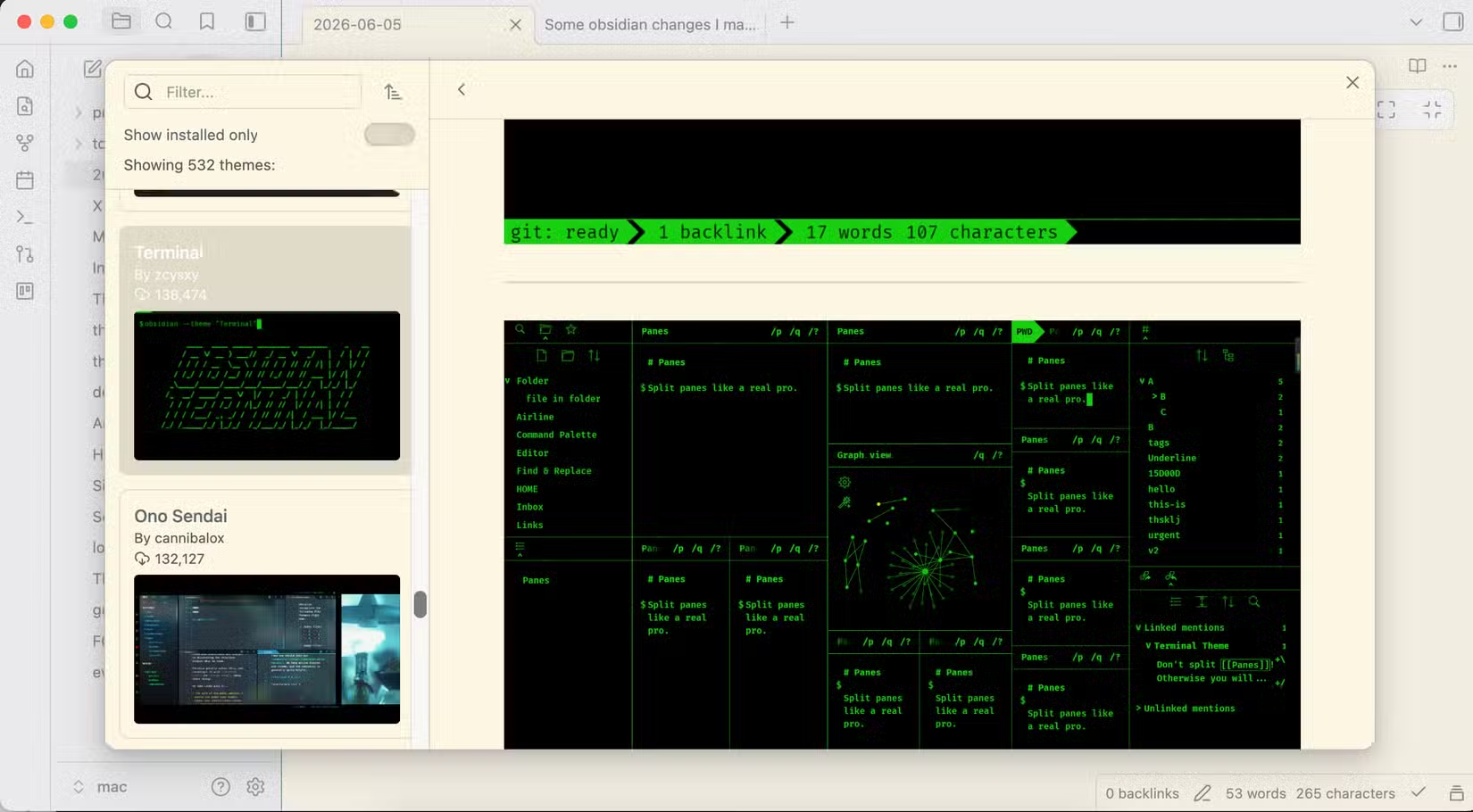
The default Obsidian theme is functional but forgettable. The community has built over 500 alternatives, and installing one takes about ten seconds.
Open Settings (the gear icon next to your vault name) and click the Appearance tab. Click Manage next to the theme menu. Browse the catalog, preview screenshots, and click Install and use on any theme that catches your eye. Your downloaded themes will appear in the main Appearance menu for easy switching later.
While you're in Appearance, scroll down to the Font section. You can swap the interface font and note font separately using the dropdown menus. If you spend hours in Obsidian, picking a typeface you actually like makes a difference.
2. Fix the Trash System
By default, Obsidian asks "Are you sure?" every time you delete a note. This gets old fast. Worse, deleted notes go to your system trash. Empty that bin for any reason and your accidentally deleted notes vanish with everything else.
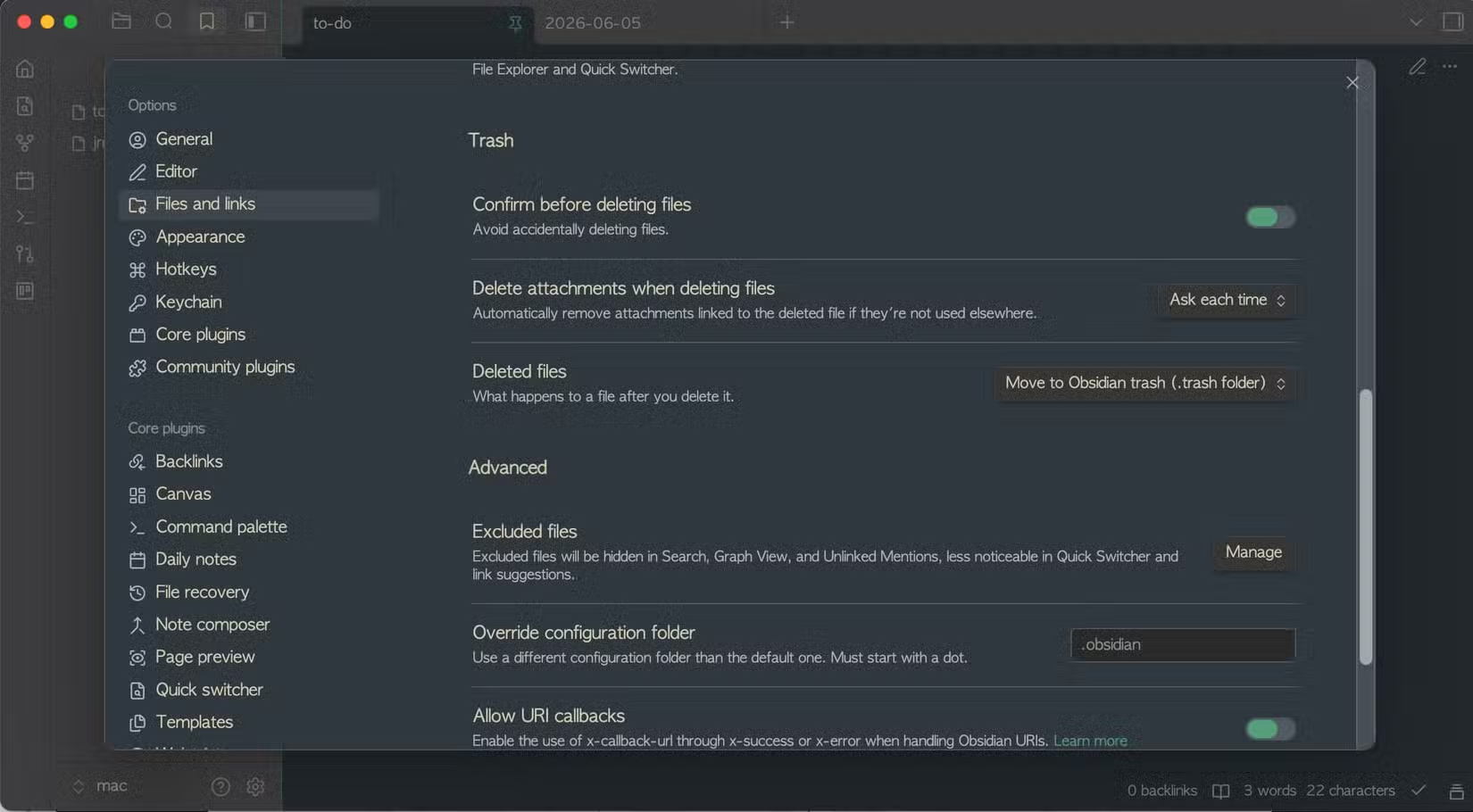
Go to Settings > Files and Links and find the Trash section. First, switch off "Confirm before deleting files" to skip the warning popup.
Second, change the trash destination from system trash to "Move to Obsidian .trash." This creates a hidden folder inside your vault that holds deleted notes. You can access it through your file manager (enable "show hidden files") and recover anything you deleted by accident. Your vault's trash stays separate from your system's trash.
3. Create an Archive Folder
Some notes don't belong in your active workspace but shouldn't be deleted either. Old project plans, completed task lists, reference material you might need someday. Deleting them feels wrong. Keeping them clutters your vault.
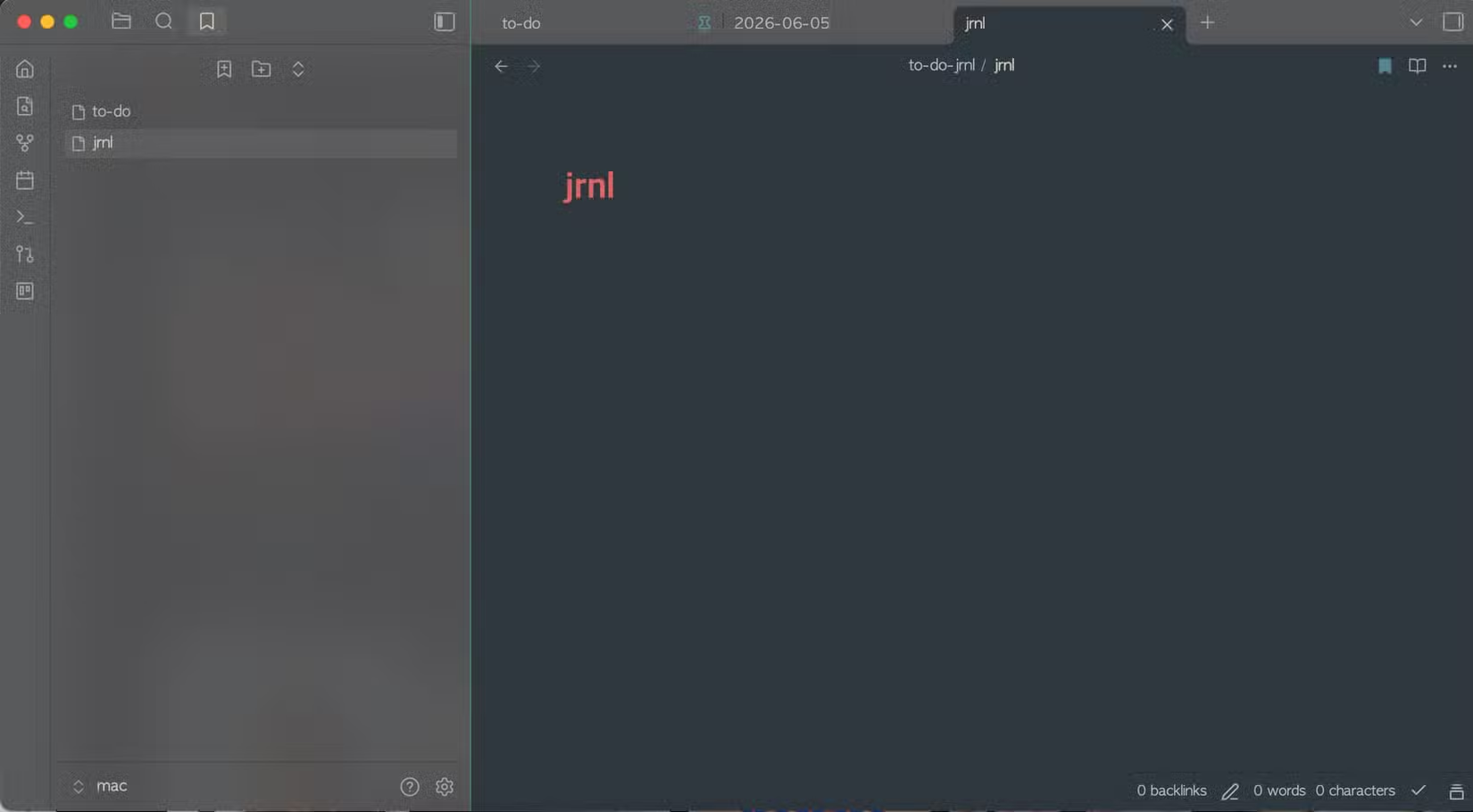
The solution is a dedicated archive folder. Click the new folder button in the file explorer and name it something like "Archive" or "_Archive" (the underscore keeps it at the top or bottom of alphabetical lists, depending on your preference).
When a note has served its purpose, drag it to the archive instead of deleting it. Your working vault stays clean. Your old notes remain searchable if you need them.
4. Set Up Custom Hotkeys
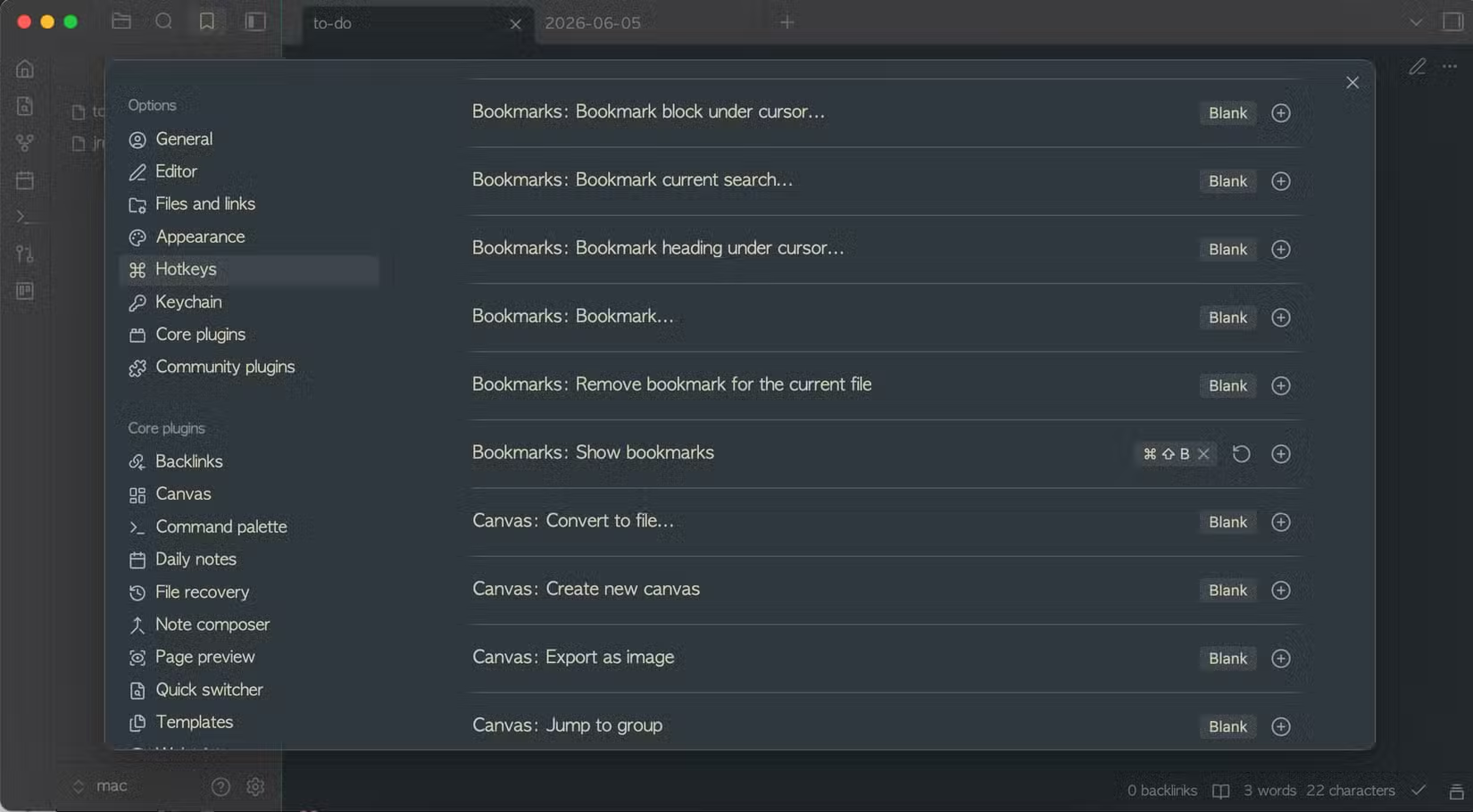
Obsidian's default keyboard shortcuts cover the basics, but the real power comes from customizing them to match how you work. Go to Settings > Hotkeys to see every available command.
A few worth setting up: a hotkey for your daily note (if you use one), quick access to the command palette, and shortcuts for frequently used plugins. The search bar at the top of the Hotkeys panel helps you find specific commands.
5. Enable Essential Core Plugins
Obsidian ships with several core plugins disabled by default. Go to Settings > Core plugins and review what's available. Depending on your workflow, consider enabling:
- Daily notes: Creates a new note for each day, useful for journaling or task tracking
- Templates: Insert pre-made note structures with a command
- Backlinks: Shows which notes link to your current note
- Graph view: Visualizes connections between notes
You don't need all of them. Pick the ones that match how you actually work.
6. Browse Community Plugins
Core plugins handle the basics. Community plugins handle everything else. Go to Settings > Community plugins, disable Restricted Mode if you're comfortable with third-party code, and click Browse.
The catalog contains hundreds of plugins. Popular options include Calendar (a visual calendar for daily notes), Dataview (query your notes like a database), and Advanced Tables (better table editing). Install only what you'll actually use. Plugin bloat slows down Obsidian and adds complexity.
Another productivity setup worth configuring
The Goal: Organized from Day One
These six changes take about fifteen minutes total. The point isn't to make Obsidian perfect. It's to build a foundation that scales. Vaults grow fast once you start using them daily. A theme you enjoy, a trash system that protects your work, an archive that keeps things tidy, and hotkeys that speed up common tasks make the difference between a vault that works for you and one that works against you.
Logicity's Take
Frequently Asked Questions
Are Obsidian community plugins safe to install?
Community plugins are created by third-party developers and not audited by Obsidian. Most popular plugins are safe, but you're trusting the developer. Stick to well-reviewed plugins with active maintenance if security matters to you.
Can I sync Obsidian settings across devices?
Yes. Obsidian Sync (paid) syncs settings, themes, and plugins. You can also manually sync the .obsidian folder in your vault using any cloud storage service.
How many plugins should I install in Obsidian?
As few as possible. Each plugin adds startup time and potential bugs. Start with core plugins, add community plugins only when you hit a specific limitation, and remove any you stop using.
Does changing themes affect my notes?
No. Themes only change appearance. Your notes remain plain Markdown files regardless of which theme you use.
Need Help Implementing This?
Source: How-To Geek
Huma Shazia
Senior AI & Tech Writer
Produced with AI assistance and reviewed by the Logicity editorial team. Learn more in our Editorial Policy.