Key Takeaways
- Windows 11 supports up to 32 virtual desktops, each functioning as a separate workspace
- A four-finger swipe up on your trackpad reveals all virtual desktops instantly
- Combining virtual desktops with Snap Layouts lets you manage over 100 apps simultaneously
Most laptop users accept a productivity drop when they leave their desk. The external monitor stays behind, and suddenly you're cramming browser tabs, Slack, and spreadsheets onto a single screen. But Windows 11 has a built-in feature that replicates the multi-monitor workflow: virtual desktops, controlled by a simple trackpad gesture.
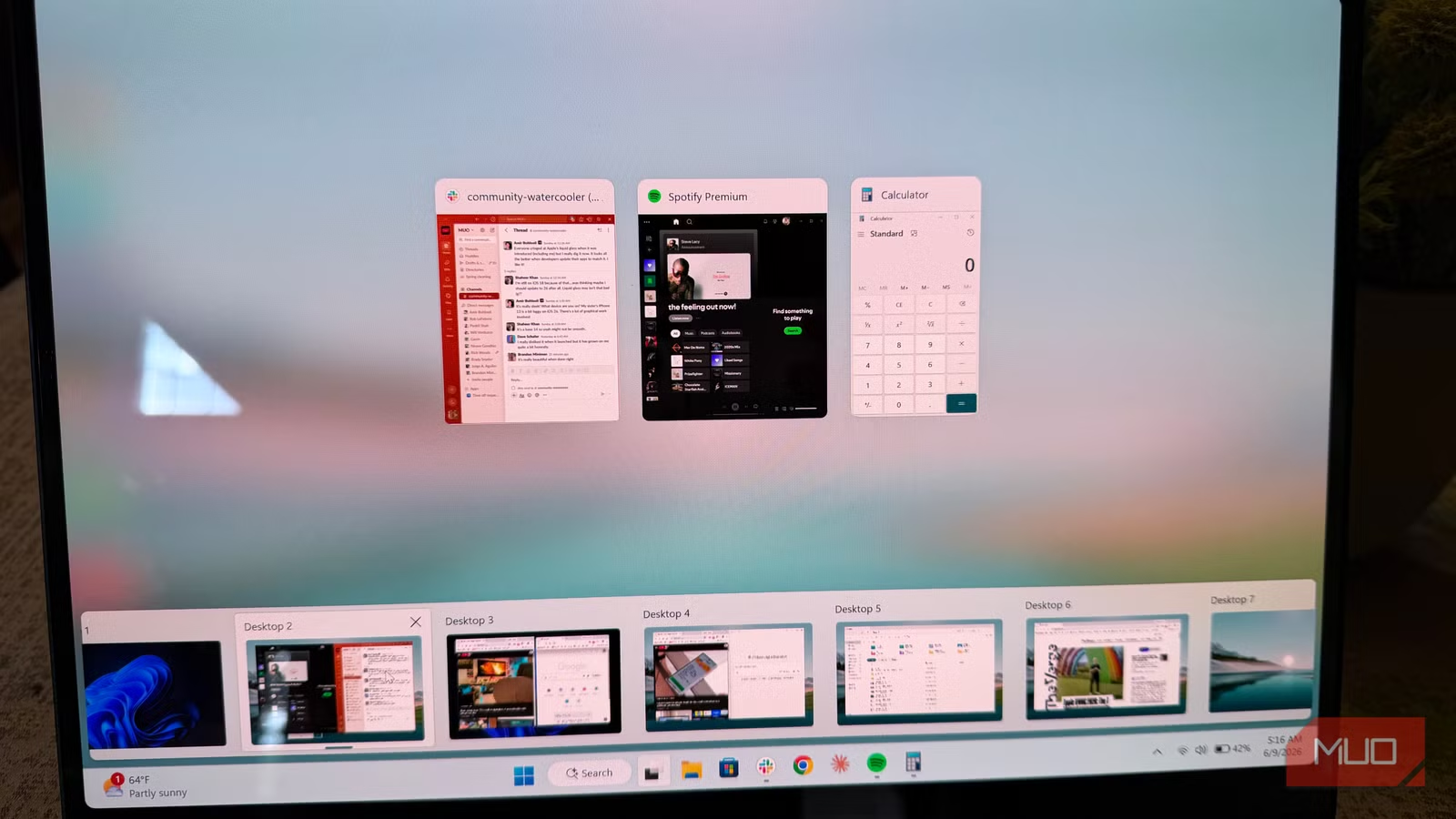
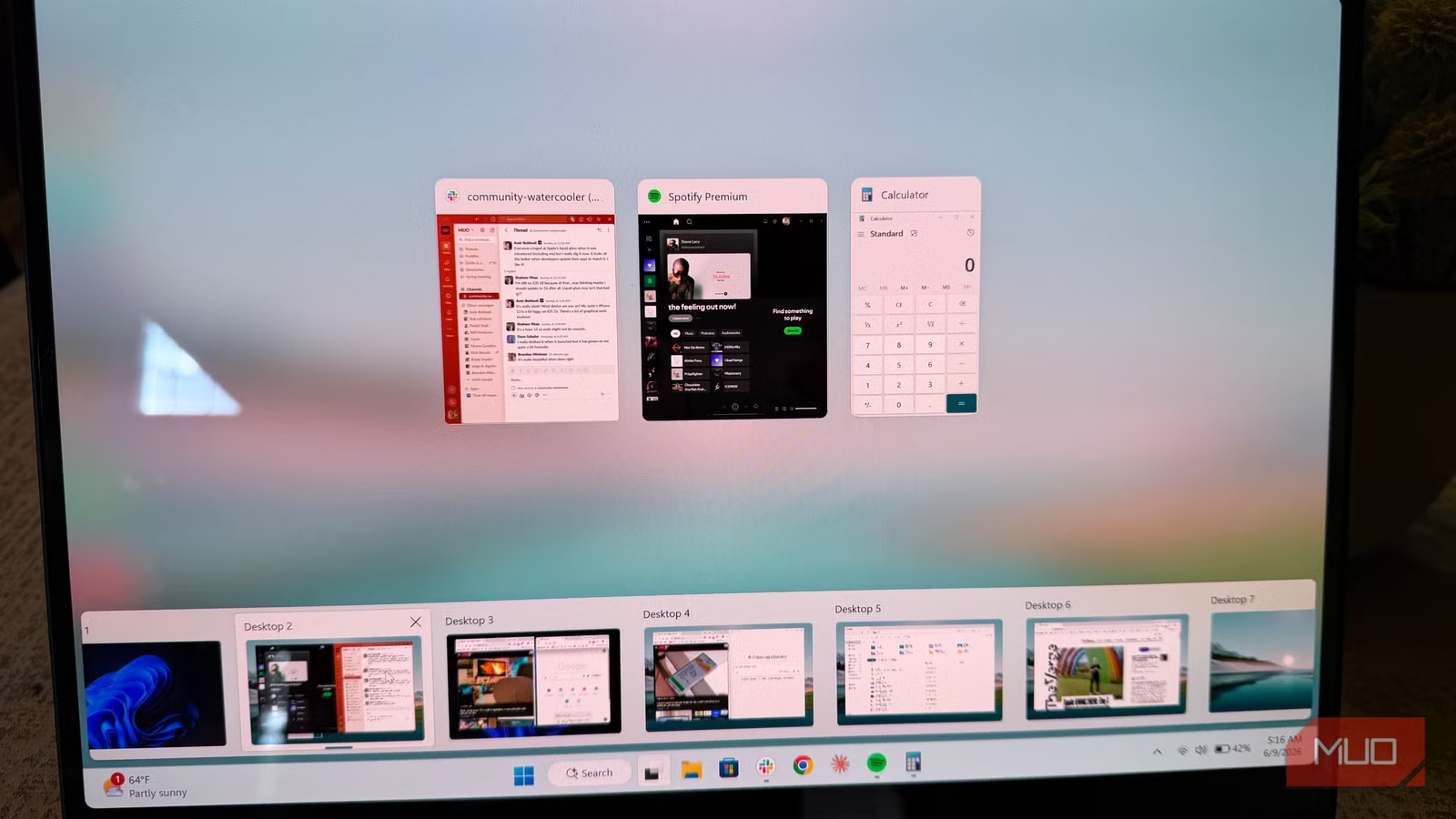
Swipe up with four fingers on your trackpad, and Windows reveals a row of virtual desktops along the bottom of your screen. Each desktop acts as a separate workspace with its own arrangement of apps. You can have your email and calendar on one desktop, your coding environment on another, and your travel planning apps on a third. The effect is similar to glancing at a second monitor, except everything lives on your laptop.
What Virtual Desktops Actually Do
Windows 11 lets you create up to 32 virtual desktops. Each one holds a collection of windows that stay separate from the others. When you switch desktops, your current windows disappear and a different set appears. The apps keep running in the background. Nothing closes.
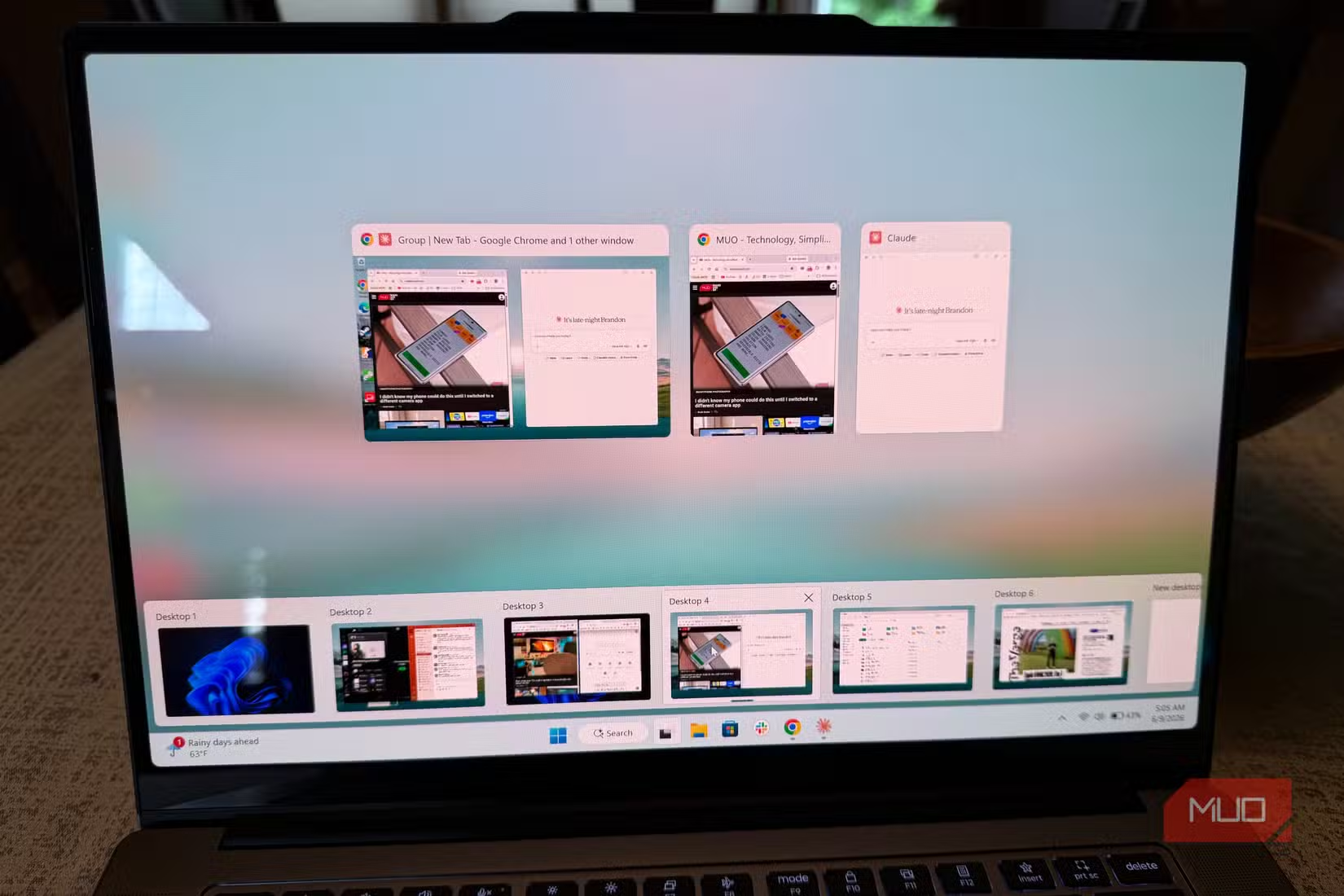
This matters for context switching. Instead of hunting through Alt+Tab to find your email among 15 other windows, you swipe to your communication desktop where only email and messaging apps live. The cognitive load drops. You see exactly what you need for that task.
Brandon Miniman, writing for MakeUseOf, describes organizing desktops by activity: one desktop for trip planning with a calculator, AI assistant, and Google Maps; another for personal tasks with email and messaging. The pattern extends to any workflow. Developers might keep their IDE on one desktop, documentation on another, and testing tools on a third.
The Trackpad Gestures That Make It Work
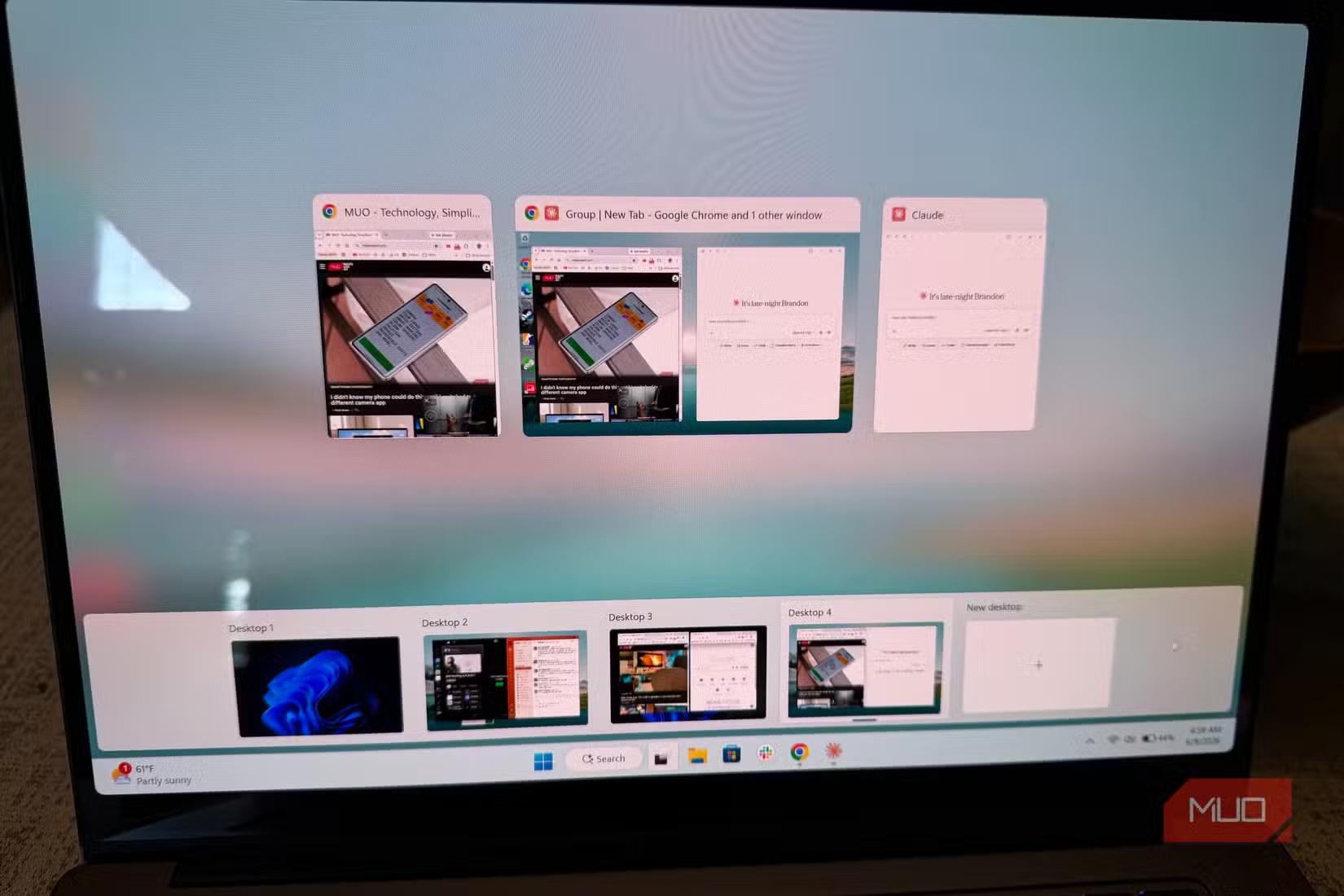
The four-finger swipe up is the entry point. It shows all your virtual desktops in an overview where you can:
- Click any desktop thumbnail to switch to it
- Drag desktops to reorder them
- Hover over a desktop and click X to close it
- Click the plus icon to create a new desktop
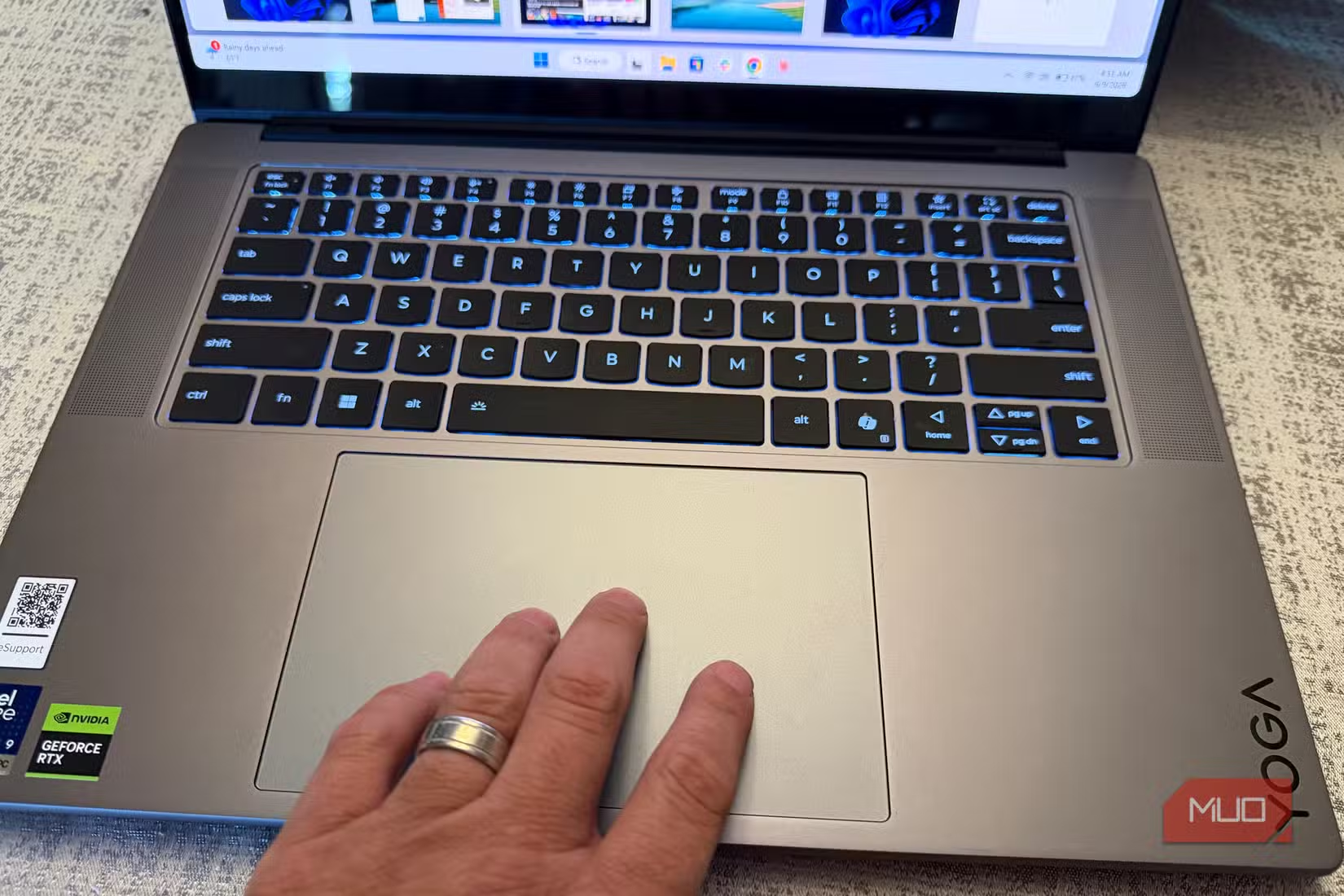
But the faster method is the four-finger horizontal swipe. Swipe left or right with four fingers to jump directly between adjacent desktops without opening the overview. This is where the multi-monitor illusion gets convincing. You're swiping between workspaces the way you'd glance at a second screen.
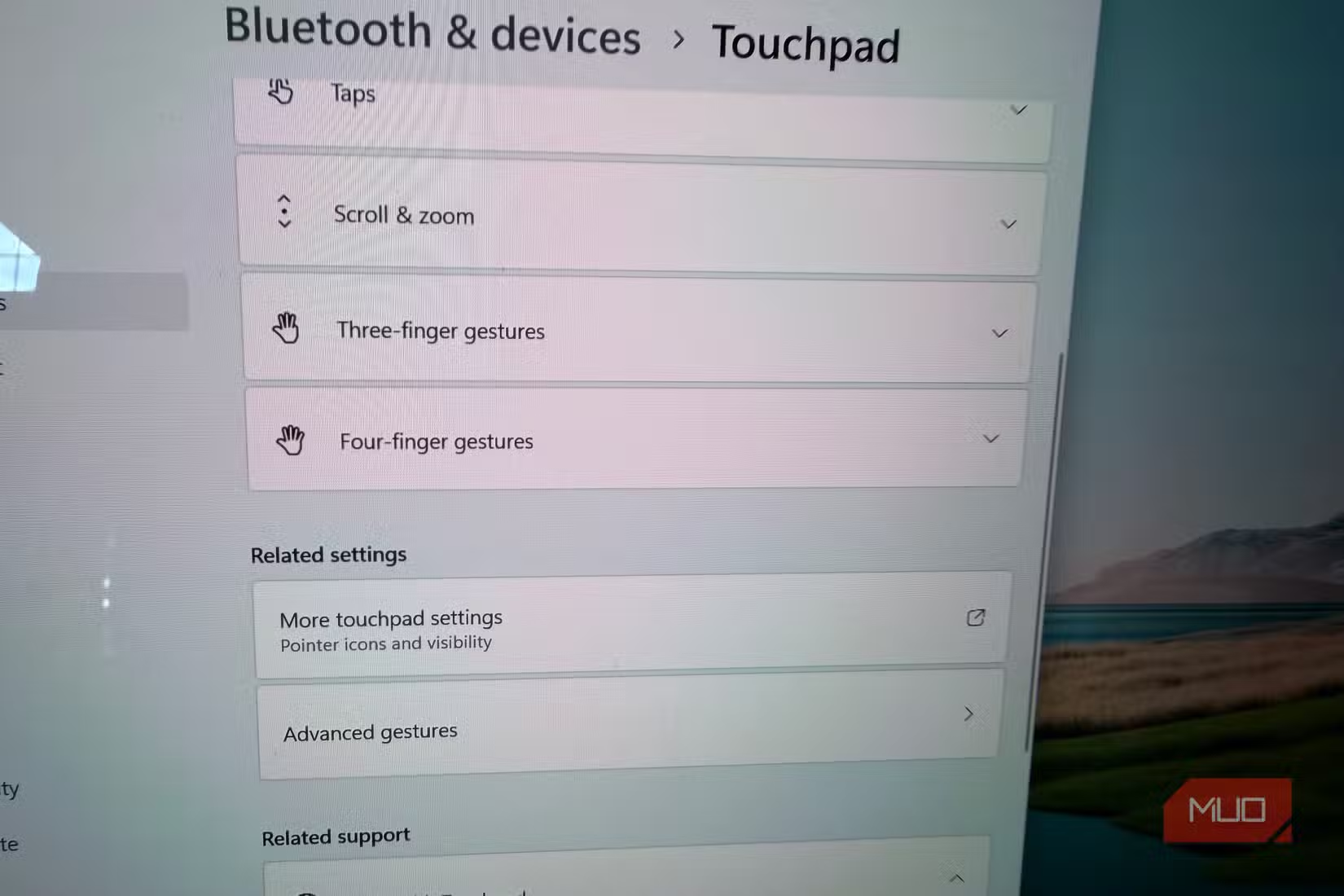
These gestures require a Windows precision trackpad, which most laptops made after 2018 include. You can check by going to Settings > Bluetooth & devices > Touchpad. If you see "Your PC has a precision touchpad," you're set.
Combining with Snap Layouts
Virtual desktops become more powerful with Snap Layouts. Hover over the maximize button on any window, and Windows shows you layout options: side by side, quarters, thirds. Pick a zone, and the window snaps into it. Then fill the remaining zones with other apps.
On a single desktop, you can display up to four apps at once using the quarter layout. Multiply that across 32 desktops and you get a theoretical maximum of 128 apps visible without any overlapping. In practice, most people use 3-5 desktops with 2-3 apps each. The point isn't to max out. It's to organize apps by context so you can find them instantly.
Customizing Gesture Behavior
If the default four-finger gestures don't match your preferences, you can change them. Go to Settings > Bluetooth & devices > Touchpad > Advanced gestures. Windows lets you reassign what each four-finger swipe direction does. You can set three-finger gestures for desktop switching if four fingers feels awkward.
Some users prefer keyboard shortcuts instead. Win+Ctrl+Left or Right arrow switches desktops. Win+Ctrl+D creates a new desktop. Win+Tab opens the desktop overview. These work on any Windows 11 PC, including desktops with mice. But on laptops with good trackpads, the gestures are faster.
“The trackpad is no longer just a pointing device; it is a primary interface for spatial computing on a 2D screen.”
— Satya Nadella, CEO at Microsoft
When This Works Better Than a Monitor
Virtual desktops solve the mobility problem. Portable monitors exist, but they add weight, require cables, and need power. A 15-inch portable display plus its stand and cables adds roughly a pound to your bag. Virtual desktops add nothing. They're already in your laptop.
The approach also helps on cramped surfaces. Coffee shop tables and airplane tray tables barely fit a laptop. There's no room for a second screen. But virtual desktops let you spread your work across multiple spaces without taking up physical room.
Reddit's r/Windows11 and r/productivity communities frequently mention this feature as underrated. Power users report that once they mastered the four-finger swipe, their reliance on external displays dropped significantly during travel.
The Limits of Virtual Desktops
Virtual desktops don't give you more pixels. If you're editing video or working with large spreadsheets, a physical second monitor still helps because it adds actual screen area. Virtual desktops help with organization, not resolution.
There's also a learning curve. The gesture takes practice. Some people find four-finger swipes unreliable on older trackpads. And if you forget which desktop holds which app, you lose time hunting. The system works best when you establish consistent rules: communication on Desktop 1, main work on Desktop 2, reference material on Desktop 3.
✅ Pros
- • No additional hardware or cost
- • Works anywhere, no setup required
- • Reduces window clutter and Alt+Tab fatigue
- • Customizable gesture controls
❌ Cons
- • Doesn't add actual screen real estate
- • Requires practice to build muscle memory
- • Easy to lose track of which desktop has which app
- • Some older trackpads don't support precision gestures
Logicity's Take
Frequently Asked Questions
How many virtual desktops can Windows 11 support?
Windows 11 supports up to 32 virtual desktops. Each can hold multiple snapped windows, letting you organize dozens of apps across separate workspaces.
What trackpad gesture switches between virtual desktops?
A four-finger horizontal swipe moves between adjacent desktops. A four-finger swipe up opens the desktop overview where you can see and manage all desktops.
Do virtual desktops slow down my laptop?
Apps on inactive desktops continue running and using RAM. If you open many apps across multiple desktops, you may see slowdowns on systems with limited memory. 16GB RAM handles most workflows comfortably.
Can I use virtual desktops with a mouse instead of a trackpad?
Yes. Click the Task View button on the taskbar or press Win+Tab to open the desktop overview. Keyboard shortcuts Win+Ctrl+Left/Right switch desktops directly.
Do virtual desktops replace a second monitor?
They replicate the organizational benefit but not the extra screen space. Virtual desktops help separate tasks and reduce clutter. A second monitor adds actual pixels for viewing more content simultaneously.
Need Help Implementing This?
Source: MakeUseOf
Manaal Khan
Tech & Innovation Writer
Produced with AI assistance and reviewed by the Logicity editorial team. Learn more in our Editorial Policy.