Key Takeaways
- RAM runs at 4800MT/s by default, not the advertised speed. Enable XMP or EXPO to fix it.
- PCIe slot placement matters. Your GPU may run at x8 instead of x16 if other slots are occupied.
- Most builders skip these settings because they require entering BIOS, which Windows never prompts you to do.
Why Your New PC Underperforms
You built a new PC, ran some benchmarks, and the numbers came in lower than expected. Before assuming hardware failure, check your BIOS. Most motherboards ship with conservative defaults that throttle your components well below their rated speeds.
The problem is simple: Windows never prompts you to enter BIOS. Unless you know to press F2 or Delete during boot, you will never see these settings. And manufacturers have no incentive to enable aggressive profiles by default because they increase support tickets from users who encounter stability issues.
Shaheer Khan, a PC hardware writer with 15 years of building experience, compiled a checklist of settings he enables on every new build. Two of the most impactful ones involve RAM speeds and PCIe lane allocation.
Your RAM Is Running at Half Speed
DDR5 RAM advertised at 6000MT/s probably runs at 4800MT/s out of the box. That is the DDR5 standard speed, and motherboards default to it regardless of what your kit can handle.
The advertised speed requires enabling an overclocked profile. Despite the scary name, these profiles are factory-tested by the RAM manufacturer. They are safe, stable, and do not void your warranty.
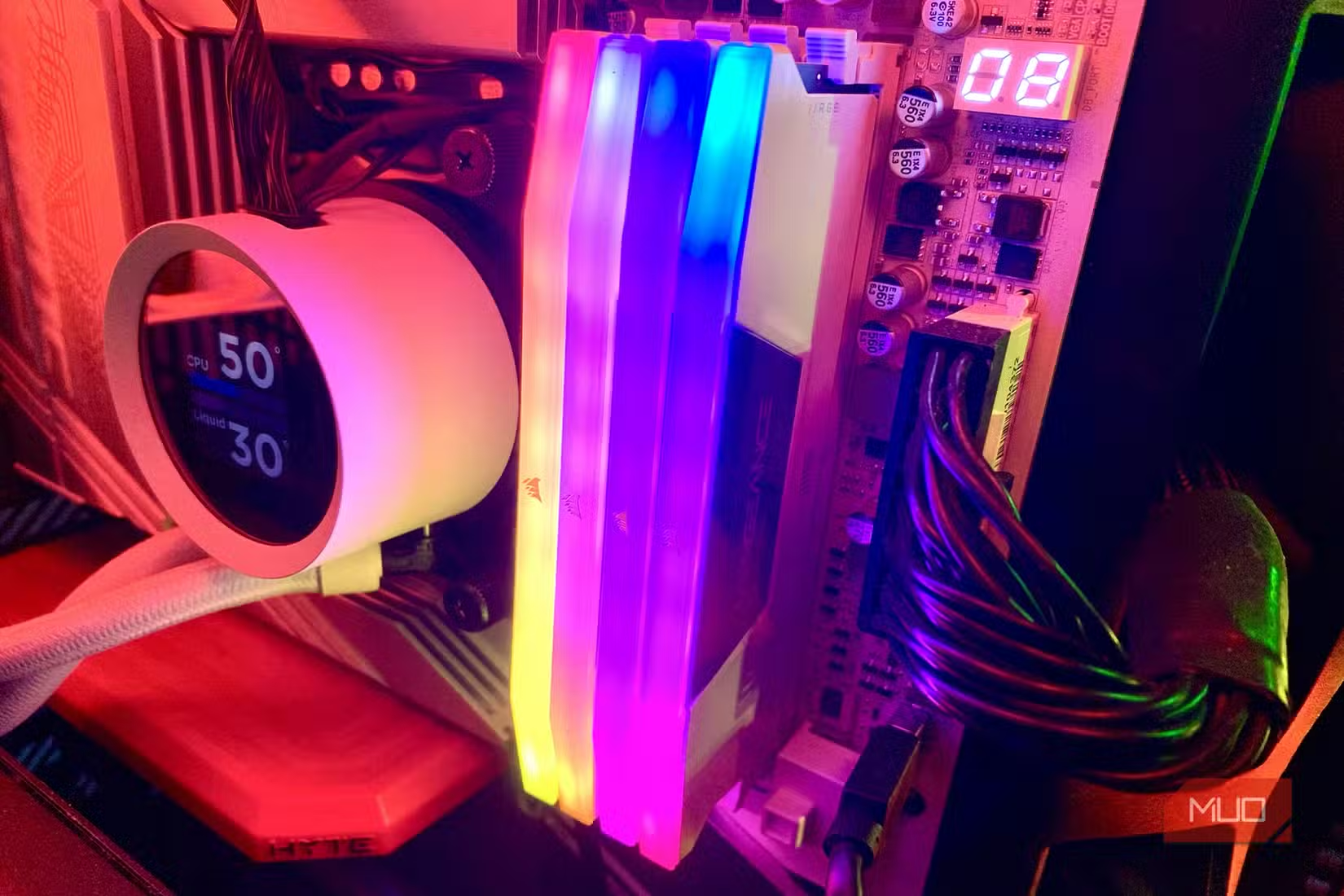
To enable full RAM speed, enter BIOS during boot by pressing F2 or Delete. Navigate to Overclocking, AI Tweaker, or Advanced Memory Settings. The exact menu name varies by motherboard brand. Look for XMP on Intel chipsets or EXPO (sometimes called A-XMP) on AMD systems. Enable it and save.
This single change can improve memory bandwidth by 25% or more, which translates to measurable gains in games, video editing, and any workload that moves large amounts of data.
PCIe Lane Congestion Slows Your GPU
Modern motherboards offer multiple PCIe slots. That sounds like flexibility, but it creates a trap. Your CPU has a fixed number of PCIe lanes. When you populate multiple slots, the motherboard divides those lanes among them.
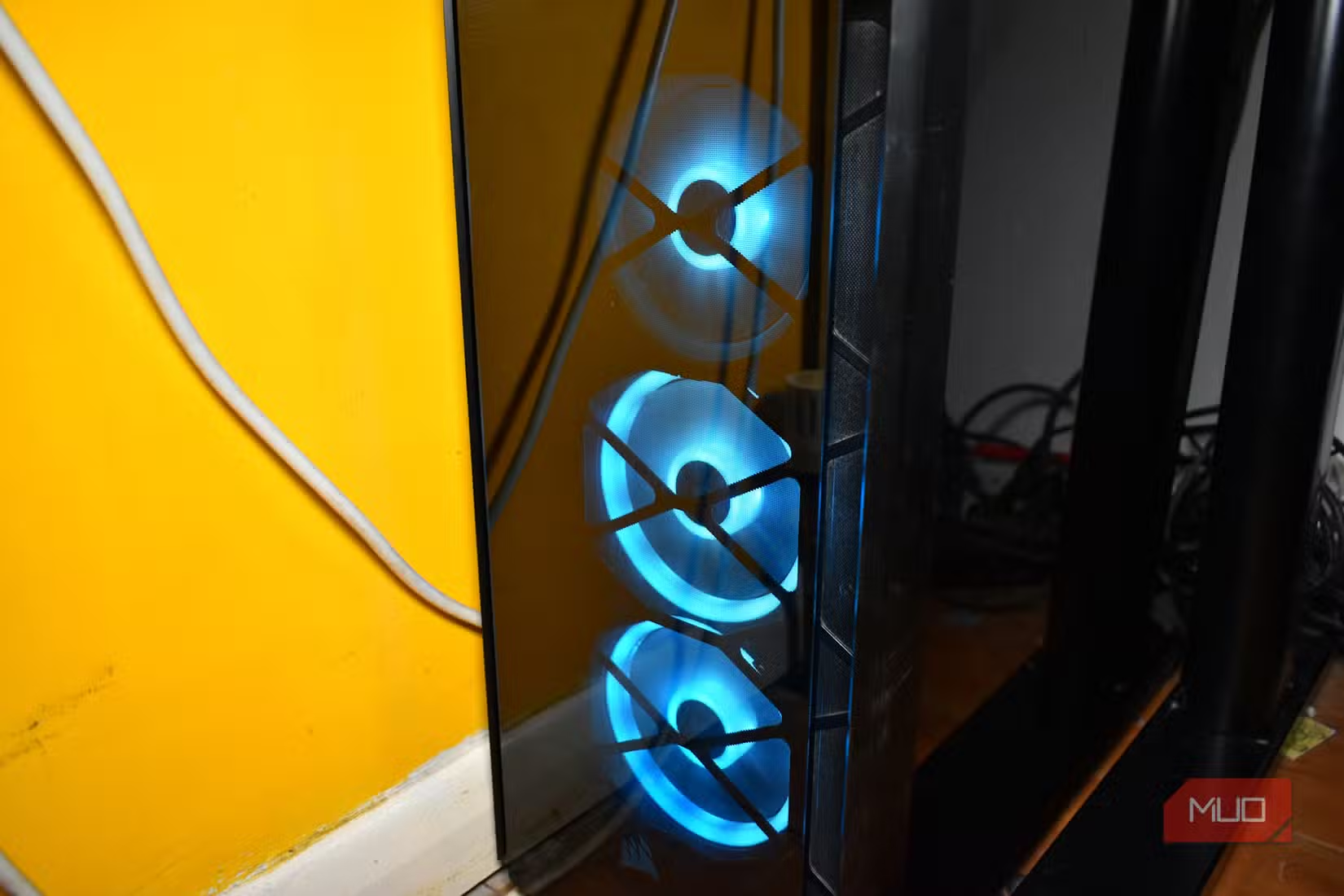
A graphics card in the primary slot typically gets 16 lanes. But add a capture card or NVMe expansion card in a nearby slot, and the motherboard may drop the GPU to 8 lanes. That is half the bandwidth, and it can bottleneck high-end GPUs under heavy load.
Check your BIOS for PCIe lane allocation settings. Some motherboards let you prioritize the primary GPU slot. Others require you to physically move cards to slots that do not share lanes. Consult your motherboard manual for the lane diagram.
Other Settings Worth Checking
Beyond RAM and PCIe, several other BIOS defaults deserve attention on a new build. These vary more by use case, but they follow the same pattern: conservative defaults that prioritize stability over performance.
- Resizable BAR (AMD) or Smart Access Memory (Intel): Lets your CPU access the full GPU memory pool. Free performance in many games.
- Power limits: Some motherboards cap CPU power below Intel or AMD specs. Raising limits unlocks boost clocks.
- Fan curves: Default curves prioritize silence. Aggressive curves keep components cooler under load.
- Boot device priority: Set your NVMe drive first to shave seconds off boot time.
Each setting carries tradeoffs. Higher power limits mean higher temperatures. Aggressive fan curves mean more noise. The point is that these decisions should be yours, not left to factory defaults.
Why Manufacturers Do Not Enable These by Default
Motherboard makers face a support cost problem. Every unstable system generates a ticket. XMP profiles are tested, but not with every possible RAM and CPU combination. A 0.1% failure rate across millions of boards is still thousands of angry customers.
Conservative defaults also extend component lifespan. Running RAM at its rated speed is technically overclocking, even if the manufacturer approves. The chips run hotter and wear slightly faster. For most users, the performance gain matters more than theoretical longevity. But manufacturers cannot assume that.
Logicity's Take
How to Access BIOS
Restart your PC and watch for a prompt during the POST screen. Most boards use F2 or Delete. Some use F10 or F12. You have about two seconds to press it before Windows loads.
Alternatively, Windows 11 lets you enter BIOS through Settings. Go to System, then Recovery, then Advanced Startup. Click Restart Now, then select Troubleshoot, Advanced Options, and UEFI Firmware Settings.
Once inside, look for an Easy Mode or Advanced Mode toggle. Most performance settings hide in Advanced Mode. Navigate carefully, change one setting at a time, and save before rebooting. If something goes wrong, most BIOS menus have a Load Defaults option that restores factory settings.
Frequently Asked Questions
Does enabling XMP void my warranty?
No. XMP and EXPO profiles are factory-tested by RAM manufacturers. Intel and AMD officially support these profiles, and enabling them does not void your CPU, motherboard, or RAM warranty.
How do I know if my RAM is running at full speed?
Open Task Manager in Windows, click the Performance tab, and select Memory. The speed shown should match your RAM's advertised speed. If it shows 4800 MT/s for a 6000 MT/s kit, XMP is not enabled.
Will these settings make my PC unstable?
XMP and Resizable BAR are low risk. Changing power limits or voltages can cause instability if set incorrectly. Start with RAM and PCIe settings before touching anything else.
Do these settings apply to laptops?
Most laptops lock BIOS settings to prevent users from increasing heat or power draw. Some gaming laptops expose limited options. Check your specific model.
Need Help Implementing This?
Source: MakeUseOf
Huma Shazia
Senior AI & Tech Writer
Produced with AI assistance and reviewed by the Logicity editorial team. Learn more in our Editorial Policy.