Key Takeaways
- Focus Mode in Digital Wellbeing lets you silence work apps without missing important alerts
- Downloading offline maps before departure eliminates roaming data costs for navigation
- Lowering display refresh rate from 120Hz to 60Hz can significantly extend battery life during long travel days
Summer travel season is here, and your Android phone will likely serve as camera, navigator, translator, and entertainment center for the trip. But modern phones ship with defaults optimized for home use, not 14-hour travel days away from a charger.
Ismar Hrnjicevic at How-To Geek has put together a checklist of six changes worth making before you head to the airport. Most take less than a minute. All of them can prevent the kind of tech frustrations that ruin vacation vibes.
Set Up a Vacation Focus Mode
The hardest part of vacation for many professionals isn't the logistics. It's actually disconnecting from work. Do Not Disturb helps, but it's a blunt instrument that silences everything.
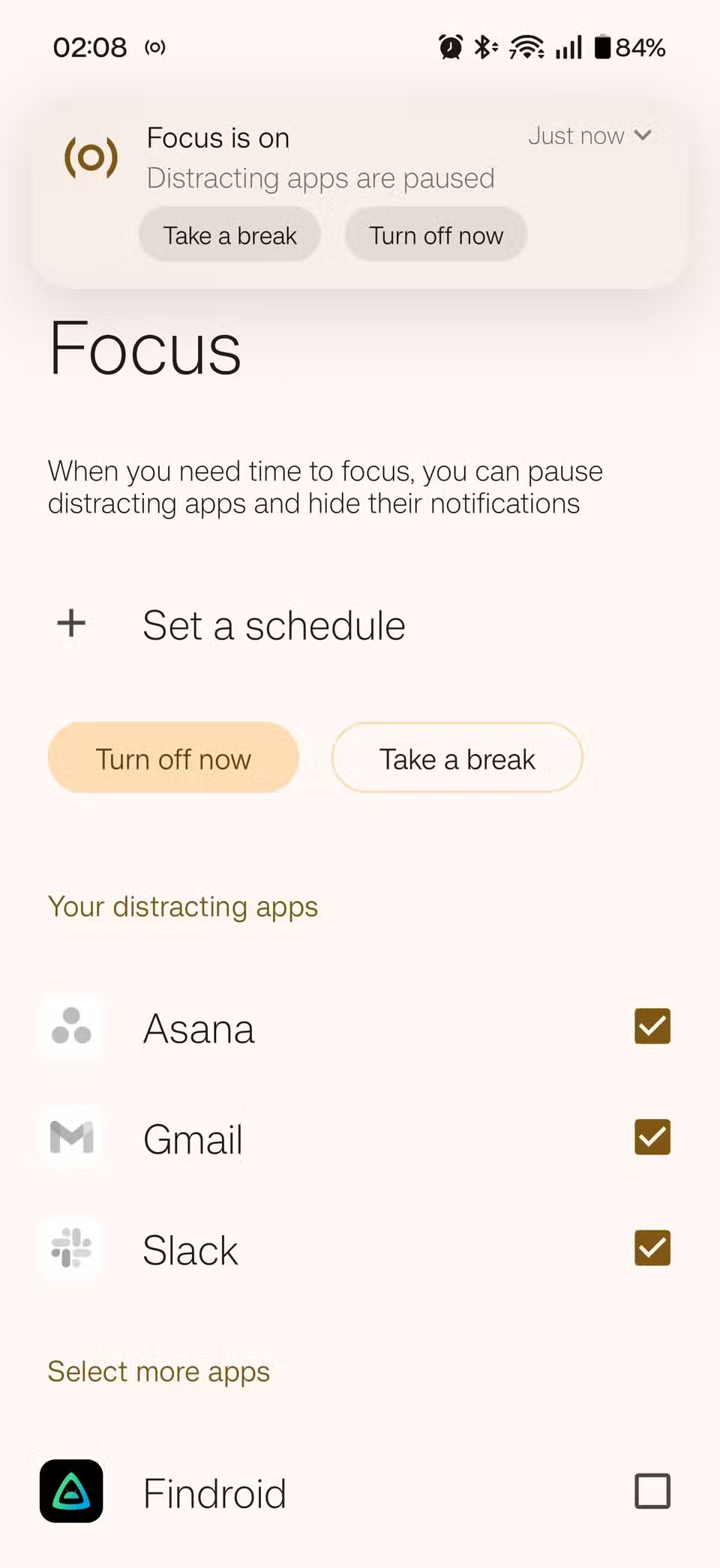
Focus Mode, found in Google's Digital Wellbeing suite, offers a smarter approach. You can selectively silence specific apps, like Slack and work email, while keeping personal messaging and travel apps active. Pixel, OnePlus, Motorola, and Nothing phones all include this feature.
The setup takes about two minutes: go to Settings, then Digital Wellbeing, then Focus Mode. Select the apps you want to pause. You can schedule it to run during specific hours or toggle it manually when you land.
Download Offline Maps
International roaming data costs add up fast. Navigation apps are among the heaviest data consumers when you're constantly requesting new map tiles and traffic updates.
Google Maps lets you download entire regions for offline use. Open the app, search for your destination city, tap the location name, then select "Download offline map." A medium-sized city typically requires 200-400MB of storage.
Reddit's r/Android community consistently ranks offline map support as "the single most useful feature of the last two years" for travelers. The maps include points of interest, street names, and basic navigation. You won't get real-time traffic, but you also won't burn through a week's data budget in one afternoon.
Reduce Display Refresh Rate
That smooth 120Hz or 165Hz display looks great, but it drains battery faster than almost anything else. Most phones default to high refresh rates because it feels premium in the store. On a travel day, you probably won't notice the difference between 120Hz and 60Hz while checking gate numbers.
The setting location varies by manufacturer, but it's usually under Settings, then Display, then Refresh Rate or Motion Smoothness. Samsung calls it "Motion smoothness" and offers Standard (60Hz) or High options. OnePlus lets you set it manually or leave it on Auto.
“The modern traveler's greatest enemy isn't lost luggage, it's a dead battery before sunset; optimizing your refresh rate and background data isn't just a hack, it's essential survival.”
— Alex Rivera, Lead Mobile Analyst at TechTrends Research
Disable Background Data for Non-Essential Apps
Many apps refresh data in the background even when you're not using them. Social media apps pull new posts. News apps download articles. Games sync with servers. All of this happens whether you're on WiFi or expensive roaming data.
Go to Settings, then Apps, then select any app, then tap Mobile Data. Toggle off "Allow background data usage" for apps you don't need updating constantly while abroad.
Power users on Reddit recommend an even more aggressive approach: using ADB commands to temporarily disable non-essential apps entirely before international trips. That's overkill for most people, but the background data toggle is a reasonable middle ground.
Configure Camera Quick Launch
With 95% of Android users citing smartphone photography as their most-used vacation feature, camera access speed matters. Most phones let you launch the camera by double-pressing the power button, but this isn't always enabled by default.
Check Settings, then Gestures or Buttons, then look for "Quick launch camera" or similar. Some phones also offer a shortcut from the lock screen. The goal is to go from pocket to shooting in under two seconds.
Set Up Emergency Information
This one takes 30 seconds and could matter a lot if something goes wrong. Android lets you store emergency contact information accessible from the lock screen.
Go to Settings, then Safety & Emergency, then Medical Information. Add your blood type, allergies, medications, and an emergency contact. This information can be accessed by first responders without unlocking your phone.
It's the kind of setting nobody thinks about until they need it. Traveling in unfamiliar places raises the stakes on what was already a good idea.
The Bigger Picture: Default Settings Aren't Travel Settings
Android's global market share sits at 70.75%, making it the default travel companion for most of the world. But manufacturers optimize their devices for everyday home use, not marathon travel days.
The average Android user checks their phone 5.68 times per hour while on vacation. That's a lot of screen-on time, and a lot of opportunity for battery drain if your settings aren't optimized.
None of these changes are permanent. When you get home, you can restore your 120Hz display and let Slack ping you again. But for the duration of your trip, these tweaks trade a bit of convenience for reliability. That's usually a good trade when you're 5,000 miles from your charger.
Logicity's Take
Frequently Asked Questions
Does lowering refresh rate really save significant battery?
Yes. Display is typically the largest battery consumer on modern phones. Dropping from 120Hz to 60Hz can extend battery life by 15-25% depending on usage patterns and screen-on time.
How much storage do offline maps require?
It varies by region density. A large metro area like London or Tokyo might need 400-600MB. A smaller city or rural region could be under 200MB. You can see the exact size before downloading in Google Maps.
Will Focus Mode still let emergency calls through?
Yes. Focus Mode only affects app notifications. Phone calls and SMS still come through unless you also enable Do Not Disturb, which has separate settings for allowing calls from contacts or repeated callers.
Can I use offline maps for turn-by-turn navigation?
Yes, Google Maps supports offline turn-by-turn driving directions. You won't get real-time traffic updates, but basic navigation works without any data connection.
Do these settings work on Samsung phones?
Most of them do, though Samsung sometimes uses different names for features. Focus Mode might be called "Modes and Routines" on Galaxy devices. Refresh rate is under "Motion smoothness" in display settings.
If you're optimizing your phone, you might also want to automate your home before leaving
Need Help Implementing This?
Source: How-To Geek
Manaal Khan
Tech & Innovation Writer
Produced with AI assistance and reviewed by the Logicity editorial team. Learn more in our Editorial Policy.






