Key Takeaways
- The Command Palette (Ctrl+Shift+P) gives instant access to every VS Code command without digging through menus
- Go Back and Go Forward shortcuts work like browser navigation for jumping between code locations
- Smart Rename refactors variable and function names across your entire codebase safely
Visual Studio Code has become the default choice for developers. According to the 2025 Stack Overflow Survey, 75% of respondents use it regularly. That puts it far ahead of Vim, Cursor, Notepad++, and even its fuller-featured parent, Visual Studio.
But VS Code's dominance comes from more than just being a good text editor. It packs features that save serious time once you learn them. The problem? Many of these features hide behind keyboard shortcuts or menu options that most developers never discover.
Here are five features that can change how you work with code daily.
1. The Command Palette: Your Universal Remote
Press Ctrl+Shift+P on Windows or Shift+Cmd+P on macOS. A drop-down panel appears listing every command available in VS Code. No more hunting through menus or remembering which toolbar button does what.
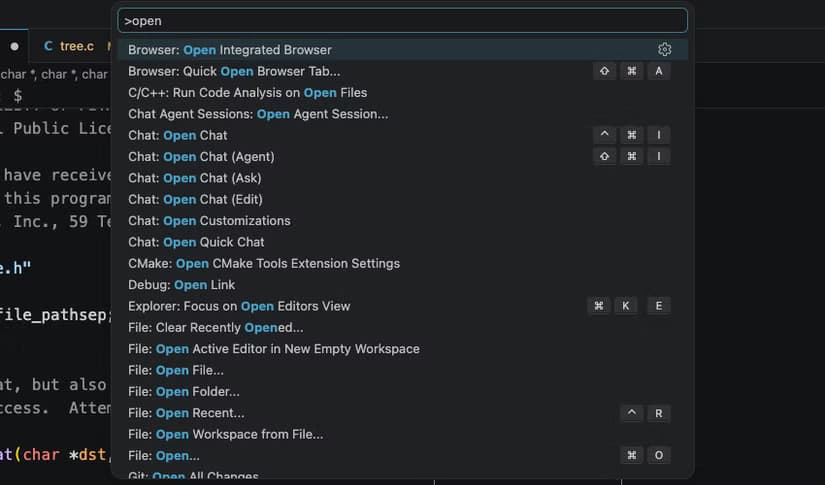
The palette includes fuzzy search. Type a few letters from the command you want, and it narrows down the list. It also shows recent commands at the top and displays keyboard shortcuts next to each item. You learn shortcuts passively just by using the palette.
This feature has been so successful that other editors copied it. Zed and Sublime Text both have similar command palettes now. It's worth spending a day forcing yourself to use it for everything. Within a week, you'll wonder how you worked without it.
2. Quick Open for Files
Related to the command palette is Quick Open. Press Ctrl+P on Windows or Cmd+P on macOS. This opens a panel showing files in your project and recently opened files.
The same fuzzy search works here. Type part of a filename, and VS Code finds matches instantly. This beats clicking through folder trees in the sidebar, especially in large codebases where files nest several directories deep.
Combine the two shortcuts: Ctrl+Shift+P for commands, Ctrl+P for files. That's your new way of navigating VS Code without touching the mouse.
3. Navigation Shortcuts: Browser-Style Back and Forward
Jumping around a codebase is disorienting. You press F12 to go to a function definition, then lose track of where you started. VS Code solves this with Go Back and Go Forward commands.
On Windows, use Alt+Left Arrow and Alt+Right Arrow. On macOS, use Ctrl+Hyphen and Shift+Ctrl+Hyphen. These work exactly like Back and Forward buttons in a web browser. Every time you jump to a definition, search result, or different file, VS Code remembers your position.
The shortcuts take a few days to become muscle memory. Once they do, you can explore code fearlessly. Jump into a function five levels deep, then tap back repeatedly to return to your starting point.
4. Smart Rename: Better Than Find and Replace
Renaming a variable or function the old way means using find and replace. That's risky. You might change text that looks like your variable name but isn't actually a reference to it. Or you might miss instances in other files.
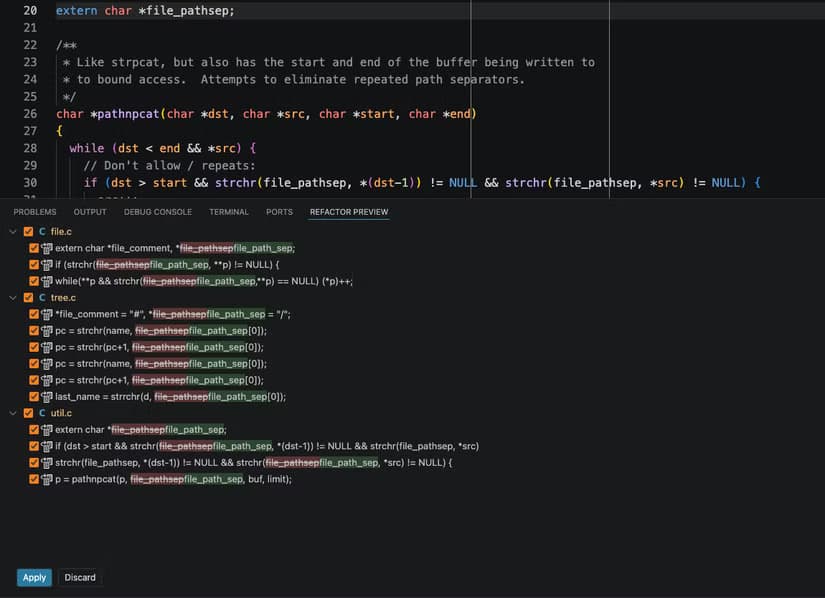
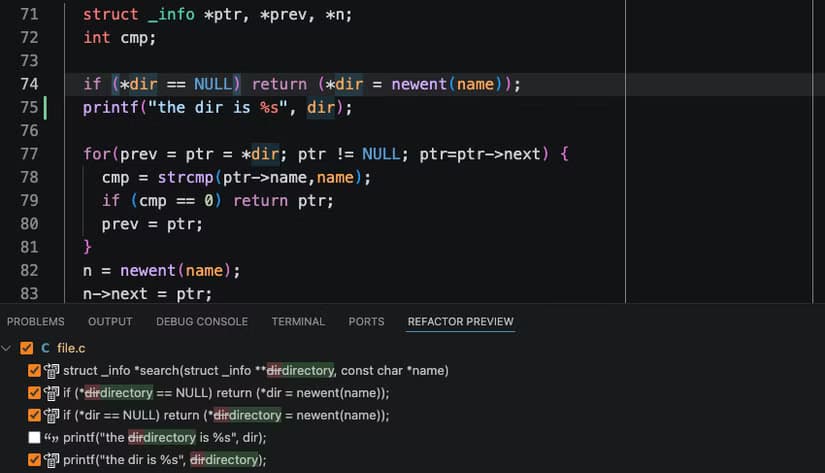
VS Code's Rename Symbol feature understands your code. Put your cursor on a function name and press F2. Type the new name. VS Code changes every actual reference to that function across your entire project. It ignores text that happens to match but isn't a real code reference.
Before the rename executes, VS Code shows a preview. You can review every change it plans to make. If something looks wrong, cancel and investigate. This makes large-scale refactoring much safer than manual search and replace.
5. Built-in File Comparison
Need to compare two files? VS Code has a built-in diff viewer. Open the Command Palette (Ctrl+Shift+P), type "compare", and select "File: Compare Active File With...". Pick another file, and VS Code shows them side by side with differences highlighted.
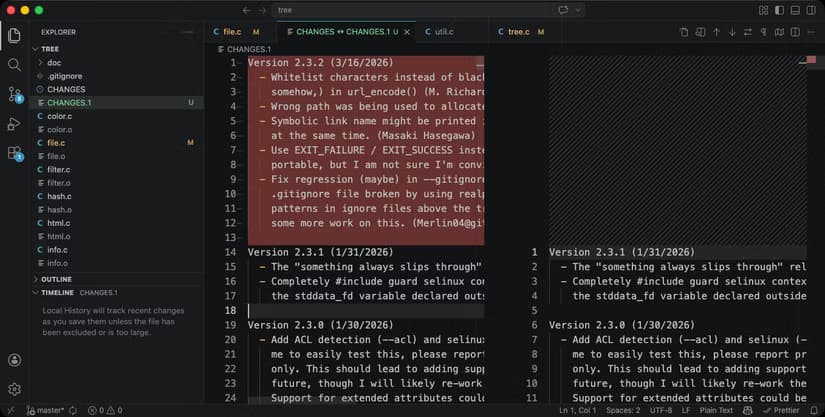
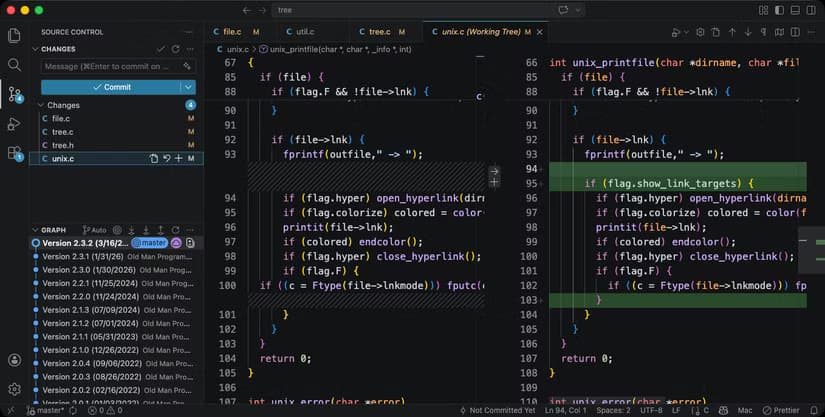
This integrates with Git too. Click on a changed file in the Source Control panel, and VS Code shows the diff between your working copy and the last commit. No need for external diff tools.
Building Muscle Memory
These features share something in common. They all require learning keyboard shortcuts. That's the barrier that stops most developers from using them.
The solution is deliberate practice. Pick one feature, use it exclusively for a week, then add another. Within a month, you'll navigate VS Code faster than developers who have used it for years without learning these shortcuts.
- Ctrl+Shift+P / Shift+Cmd+P: Command Palette
- Ctrl+P / Cmd+P: Quick Open files
- F12: Go to Definition
- Alt+Left/Right or Ctrl+Hyphen: Go Back/Forward
- F2: Rename Symbol
See how one developer built a desktop app using modern tools
More free tools that can replace paid software in your workflow
Logicity's Take
VS Code won the editor wars by being good enough for most developers while staying fast and free. These features show why. They're not revolutionary individually, but combined they make a text editor feel like an IDE. The 75% market share makes sense when you see what's actually built in.
Frequently Asked Questions
What is the VS Code Command Palette?
The Command Palette is a searchable dropdown (Ctrl+Shift+P on Windows, Shift+Cmd+P on macOS) that gives you access to every command in VS Code without navigating menus.
How do I jump back to my previous location in VS Code?
Use Alt+Left Arrow on Windows or Ctrl+Hyphen on macOS. This works like a browser's back button, returning you to your previous cursor position.
Is VS Code's Rename Symbol better than find and replace?
Yes. Rename Symbol (F2) understands code structure and only changes actual references to a variable or function. Find and replace changes all matching text, which can break code.
How do I compare two files in VS Code?
Open the Command Palette, type 'compare', and select 'File: Compare Active File With...'. VS Code will show both files side by side with differences highlighted.
What percentage of developers use VS Code?
According to the 2025 Stack Overflow Developer Survey, 75% of respondents use VS Code regularly, making it the most popular code editor.
Need Help Implementing This?
Whether you're setting up VS Code for a development team or optimizing your company's tooling workflow, we can help. Reach out to Logicity for guidance on developer productivity and tooling strategy.
Source: How-To Geek
Manaal Khan
Tech & Innovation Writer
Produced with AI assistance and reviewed by the Logicity editorial team. Learn more in our Editorial Policy.