Key Takeaways
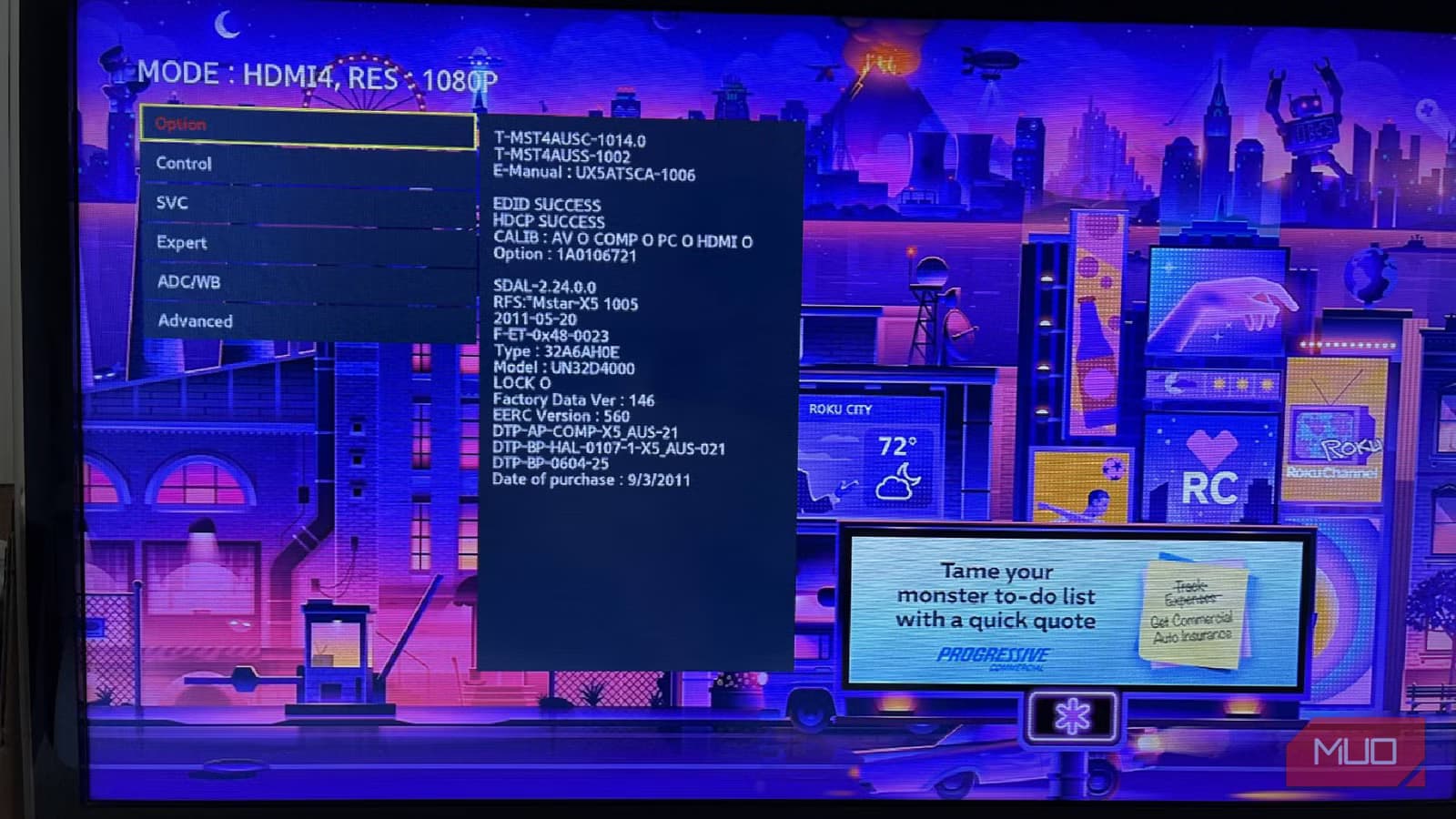
- Samsung TVs have a hidden service menu accessible via specific remote button combinations
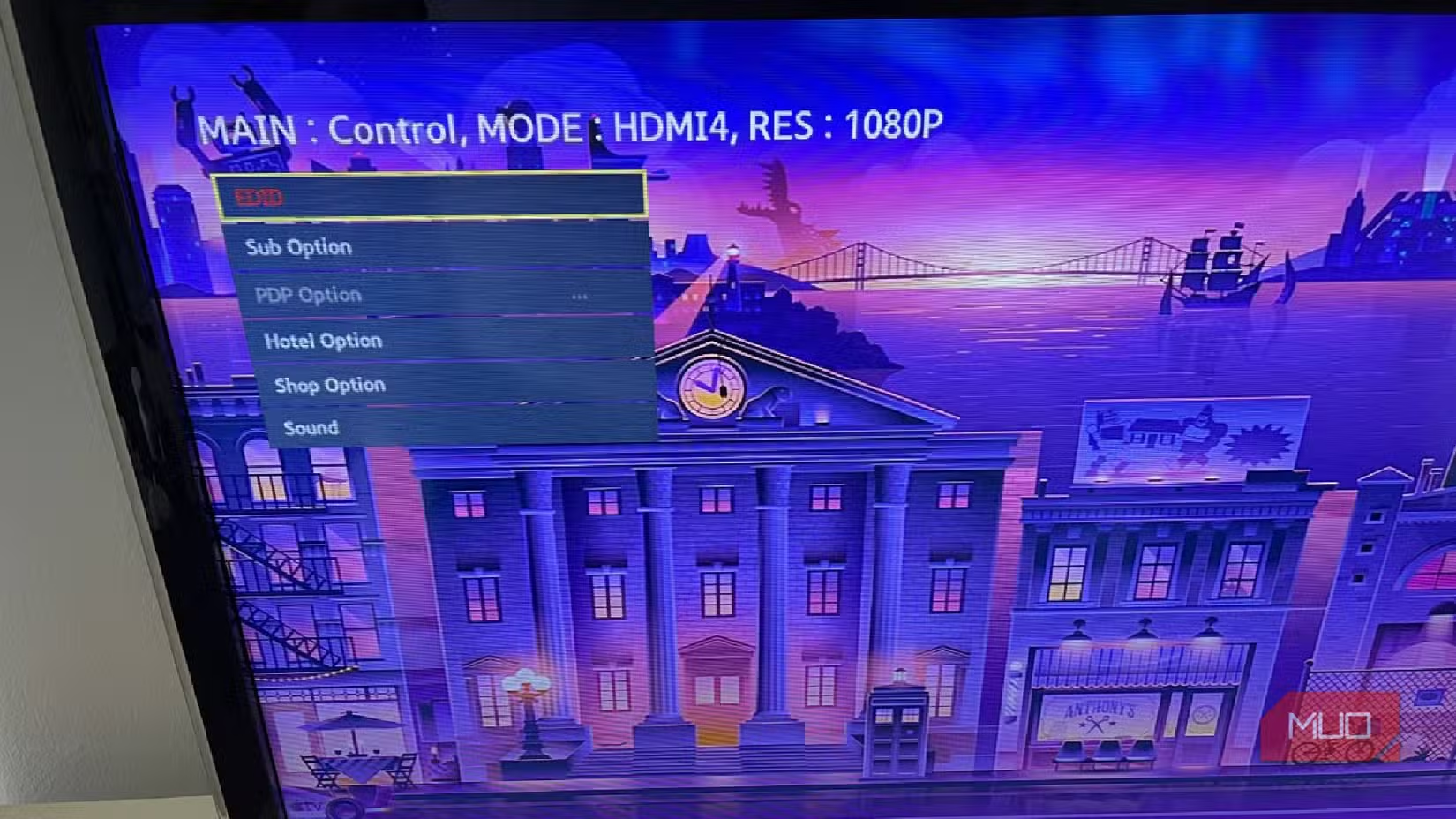
- The menu lets you factory reset, adjust panel settings, and run diagnostics
- One wrong setting can permanently damage your TV, so use extreme caution
Your Samsung TV has a menu you've never seen. It's not in the settings. It's not in any user manual. But it exists, and it can do things the regular interface won't let you touch.
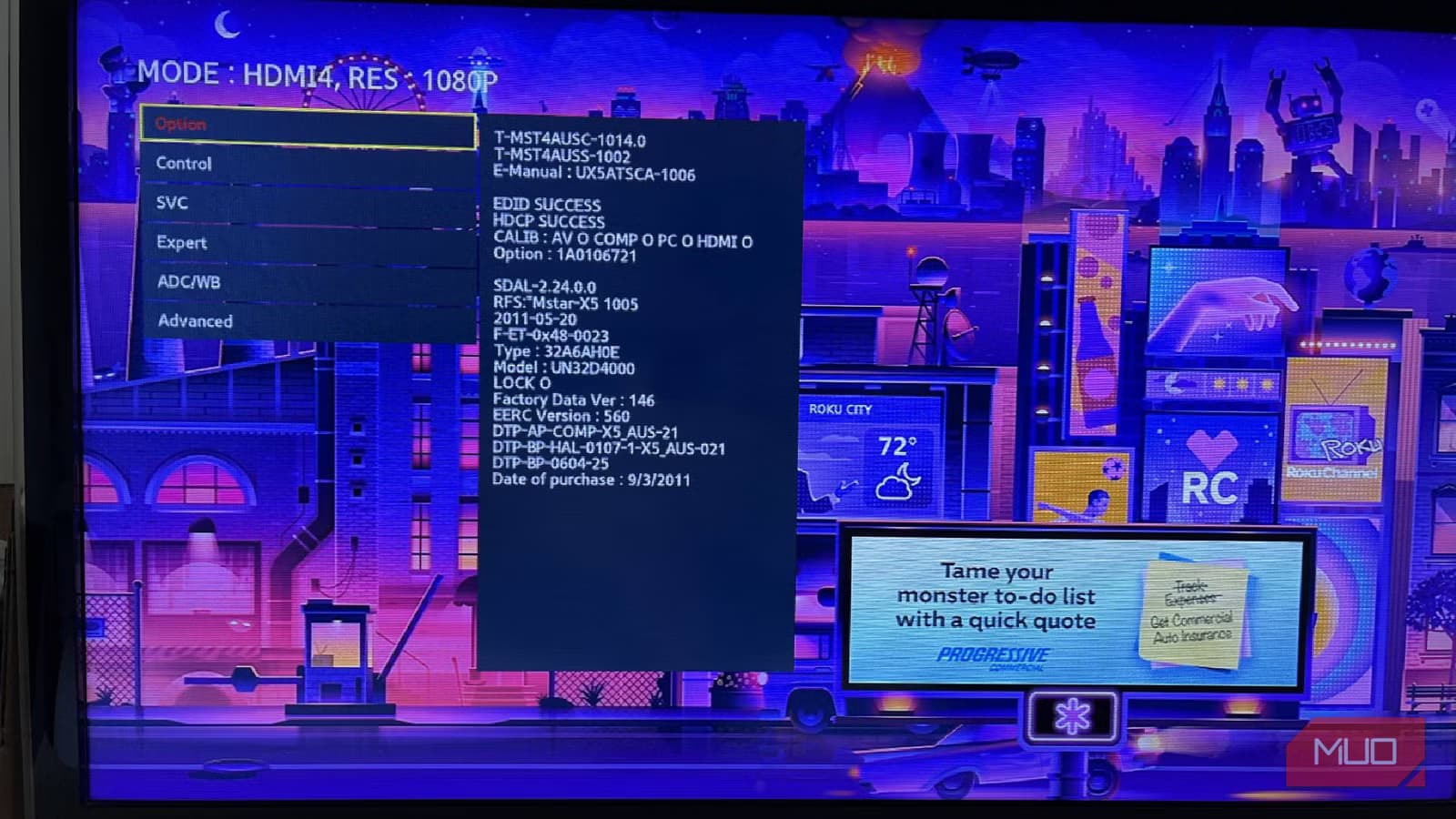
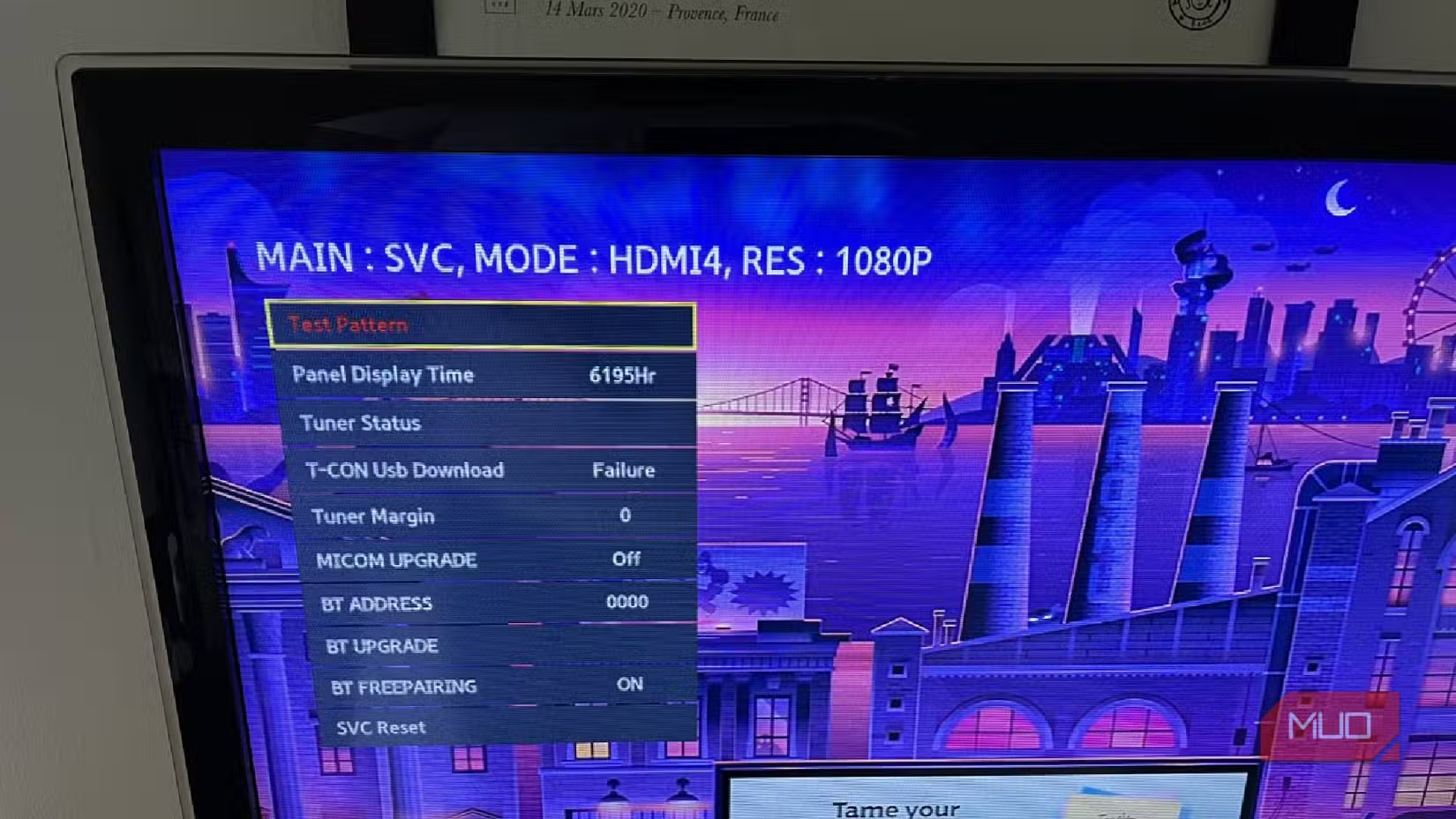
This is the service menu. Samsung built it for technicians to diagnose problems, calibrate panels, and reset TVs to their factory state. With the right button combo on your remote, you can access it too.
Tech writer Chris Hachey, who owns three Samsung TVs, recently documented his experience navigating these hidden menus. The access codes vary by model, which makes finding the right one a bit of trial and error.
How to Access the Service Menu
Getting into the service menu requires pressing a specific sequence of buttons on your remote while the TV is off or in standby. The exact code depends on your TV model. The most common ones include:
- Mute > 1 > 8 > 2 > Power
- Mute > 1 > 1 > 9 > Power
- Info > Menu > Mute > Power
You'll need to look up your specific TV model to find which code works. Hachey found that two of his TVs responded to the first code, while the third required the second option. If one doesn't work, try the next.
1. Factory Reset Your TV
The most straightforward option in the service menu is the factory reset. This wipes everything: your downloaded apps, picture settings, audio preferences, network configurations. Only the pre-installed apps like Samsung TV Plus remain.
Why use this instead of the regular reset in settings? The service menu reset is more thorough. It clears deeper system data that a standard reset might miss. If your TV has persistent software issues that normal troubleshooting can't fix, this is the nuclear option.
2. Disable Automatic Brightness Limiting
Samsung OLED panels use a feature called ASBL (Auto Static Brightness Limiter). It dims the screen when it detects static images to prevent burn-in. The problem is it can kick in during normal viewing, dimming your screen when you don't want it to.
The service menu lets you adjust or disable ASBL entirely. This is particularly useful for gamers who deal with static HUD elements or anyone who uses their TV as a PC monitor.
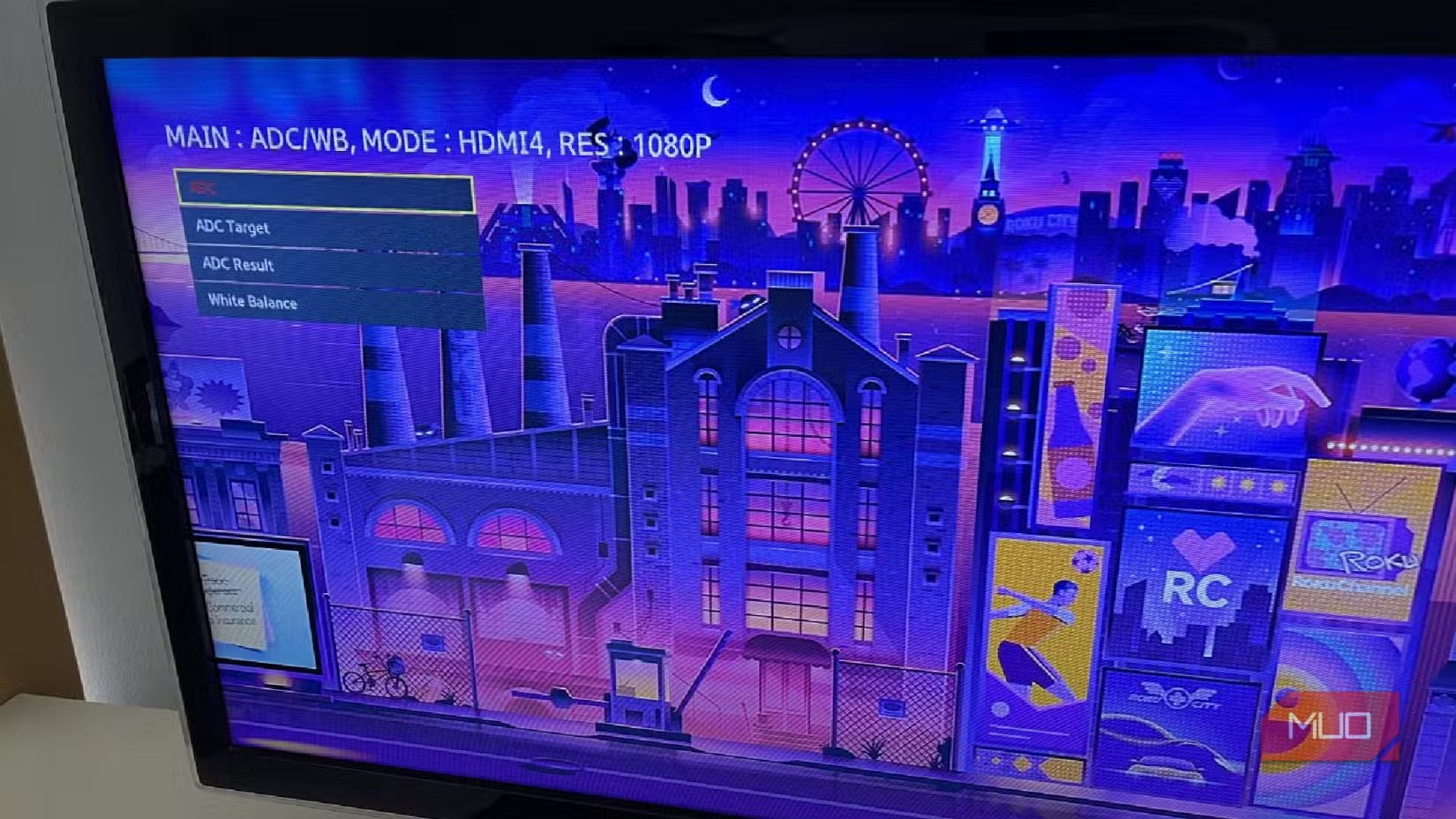
3. Run Panel Diagnostics
The service menu includes diagnostic tools that technicians use to identify dead pixels, backlight issues, and panel uniformity problems. You can run test patterns that fill the screen with solid colors to spot defects.
This is useful before a warranty claim. If you suspect panel issues, running these diagnostics gives you concrete evidence to show Samsung support.
4. Check HDMI Port Status
Having HDMI connection problems? The service menu shows detailed information about each port's status and capabilities. You can see what devices are connected, their HDMI version, and whether the handshake is working properly.
5. View System Memory and Usage
Smart TVs run on limited memory. When apps crash or the interface lags, it's often a memory issue. The service menu shows exactly how much RAM your TV has, how much is in use, and which processes are consuming resources.
This information helps you understand whether your TV is struggling because of hardware limitations or software problems.
The Risks Are Real
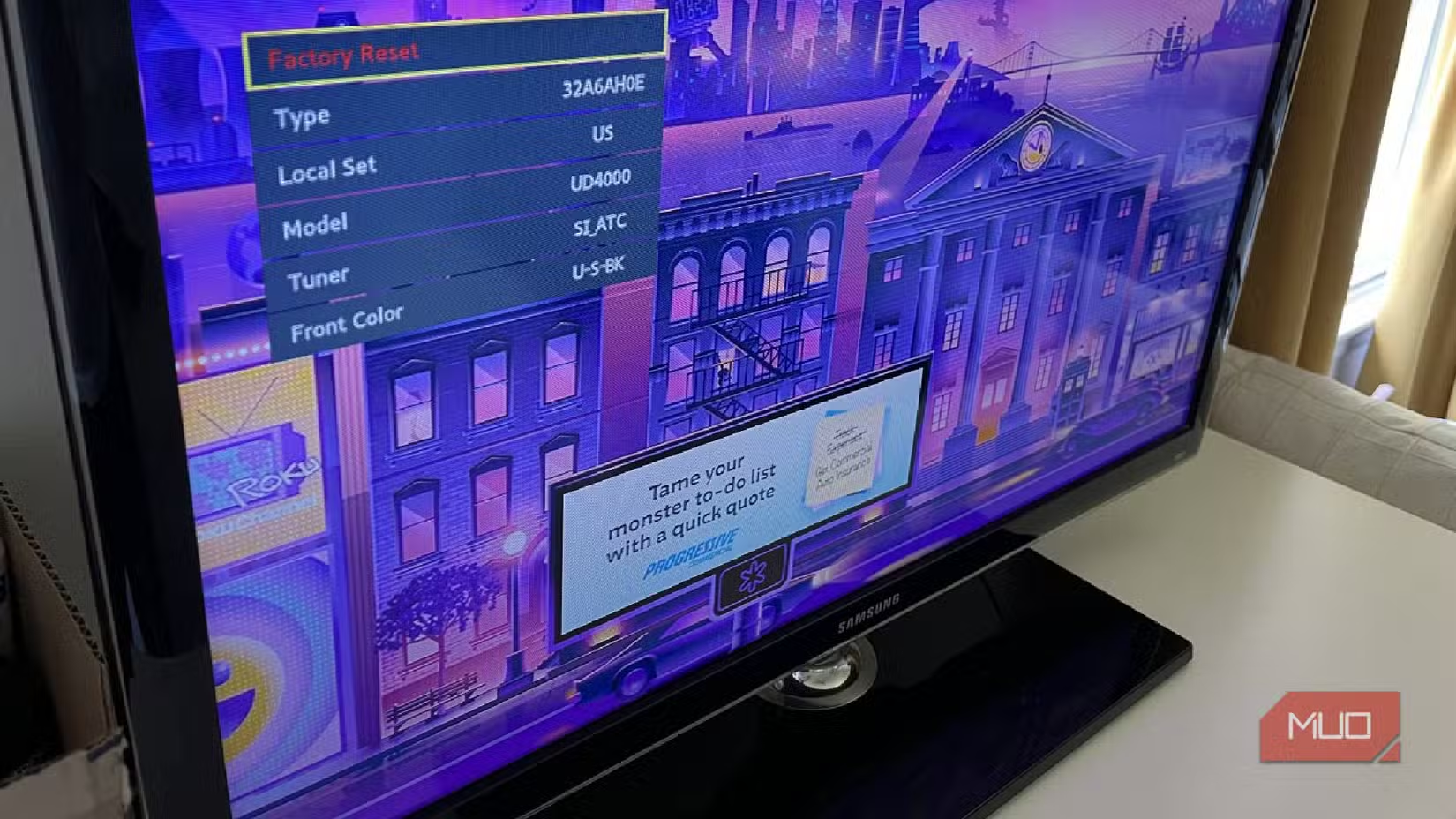
“The service menu is a 'loaded gun.' One wrong value in the 'Type' or 'Local Set' options can 'brick' the mainboard, turning a software tweak into a hardware failure.”
— Certified Samsung Field Technician
This isn't an exaggeration. The service menu contains settings that control fundamental panel behavior. Changing the wrong value can make your TV unbootable. Unlike a bad software update, you can't recover from certain service menu mistakes.
Samsung officially states the service menu is for certified technicians only. Using it may void your warranty, though enforcement varies by region and situation.
Logicity's Take
The Context: Why Power Users Are Digging Deeper
Samsung's Tizen 9.0 update in 2026 introduced more aggressive advertising and Automatic Content Recognition (ACR). This has pushed some users to explore the service menu as a way to reclaim control over their TVs.
Samsung remains the dominant TV manufacturer with 29.1% global market share by revenue in 2026, marking its 20th consecutive year as market leader. But its Tizen OS share has dropped from 34% in 2020 to 23% in 2026 as Google TV gains ground.
Another look at when deep customization is worth the effort
Frequently Asked Questions
Will using the Samsung service menu void my warranty?
Samsung states the service menu is for certified technicians only. Using it may void your warranty, though this depends on what changes you make and how your region handles warranty claims.
Can I brick my Samsung TV using the service menu?
Yes. Changing certain settings like 'Type' or 'Local Set' values can permanently damage your TV's mainboard. Only modify settings you fully understand.
How do I find the service menu code for my Samsung TV?
Search for your specific TV model number plus 'service menu code.' Common codes include Mute > 1 > 8 > 2 > Power and Mute > 1 > 1 > 9 > Power, but the correct code varies by model.
Can I disable Samsung TV ads through the service menu?
Some advertising features can be adjusted through the service menu, but Samsung regularly updates Tizen to close these workarounds. Standard settings options for disabling personalized ads are a safer first step.
How do I exit the Samsung service menu?
Press the Power button to exit the service menu. Make sure to note any changes you made before exiting so you can reverse them if something goes wrong.
Need Help Implementing This?
Source: MakeUseOf
Manaal Khan
Tech & Innovation Writer
Produced with AI assistance and reviewed by the Logicity editorial team. Learn more in our Editorial Policy.