Key Takeaways
- Notification history keeps a log of dismissed alerts so you never miss important messages
- Split-screen mode lets you run two apps side by side without switching back and forth
- These features are built into stock Android and require no third-party apps
Why Most Android Features Go Unused
Google adds dozens of features with every Android update. Most attention goes to headline changes like new camera modes or redesigned interfaces. The smaller tools get buried in settings menus, where they stay hidden from users who could benefit from them daily.
As Android approaches its 17th major release cycle, the platform has accumulated a long list of genuinely useful tools. Many solve common frustrations. Few people know they exist. Here are five features worth adding to your routine.
1. Notification History Rescues Dismissed Alerts
Everyone swipes away notifications without thinking. The motion is automatic. You clear the clutter and move on, especially when you have just woken up or are rushing between tasks.
The problem hits a few hours later. You cannot remember what you dismissed. Sometimes it was nothing important. Other times, it was a message from your boss about a meeting, an invitation from a friend, or a dentist appointment reminder.
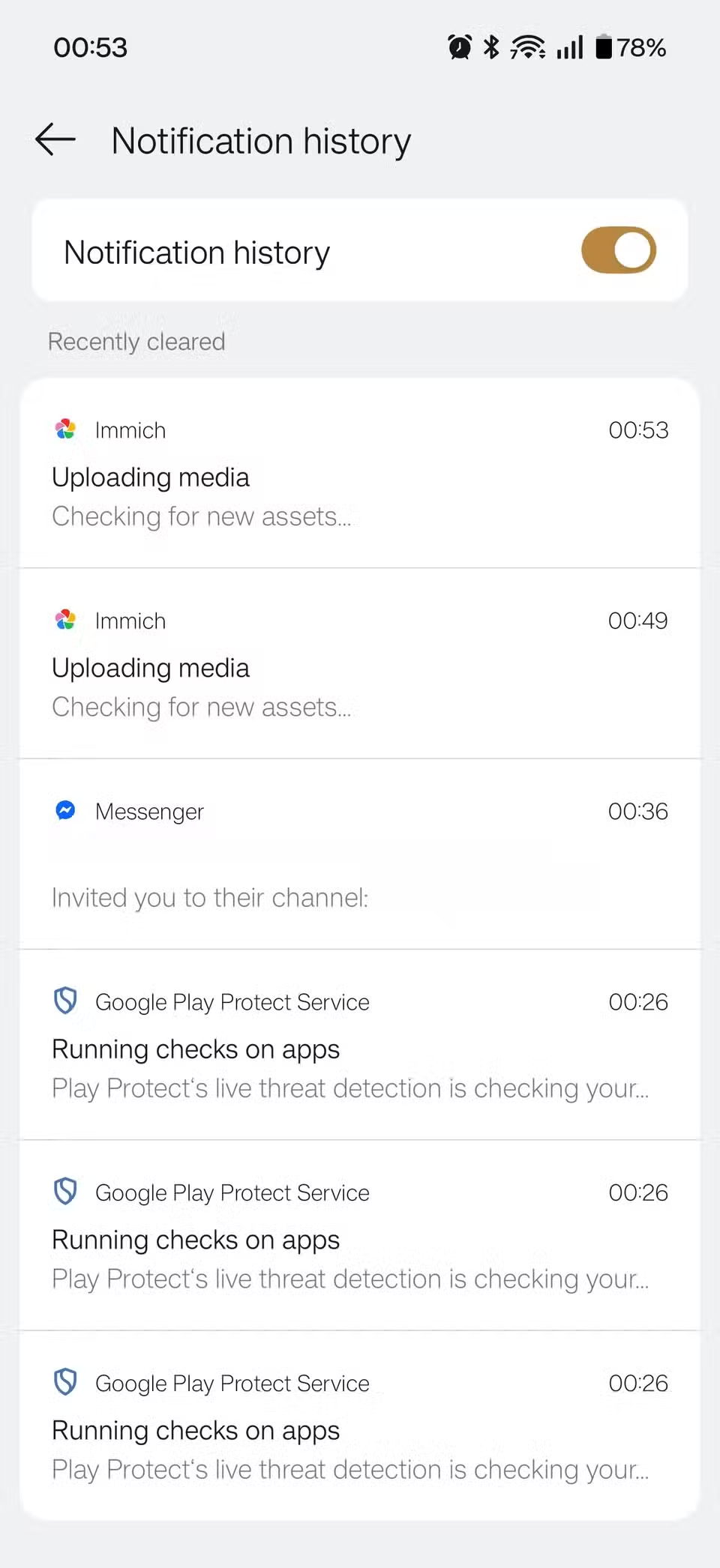
Android keeps a hidden record of every notification you clear. To enable it, go to Settings, then Notifications, then Notification history. Turn it on. From then on, Android logs dismissed notifications for 24 hours. You can scroll back through everything you swiped away and recover what you missed.
2. Split-Screen Mode Ends App Switching
Jumping between two apps gets tedious fast. Copying information from a web page to a note. Checking a spreadsheet while writing an email. Following a recipe while running a timer.
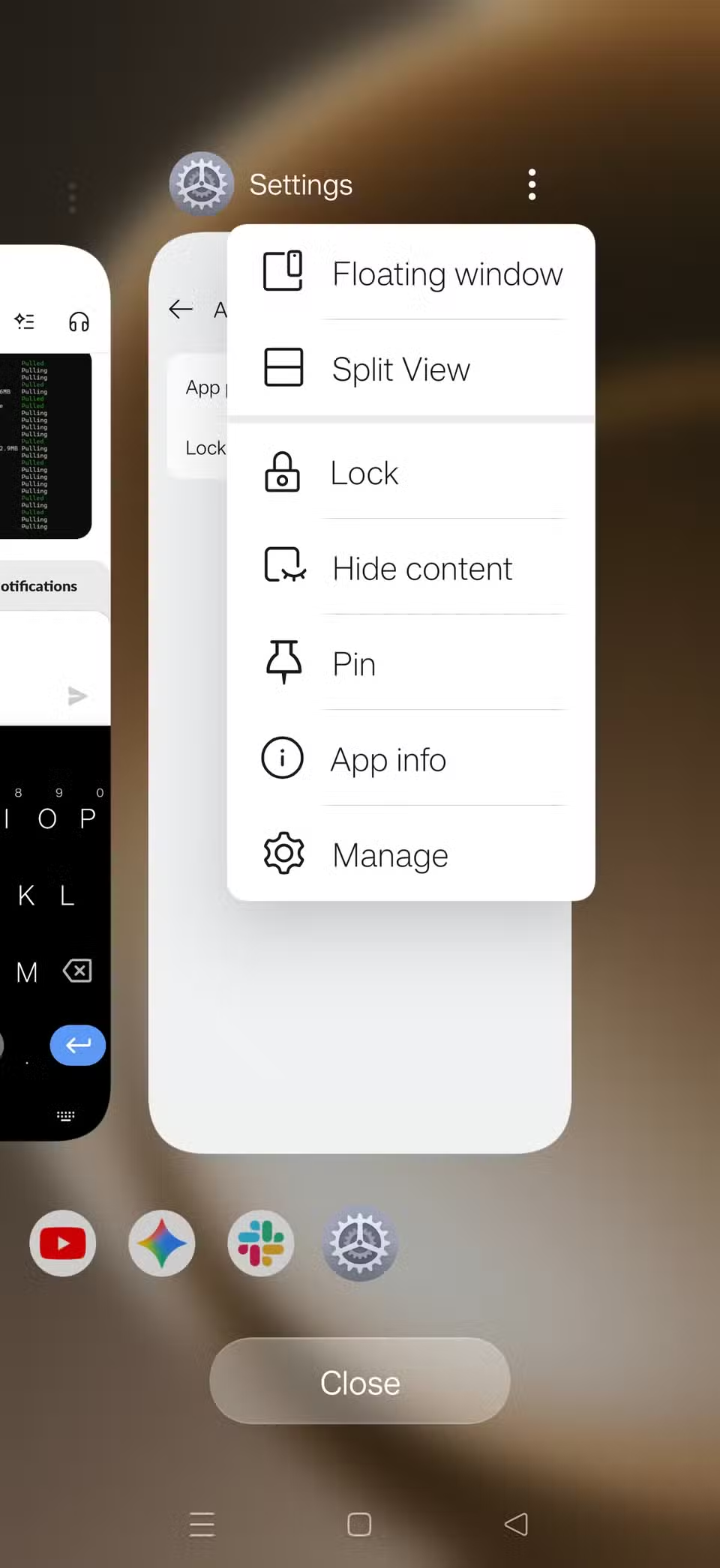
Android's split-screen mode puts two apps on screen at once. Open your recent apps view by swiping up and holding from the bottom of the screen. Tap the app icon at the top of any recent app card and select Split top or Split screen. Then pick a second app to fill the remaining space.
Both apps run simultaneously. You can drag the divider to give one more room. This works particularly well on larger phones and tablets, but even standard-sized phones make it practical for quick reference tasks.
3. One-Handed Mode Shrinks the Screen
Modern phones keep getting taller. Reaching the top of the screen with one thumb has become an awkward stretch. One-handed mode solves this by shrinking the display into a smaller window that your thumb can reach.
Enable it in Settings under System, then Gestures, then One-handed mode. Once active, swipe down on the gesture bar at the bottom of the screen to shrink the display. The interface slides down into a reachable area. Tap outside the shrunken window to return to normal.
4. Focus Mode Blocks Distracting Apps
Do Not Disturb silences notifications but does not stop you from opening distracting apps yourself. Focus Mode goes further. It lets you select specific apps to pause entirely. Their icons gray out. Notifications stop. You cannot open them until you turn Focus Mode off.
Find it in Settings under Digital Wellbeing. Select the apps you want blocked during focus time. You can schedule Focus Mode for work hours or activate it manually when you need to concentrate.
5. Quick Settings Tiles Put Controls a Swipe Away
The Quick Settings panel that drops down from the top of the screen is customizable. You can add, remove, and rearrange tiles to put your most-used controls in easy reach.
Pull down the notification shade twice to expand Quick Settings fully. Tap the pencil icon to edit. Drag tiles to reorder them. Add useful ones you might not have known existed, like Screen Record, Nearby Share, or Device Controls for smart home integration.
Putting your most-used toggles in the first four positions means you can access them without expanding the full panel.
More ways to improve your Android experience
How to Find More Hidden Features
Android's settings app has a search function at the top. Use it to explore features by keyword. Searching for terms like gesture, accessibility, or shortcut often surfaces useful tools.
Phone manufacturers also add their own features on top of stock Android. Samsung, OnePlus, and Xiaomi each include extras specific to their devices. Check your phone maker's settings sections for additional tools.
Logicity's Take
Frequently Asked Questions
Does notification history drain battery?
No. The feature stores text logs of notifications, which uses minimal storage and no additional processing power.
Can I use split-screen with any app?
Most apps support split-screen, but some developers disable it. Games and certain video apps often block the feature.
Does one-handed mode work on all Android phones?
It depends on your Android version and manufacturer. Stock Android added native one-handed mode in Android 12. Samsung and other brands have included their own versions for longer.
Will Focus Mode block phone calls?
Focus Mode only affects apps you select. Phone calls come through unless you also enable Do Not Disturb.
Need Help Implementing This?
Source: How-To Geek
Manaal Khan
Tech & Innovation Writer
Produced with AI assistance and reviewed by the Logicity editorial team. Learn more in our Editorial Policy.