
Key Takeaways

- Press the globe key (🌐) to open the emoji picker instantly in any app
- The keyboard shortcut Control + Command + Space works on all Macs
- You can convert typed words to emoji with 🌐 + E after typing
If you've ever Googled an emoji just to copy-paste it into a document, you're not alone. The Mac has a built-in emoji keyboard that works in almost every app, but Apple hasn't exactly made it obvious. Here's every way to access it, from fastest to most automated.
Quick Reference
| Method | Shortcut | Best For |
|---|---|---|
| Globe key | Press 🌐 (shares key with fn) | Fastest single-key access |
| Keyboard shortcut | Control + Command + Space | Older Macs or muscle memory |
| Convert word to emoji | Type word, then 🌐 + E | When you've already typed the word |
| Auto text replacement | Set up in System Settings | Frequent emoji you use constantly |
Method 1: The Globe Key
Newer Macs have a dedicated key for the emoji picker. Press the globe icon (🌐), which shares a key with fn in the bottom-left of your keyboard. The emoji keyboard pops up immediately, no matter what app you're in.
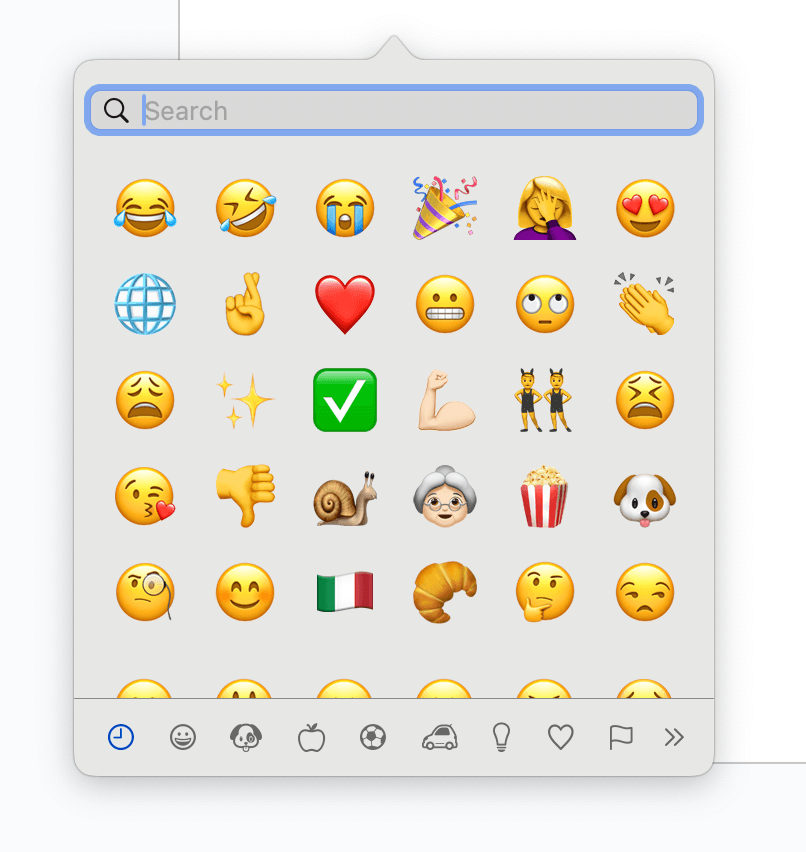
From here, you can search by name or browse by category. Type "thumbs" and you'll see 👍 and 👎. Type "fire" and you'll get 🔥.
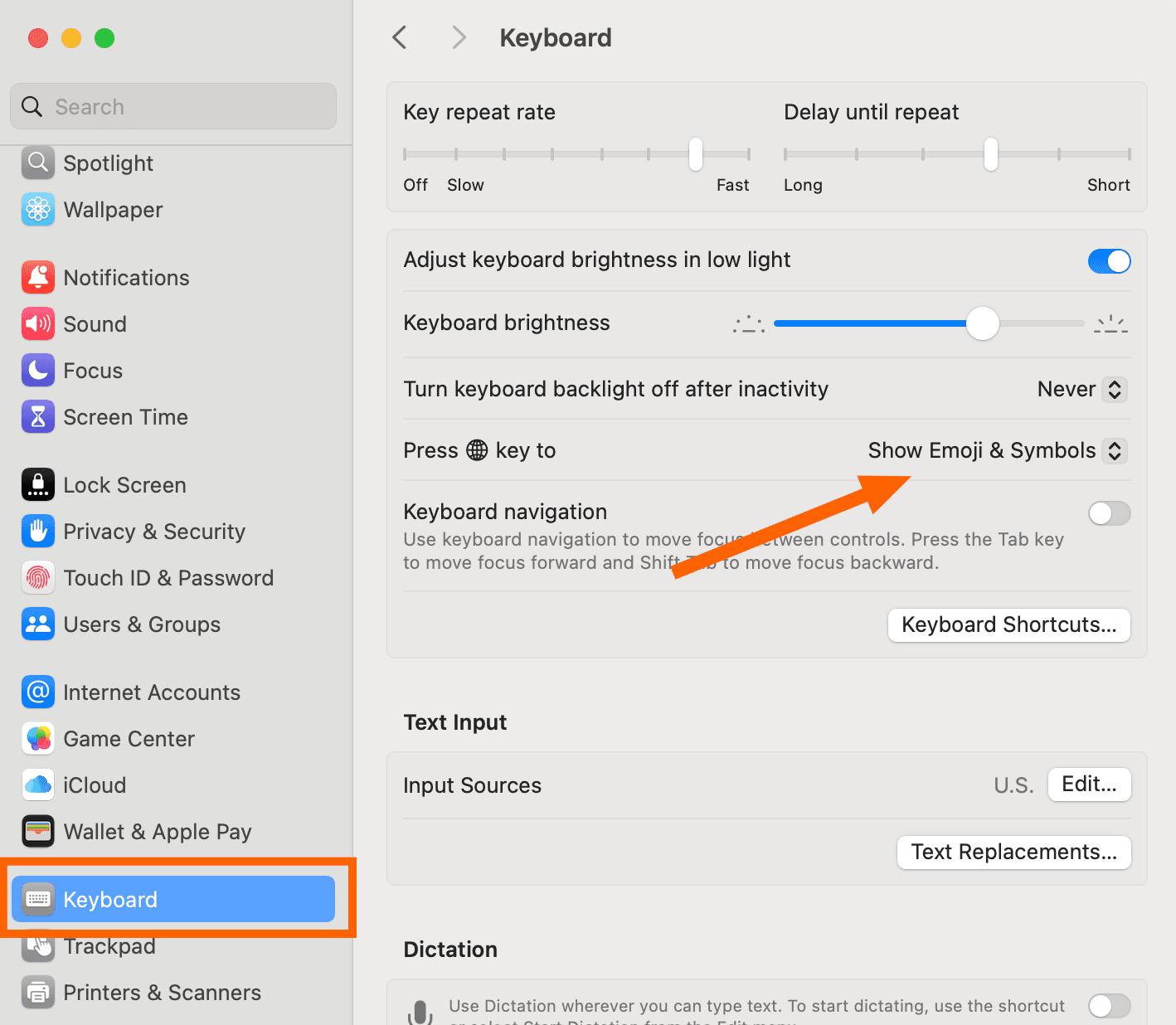
If pressing the globe key does nothing, check your settings. Go to System Settings > Keyboard and make sure "Press 🌐 key to" is set to "Show Emoji & Symbols."
Method 2: The Keyboard Shortcut
For those who prefer keyboard shortcuts, press Control + Command + Space. This works on every Mac, including older models without a globe key. The same emoji picker appears.
This shortcut opens what Apple officially calls the "Character Viewer." It handles more than just emoji. You can insert symbols, mathematical notations, currency signs, and specialized typography. Click the icon in the top-right corner of the panel to expand it and see the full character library.
Method 3: Convert a Word to Emoji
Already typed "rocket" and wish you'd used 🚀 instead? Type the word, then press 🌐 + E. macOS suggests the corresponding emoji. Hit Return to replace the word, or click the down arrow to browse alternatives.
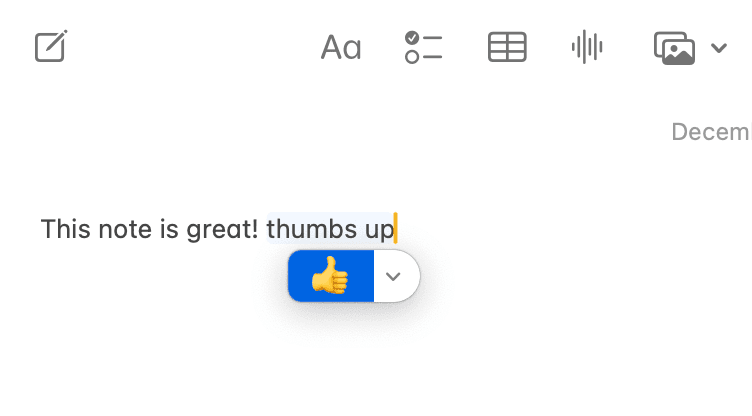
One caveat: this doesn't work everywhere. Web apps with their own emoji systems, like Google Docs, override the macOS shortcut. Gmail, native Mac apps, and most text fields support it fine.
Method 4: Automatic Text Replacement
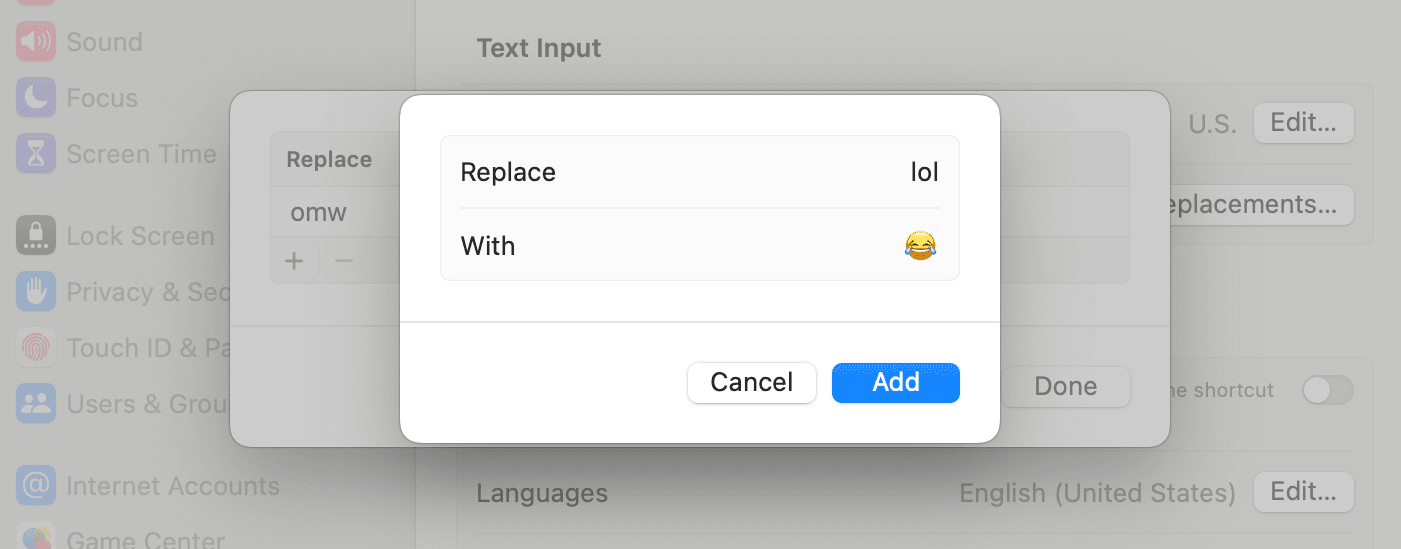
If you use certain emoji constantly, you can set up automatic replacements. Type "tm" and macOS inserts ™. You can do the same with any emoji.
Here's how to set it up:
- Open System Settings > Keyboard
- Click "Text Replacements"
- Click the + button to add a new replacement
- In the "Replace" field, type your trigger text (e.g., "::thumbs")
- In the "With" field, press the globe key and insert your emoji (e.g., 👍)
- Click "Add"
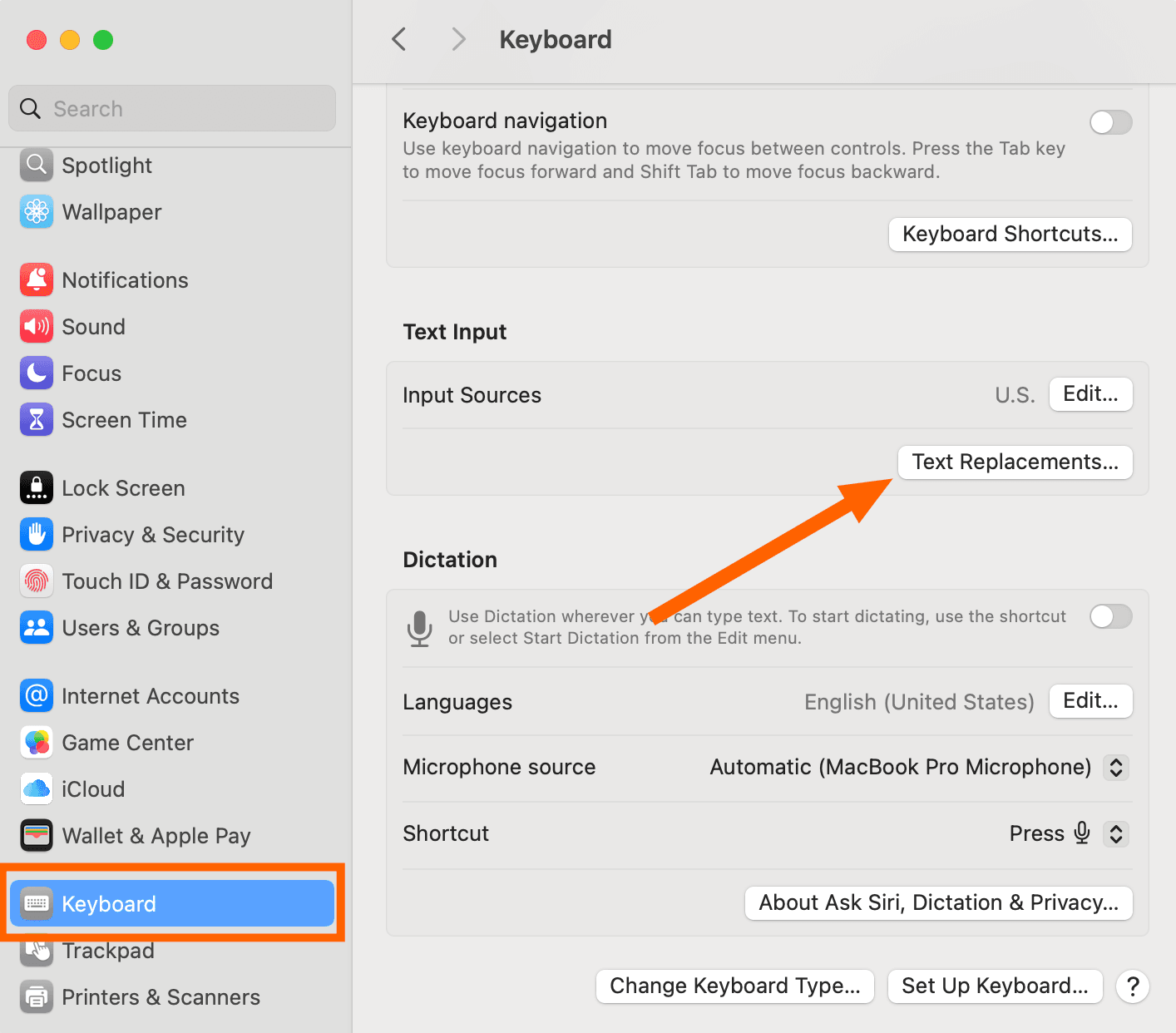
Using a prefix like "::" prevents accidental triggers. You don't want every instance of "smile" turning into 😊.
If you're signed in with your Apple ID, these replacements sync to your iPhone automatically.
Power User Alternatives
The native macOS picker works, but it's not the fastest option for heavy emoji users. Reddit threads frequently recommend third-party tools like Raycast or Rocket, which let you type Slack-style triggers (e.g., ":smile:" to insert 😊) without opening a separate picker. If you find yourself in the emoji menu dozens of times a day, these tools might be worth exploring.
“Emoji are a digital universal language, allowing users to convey emotional nuance that text alone often fails to capture in fast-paced professional or social environments.”
— Dr. Vyvyan Evans, Linguist and author of The Emoji Code
Beyond Emoji: The Full Character Viewer
The emoji keyboard is actually a subset of macOS's Character Viewer. Click the icon in the top-right corner of the emoji panel to expand it. You'll find arrows, bullets, currency symbols, mathematical operators, accented letters, and thousands of other characters.
The Unicode Standard now includes 3,782 emoji, and that number grows with each annual update. The Character Viewer gives you access to all of them, plus every other Unicode character your Mac supports.
Logicity's Take
Frequently Asked Questions
Why isn't the globe key opening the emoji keyboard?
Go to System Settings > Keyboard and check that "Press 🌐 key to" is set to "Show Emoji & Symbols." Some users accidentally set this to switch input sources instead.
Does the emoji keyboard work in all Mac apps?
The emoji picker itself works in nearly every app. However, the 🌐 + E word-to-emoji conversion doesn't work in web apps that have their own emoji systems, like Google Docs.
How do I search for an emoji on Mac?
Open the emoji keyboard (globe key or Control + Command + Space), then start typing. Search by name ("thumbs"), emotion ("happy"), or object ("rocket"). Results appear as you type.
Will my Mac text replacements sync to my iPhone?
Yes, if you're signed in with the same Apple ID on both devices. Text replacements sync automatically through iCloud.
What's the difference between the emoji keyboard and Character Viewer?
The emoji keyboard is part of the Character Viewer. Click the expand icon in the emoji panel to access the full Character Viewer, which includes symbols, mathematical notation, and thousands of other Unicode characters.
Another practical system optimization guide
Need Help Implementing This?
Source: The Zapier Blog
Manaal Khan
Tech & Innovation Writer
Produced with AI assistance and reviewed by the Logicity editorial team. Learn more in our Editorial Policy.