Key Takeaways
- USB-C is just a connector shape. It says nothing about the protocol or speed you'll get.
- A single USB-C port can range from 480Mbps to 120Gbps depending on version and protocol.
- HWiNFO on Windows and System Report on macOS reveal your actual USB port capabilities.
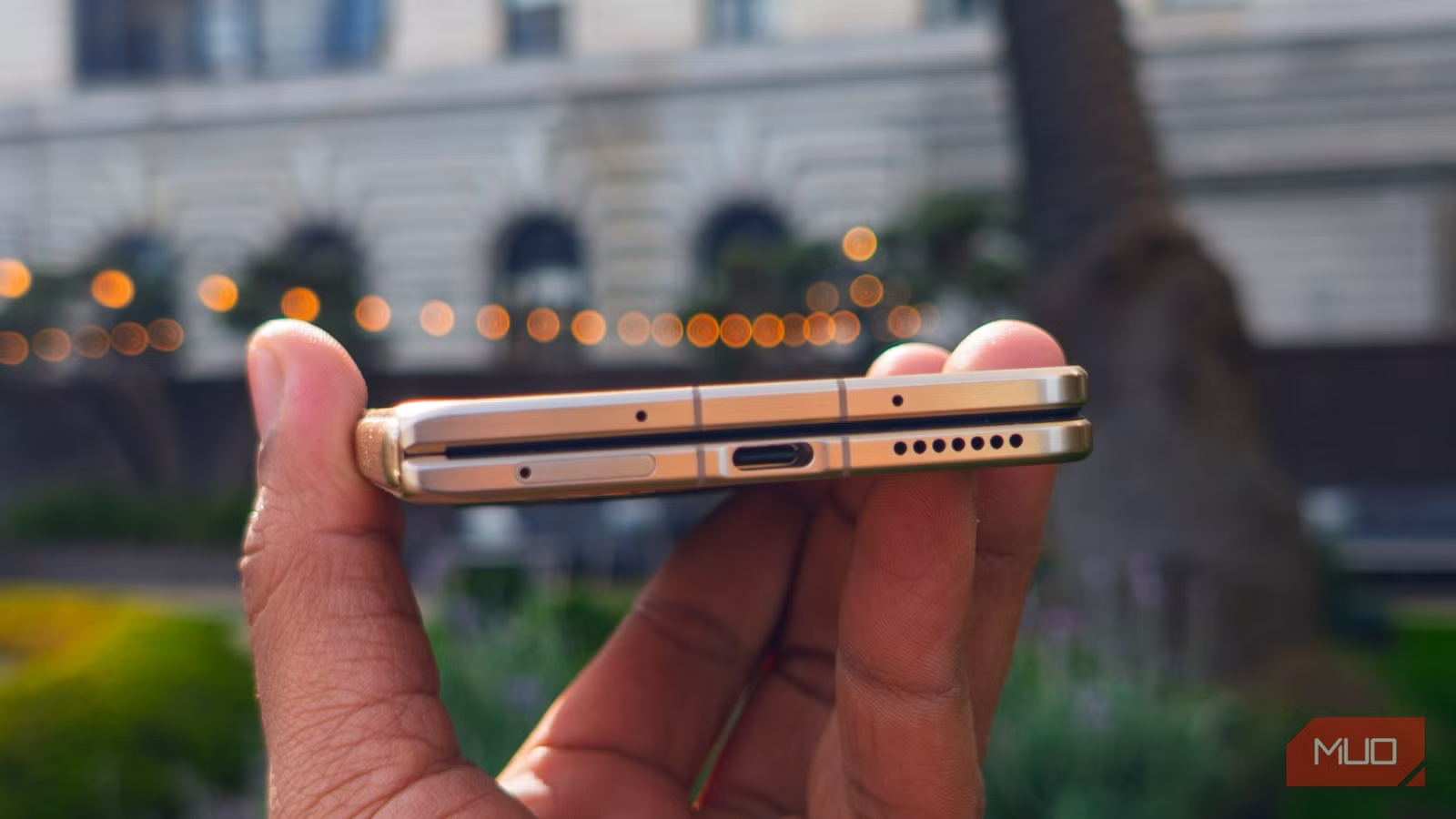
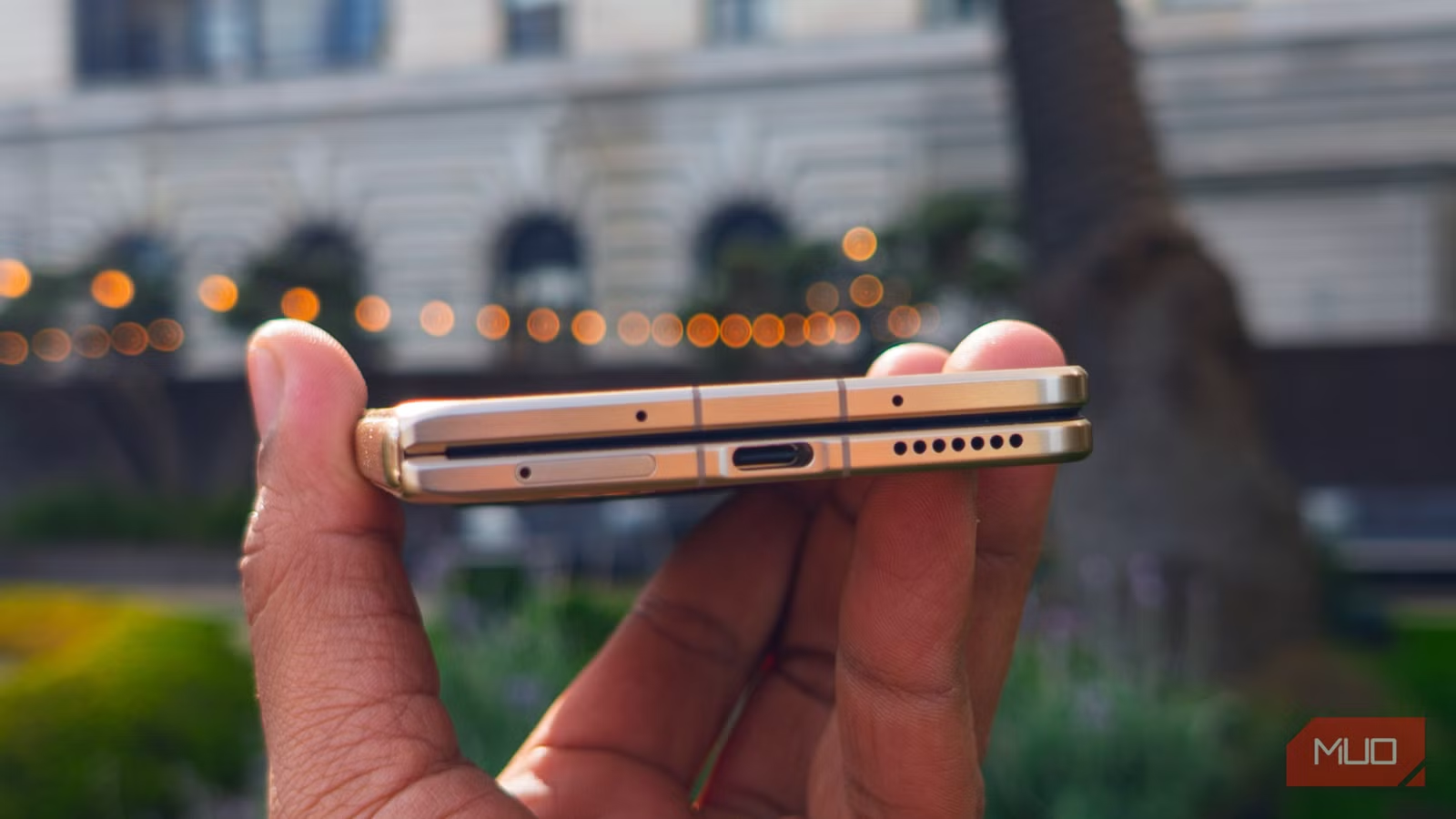
USB-C ports have become the universal connector for everything from smartphones to external drives to portable fans. The oval-shaped port has transformed how we connect devices. But it has one painful flaw: you can't tell what you're getting just by looking at it.
That USB-C port on your laptop? It could transfer data at 480Mbps. Or 120Gbps. A 250x difference, and both use the exact same connector shape. If you've ever wondered why your external SSD feels slow or why your dock doesn't work properly, the answer is probably hiding in your USB specs.
USB-C Is Just the Connector Shape
Here's the confusion: USB-C doesn't define anything except the physical connector. It's like saying "rectangular plug" for your wall outlets without specifying voltage or amperage. Multiple protocols use USB-C, and they deliver wildly different performance.
The actual speed depends on four things: the USB version, the cable rating, the port's protocol support, and the device you're connecting. Get any one of these wrong and you'll bottleneck the entire chain.
1. USB Version Does the Heavy Lifting
The USB version is the biggest factor in your connection speed. But here's where it gets messy: there are over 30 different USB protocols and variants. The main ones you'll encounter in practice are USB 2.0 (480Mbps), USB 3.0/3.1 Gen 1 (5Gbps), USB 3.1 Gen 2 (10Gbps), USB 3.2 Gen 2x2 (20Gbps), USB4 (40Gbps), and Thunderbolt 4/5 (40Gbps to 120Gbps).
All of these can use the same USB-C connector. Your phone's charging port might be USB 2.0. Your laptop's Thunderbolt port might be 120Gbps. Same shape, 250 times the speed difference.
2. Your Cable Matters More Than You Think
A USB-C cable rated for USB 2.0 won't magically become faster when you plug it into a Thunderbolt port. The cable itself has to support the protocol. Many cheap USB-C cables only carry USB 2.0 speeds despite looking identical to high-speed cables.
The worst part? There's no easy way to tell by looking. Some cables have small icons printed on them. Others don't. You can use USB testing tools or free software to check, but most people just have a drawer full of mystery cables.
3. The Port Protocol Limits Everything
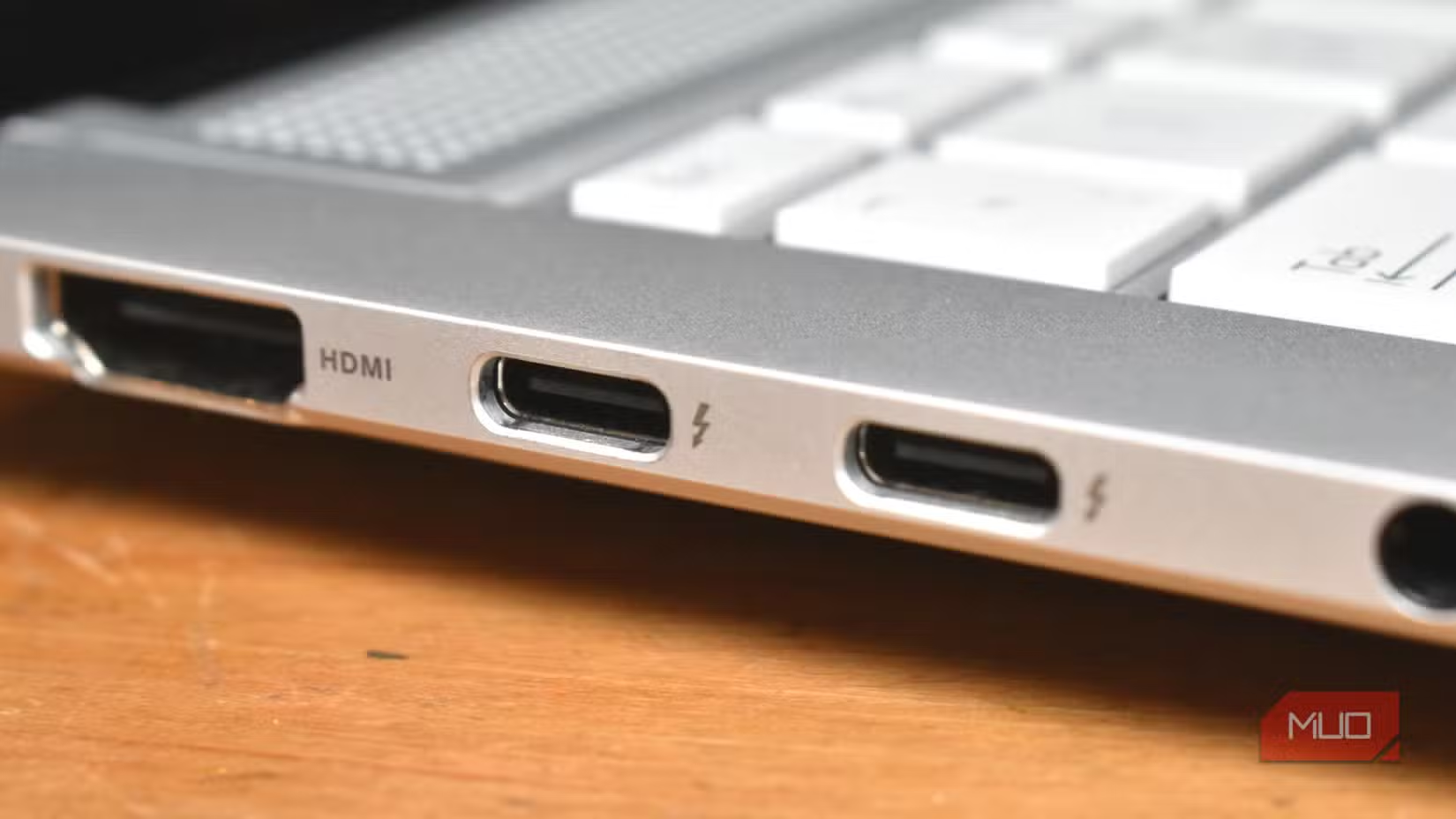
Your device's port has to actually support the protocol you're trying to use. A USB-C port labeled with a lightning bolt usually indicates Thunderbolt support. But even that's not guaranteed. Some ports support Thunderbolt 3 (40Gbps), others Thunderbolt 4 (40Gbps with stricter requirements), and the newest Thunderbolt 5 hits 120Gbps.
Power delivery also varies by port. Not every USB-C port can charge your laptop, even if it physically accepts the cable. Some ports are data-only. Others support 15W, 65W, 100W, or even 240W power delivery.
4. The Connected Device Sets the Ceiling
Even with a Thunderbolt 4 port and a certified cable, your external drive might only support USB 3.1 Gen 1. The connection always runs at the speed of the slowest component in the chain.
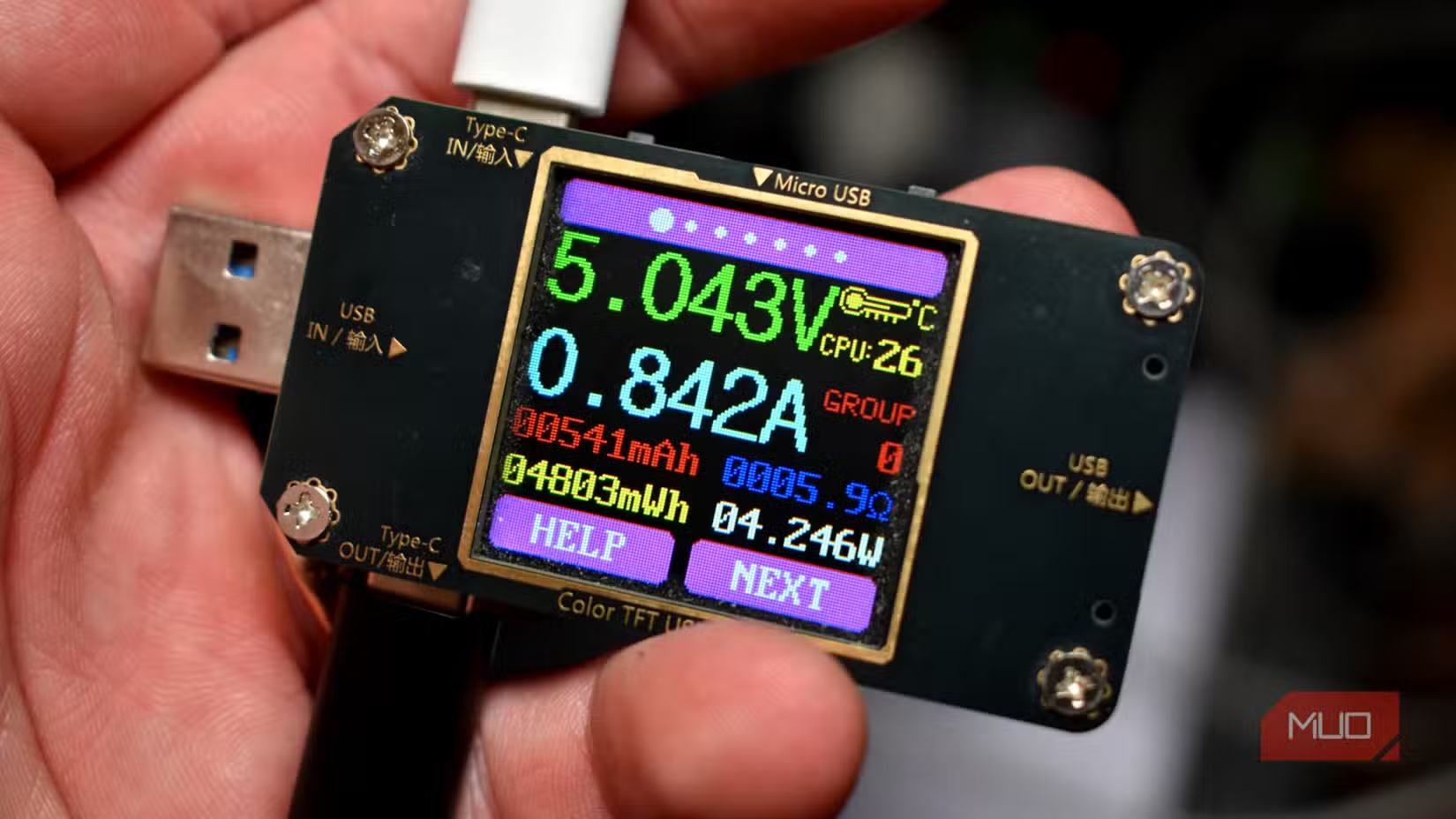
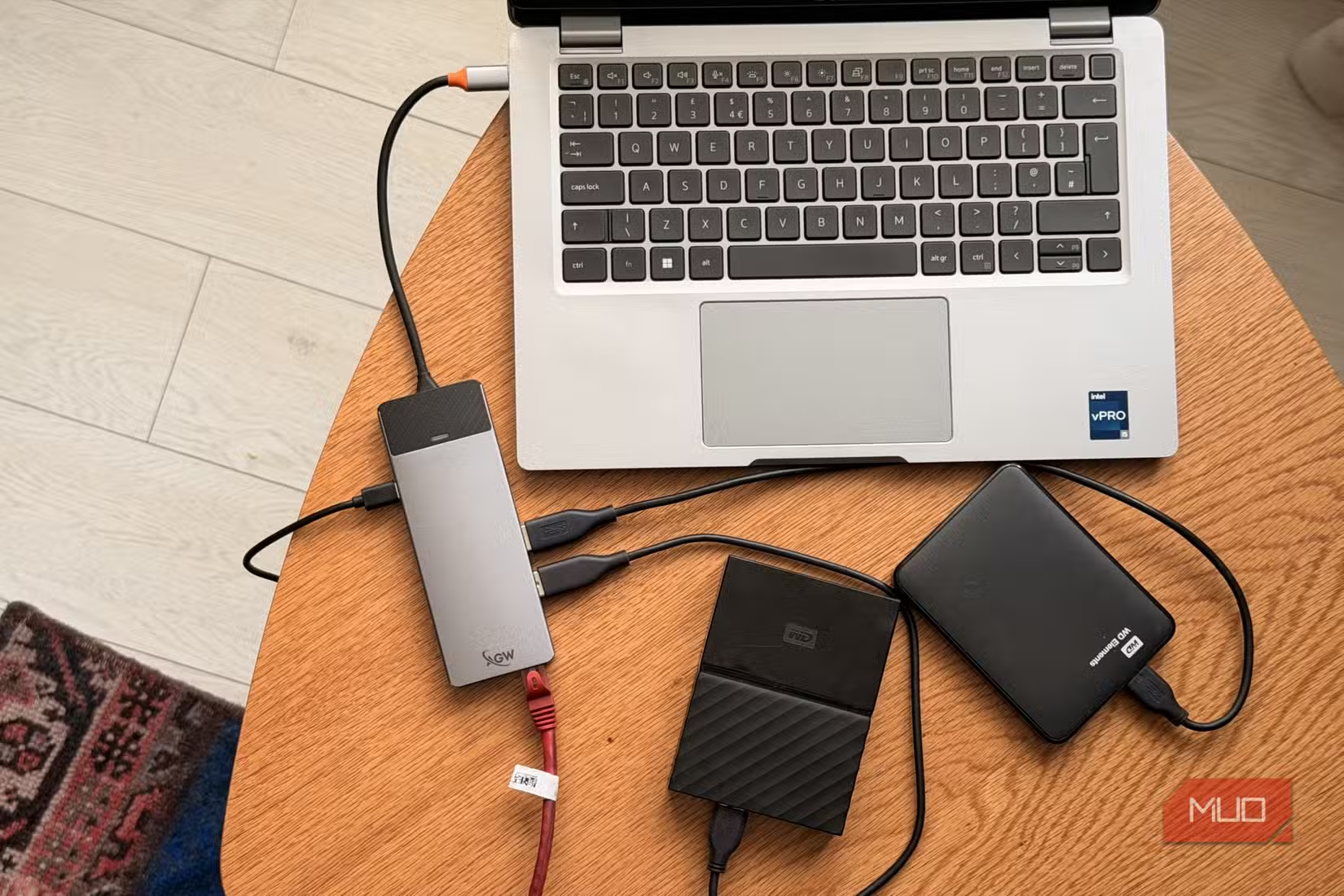
This is especially relevant for hubs and docks. If you daisy-chain multiple devices through a hub, they share the hub's bandwidth. A 10Gbps hub connected to a 40Gbps port still limits everything to 10Gbps.
How to Check Your USB Port Speeds on Windows
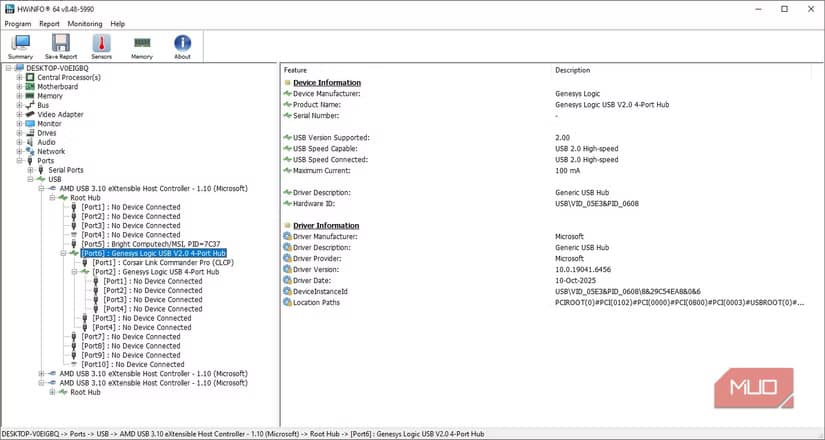
Windows doesn't make this easy through native settings. The best option is HWiNFO, a free diagnostic tool that shows your USB ports, their supported versions, currently connected speeds, and more.
Download HWiNFO from the official site, run it, and look for the USB section. You'll see each port's maximum supported speed and what speed your connected devices are actually running at. This immediately tells you if you're being bottlenecked.
How to Check Your USB Port Speeds on macOS
Apple makes this much simpler. Click the Apple menu, select About This Mac, then More Info, then System Report. Select USB from the sidebar, and you'll see all connected USB devices with their speed information.
For Thunderbolt devices, check the Thunderbolt section instead. The System Report shows the exact protocol each device is using and its connection speed.
Quick Spec Checks for Phones and Laptops
For smartphones, laptops, and other devices, a quick internet search usually reveals the port specs. Search your device model plus "USB specs" and you'll find the official documentation. Manufacturer spec sheets typically list the exact USB version and any Thunderbolt support.
Pay attention to whether specs list different ports with different capabilities. Many laptops have one or two Thunderbolt ports alongside slower USB-C ports. The physical appearance is identical.
Logicity's Take
Frequently Asked Questions
Why is my USB-C drive slower than advertised?
Your cable, port, or hub might not support the drive's maximum speed. Check each component in the chain. A USB 2.0 cable or port will limit even a fast NVMe drive to 480Mbps.
How do I know if my USB-C port supports Thunderbolt?
Look for a lightning bolt icon next to the port. You can also check your device specs online or use HWiNFO on Windows or System Report on macOS to confirm Thunderbolt support.
Can I use any USB-C cable for fast data transfer?
No. Many USB-C cables only support USB 2.0 speeds (480Mbps) even though they physically fit. Look for cables labeled with the specific USB version or Thunderbolt certification you need.
Does USB4 work with all USB-C devices?
USB4 is backward compatible with older USB devices, but those devices will run at their maximum supported speed, not USB4 speeds. You need USB4-compatible devices on both ends to get USB4 performance.
Why do I have multiple USB-C ports with different speeds?
Manufacturers often include a mix of port types to balance cost and capability. A laptop might have one or two Thunderbolt ports and additional USB 3.0 ports. Check your device specs to identify which is which.
Another free diagnostic tool that reveals what your system is actually doing
Need Help Implementing This?
Source: MakeUseOf
Huma Shazia
Senior AI & Tech Writer
Produced with AI assistance and reviewed by the Logicity editorial team. Learn more in our Editorial Policy.






