Key Takeaways
- Scene Optimizer bakes heavy processing into every photo, making colors warmer and reducing editing flexibility
- Shooting at 50MP instead of the default 12MP captures significantly more detail for cropping
- Camera Assistant app offers additional controls Samsung hides from the main camera interface
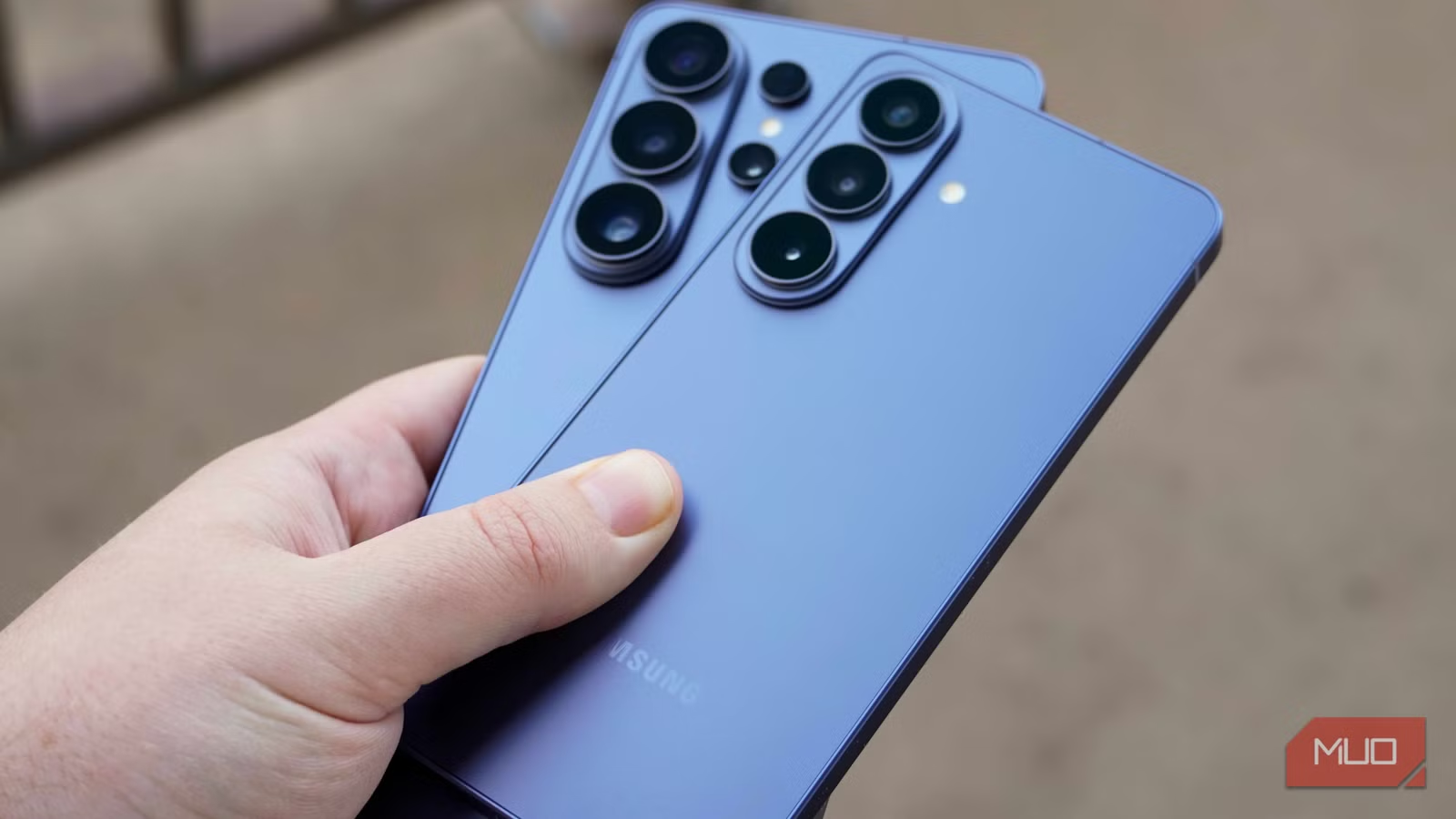
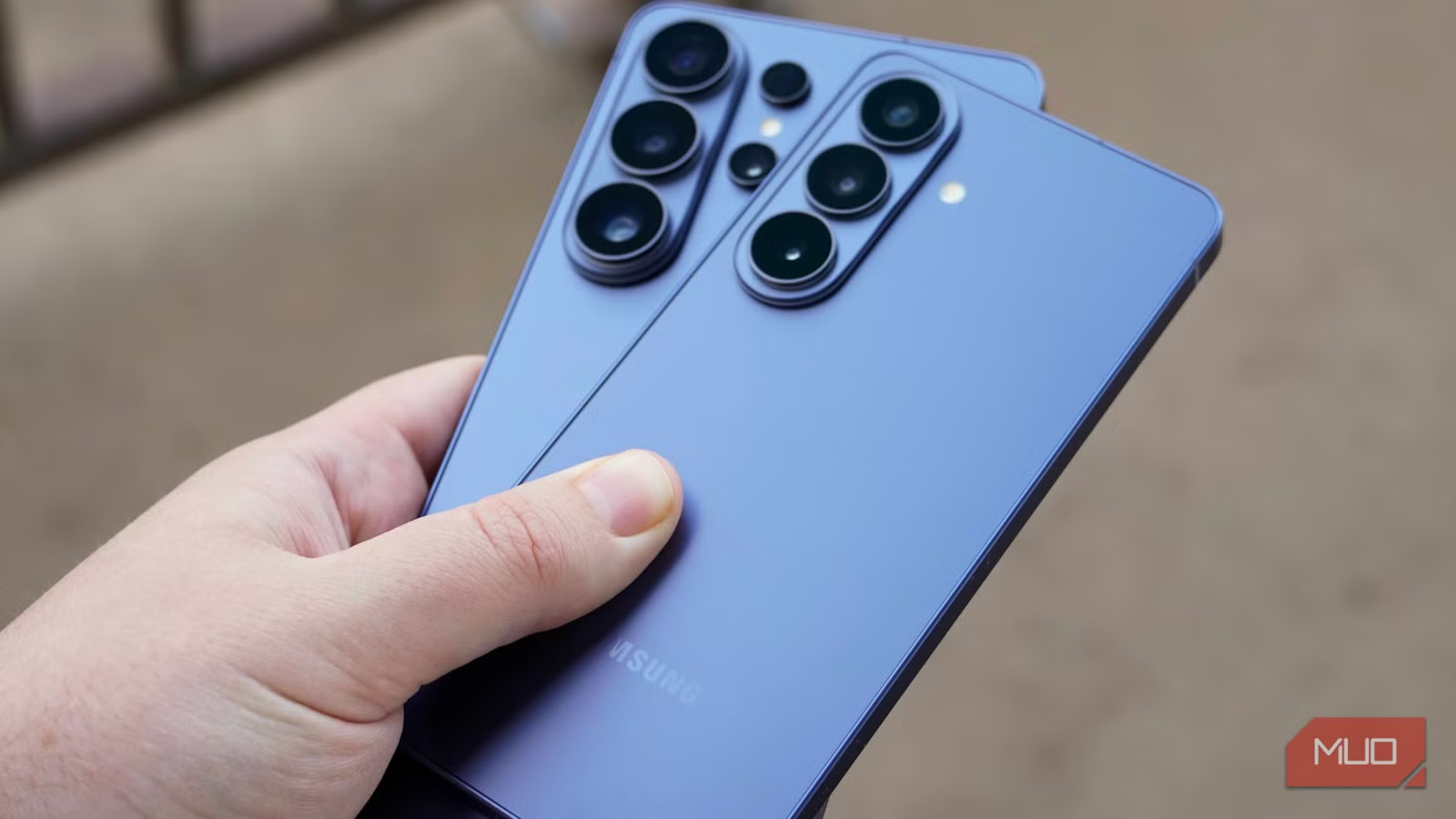
If you've ever taken a photo on your Galaxy phone and wondered why it looks different from the scene you actually saw, you're not imagining it. Samsung processes photos aggressively by default. The camera app tries to make every shot look vivid and ready for social media, but you lose natural detail and editing flexibility in the process.
The good news: a few settings changes can fix this. Here are four defaults worth changing on your Samsung phone.
1. Turn Off Scene Optimizer
Scene Optimizer is the first setting to disable because it affects every photo you take in Photo mode. The feature analyzes what you're pointing at and automatically adjusts colors, contrast, brightness, and warmth based on what Samsung thinks the scene should look like.
The effect is most obvious in food shots, sunsets, and greenery. Food often gets an unnatural orange warmth. Skies can lose highlight detail and appear flatter than they looked in real life. Since these adjustments get baked directly into the saved image, heavily processed photos also leave you with less flexibility when editing later.
To turn it off: open the Camera app, tap the gear icon, and go to Intelligent features. On older One UI versions, you'll see a toggle called Scene optimizer. Samsung renamed this to Scene detection in newer One UI versions and moved it under Photo enhancer. Disable it either way.
With Scene Optimizer off, photos may initially look less punchy on your phone screen. But they'll preserve more natural colors and detail from the sensor itself.
2. Switch to 50MP Full Resolution
Samsung ships most Galaxy phones with high-resolution cameras set to 12MP by default, even on devices with 50MP or 200MP sensors. This is pixel binning at work. Samsung combines multiple pixels into one to improve low-light performance and reduce file sizes.
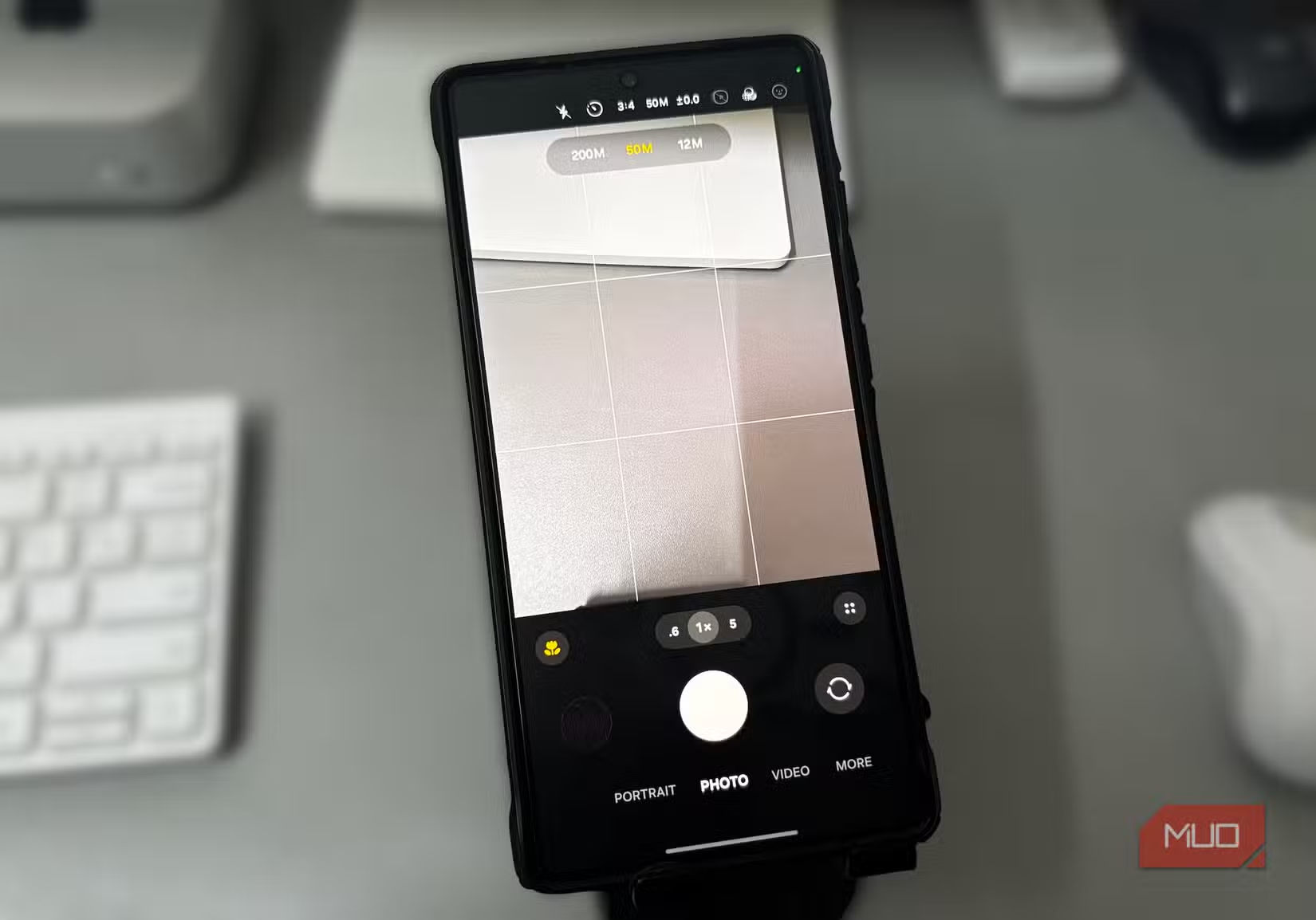
The trade-off: you lose resolution. If you crop your photos or print them at larger sizes, the difference becomes obvious. Switching to 50MP (or 200MP on supported devices) captures sharper images with cleaner textures, especially in good lighting.
To change this, open the Camera app and look for the resolution indicator near the top of the screen. Tap it to switch between 12MP, 50MP, and 200MP modes. Keep in mind that higher resolution files are larger, so you'll use more storage.
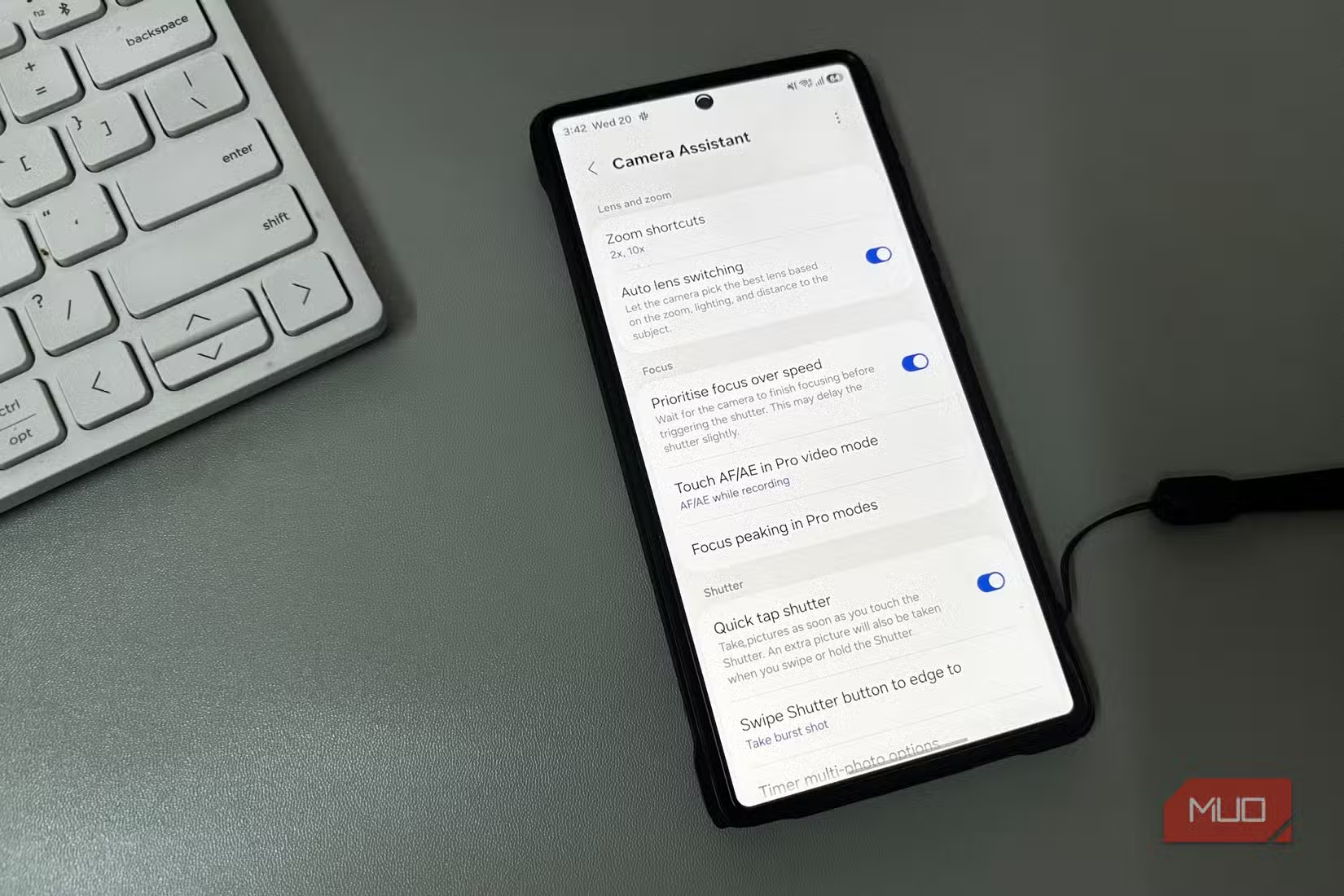
3. Install Camera Assistant
Samsung hides some of its most useful camera controls in a separate app called Camera Assistant. It's available through the Galaxy Store or as part of Good Lock, Samsung's customization suite.
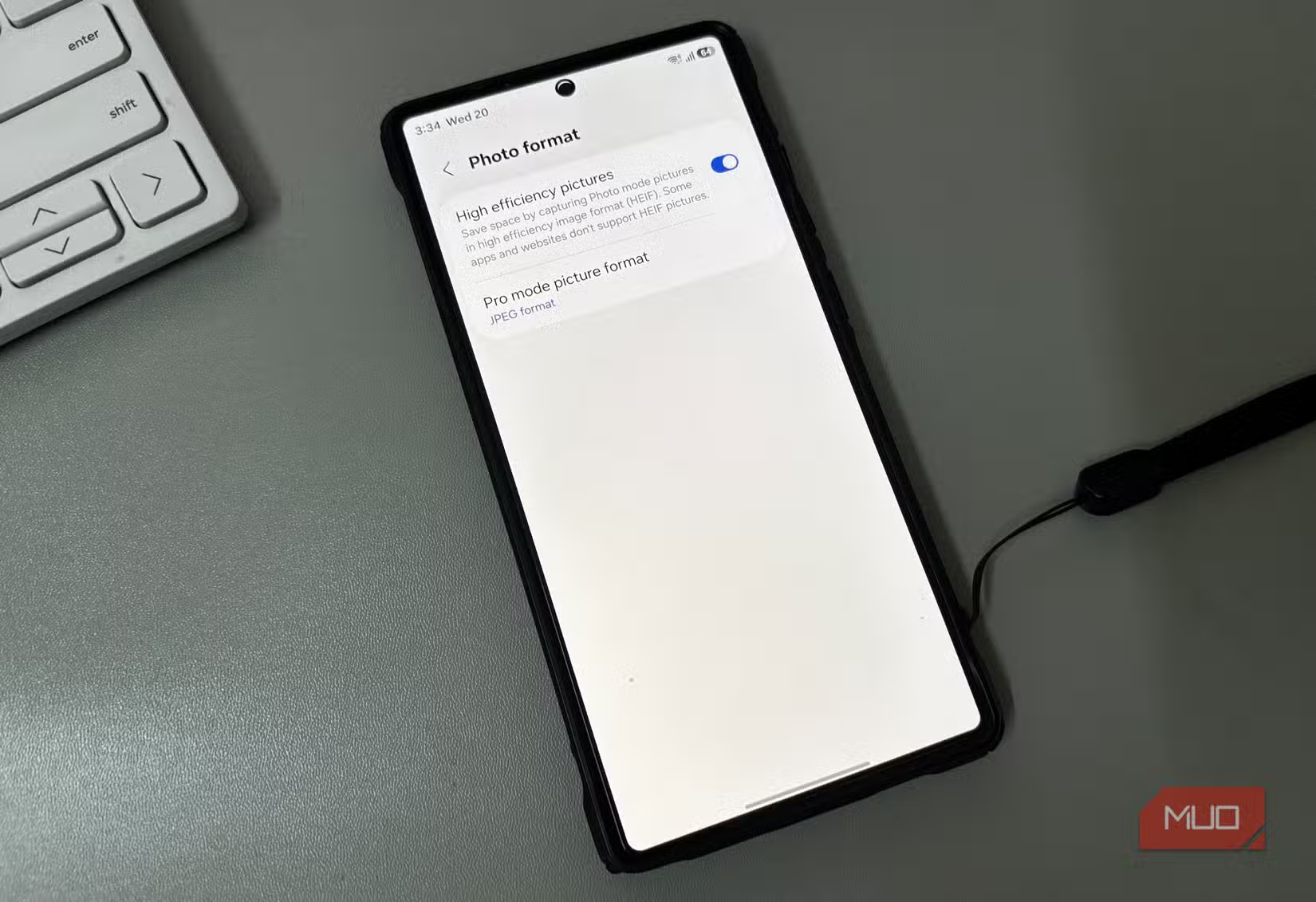
Camera Assistant gives you access to settings that don't appear in the main camera interface. These include controls for shutter behavior, lens switching thresholds, and additional processing options. It's worth installing even if you only change one or two things.
4. Reduce Automatic Smoothing
Samsung's processing pipeline includes smoothing that can remove fine details from photos. This is especially noticeable in portraits and close-up shots where you want to preserve texture. Skin can look artificially smooth. Hair loses individual strands. Fabric patterns get mushy.
Camera Assistant includes options to reduce this automatic smoothing. The exact setting names vary by phone model and One UI version, but look for anything related to texture preservation or detail enhancement. Dialing back the smoothing keeps more of what the sensor actually captured.
Logicity's Take
What You'll Notice After These Changes
Your photos will look different right away. They'll appear less saturated and contrasty on your phone screen. This isn't a downgrade. It means the camera is capturing what's actually there instead of what Samsung's algorithms think should be there.
The real benefit shows up when you edit. Photos with less baked-in processing give you more headroom to adjust exposure, color, and contrast without introducing artifacts. You're starting from a more neutral baseline.
Higher resolution shots also crop much better. If you're shooting at 50MP instead of 12MP, you can punch in significantly without the image turning to mush.
More ways to get more from your Android device
Frequently Asked Questions
Will turning off Scene Optimizer make my photos worse?
No. Your photos will look less processed, which means more natural colors and better editing flexibility. They may appear less punchy at first glance, but they preserve more detail from the sensor.
Why does Samsung default to 12MP when the sensor is 50MP or 200MP?
Samsung uses pixel binning by default to combine multiple pixels into one. This improves low-light performance and reduces file sizes, but you lose resolution for cropping and printing.
What is Camera Assistant and where do I get it?
Camera Assistant is a Samsung app that unlocks additional camera settings not available in the main interface. Download it from the Galaxy Store or through Good Lock.
Do these settings changes affect video recording?
Some settings affect both photo and video modes, but the changes discussed here primarily impact still photography. Video has its own set of processing options.
Will shooting at 50MP fill up my storage faster?
Yes. Higher resolution files are larger. If storage is a concern, you can switch between 12MP and 50MP depending on whether you need the extra detail for a particular shot.
Need Help Implementing This?
Source: MakeUseOf
Huma Shazia
Senior AI & Tech Writer
Produced with AI assistance and reviewed by the Logicity editorial team. Learn more in our Editorial Policy.