Key Takeaways
- Converting data to named tables makes formulas easier to read and manage
- SUMIF and conditional formatting handle most personal tracking needs
- Building real tools teaches Excel faster than abstract tutorials
Excel feels overwhelming when you're staring at 17 million empty cells. The trick is to stop treating it like a test and start treating it like a toolbox. You don't need to master pivot tables on day one. You need one small project that does something useful.
These four beginner projects each take under an hour. They teach formulas, formatting, and data organization while creating tools you'll actually open again next week.
Before You Start: The Table Conversion Trick
Every project below uses Excel tables instead of raw cell ranges. Tables make formulas readable. Instead of writing =SUMIF(B6:B100,">0"), you write =SUMIF(Transactions[Amount],">0"). The second version tells you exactly what you're summing.
To convert any data range to a table: select your data including headers, press Ctrl+T, check "My table has headers," and click OK. Then rename the table in the Table Design tab. This takes ten seconds and makes everything else easier.
Project 1: Personal Budget Tracker
A budget tracker shows where your money goes without complex setup. Excel handles the structure. You define the rules.
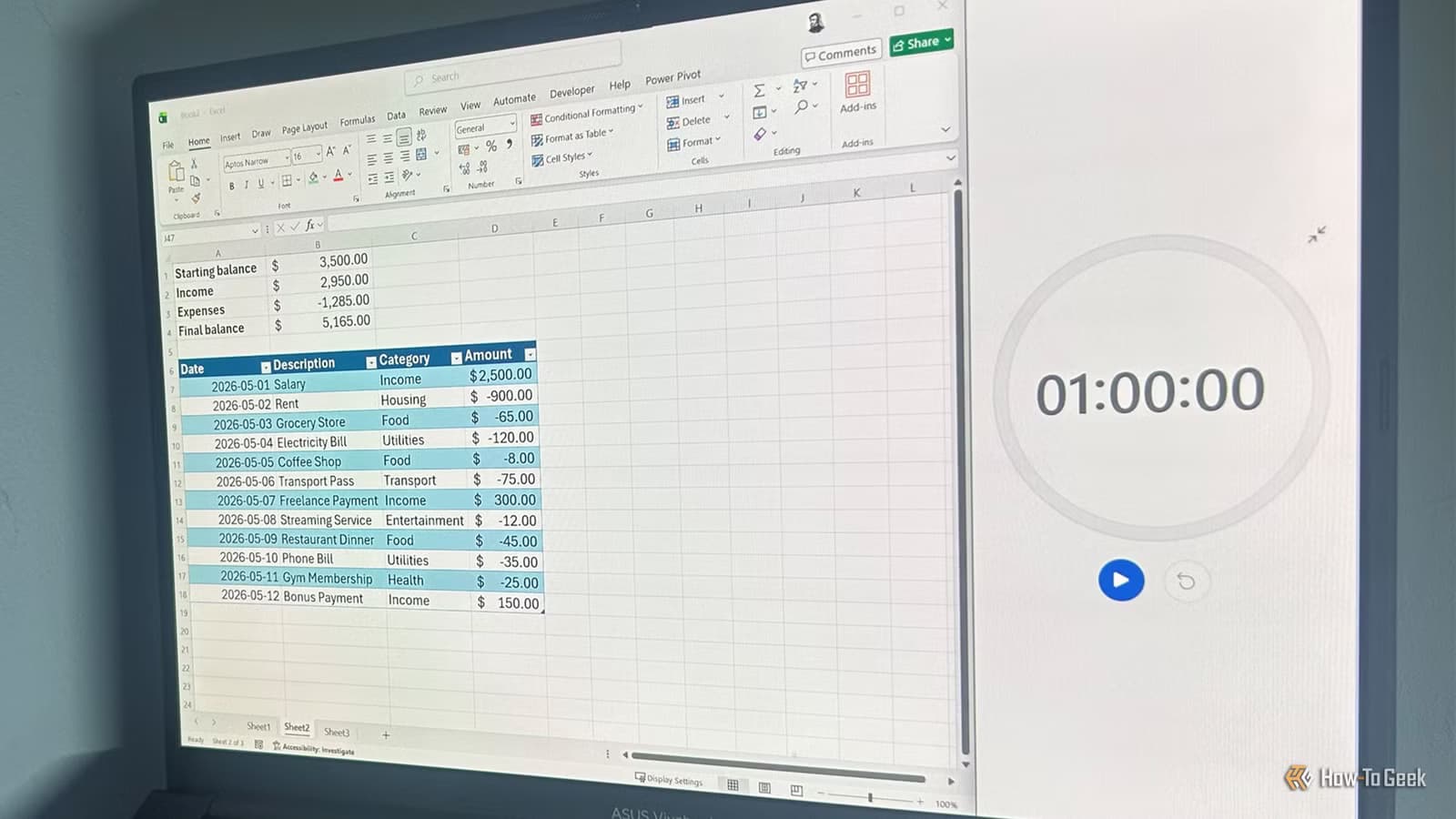
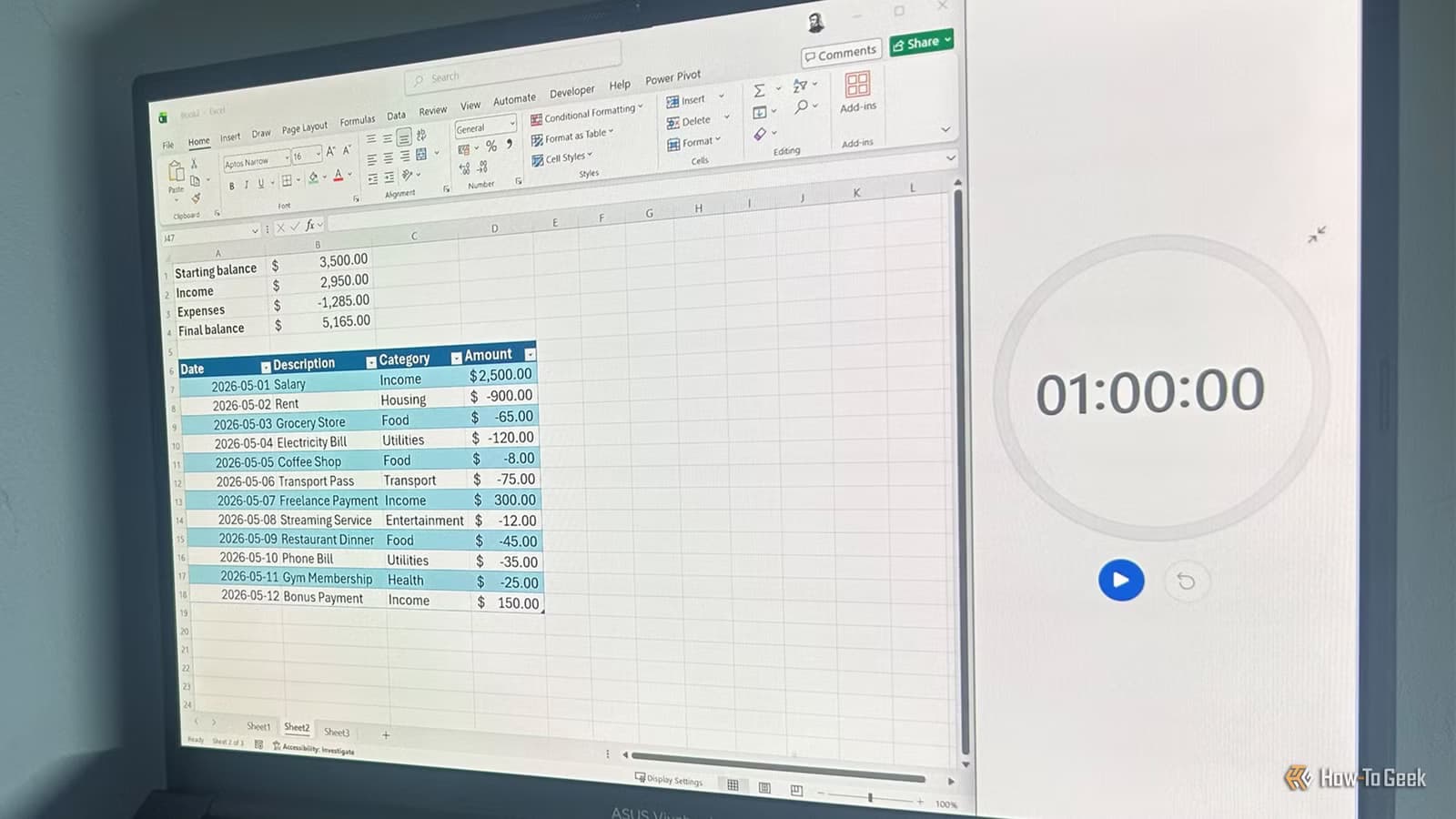
Start by creating a transaction table in row 6 with four columns: Date, Description, Category, and Amount. Enter income as positive numbers and expenses as negative numbers. Convert the range to a table and name it Transactions.
Next, build a summary section at the top of your sheet. In cell A1, type "Starting balance" and enter your number in B1. In A2, type "Income" and use this formula in B2:
=SUMIF(Transactions[Amount],">0")This formula adds only positive values from your Amount column. For expenses in A3, use the same logic with "<0" to sum negative values. Your current balance formula simply adds starting balance plus income plus expenses.
The Category column becomes useful when you want breakdowns. SUMIF can filter by category name, so you can see exactly how much you spent on groceries last month.
Project 2: Task List with Automatic Overdue Highlighting
A task list that highlights overdue items saves you from scanning dates manually. Conditional formatting does the checking for you.
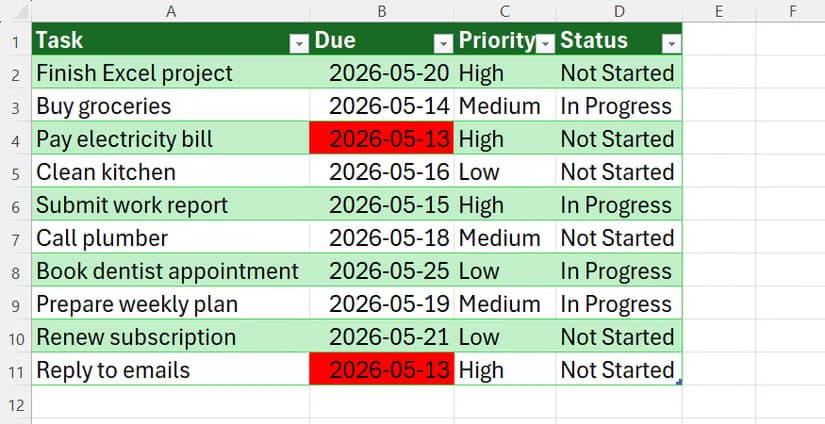
Create columns for Task, Due Date, and Status. Convert to a table and name it Tasks. Enter a few items with dates in the past, present, and future so you can test your formatting.
Select your Due Date column. Go to Home > Conditional Formatting > New Rule. Choose "Use a formula to determine which cells to format." Enter a formula that compares the cell to TODAY(). If the due date is less than or equal to today and the task isn't marked complete, the cell turns red.
The TODAY() function updates automatically when you open the file. Tasks that were fine yesterday turn red this morning if they're now overdue. No manual checking required.
Project 3: Home Inventory with Restock Alerts
An inventory tracker tells you when supplies run low. The IF function handles the logic.
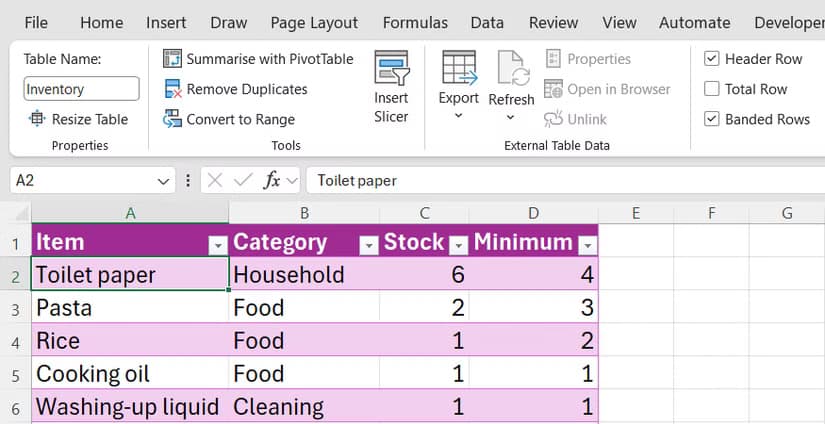
Create columns for Item, Current Stock, Minimum Required, and Status. Convert to a table named Inventory. In the Status column, enter this formula:
=IF([@[Current Stock]]<[@[Minimum Required]],"Restock","OK")The @ symbol references the current row in a table. When current stock drops below your minimum, the cell shows "Restock." Otherwise it shows "OK."
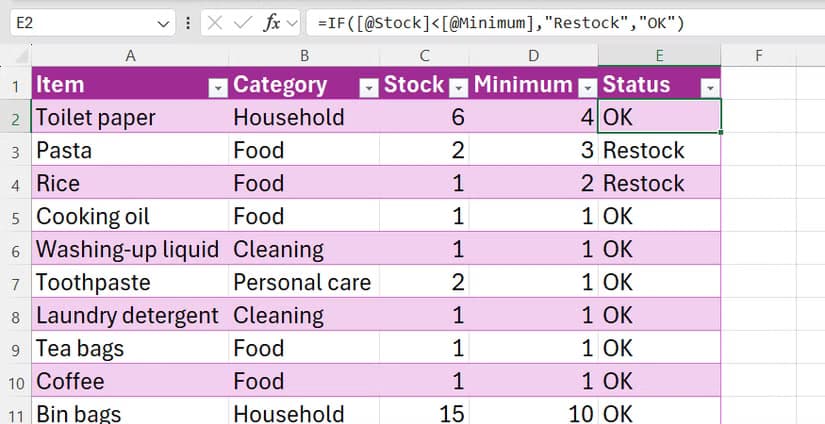
Add conditional formatting to turn "Restock" cells red. Now you can glance at your inventory and immediately see what needs ordering.
Project 4: Expense Splitter for Shared Costs
Splitting costs with roommates or trip companions gets messy. A simple splitter calculates who owes what.
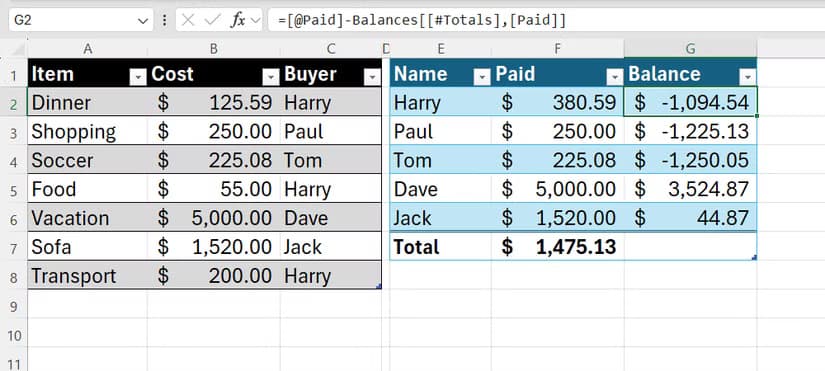
Create columns for Expense, Amount, and Paid By. Convert to a table named Expenses. At the top, create a summary section that calculates each person's total spending using SUMIF.
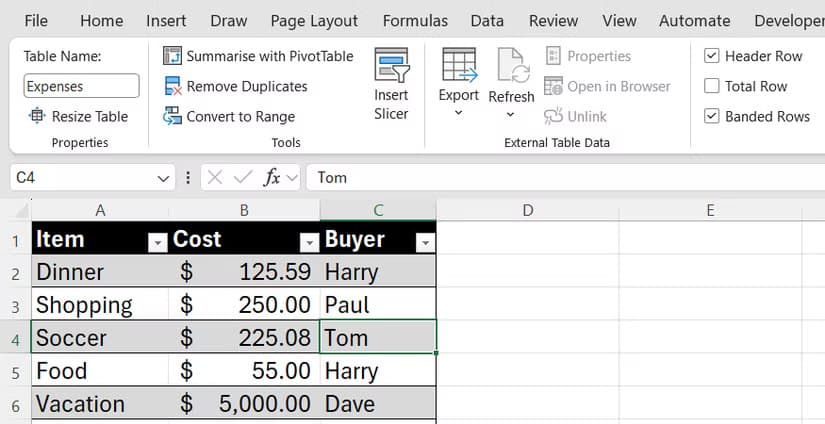
Divide the total expenses by the number of people to get the fair share. Then subtract each person's actual spending from their fair share. Positive numbers mean they owe money. Negative numbers mean they're owed money.
This project teaches SUMIF with text criteria. Instead of ">0" you're matching names like "Alex" or "Jordan."
Why Projects Beat Tutorials
Reading about SUMIF is forgettable. Using SUMIF to track your own spending makes it stick. Each project here teaches the same core skills: table conversion, basic formulas, conditional formatting, and data organization. But you learn them in context.
The budget tracker teaches SUMIF. The task list teaches conditional formatting with dates. The inventory teaches IF logic. The expense splitter combines SUMIF with text matching. After all four, you have a working knowledge of Excel's most useful features.
Logicity's Take
More automation ideas for repetitive computer work
Frequently Asked Questions
How long does it take to learn basic Excel?
Most people can learn tables, SUMIF, IF formulas, and conditional formatting in 2-4 hours of hands-on practice. These four projects cover those fundamentals.
What's the difference between an Excel table and a regular range?
Tables auto-expand when you add rows, use readable column names in formulas, and include built-in filtering. They're easier to maintain than raw cell ranges.
Can I use these Excel projects in Google Sheets?
Yes. SUMIF, IF, and conditional formatting work the same way in Google Sheets. Table conversion is different but the formulas transfer directly.
What Excel formula should beginners learn first?
SUMIF is the most useful starting point. It adds numbers based on a condition, which covers budgets, inventories, and most tracking needs.
Need Help Implementing This?
Source: How-To Geek
Huma Shazia
Senior AI & Tech Writer
Produced with AI assistance and reviewed by the Logicity editorial team. Learn more in our Editorial Policy.