Key Takeaways
- Docker containers have no memory limits by default, which can trigger Linux's OOM killer to terminate critical services
- Container logs grow indefinitely without explicit rotation rules, filling drives overnight
- Using the 'latest' tag for images leads to unexpected breaking changes during updates
Running Docker on a homelab feels easy until a single misconfigured container takes your entire network offline. Afam Onyimadu, a tech writer who self-hosts his infrastructure, documented four mistakes that crashed his server. Each one stemmed from assumptions about how Docker handles resources by default.
The problems he encountered apply to anyone running containers on modest hardware. Understanding these failure modes before they hit saves hours of debugging SSH timeouts and unresponsive dashboards.
Mistake 1: Ignoring Memory Limits
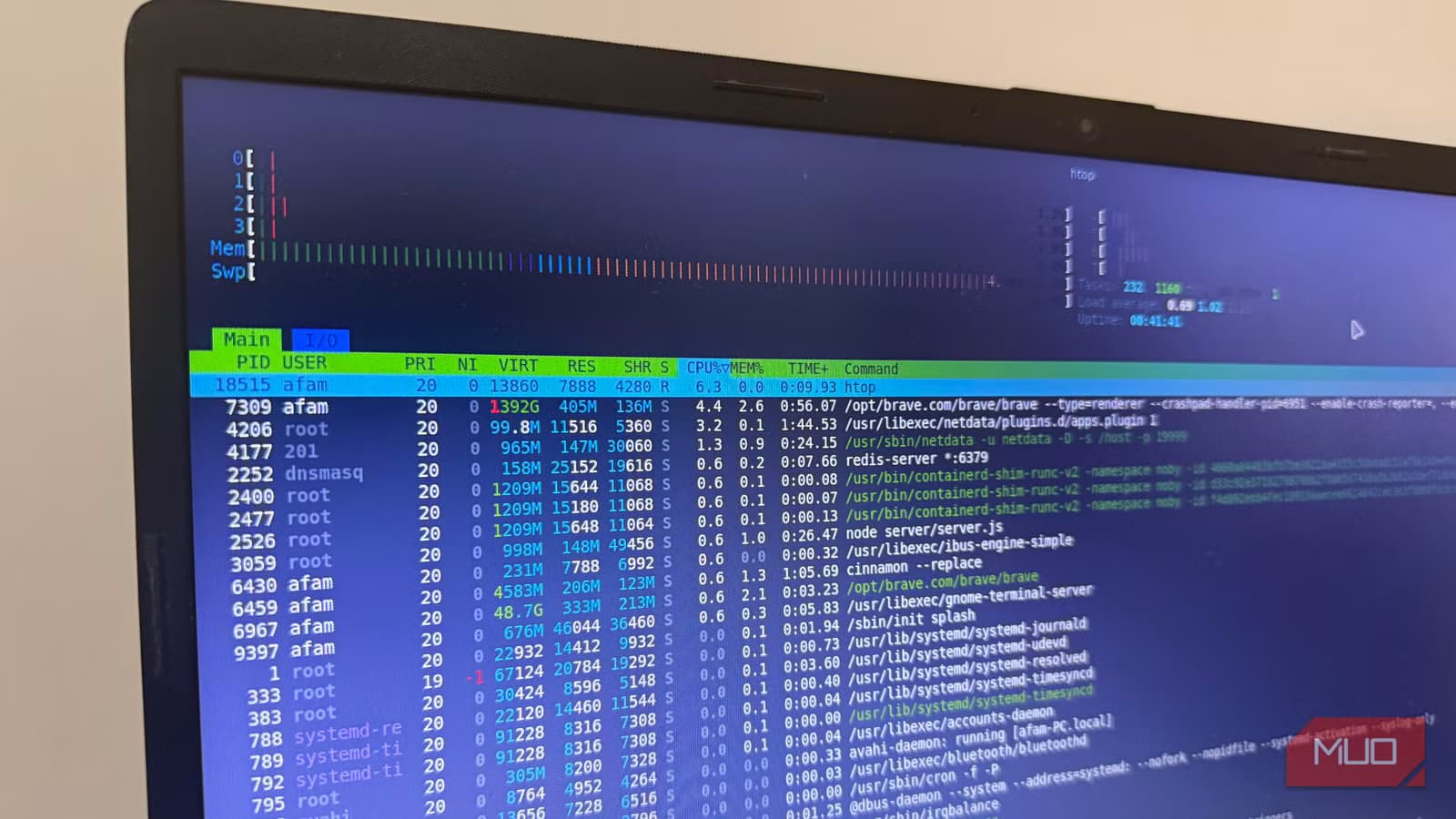
Onyimadu assumed Docker managed memory like a desktop operating system. Browsers freeze background tabs when RAM runs low. Docker does nothing of the sort. By default, containers can consume all available memory until the system chokes.
His server ground to a halt one afternoon. SSH connections timed out. The dashboard went dark. He initially suspected failing hardware. The actual culprit was a single container eating all available RAM.
When Linux runs out of memory, the OOM (Out of Memory) killer terminates processes to recover resources. It prioritizes based on an internal score, not importance. Your memory-hungry container might survive while a critical but smaller service gets killed instead.
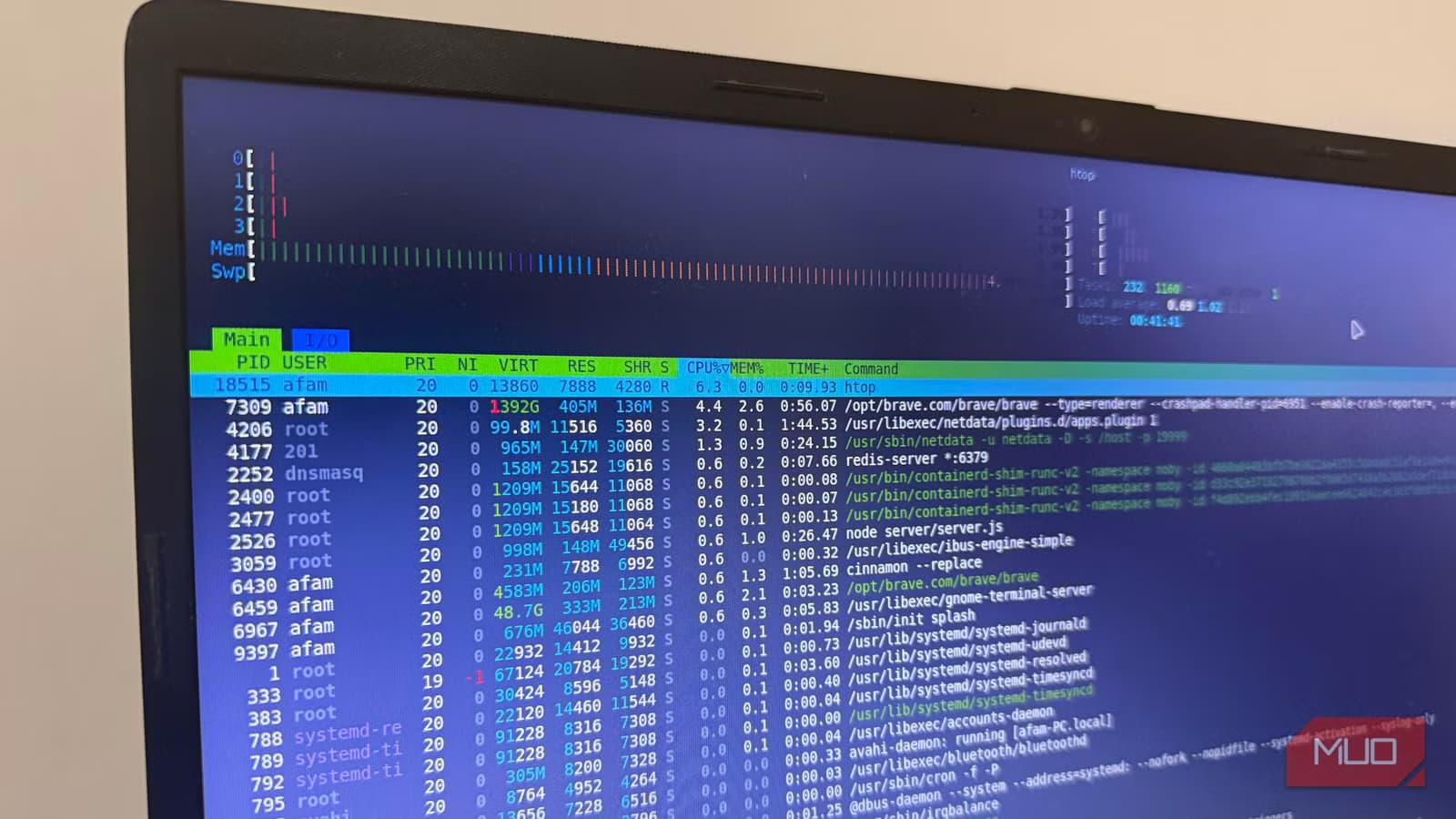
The fix requires setting explicit memory limits. First, check real-time memory usage per container:
docker statsThis command reveals which containers consume the most resources. Once you identify heavy containers, add memory constraints to their docker-compose.yml files.
For standalone Docker Compose setups:
services:
  your-service-name:
    mem_limit: 512m
For newer setups using Docker Swarm or recent Compose versions:
services:
  your-service-name:
    deploy:
      resources:
        limits:
          memory: 512m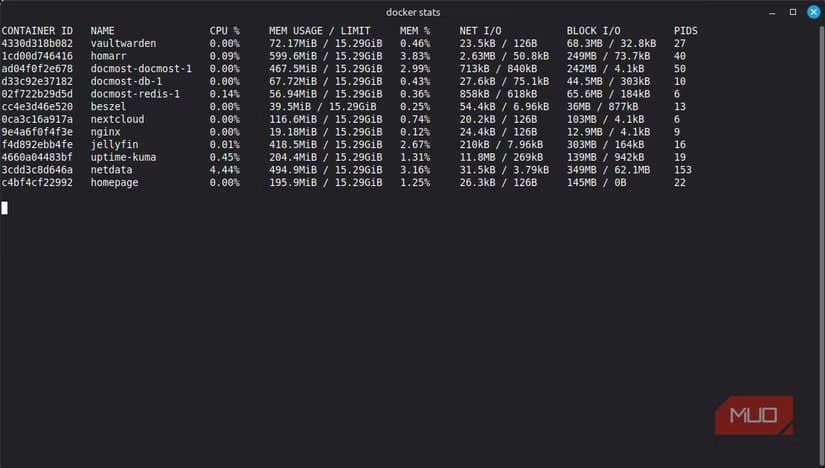
Mistake 2: Letting Logs Fill the Drive
Logs seemed like a production concern, not something that would affect a small home server. Onyimadu learned otherwise when storage vanished overnight.
Docker's default logging driver writes container output to JSON files with no size limit. A chatty application or a bug that spams errors can generate gigabytes of logs in hours. Once the drive fills, containers crash, databases corrupt, and the entire system becomes unstable.
The solution involves configuring log rotation either globally or per container. Adding log limits to a compose file prevents any single container from consuming unlimited disk space.
Mistake 3: Using the 'latest' Tag
Pulling images tagged 'latest' seems convenient. You always get the newest version. The problem surfaces when 'latest' points to a new major version that breaks your configuration.
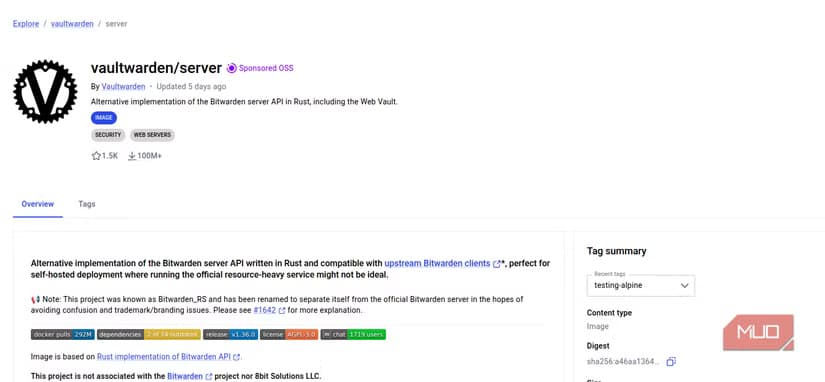
A routine container restart or system reboot pulls fresh images. If the upstream maintainer pushed breaking changes, your previously working setup fails without warning. You discover the problem at the worst time, often when you need the service most.
Pinning specific version tags prevents surprise updates. When you want to upgrade, you control the timing and can test before committing.
Mistake 4: No Health Checks or Monitoring
A container can appear running while the application inside has crashed or become unresponsive. Without health checks, Docker has no way to know the difference. The container stays up, but the service is effectively dead.
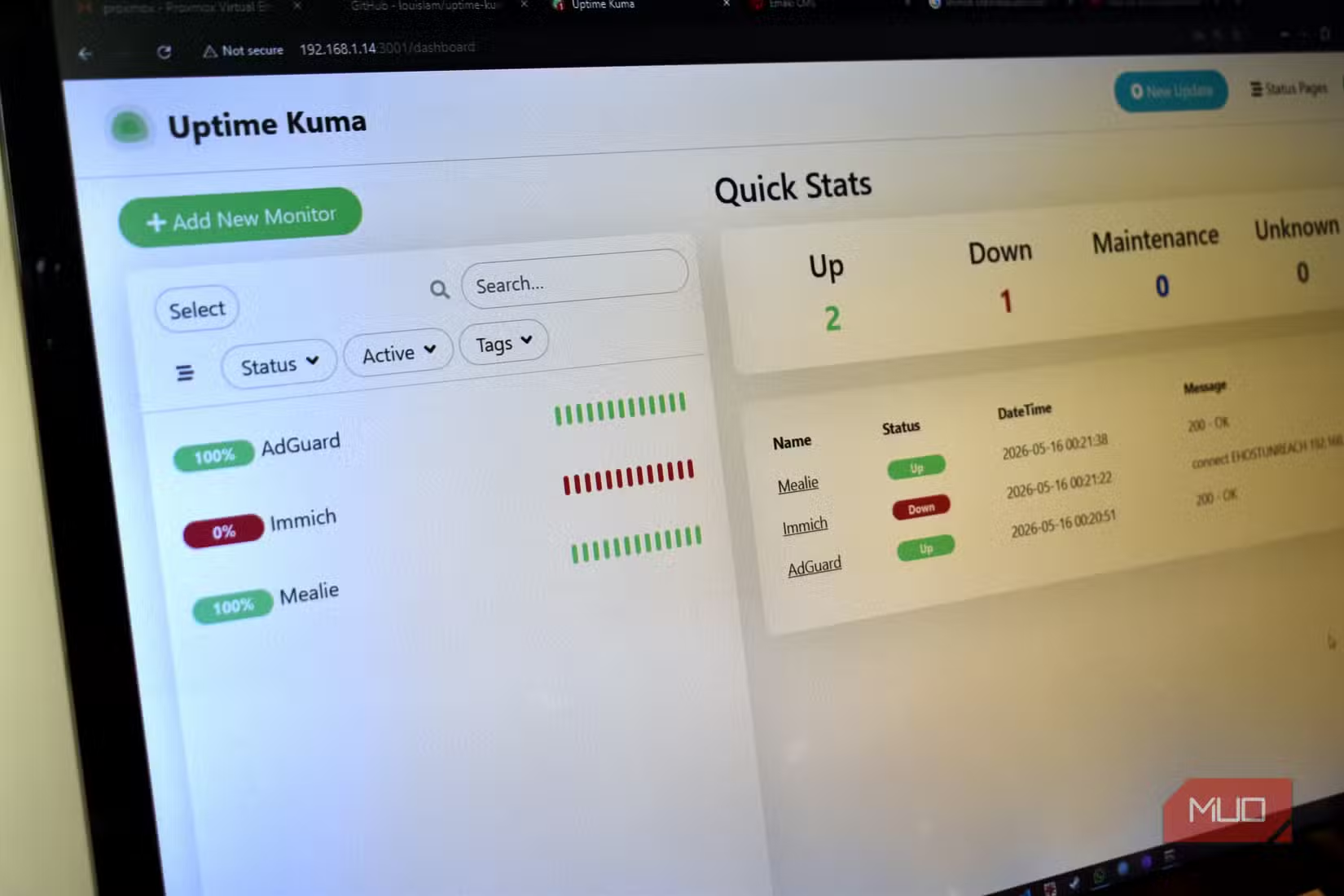
Adding health checks to container configurations allows Docker to restart failed services automatically. Pairing this with a monitoring tool like Uptime Kuma provides visibility into service status before users notice problems.
Self-hosting decisions often involve cost analysis similar to AI subscription trade-offs
Why These Defaults Exist
Docker's permissive defaults make sense for development environments where flexibility matters more than stability. Developers want containers to use available resources without manual tuning. Production and homelab deployments need the opposite: predictable behavior that survives edge cases.
The gap between development convenience and operational reliability catches many self-hosters. Docker works brilliantly until it doesn't, and the failure mode is often total system unresponsiveness rather than a graceful error message.
Logicity's Take
Frequently Asked Questions
Why doesn't Docker set memory limits by default?
Docker prioritizes development flexibility. In dev environments, arbitrary memory limits create friction. Production deployments require explicit configuration because stability matters more than convenience.
How do I check which Docker container is using the most memory?
Run 'docker stats' in your terminal. This shows real-time CPU, memory, and network usage for each running container.
What happens when Docker fills my disk with logs?
The system becomes unstable. Containers may crash, databases can corrupt, and you may lose SSH access. Configure log rotation before this happens.
Is it safe to use the 'latest' tag for Docker images?
Not for production or homelab setups. The 'latest' tag can point to breaking changes without warning. Pin specific version tags and upgrade deliberately.
How do I monitor Docker containers for failures?
Add health checks to your container configurations and use monitoring tools like Uptime Kuma to track service availability and get alerts when something fails.
Need Help Implementing This?
Source: MakeUseOf
Huma Shazia
Senior AI & Tech Writer
Produced with AI assistance and reviewed by the Logicity editorial team. Learn more in our Editorial Policy.