Key Takeaways
- Your IP address reveals your location and ISP to every website, and only a VPN can hide it
- Third-party cookies track you across sites, but browser settings can block them completely
- Browser fingerprinting identifies you even without cookies, requiring specialized browsers to defeat
Your browser talks behind your back. Every time you load a page, it hands over information you never agreed to share. Your location. Your browsing history. A unique fingerprint that identifies your exact device. This happens automatically, silently, on every single website.
The good news: you can stop all three leaks. Each fix takes less than ten minutes, and most are free. Here's what your browser is telling websites and how to shut it up.
Your IP Address Broadcasts Your Location
Think of your IP address as your internet home address. Every website you visit receives it automatically. That's how the server knows where to send the page back. But it also tells the site your approximate physical location, your internet service provider, and enough detail to link your activity across multiple visits.
Here's what doesn't work: clearing cookies, using Incognito mode, or switching devices. You'll still broadcast your IP address because that's how the internet functions at a basic level. There's no built-in browser setting to hide it.
The Fix: Use a VPN
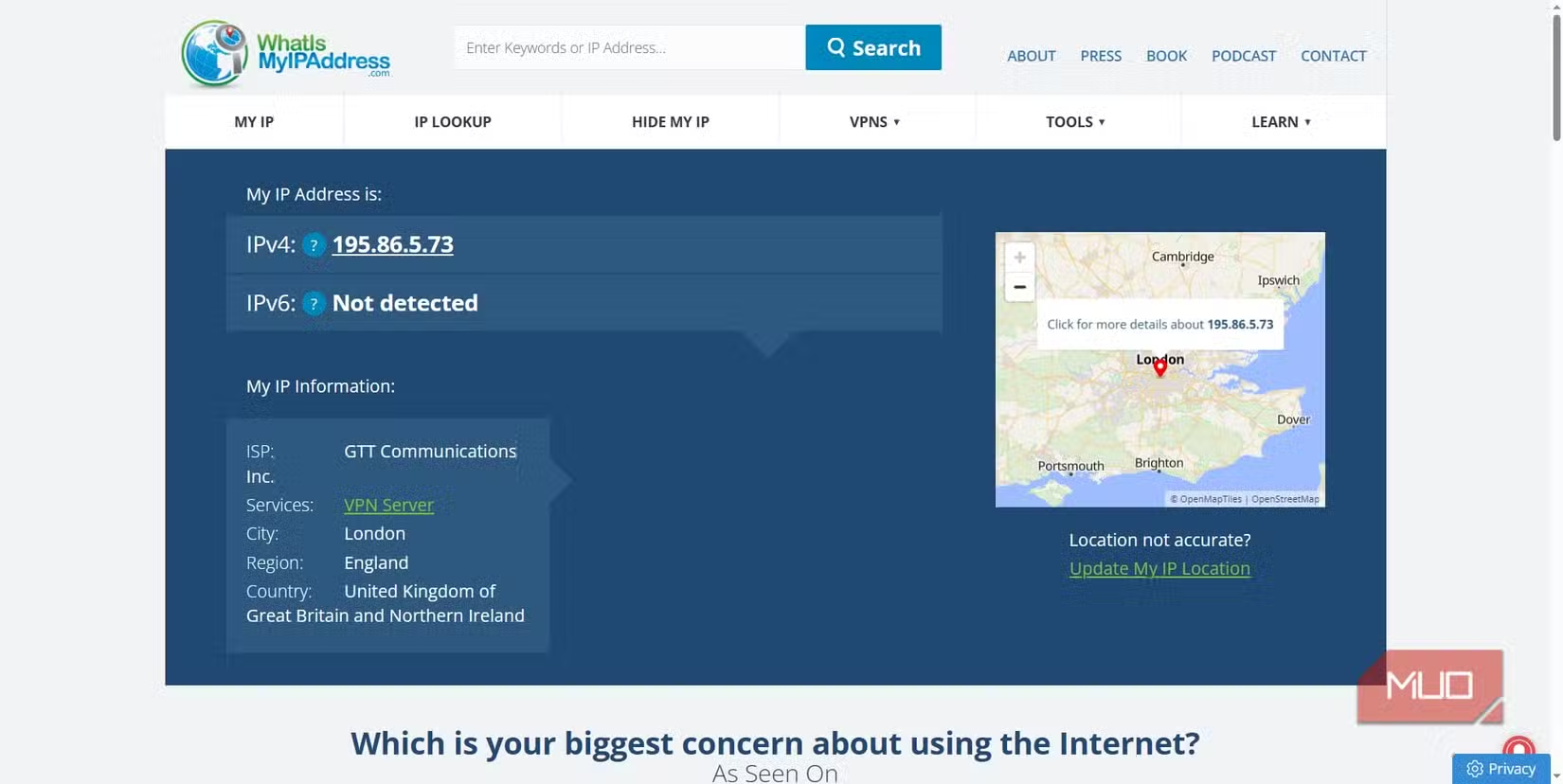
A virtual private network routes your traffic through a server somewhere else. Websites see that server's IP instead of yours. If you connect through a London server, every site thinks you're in London. Many VPNs also block malware and let you access region-locked content.
The common advice is to avoid free VPNs, and there's truth to that. Free providers need to make money somehow, often by logging and selling your data. That defeats the purpose. Paid no-log services like Mullvad VPN ($5/month) or Proton VPN work better if privacy is the goal. But if budget is tight, a free VPN still beats broadcasting your real IP to every site you visit.
Third-Party Cookies Track You Across the Web
When you visit a site, it can drop cookies in your browser. First-party cookies from the site itself are often useful. They remember your login or shopping cart. Third-party cookies are different. They come from advertisers and trackers embedded on the page. They follow you from site to site, building a profile of everything you do online.
That's how you search for running shoes on one site and see shoe ads everywhere else for the next month. Third-party cookies make this possible.
The Fix: Block Third-Party Cookies
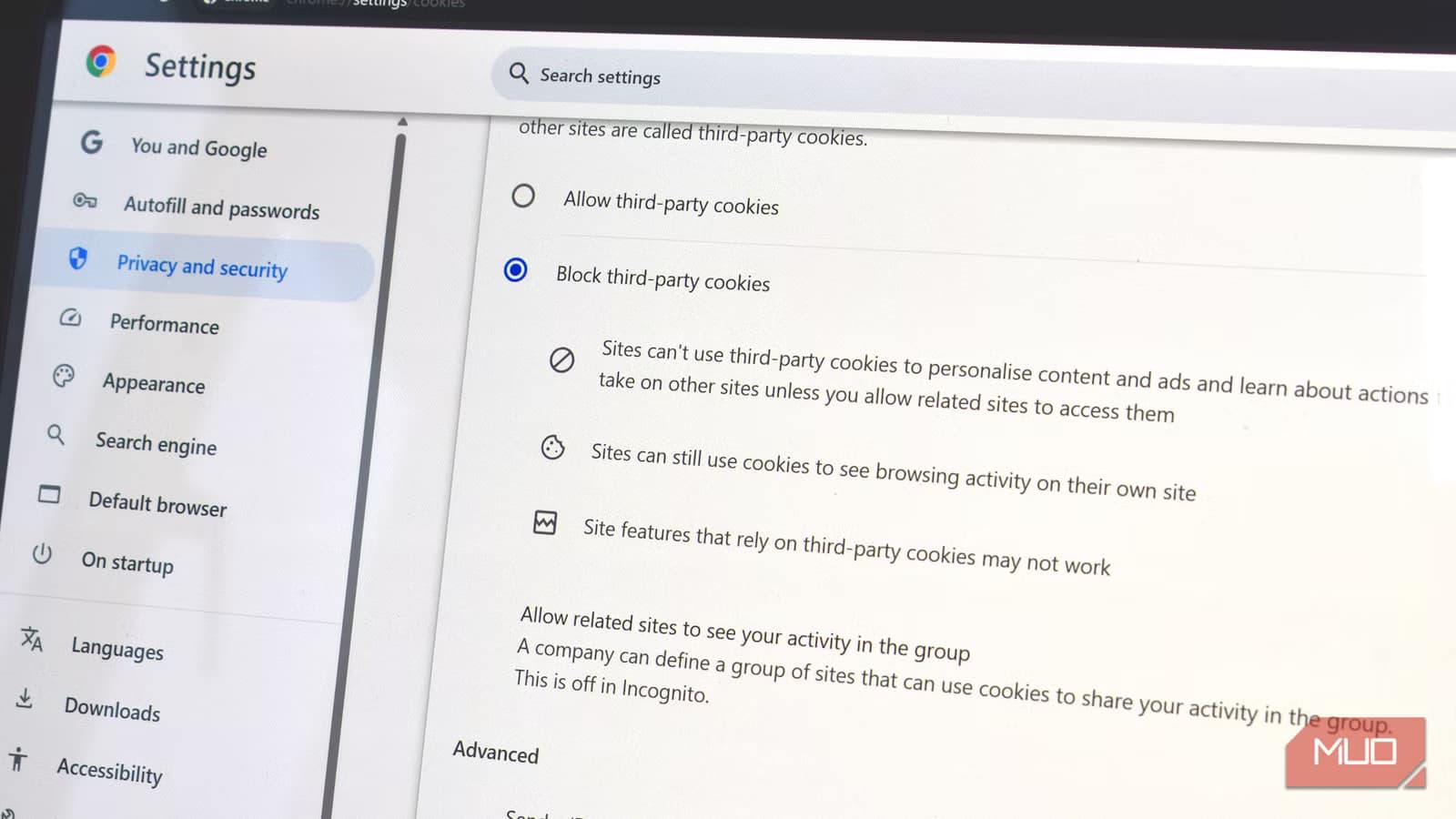
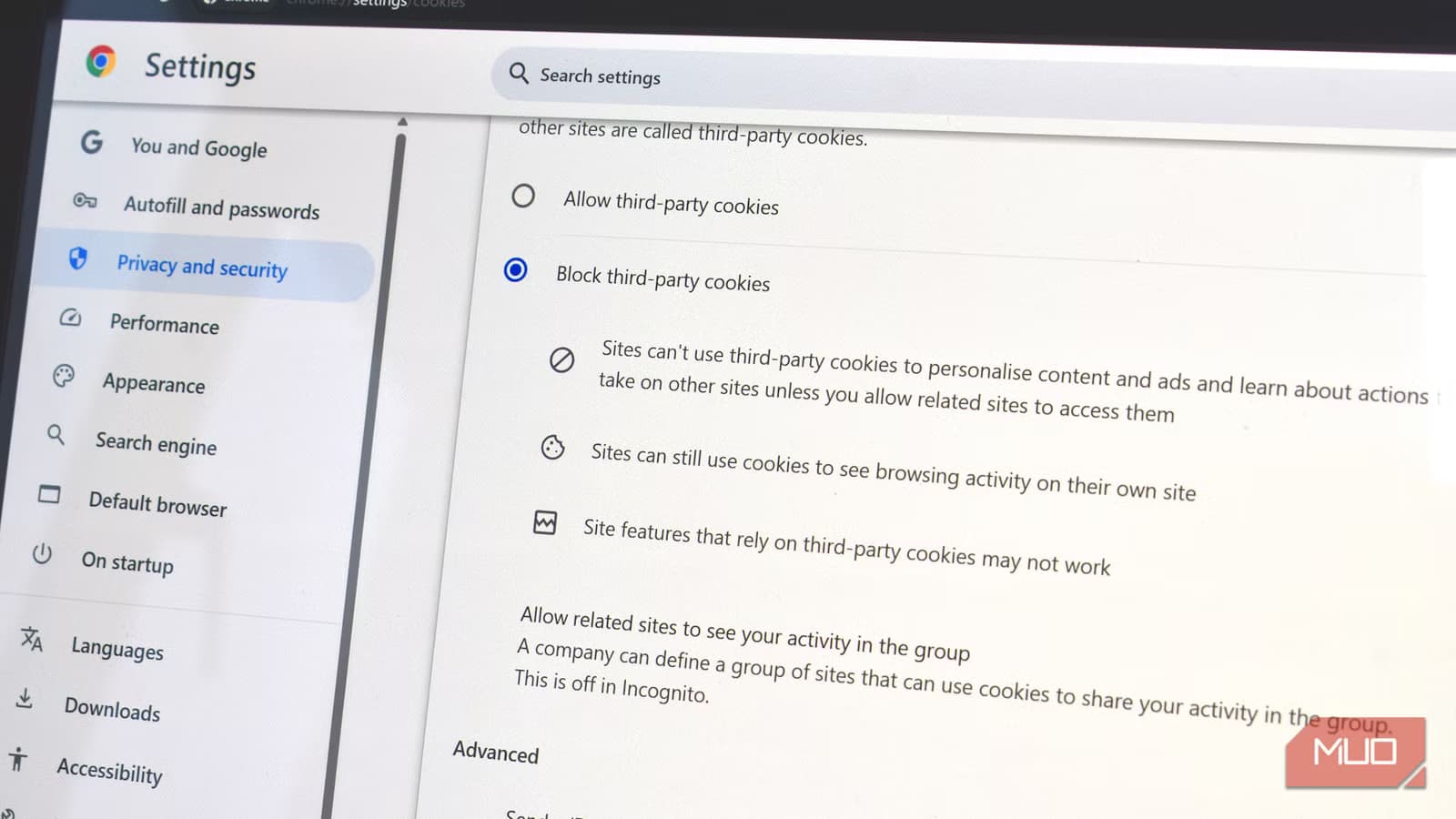
Most browsers now let you block third-party cookies directly. In Chrome, go to Settings, then Privacy and Security, then Cookies and Other Site Data. Select "Block third-party cookies." Firefox and Safari have similar options, and Safari blocks them by default.
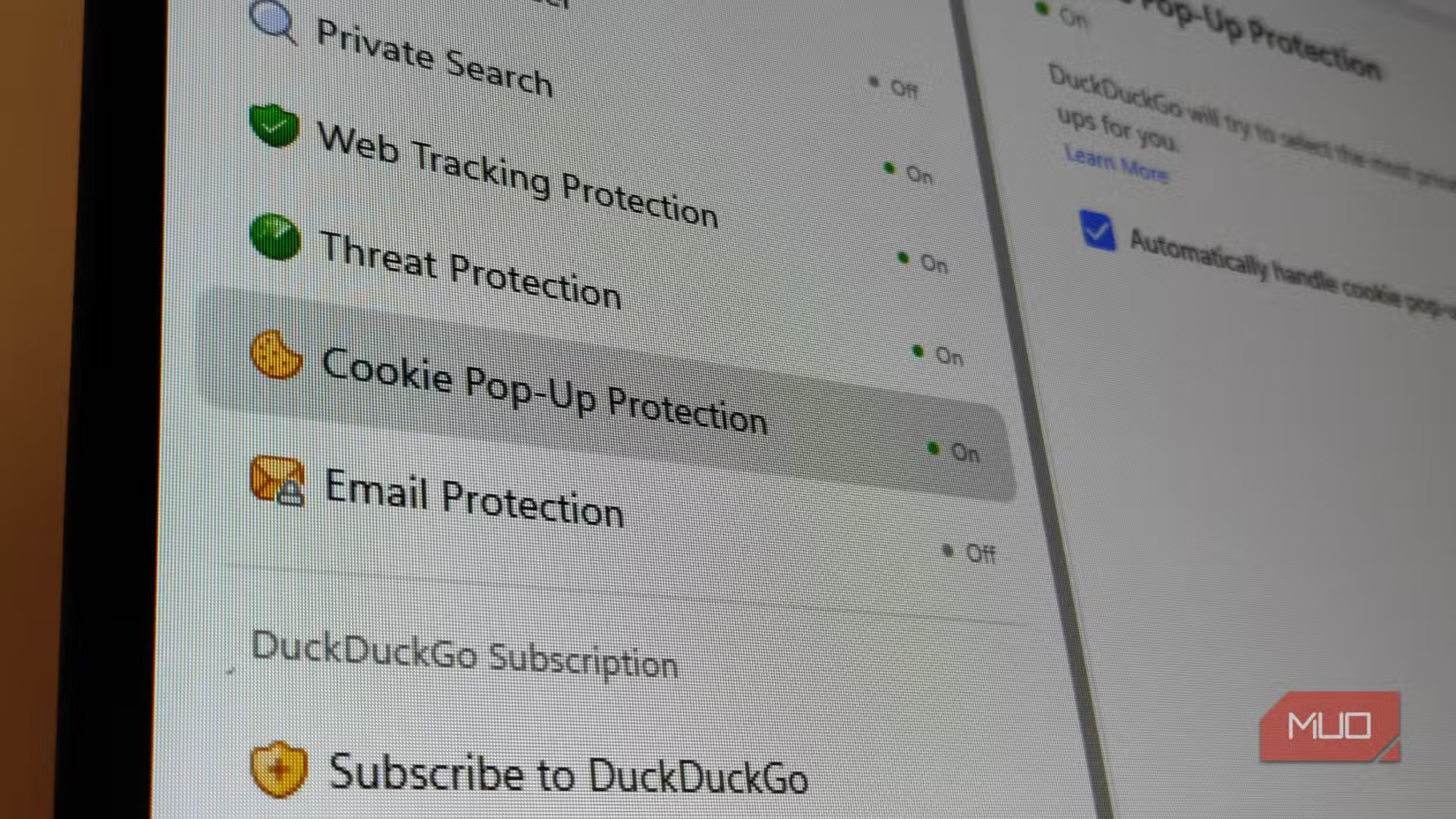
For extra protection, switch to a privacy-focused browser like DuckDuckGo or Brave. These block third-party cookies automatically and add other protections. DuckDuckGo also handles those annoying cookie consent popups, auto-rejecting tracking cookies when possible.

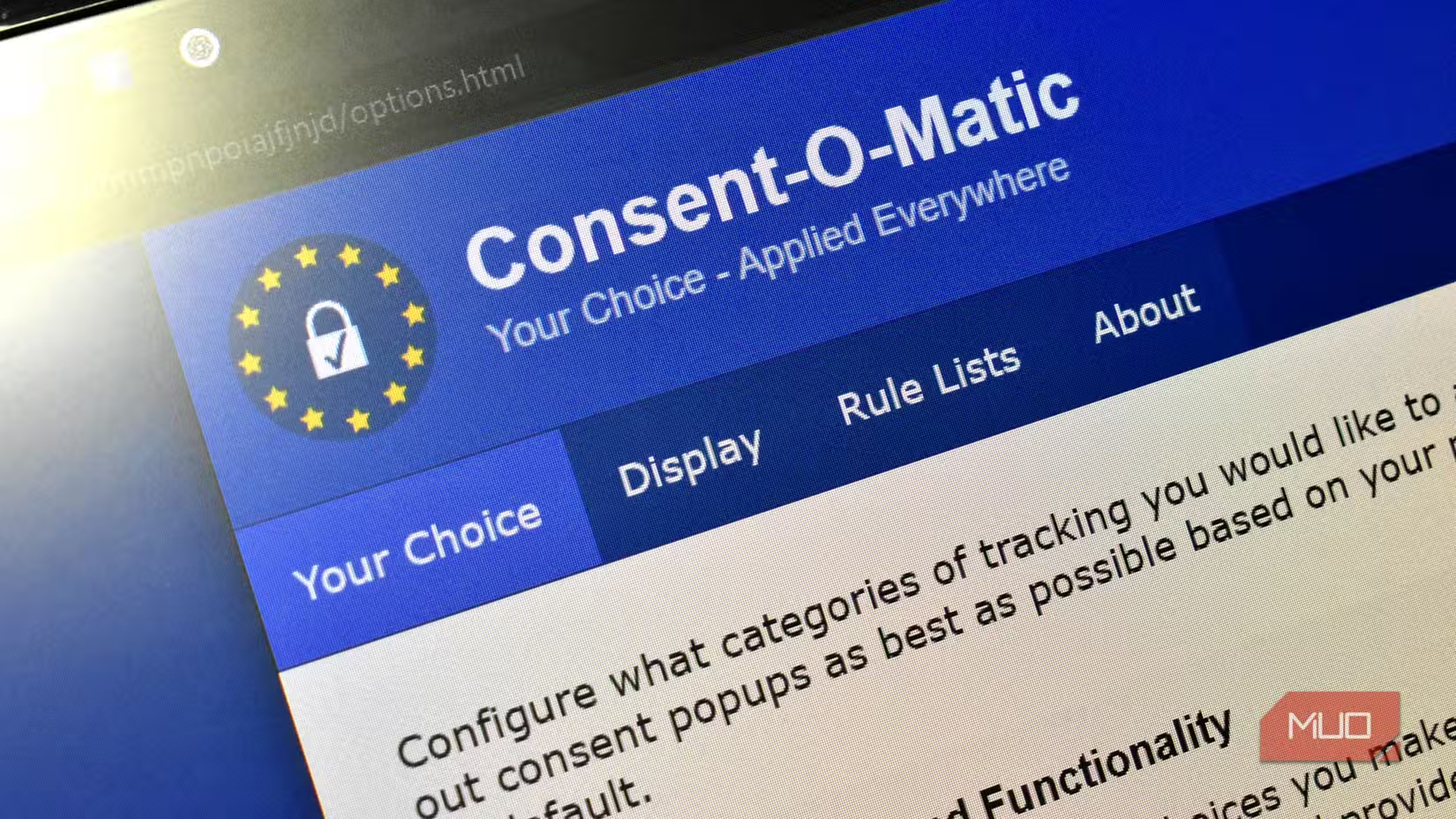
Another option: the Consent-O-Matic browser extension. It automatically clicks through cookie consent dialogs and rejects non-essential cookies. Install it once and forget about it.
Browser Fingerprinting Identifies You Without Cookies
This one is sneaky. Even if you block all cookies and use a VPN, websites can still identify you through browser fingerprinting. Your browser tells sites what operating system you use, your screen resolution, installed fonts, browser plugins, timezone, language settings, and dozens of other details. Combined, these create a unique fingerprint that's often as identifiable as a cookie.
Incognito mode doesn't help here. Neither does clearing your browsing data. The fingerprint comes from your browser and device configuration, not stored data.
The Fix: Use a Fingerprint-Resistant Browser
Standard browsers make fingerprinting easy. Privacy-focused browsers fight back by making all users look identical. Mullvad Browser, built by the Mullvad VPN team in partnership with the Tor Project, is designed specifically to defeat fingerprinting. It reports generic values for screen size, fonts, and other identifying details.
The Tor Browser offers similar protection. Firefox has some anti-fingerprinting features you can enable in settings, though they're not as comprehensive. Brave also includes fingerprint randomization.
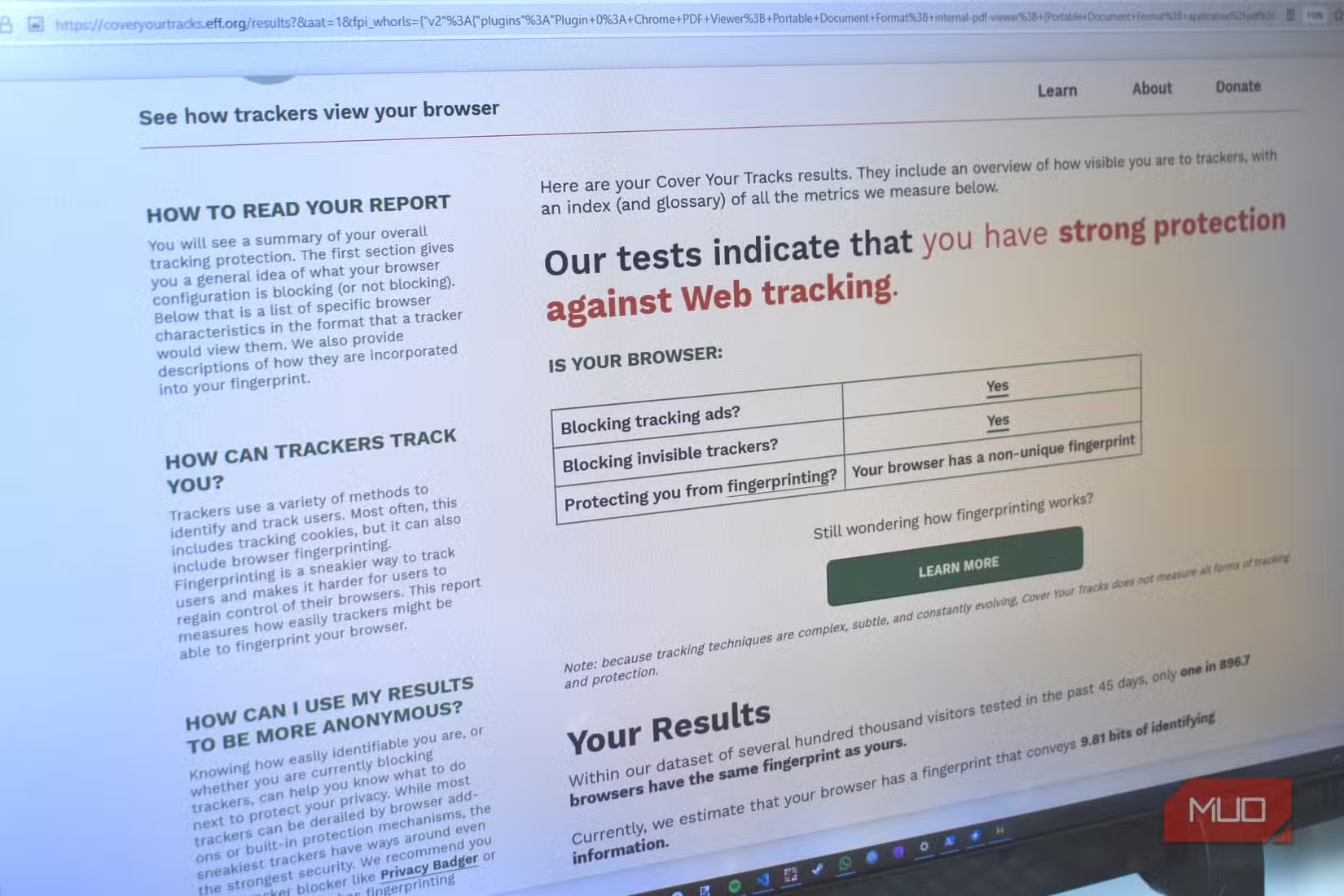
You can test your own browser's fingerprint at the Electronic Frontier Foundation's Cover Your Tracks tool. It shows exactly how identifiable your current setup is.
Another example of why security basics matter
Putting It All Together
Perfect privacy requires all three fixes. A VPN alone doesn't stop cookies or fingerprinting. Blocking cookies doesn't hide your IP. And anti-fingerprinting browsers don't encrypt your traffic.
- VPN: Hides your IP address and location from websites
- Cookie blocking: Stops advertisers from tracking you across sites
- Fingerprint-resistant browser: Prevents identification through device characteristics
For most people, blocking third-party cookies is the easiest win. It takes 30 seconds and stops the most common form of tracking. Adding a VPN is the next step if you care about location privacy. And switching to Mullvad Browser or Tor is for when you want to be genuinely hard to track.
Logicity's Take
Frequently Asked Questions
Does Incognito mode protect my privacy?
Not as much as you'd think. Incognito mode stops your browser from saving history and cookies locally, but websites still see your IP address and can fingerprint your browser. It's useful for hiding activity from others who use your device, not for hiding from websites.
Are free VPNs safe to use?
Free VPNs need to make money somehow. Some sell your data, which defeats the purpose. If you use a free VPN, research the provider's business model first. Paid no-log VPNs like Mullvad or Proton are safer bets if privacy is the goal.
Will blocking cookies break websites?
Blocking third-party cookies rarely causes problems. These are mostly used for advertising, not site functionality. First-party cookies, which you should keep enabled, handle logins and preferences.
How do I test if my browser is fingerprintable?
The Electronic Frontier Foundation's Cover Your Tracks tool tests your browser's fingerprint and shows how unique it is. Visit coveryourtracks.eff.org to check your current setup.
Do I need all three fixes for good privacy?
It depends on your threat model. Blocking third-party cookies stops most advertising tracking. A VPN adds location privacy. Anti-fingerprinting browsers are for people who need to be genuinely hard to identify. Start with cookies and add layers as needed.
Need Help Implementing This?
Source: MakeUseOf
Huma Shazia
Senior AI & Tech Writer
Produced with AI assistance and reviewed by the Logicity editorial team. Learn more in our Editorial Policy.