Key Takeaways
- Focus Peeking shows purple lines indicating exactly what your Pixel is focusing on, eliminating guesswork
- Disabling auto-macro mode prevents unwanted lens switching when shooting close-up subjects
- Manual focus mode gives you full control over depth of field for creative shots
Google's Pixel phones are known for their computational photography. The AI handles exposure, focus, and post-processing automatically. Most of the time, this works well. But sometimes the camera acts too much like a computer and not enough like a camera.
You compose a shot perfectly. The lighting looks right. You tap the shutter. Then you check the photo and discover the camera decided to focus on something in the background instead of your actual subject. This happens because the Pixel makes photography decisions on its own, and those decisions are not always correct.
Three settings can fix this. They give you back the control that pro photographers expect from their equipment.
Turn On Focus Peeking
The first problem is knowing what your Pixel thinks you want to focus on. Without visual feedback, you are guessing until after you take the shot.
Focus Peeking solves this by drawing purple lines on your screen to show exactly where the camera is focusing. Professional photographers have used this feature on dedicated cameras for years. The Pixel has it built in, but it is turned off by default.
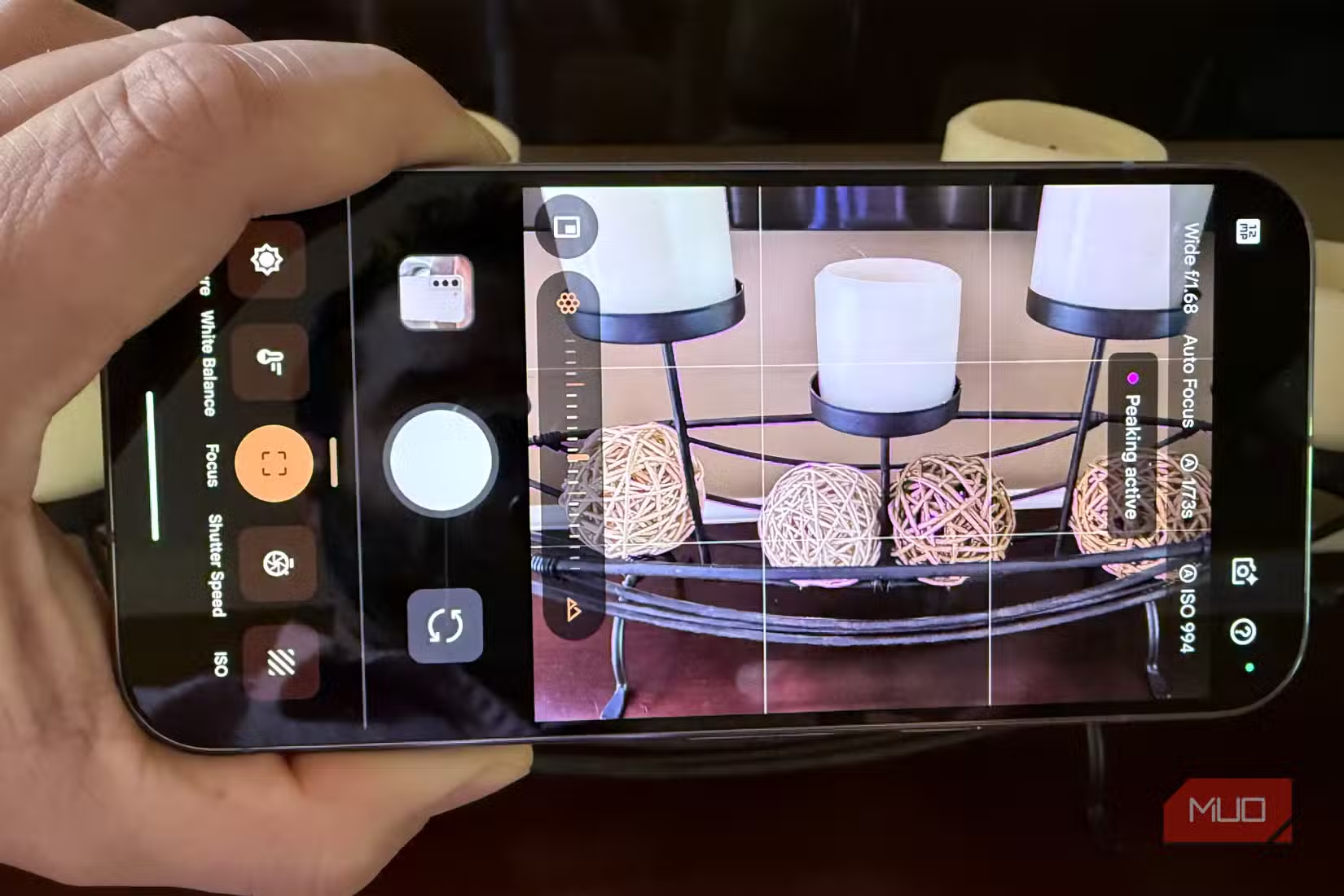
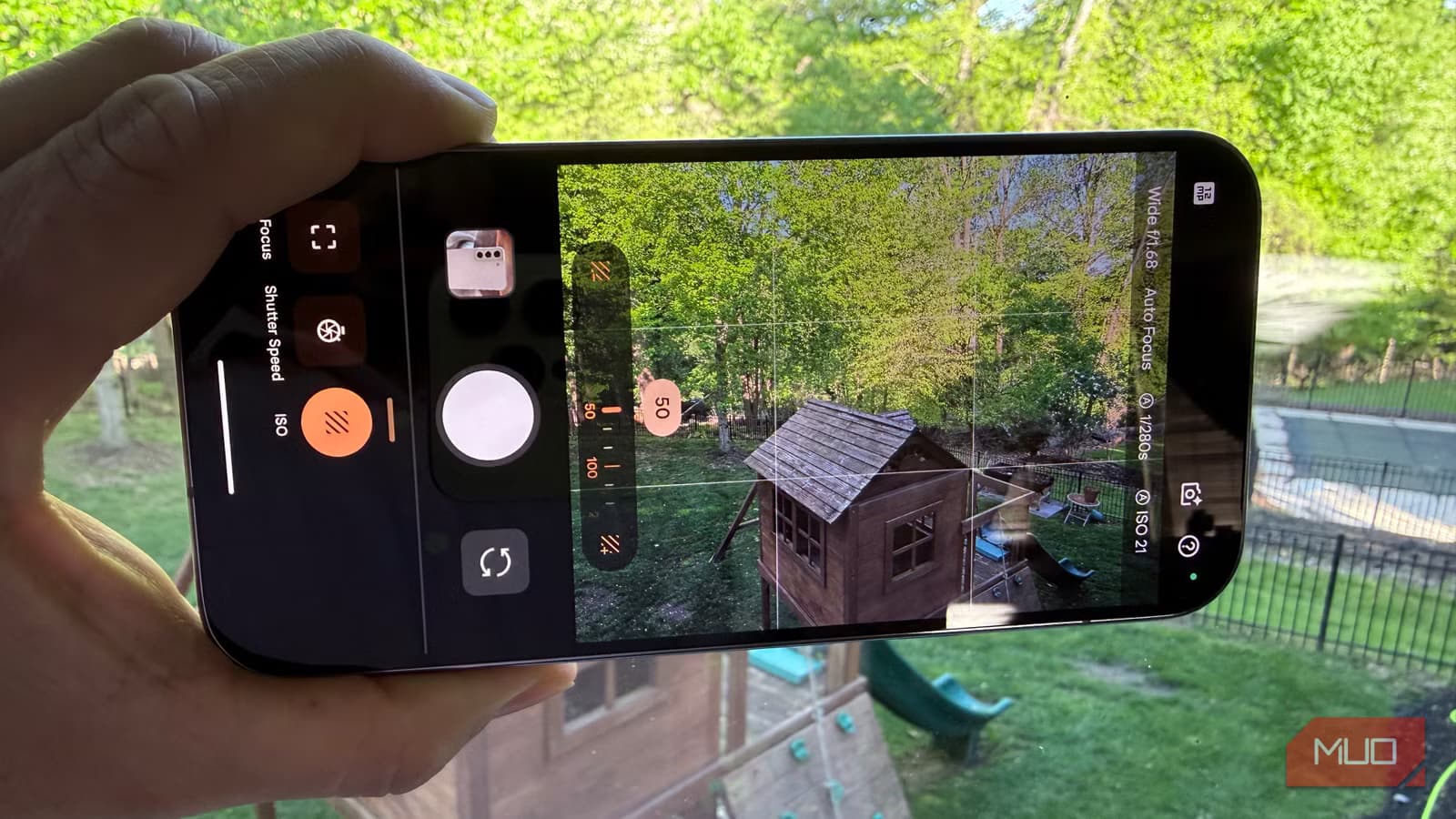
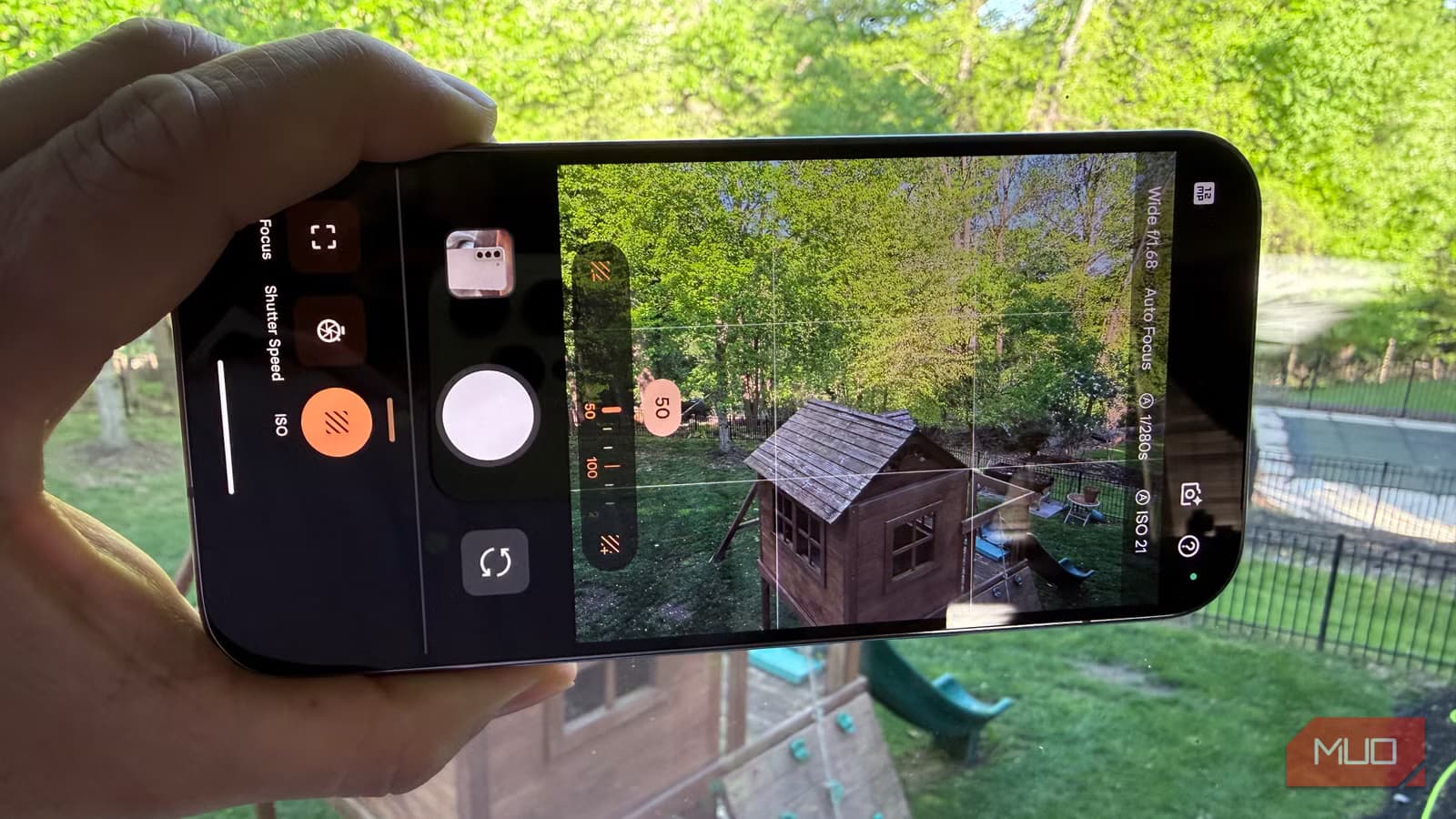
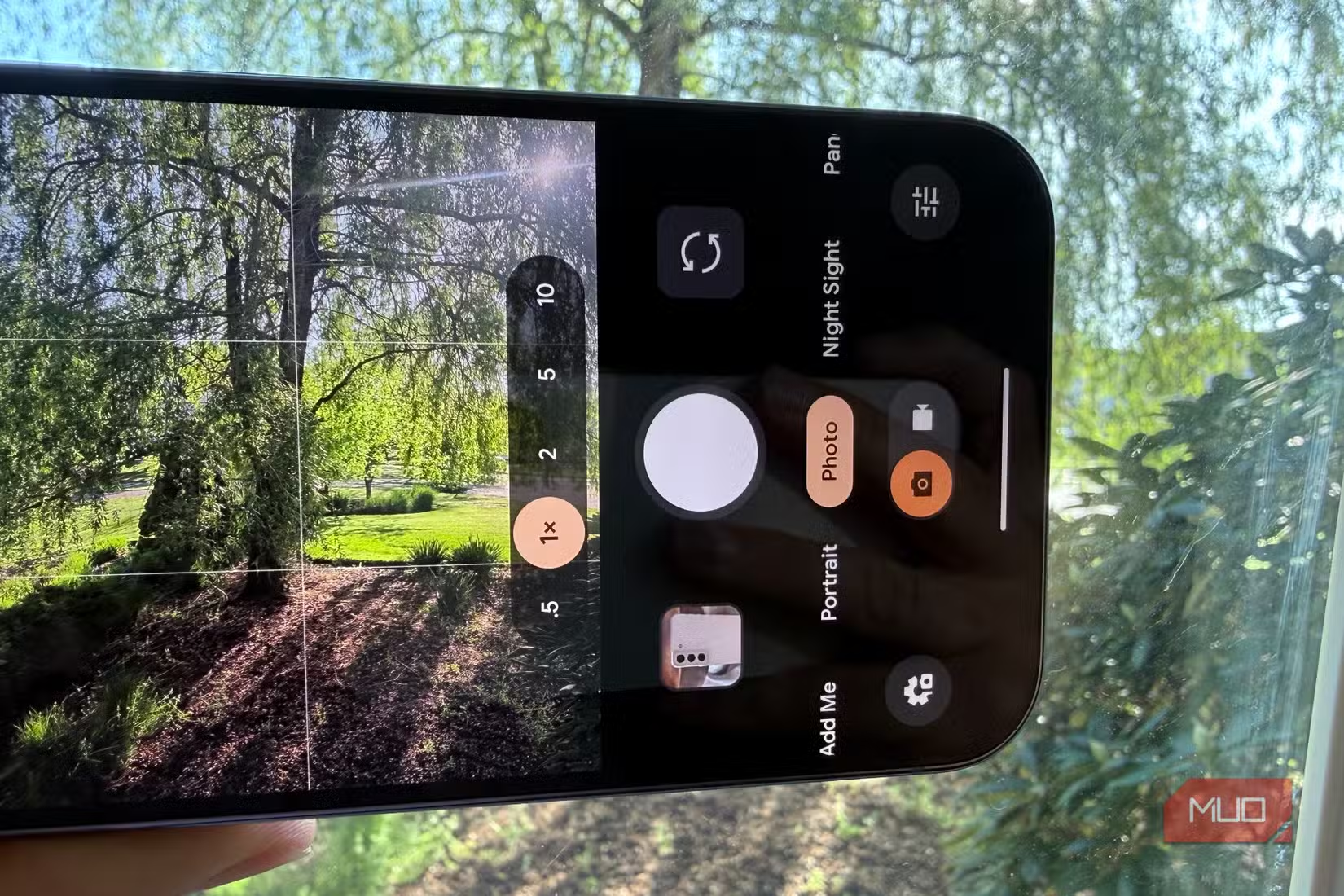
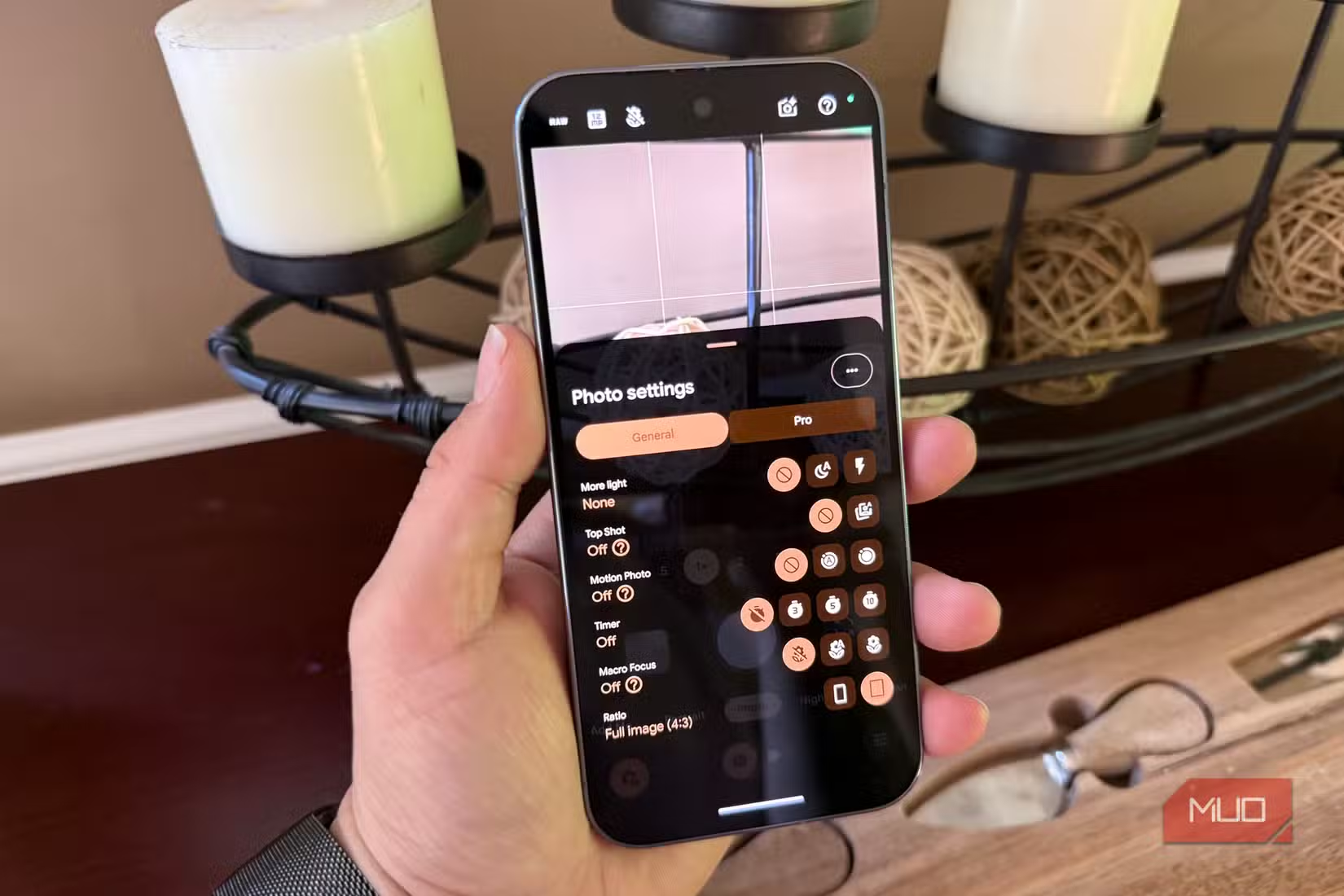
To enable Focus Peeking, open your camera app and tap the three lines in the bottom right corner to enter manual mode. Tap Focus, and the phone switches to manual focus mode with peeking enabled. Purple lines will now appear on your screen, showing exactly what the camera considers in focus.
This is still autofocus. The difference is visibility. You can now see what the camera is doing and adjust your position or use tap-to-focus to correct its decision before taking the shot.
Disable Auto-Macro Mode
By default, your Pixel has auto-macro mode turned on. When you get close to a subject, the phone automatically switches to the ultrawide camera because it has a shorter minimum focus distance.
This sounds helpful. In practice, it creates problems. The ultrawide lens has different optical characteristics. Colors shift. Distortion increases. The switch happens automatically based on distance, which means you might not realize the camera changed lenses until you see the final image.
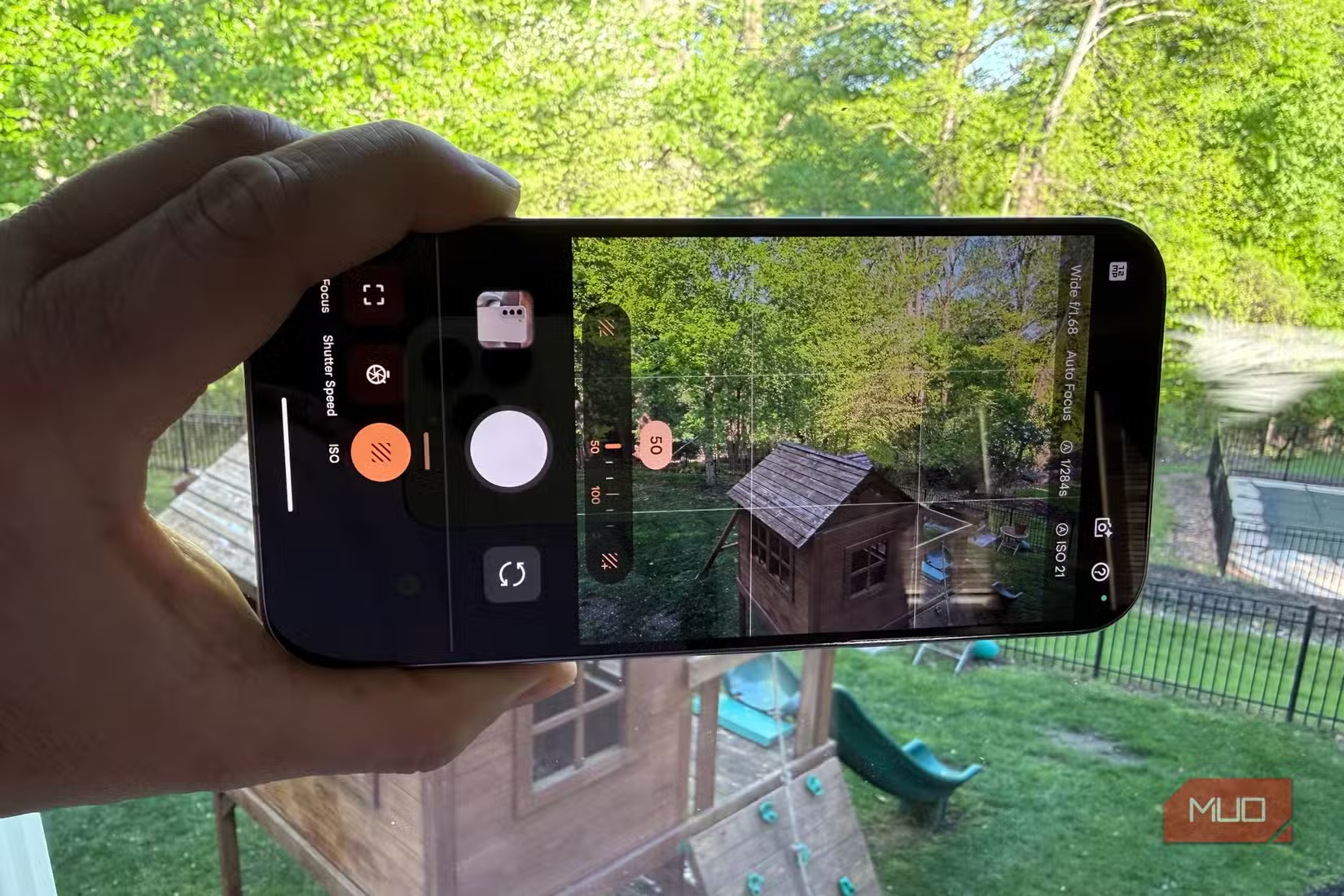
If you are trying to control your composition precisely, or if you want consistent results across a series of close-up shots, disable auto-macro. This keeps the camera on your chosen lens and lets you manage focus distance yourself.
Use Manual Focus for Creative Control
The third setting is full manual focus mode. This removes all automatic focus decisions and lets you control exactly where the focal plane sits.
Manual focus is useful when you want shallow depth of field effects, when the autofocus keeps hunting between subjects, or when you are shooting through glass or other obstacles that confuse the automatic system.
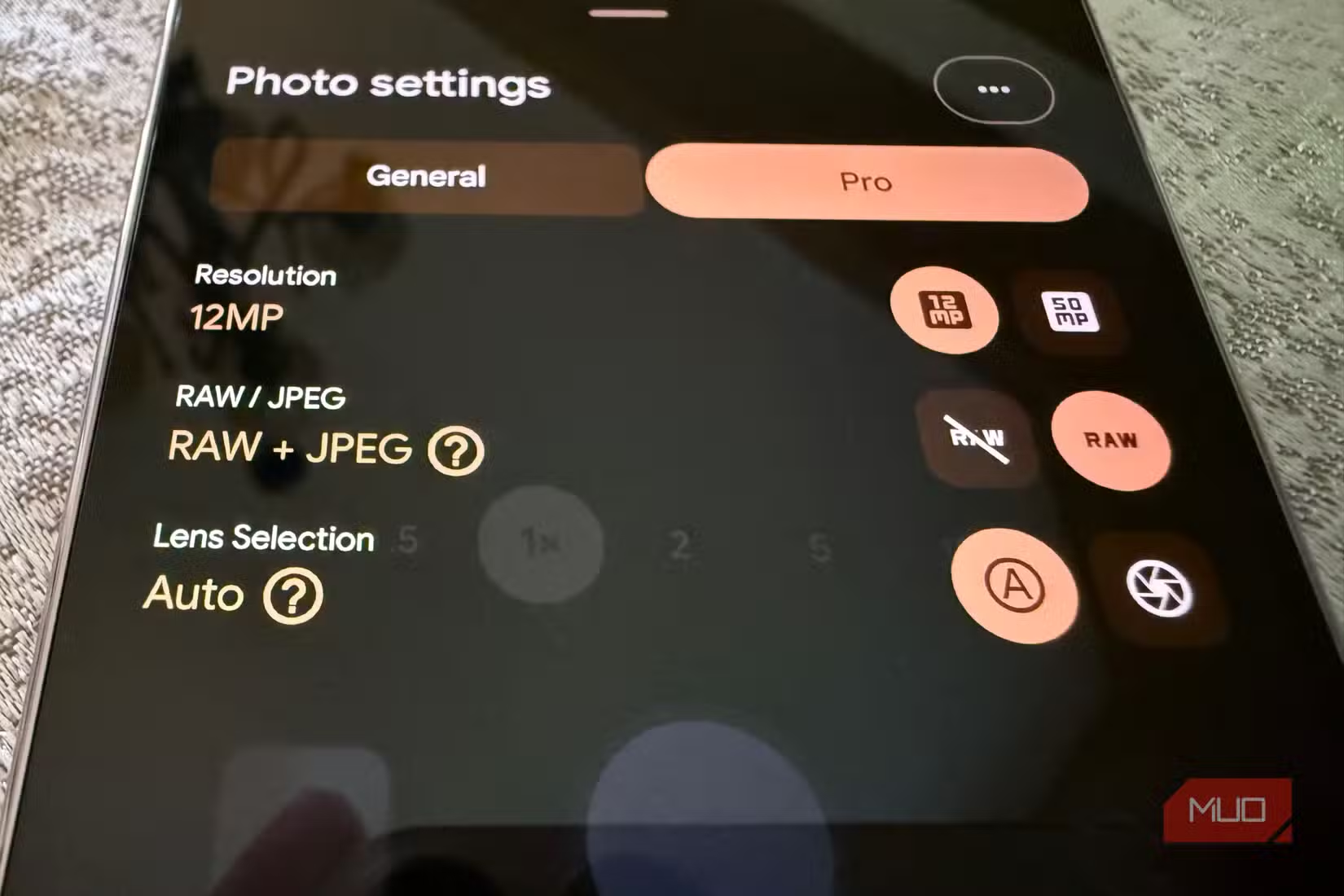
Access manual focus through the same three-line menu in the camera app. The focus slider lets you sweep through the entire focus range while Focus Peeking shows you what falls into sharp focus at each position.
When to Use These Settings
These settings are not necessary for every photo. The Pixel's automatic mode handles most situations well. But when you need precision, when you are frustrated by unexpected focus choices, or when you want creative control over depth of field, switching to manual mode changes the experience.
Professional photographers do not rely entirely on automatic settings. They use them as tools and override them when necessary. Your Pixel can work the same way once you know where the controls are.
More hidden settings that improve everyday tech
Logicity's Take
Frequently Asked Questions
What is Focus Peeking on Pixel phones?
Focus Peeking is a feature that displays purple lines on your camera screen showing exactly what the camera is focusing on. It helps you verify focus before taking a shot rather than discovering focus problems afterward.
How do I turn off auto-macro on my Pixel?
Open the camera app, tap the three-line menu in the bottom right corner to enter manual mode, and disable the auto-macro toggle. This prevents the camera from automatically switching to the ultrawide lens for close-up shots.
Does manual focus work with all Pixel camera lenses?
Manual focus is available on all Pixel camera lenses. You can switch between lenses while in manual mode and use the focus slider to control depth of field on any of them.
Will using manual mode affect photo quality?
No. Manual mode does not reduce image quality. It gives you control over focus decisions while keeping all of the Pixel's computational photography processing for exposure, HDR, and noise reduction.
Need Help Implementing This?
Source: MakeUseOf
Manaal Khan
Tech & Innovation Writer
Produced with AI assistance and reviewed by the Logicity editorial team. Learn more in our Editorial Policy.