Key Takeaways
- Tasker now includes an 'easy mode' and preset tasks for users who don't want to build from scratch
- The r/tasker community with 250,000 members shares importable automations through Taskernet
- Practical uses range from weather-based alarm sounds to automatic wifi connections at frequented locations
Tasker has been the Swiss Army knife of Android for over a decade. At $3.99, the app gives you access to settings and features that Google keeps locked away, letting you build automations that range from simple convenience tweaks to borderline magic.
The problem has always been the learning curve. Tasker's interface looks like it was designed by engineers for engineers. But recent updates have added an 'easy mode' and a library of preset tasks you can load without building anything yourself. The app now has over 1,000,000 downloads on the Play Store, which is remarkable for a paid-only utility.
Here are ten automations that show what Tasker can actually do, pulled from community favorites and practical use cases.
1. Change Alarm Sounds Based on Weather
Your default alarm sound tells you nothing. This automation pulls weather data and changes your alarm tone to match conditions outside. Raining? You hear rain sounds. Clear and cold? A different tone. You know what kind of day you're facing before opening your eyes.
NotEnoughTech published a full tutorial for this one, with both video and written instructions plus the necessary downloads.
2. Smart Reminders That Actually Remind
Android's built-in reminder system through Gemini, Google Calendar, or Google Tasks is basic. A Redditor named Blitzdroids built a Smart Reminders and Alarms project that turns Tasker into a full reminder app.
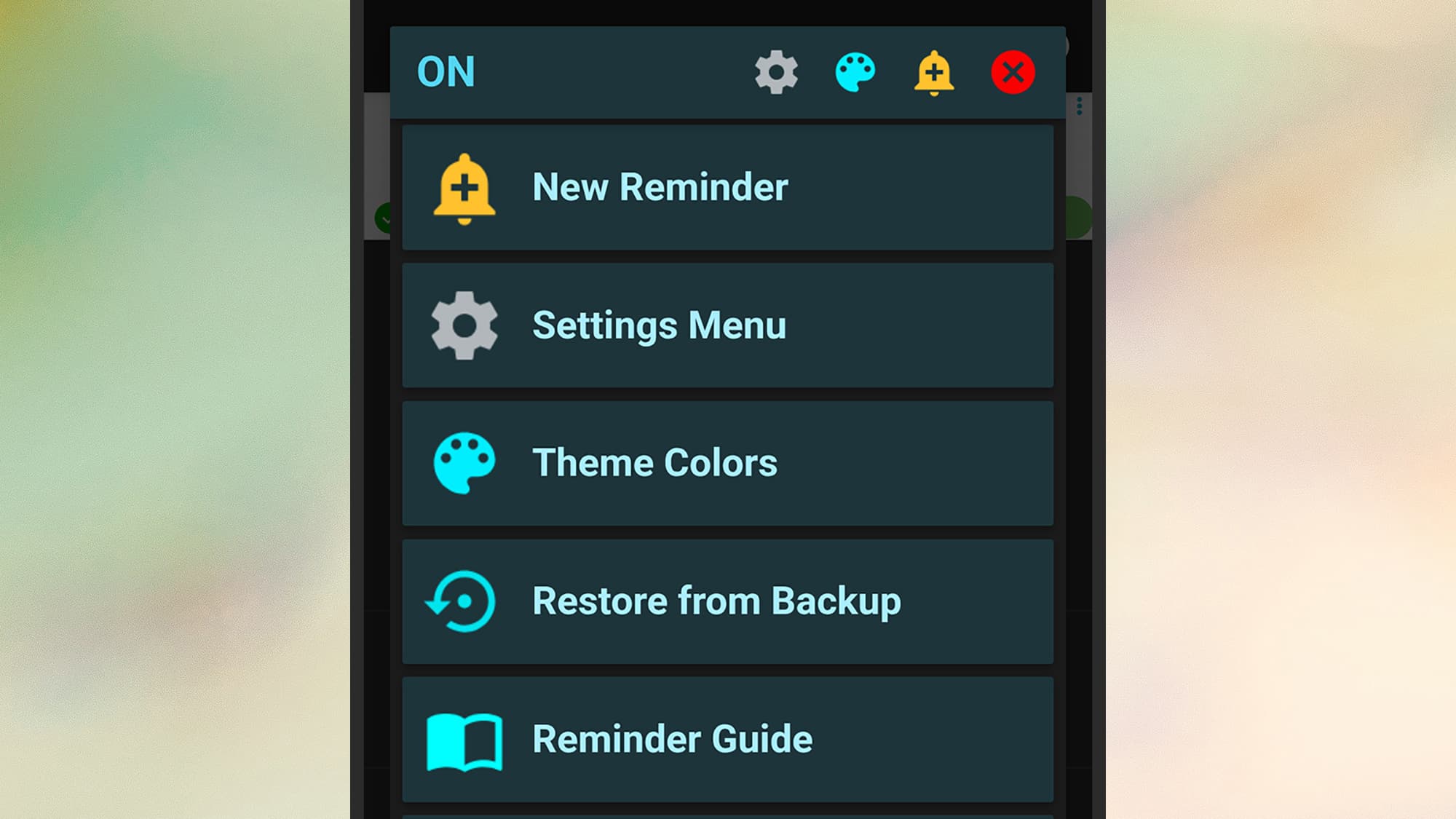
You can customize fonts, colors, sounds, and vibration patterns. You control when reminders recur, whether they override Do Not Disturb, and set custom snooze options. It's almost a standalone app running inside Tasker.
3. Auto-Connect to Coffee Shop Wifi
If you work from the same coffee shop or visit the same gym regularly, you can set Tasker to enable wifi automatically when you're in range of those hotspots. It saves cellular data and removes one more thing you have to do manually.
You create a profile for each location, then link it to a task that enables wifi when you arrive and disables it when you leave. MakeUseOf has straightforward instructions for this setup.
4. Auto-Enable GPS for Navigation Apps
GPS drains battery when left on constantly. This automation turns GPS on only when you open Google Maps, Waze, or another navigation app, then turns it off when you close the app.
5. Shake to Stay Awake
Drowsy driving kills. This automation uses your phone's accelerometer to detect if you're staying still for too long while driving. If you stop moving the phone (which typically means you've stopped moving your body), it triggers an alarm to wake you up.
It's one of many safety-focused automations shared through Taskernet, the community's system for importing pre-built projects with a single tap.
6. Different Fingerprint, Different App
Android lets you register multiple fingerprints for unlocking. Tasker can detect which finger you used and launch a specific app accordingly. Your index finger opens the home screen normally. Your thumb opens your banking app. Your pinky opens a secure folder.
This one requires some setup but provides both convenience and a layer of security through obscurity.
7. Auto-Rotate Based on App
Some apps work better in landscape. Others are portrait-only. Instead of toggling auto-rotate constantly, you can set Tasker to enable rotation only for specific apps like YouTube or games, then lock to portrait everywhere else.
8. Battery Saver Triggers
Android's built-in battery saver is all-or-nothing. Tasker lets you create granular rules: disable sync when below 30%, turn off always-on display below 20%, reduce screen brightness below 15%. You get longer battery life without the sledgehammer approach.
9. Meeting Mode
Link Tasker to your Google Calendar. When a meeting starts, your phone automatically enables Do Not Disturb, silences notifications, and can even send an auto-reply to texts explaining you're in a meeting. When the calendar event ends, everything reverts.
10. Car Mode Dashboard
When your phone connects to your car's Bluetooth, Tasker can launch a custom dashboard with large buttons for navigation, music, and phone calls. When you disconnect, it closes the dashboard and returns to normal.
The Learning Curve Is Real, But Manageable
Tasker's developer João Dias has acknowledged the app's complexity. 'Tasker was the app that made me want to buy an Android phone in the first place,' he said. On the learning curve, he added: 'Once it clicked, oh boy.'
The r/tasker subreddit has 250,000 members who regularly share pre-built automations through Taskernet. You can import complex projects with one tap instead of building from scratch. For most users, this is the fastest way to get value from the app.
The community describes Tasker as the 'final destination' for Android users who have outgrown simpler automation apps like MacroDroid or IFTTT. Those apps are easier to learn but hit walls quickly. Tasker has almost no walls.
Logicity's Take
Frequently Asked Questions
Is Tasker hard to learn?
Tasker has a steep learning curve, but the app now includes an 'easy mode' and preset tasks. The r/tasker community also shares importable automations through Taskernet.
How much does Tasker cost?
Tasker costs $3.99 as a one-time purchase on the Google Play Store. There are no subscriptions or in-app purchases.
Does Tasker work on all Android phones?
Tasker works on most Android devices, though some features require root access or specific permissions that manufacturers may restrict.
What's the difference between Tasker and IFTTT?
IFTTT is simpler but limited to supported services. Tasker runs locally on your device and can access nearly any Android feature, giving it far more power but a steeper learning curve.
Another DIY tech fix you can do yourself
Need Help Implementing This?
Source: Lifehacker
Manaal Khan
Tech & Innovation Writer
Produced with AI assistance and reviewed by the Logicity editorial team. Learn more in our Editorial Policy.