Key Takeaways
- Disable image downloads to block tracking pixels that tell senders when you open emails
- Use Safe Senders to ensure important emails never land in spam
- The Sweep feature can automatically delete or archive emails from specific senders
Outlook is a solid Gmail alternative with features Google's email service lacks. The problem? Most of them aren't enabled by default. After using Outlook for over a decade, I've found the settings that actually matter for privacy and productivity.
Block Email Tracking Pixels
Companies embed invisible tracking pixels in emails. When you open the message, the pixel loads and tells the sender you read it. This is how newsletters know their open rates. It's also how shady marketers build profiles on you.
Outlook's default settings offer some protection, but you can go further. Go to Outlook.com, click the gear icon, then navigate to Mail > Junk email. Under Security options, select "Block attachments, pictures, and links from anyone not in my Safe senders and domains list."
This requires you to manually approve senders before their images load. It's more work, but it's your best defense against tracking, phishing, and scam attempts.
For extra privacy, go to Outlook settings > Mail > Layout and choose "Don't show sender images." You can also disable shopping-related sender logos in the Message handling tab by unchecking "For shopping-related messages show a sender logo and relevant links in the message header."
Use Safe Senders to Stop False Spam Flags
The blocking approach above works great, but you need a way to whitelist trusted contacts. That's where Safe Senders comes in. Emails from people on this list won't go to spam and won't have their links or attachments blocked.
Add your bank, employer, and any service that sends critical emails. Go to Outlook settings > Mail > Junk email > Add safe sender. You can also use the Safe mailing lists tab for newsletters you actually want to receive.
Automate Inbox Cleanup with Sweep
Sweep is one of Outlook's best hidden features. It automatically checks your inbox for emails from specific senders and handles them based on your rules.
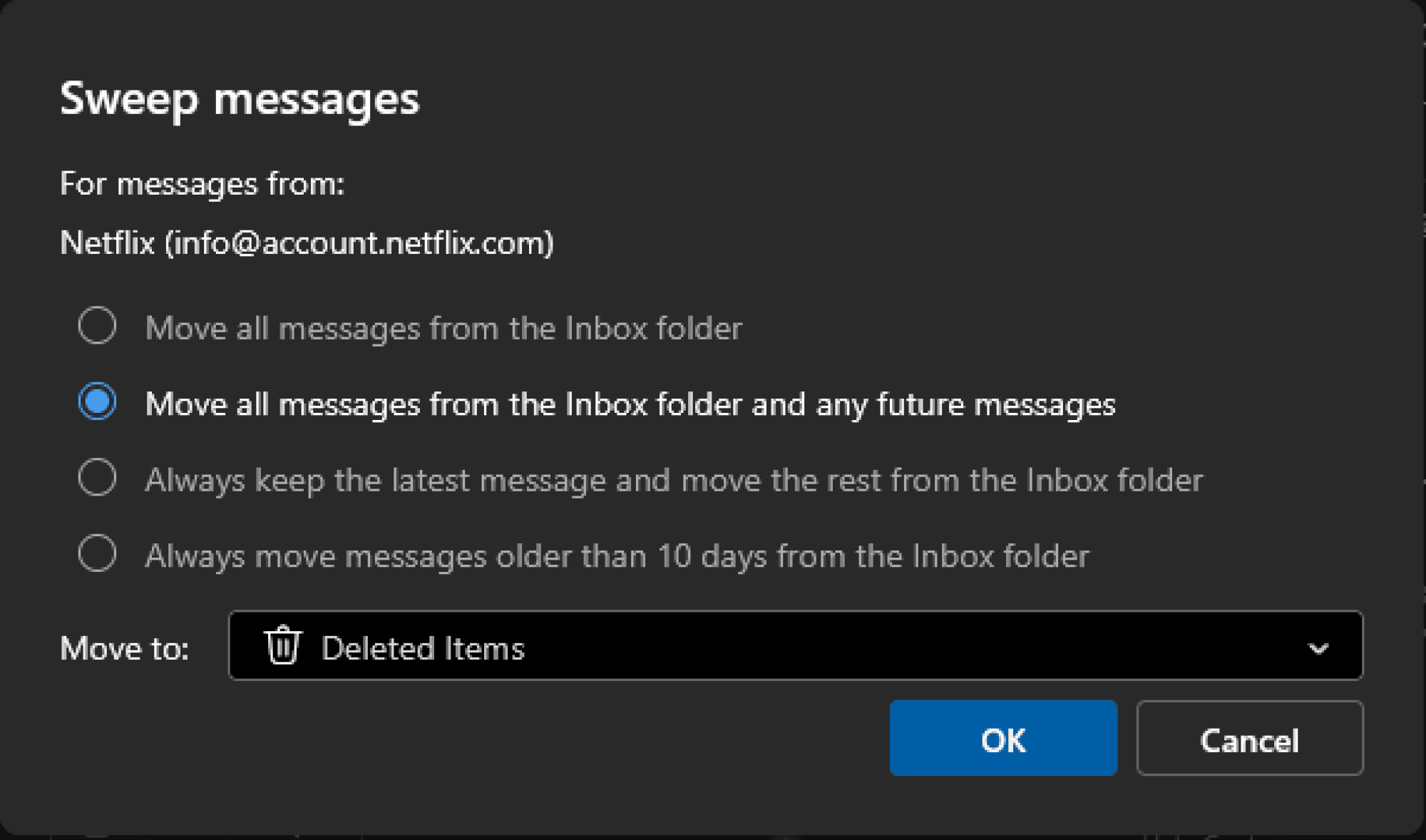
Here's a practical example: your bank sends an email for every credit card transaction. After a few months, you have 150+ unread emails cluttering your inbox. With Sweep, you can keep transaction emails from the past 10 days and archive the rest automatically.
To set it up, select any email in your inbox, then choose the Home tab at the top. From there, you can configure Sweep to delete, archive, or move emails based on your preferences.
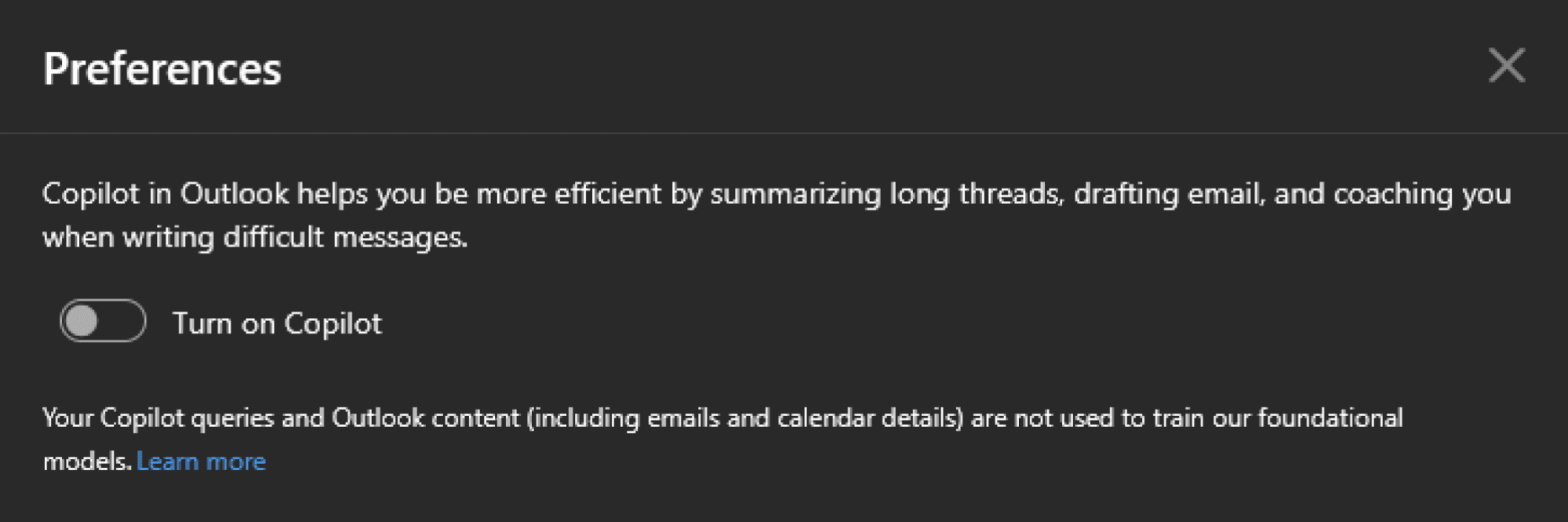
Turn Off Copilot AI
If you don't use Outlook's AI features, you can disable Copilot to reduce distractions and simplify the interface.
Set Up Quick Steps for Repetitive Tasks
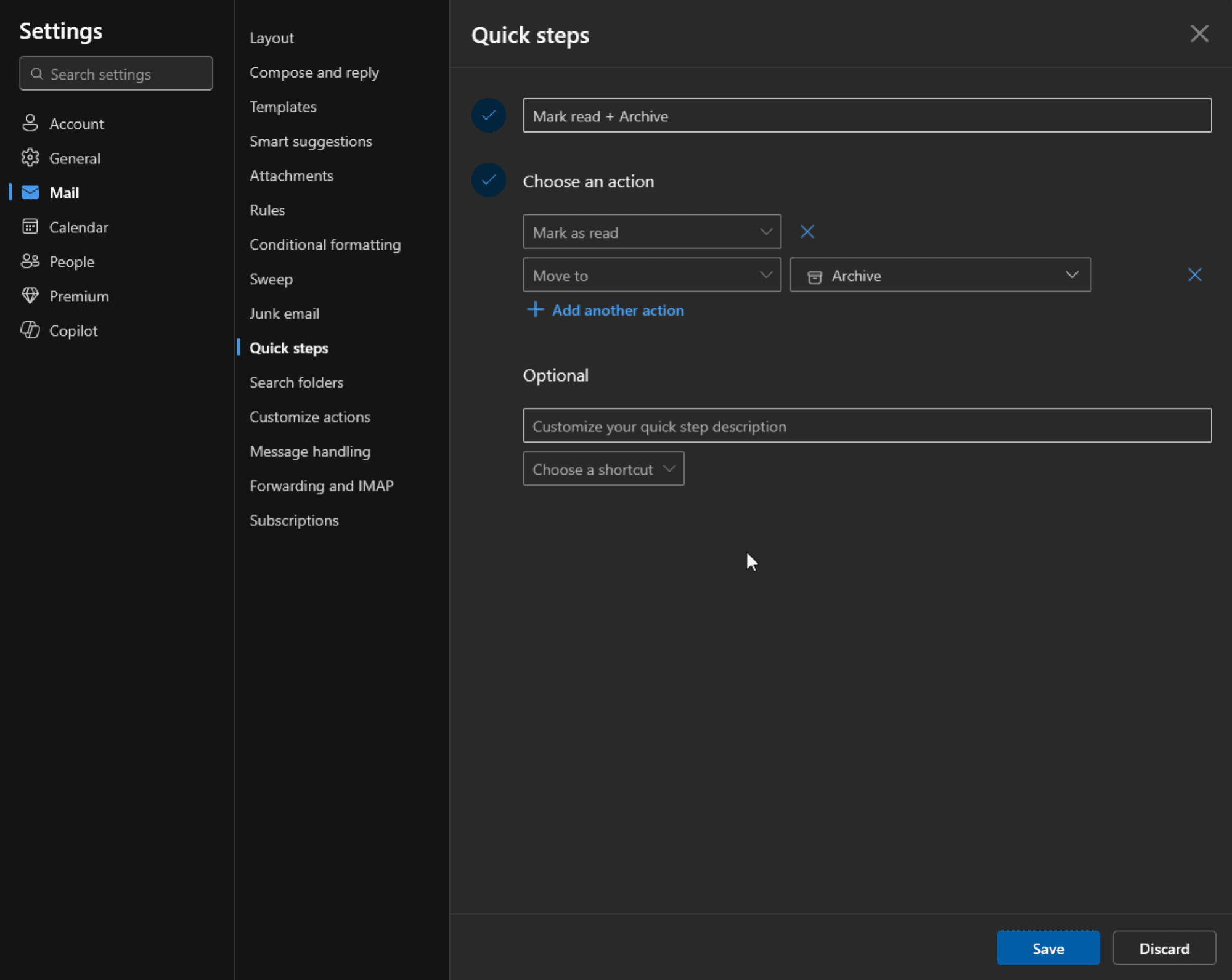
Quick Steps let you combine multiple actions into a single click. If you regularly move emails to a specific folder, mark them as read, and flag for follow-up, you can create a Quick Step that does all three at once.
Logicity's Take
Frequently Asked Questions
How do I stop companies from tracking when I open emails in Outlook?
Go to Outlook settings > Mail > Junk email and enable "Block attachments, pictures, and links from anyone not in my Safe senders list." This prevents tracking pixels from loading.
Why are important emails going to spam in Outlook?
Add the sender to your Safe Senders list. Go to Outlook settings > Mail > Junk email > Add safe sender. Emails from safe senders bypass spam filters.
What is Outlook Sweep and how does it work?
Sweep automatically manages emails from specific senders. You can configure it to delete old emails, keep only recent ones, or archive messages on a schedule.
Can I disable Copilot AI in Outlook?
Yes. You can turn off Copilot in Outlook settings to simplify the interface if you don't use AI-assisted email features.
More ways to get more value from the tech you already own
Need Help Implementing This?
Source: Lifehacker
Security Alert: May 2026 Critical Patches for Outlook and Office
The new article provides details on Microsoft's May 2026 Patch Tuesday, which fixed 120 security vulnerabilities, including 17 critical flaws. Crucially for Outlook users, it notes that some of these vulnerabilities can be exploited via the preview pane, requiring an immediate software update to prevent remote code execution.
Manaal Khan
Tech & Innovation Writer
Produced with AI assistance and reviewed by the Logicity editorial team. Learn more in our Editorial Policy.