Key Takeaways
- Spacedesk is free and works with Android tablets, iPads, and even web browsers
- Windows treats the tablet as a real extended display, not just a mirrored screen
- Touch input works natively, letting you drag windows and interact directly on the tablet
Portable monitors run anywhere from $100 to $200. Add touchscreen support and the price climbs higher. But if you have an old tablet gathering dust in a drawer, you can turn it into a fully functional second display for your Windows PC. For free.
The app that makes this possible is Spacedesk. It works with Android tablets, iPads, and even web browsers. Unlike basic screen mirroring, Spacedesk creates a true extended monitor. You can drag windows onto it, adjust resolution in display settings, and use touch input to interact with your PC.
How Spacedesk Works
Spacedesk has two components: a driver and a viewer. The driver installs on your Windows PC. The viewer app installs on whatever device you want to use as the secondary display. Once both are running on the same network, the viewer finds the driver automatically and connects.
No accounts. No pairing codes. You open the app on your tablet, it finds your PC, and you're connected.
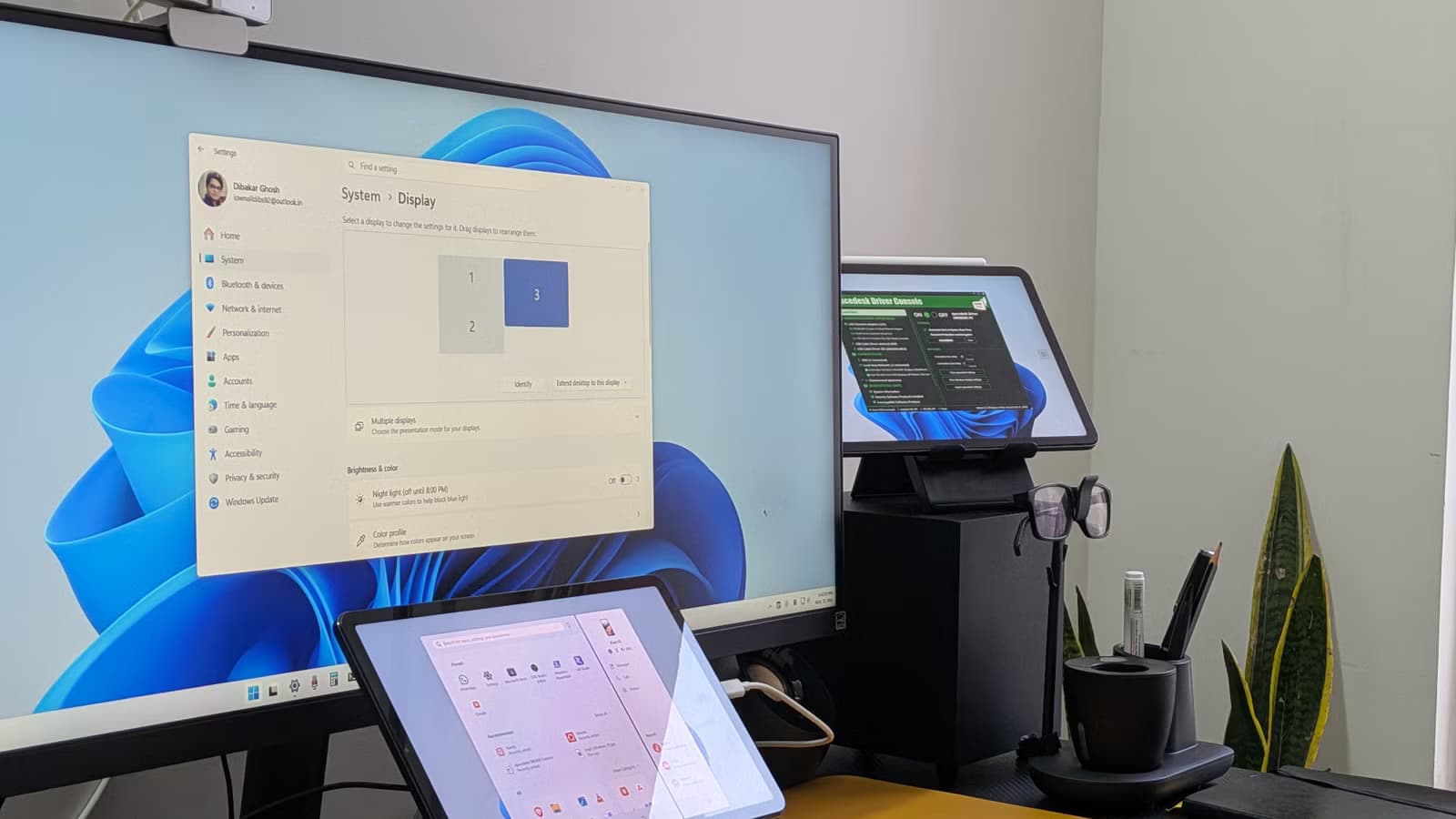
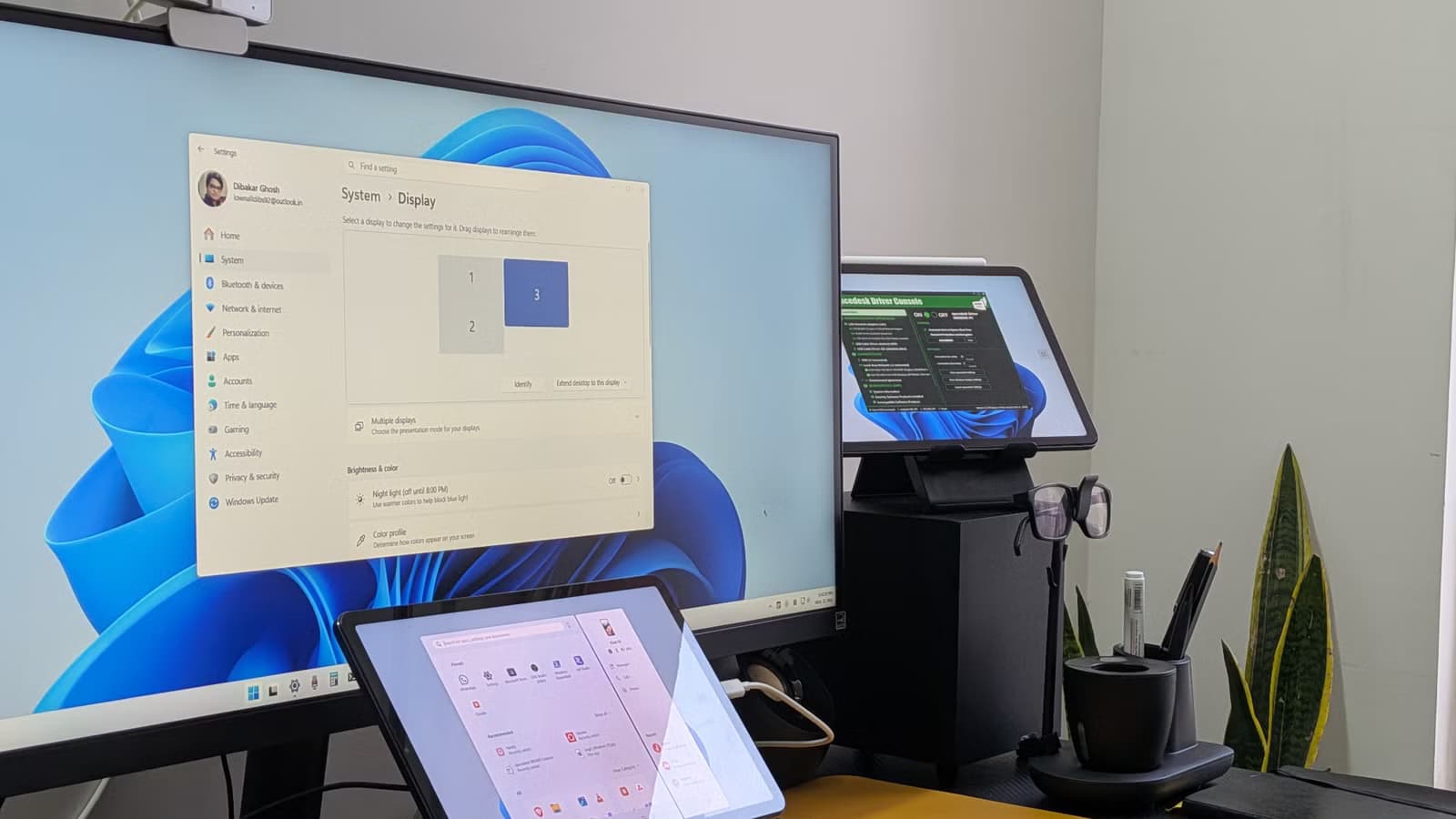
After connecting, Windows treats your tablet as a real monitor. You can set it as your primary or secondary display, change its orientation, adjust resolution, and arrange its position relative to your other screens. It behaves exactly like any monitor Windows recognizes.
Touch Input Works Out of the Box
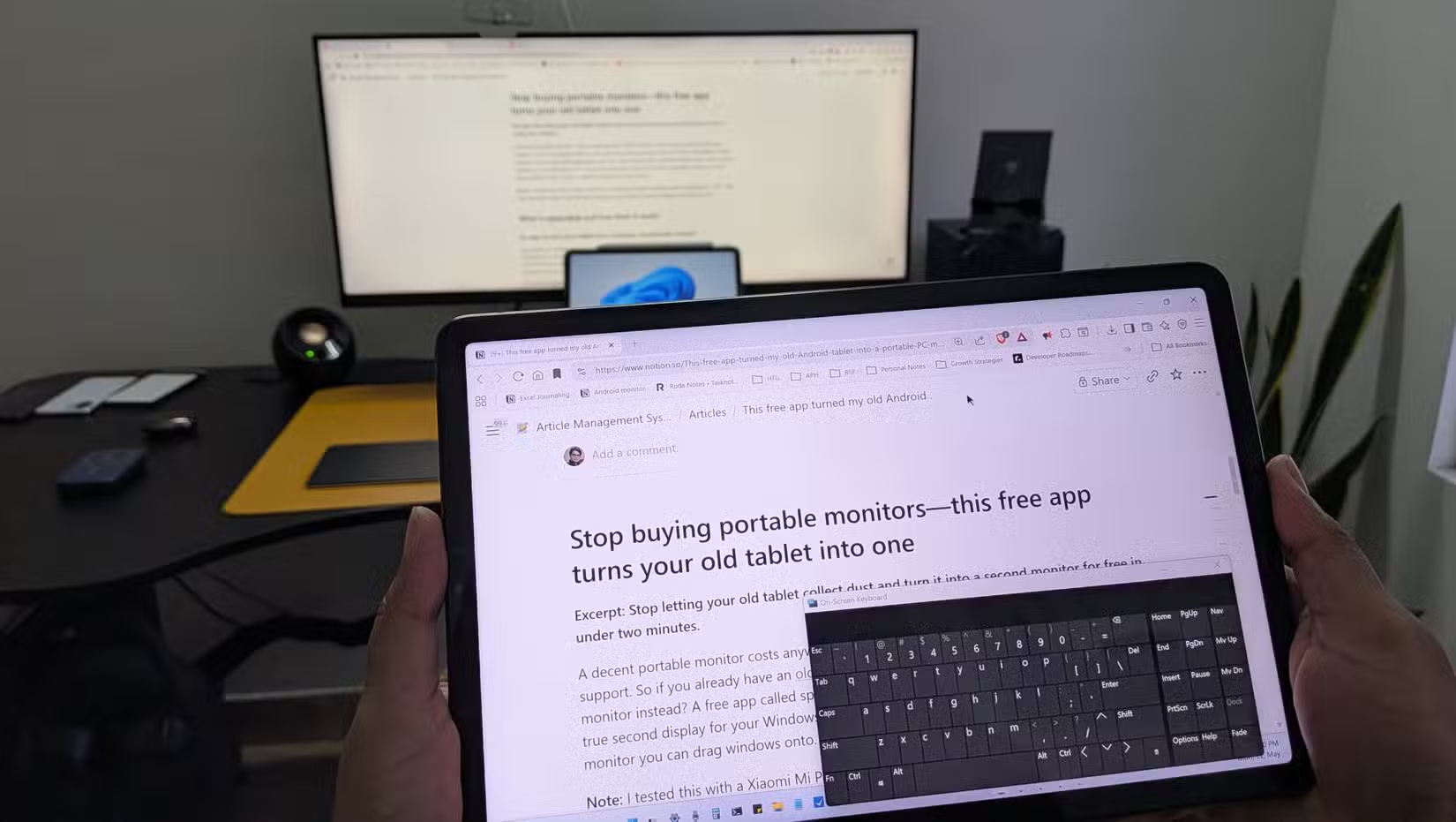
Here's the part that makes this genuinely useful: your tablet's touchscreen works as an input device. You can open apps, close windows, drag items, and scroll, all by touching the tablet screen directly. For tasks like monitoring dashboards, reading documentation, or keeping chat windows visible, this works surprisingly well.
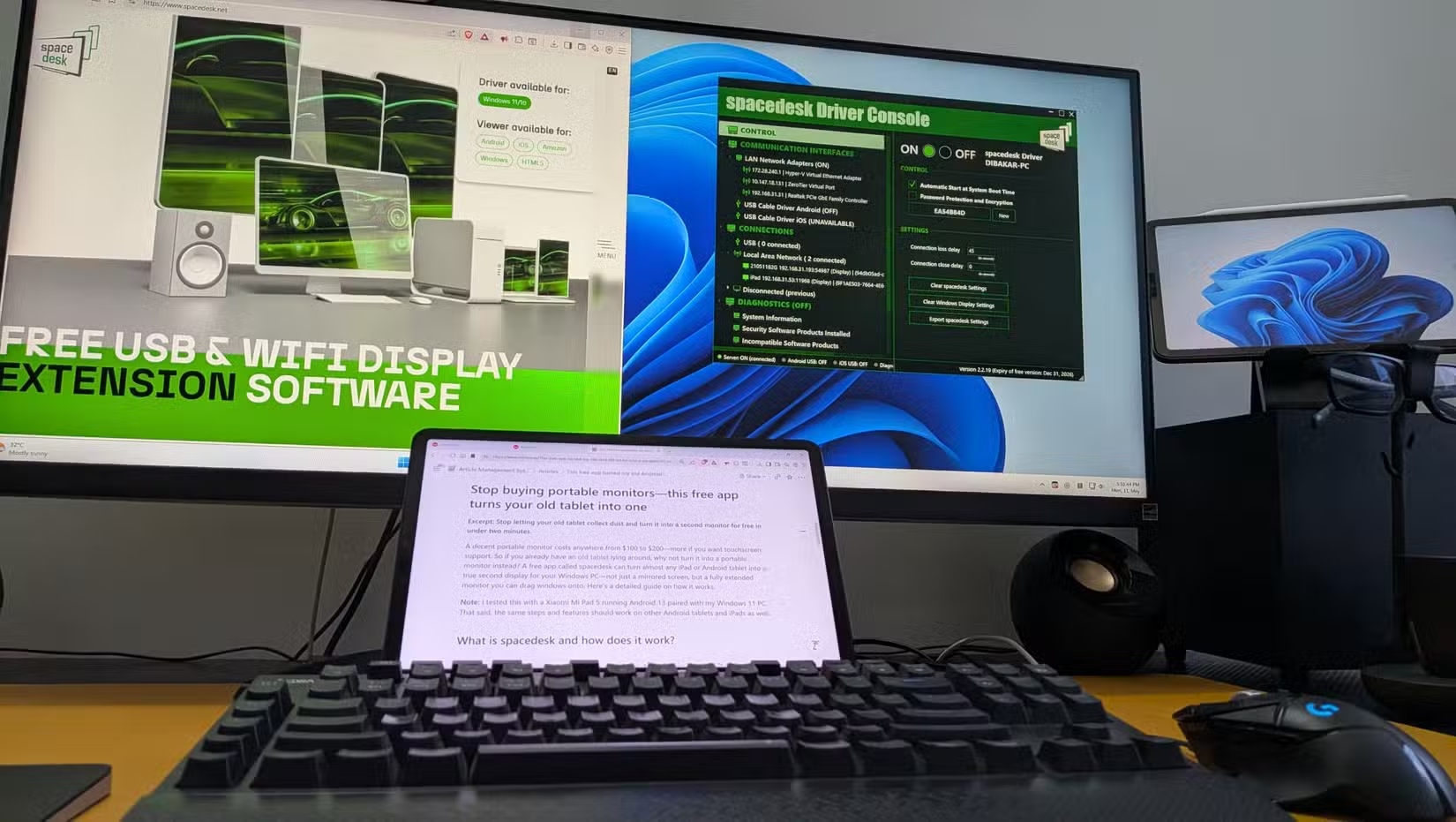
Spacedesk works over Wi-Fi by default. According to How-To Geek's testing with a Xiaomi Mi Pad 5 running Android 13 paired with a Windows 11 PC, latency is negligible for most tasks. The same setup should work on other Android tablets and iPads.
Setting It Up
- Download the Spacedesk driver from the official website and install it on your Windows PC
- Install the Spacedesk viewer app on your tablet (available on Google Play and the App Store)
- Make sure both devices are on the same Wi-Fi network
- Open the viewer app on your tablet. It should automatically detect your PC
- Tap to connect. Your tablet is now an extended display
Once connected, open Windows display settings to arrange your monitors. Drag the tablet's display icon to match its physical position on your desk. You can also adjust resolution if the default doesn't look sharp.
What You Can Use It For
- Keep Slack, Discord, or email visible while working on your main screen
- Display reference material or documentation without tab switching
- Monitor dashboards, stock tickers, or server stats
- Watch a video while working
- Use it as a portable second screen when traveling with a laptop
The web app option means anything with a browser can technically become a monitor. This includes old laptops, Chromebooks, or even another desktop PC you have lying around.
Limitations to Know
Spacedesk only works with Windows as the host machine. If you're on macOS or Linux, you'll need a different solution. The connection also depends on your Wi-Fi network quality. A congested or slow network will introduce lag.
For tasks requiring precise color accuracy, like photo editing or design work, a proper monitor is still the better choice. But for productivity tasks, reference material, or secondary displays, Spacedesk handles the job.
Logicity's Take
Another way to get more from hardware you already own
Frequently Asked Questions
Does Spacedesk cost money?
No. Spacedesk is free for personal use. The driver and viewer apps are both available at no cost.
Can I use Spacedesk with an iPhone?
Spacedesk works with iOS devices, including iPhones and iPads. Install the viewer app from the App Store.
Does Spacedesk work over USB instead of Wi-Fi?
Spacedesk primarily uses Wi-Fi. For USB connections, you may need to configure network-over-USB, which varies by device.
Is there noticeable lag when using a tablet as a second monitor?
On a stable Wi-Fi network, latency is minimal for most tasks. Video playback or gaming may show some delay.
Can I use Spacedesk with macOS or Linux?
No. Spacedesk requires Windows as the host machine. macOS and Linux users need alternative software.
Need Help Implementing This?
Source: How-To Geek
Manaal Khan
Tech & Innovation Writer
Produced with AI assistance and reviewed by the Logicity editorial team. Learn more in our Editorial Policy.