Key Takeaways
- File History keeps hourly versioned snapshots of your personal files on an external drive, letting you roll back accidental overwrites
- Microsoft classifies File History as 'legacy' in Windows 11 and hides it in Control Panel, pushing users toward OneDrive instead
- Enabling File History requires only an external USB drive and takes about two minutes in Control Panel
Windows has a built-in tool that automatically saves versioned copies of your files every hour. It can restore a document you accidentally overwrote last Tuesday or recover a spreadsheet from three weeks ago. The feature is called File History, and Microsoft ships it turned off by default.
Worse, Microsoft now classifies File History as a "legacy" feature in Windows 11, burying it in Control Panel rather than the modern Settings app. The company would prefer you use Windows Backup, which routes your files through OneDrive and counts against your cloud storage quota. File History works entirely offline, keeps files under your control, and costs nothing beyond a USB drive.
What makes File History different from a regular backup?
A standard backup captures your files at one moment. File History captures them continuously. By default, it takes a new snapshot every hour of your Desktop, Documents, Pictures, Music, Videos, and offline OneDrive files. Each snapshot gets timestamped and stored on your external drive.
This means you can retrieve not just "your files" but "your files as they existed at 2:00 PM on June 3rd." Hit save at the wrong moment and overwrite a chapter of your novel? Open File History, scroll back an hour, preview the old version, and restore it. The tool is conceptually identical to Apple's Time Machine, which has been a macOS staple for nearly two decades.
One limitation: File History does not back up your operating system, installed applications, or drivers. It protects personal files only. For full system recovery, you still need a separate disk image tool.
Why did Microsoft bury this feature?
In Windows 11, File History sits alongside Backup and Restore from Windows 7 and Internet Explorer mode in the "legacy" category. The Settings app does not link to it. You have to open Control Panel, navigate to System and Security, and find File History manually.

Microsoft's replacement is Windows Backup, which syncs files to OneDrive. That works, but it requires a Microsoft account and eats into your storage allocation. The free OneDrive tier offers 5 GB. A year of photos, documents, and project files can blow past that in weeks.
Community sentiment on Reddit and Hacker News tilts toward suspicion: many users believe Microsoft is deliberately downplaying File History to push paid OneDrive tiers. Whether or not that is the intent, the practical result is the same. A useful tool sits hidden while the cloud-dependent alternative gets prominent placement.
How to enable Windows File History in two minutes
You need an external drive with enough room to hold your files several times over. File History accumulates versions, so a 1 TB drive will let you scroll back months. Portable 2 TB drives now cost under $70.
- Connect your external drive via USB.
- Open Control Panel (search for it in the Start menu).
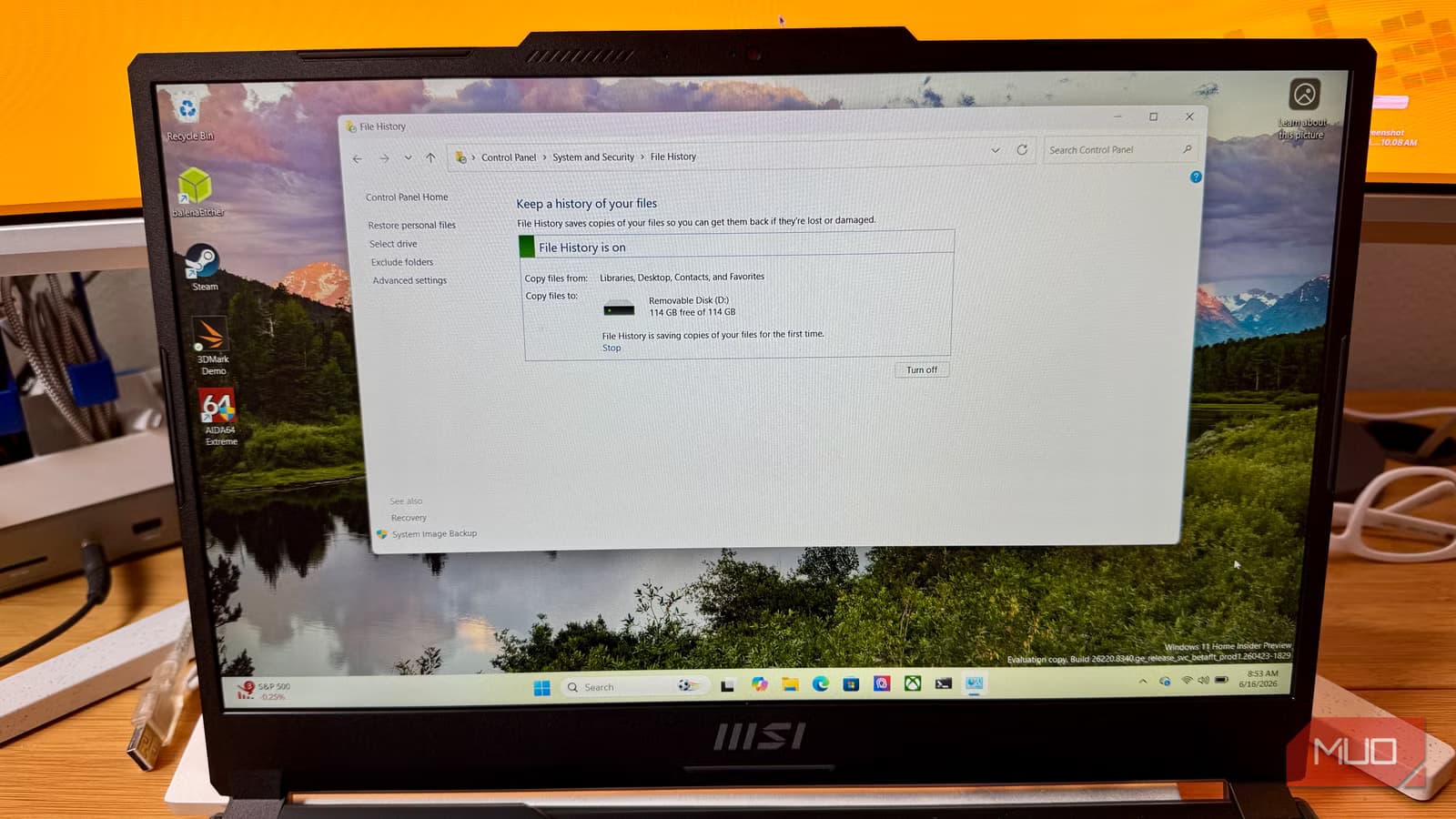
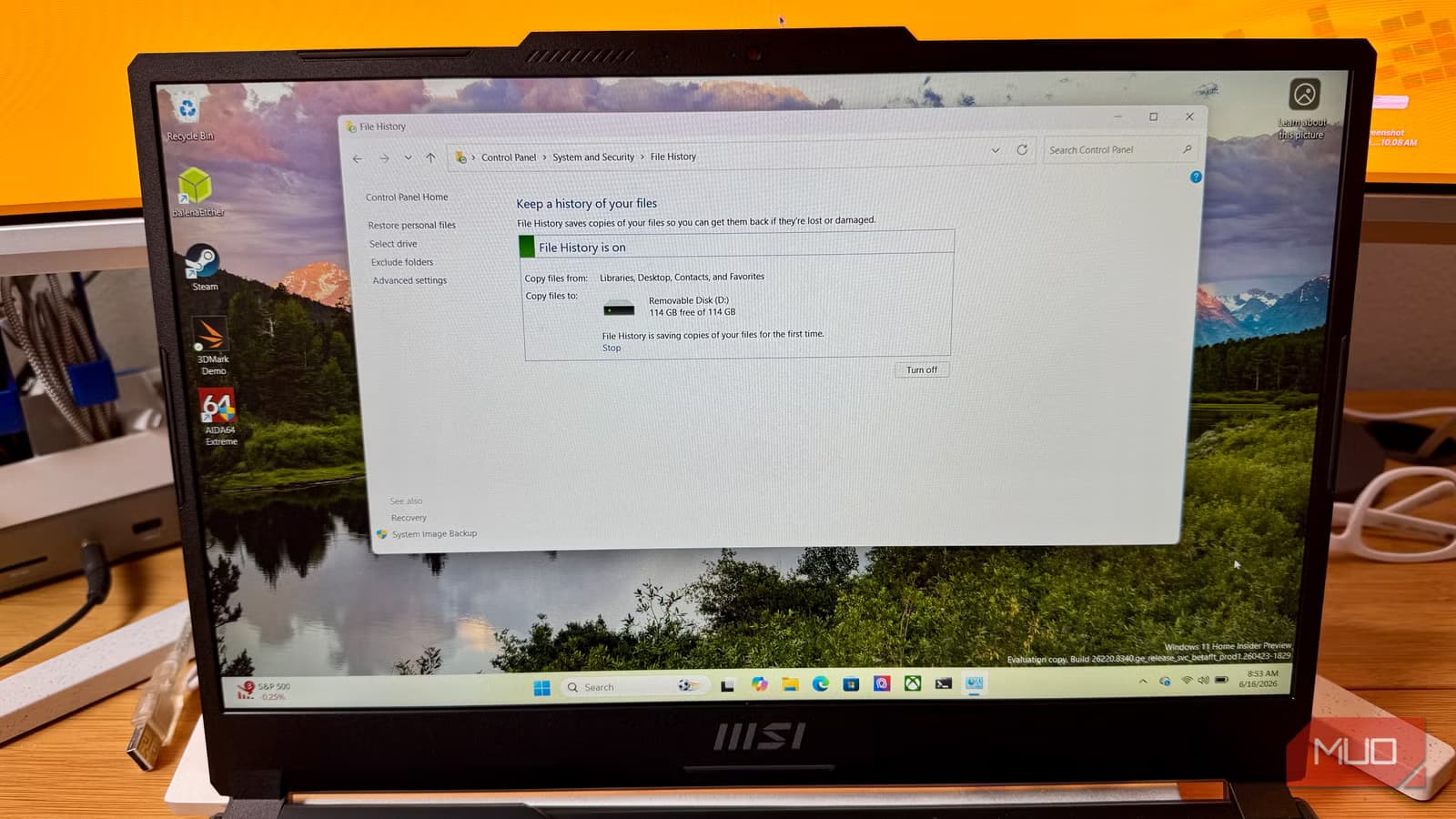
- Navigate to System and Security, then click File History.
- If Windows detects your external drive, it will appear as the target. Click Turn On.
That is the entire process. File History now runs in the background.
How to customize backup frequency and folders
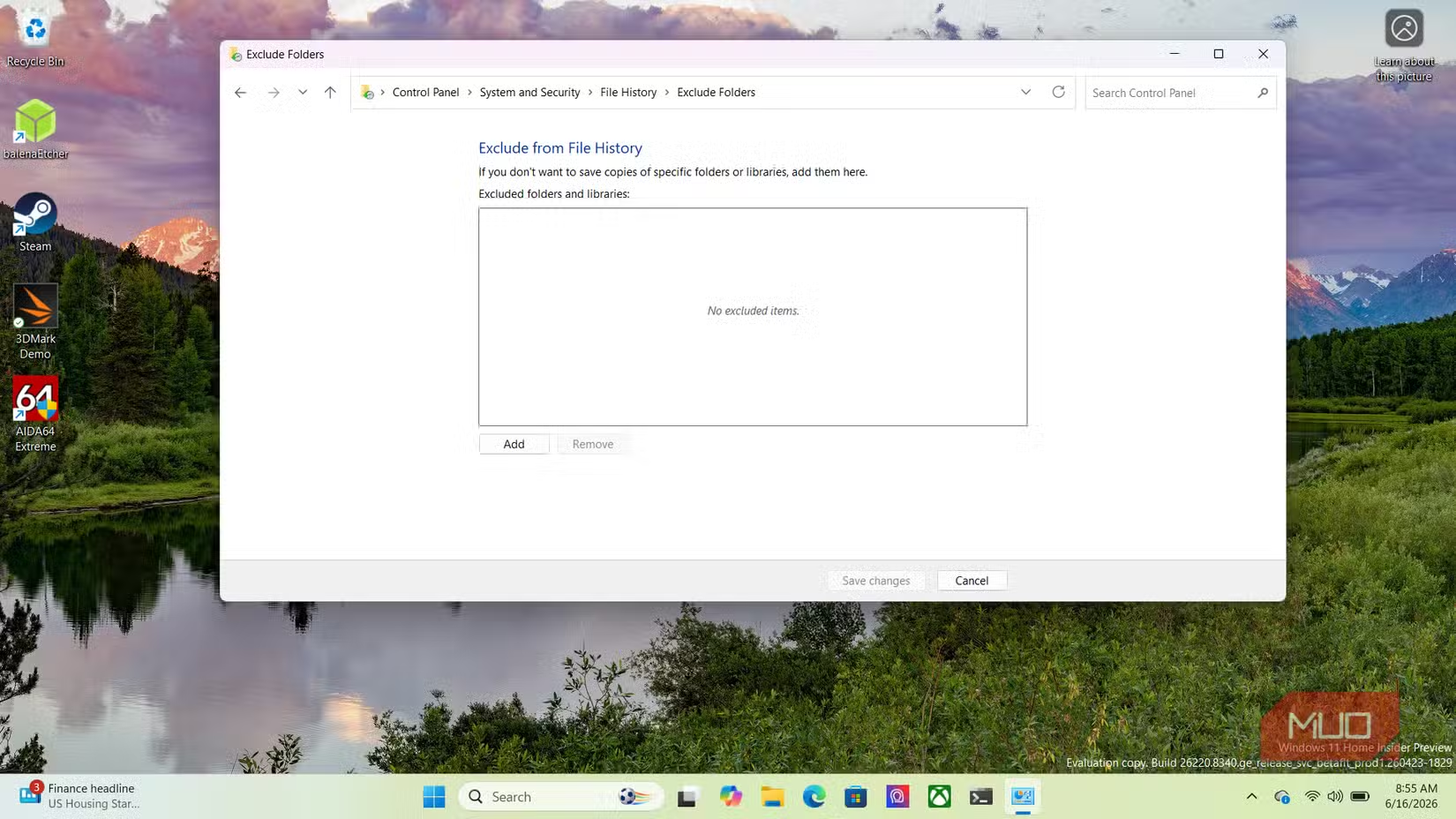
Click Advanced settings on the left panel of the File History window. You can change how often it saves copies. The default is every hour, but you can set it as frequently as every 10 minutes if you work on fast-changing documents. You can also adjust how long it keeps versions. The default is "forever," meaning until your drive fills up.
To add folders outside the default set, right-click the folder in File Explorer, choose Include in library, and pick a library. File History will grab it on the next run.
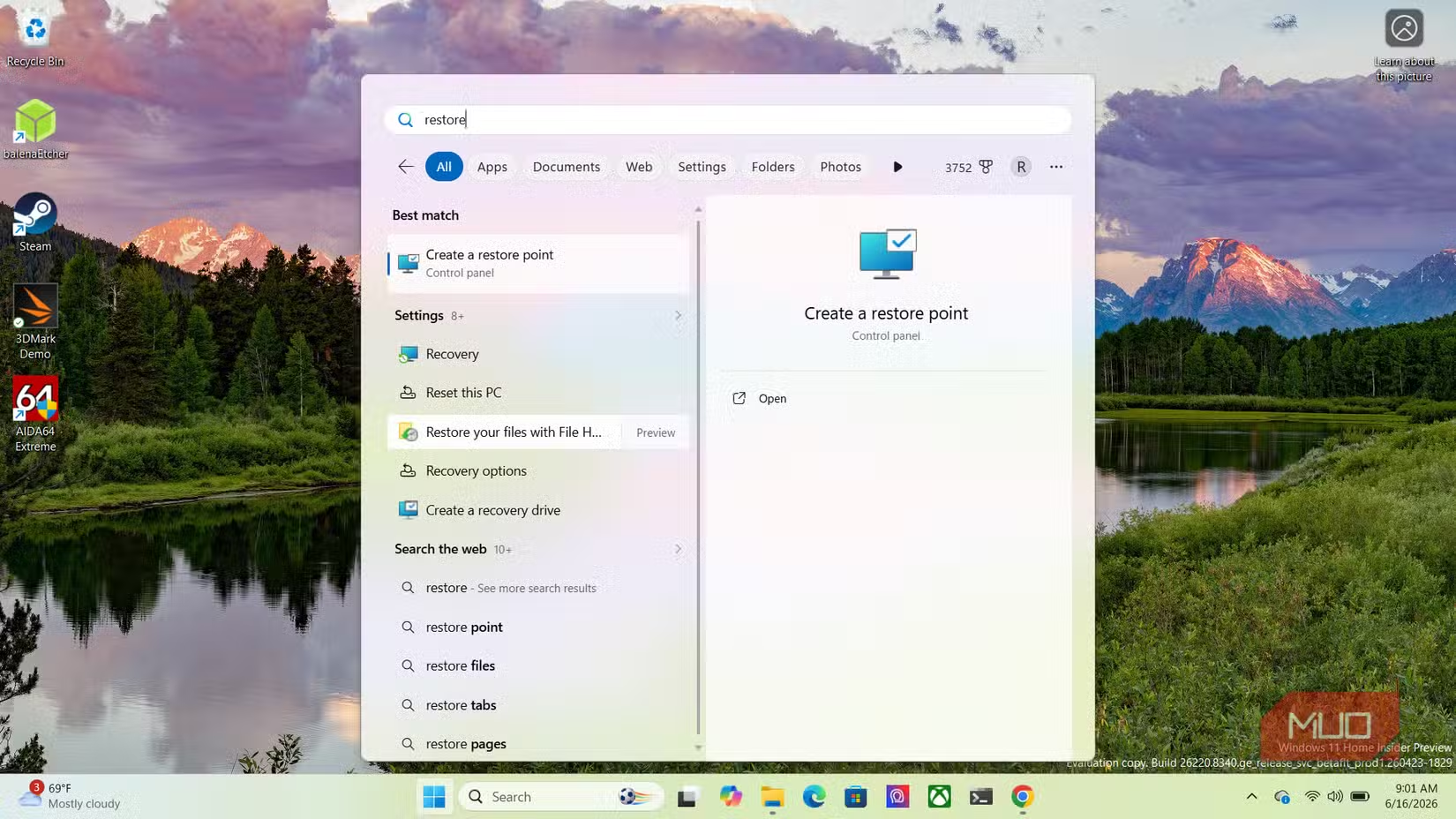
When you need to restore, search for "Restore your files with File History" from the Start menu. You will see a timeline of everything the tool has saved. Use the arrow buttons to navigate back through versions, preview the file, and hit Restore.
File History vs. OneDrive: which should you use?
| Feature | File History | OneDrive Backup |
|---|---|---|
| Storage location | Local external drive | Microsoft cloud |
| Cost | One-time drive purchase | Free 5 GB, then subscription |
| Requires internet | No | Yes |
| Version history | Hourly snapshots, unlimited retention | 30-day version history |
| Ransomware protection | Strong (offline copies) | Moderate (files can sync infected state) |
| Microsoft account required | No | Yes |
For most users, the answer is both. Use OneDrive for cross-device sync and File History for deep, offline version control. If you must pick one, File History offers more protection against the two most common disaster scenarios: accidental overwrites and ransomware.
Another hidden risk developers overlook until it's too late
Frequently Asked Questions
Does File History back up my entire computer?
No. File History backs up personal files in your libraries, Desktop, and Contacts. It does not back up the operating system, installed programs, or drivers. For full system recovery, use a disk imaging tool.
Can I use a network drive instead of a USB drive for File History?
Yes. In the File History settings, click Select drive and choose a network location. This is useful if you have a NAS at home or in your office.
Will File History slow down my computer?
Minimally. It runs in the background and only copies files that have changed since the last snapshot. Most users never notice it running.
Is File History being removed from Windows?
Microsoft has not announced plans to remove it. "Legacy" means the company is not actively developing it, but it still works in Windows 10 and Windows 11.
Logicity's Take
Microsoft's decision to bury File History while promoting OneDrive is a textbook example of platform economics trumping user utility. OneDrive generates recurring revenue; a feature that works with any USB drive does not. For CTOs managing employee workstations, mandating File History via group policy is a low-cost, high-impact way to reduce data loss incidents without adding another SaaS line item.
Need Help Implementing This?
If your organization needs help deploying File History across multiple workstations or integrating it with your existing backup strategy, contact our team at Logicity.in for guidance on enterprise-grade data protection policies.
Source: MakeUseOf
Huma Shazia
Senior AI & Tech Writer
Produced with AI assistance and reviewed by the Logicity editorial team. Learn more in our Editorial Policy.






