Key Takeaways
- A powerful machine sitting idle 14 hours a day wastes its potential
- Server tasks like transcoding, Plex streaming, and Docker containers benefit from strong hardware
- A lightweight workstation plus remote access gives you portable power without compromise
The Problem With Idle Hardware
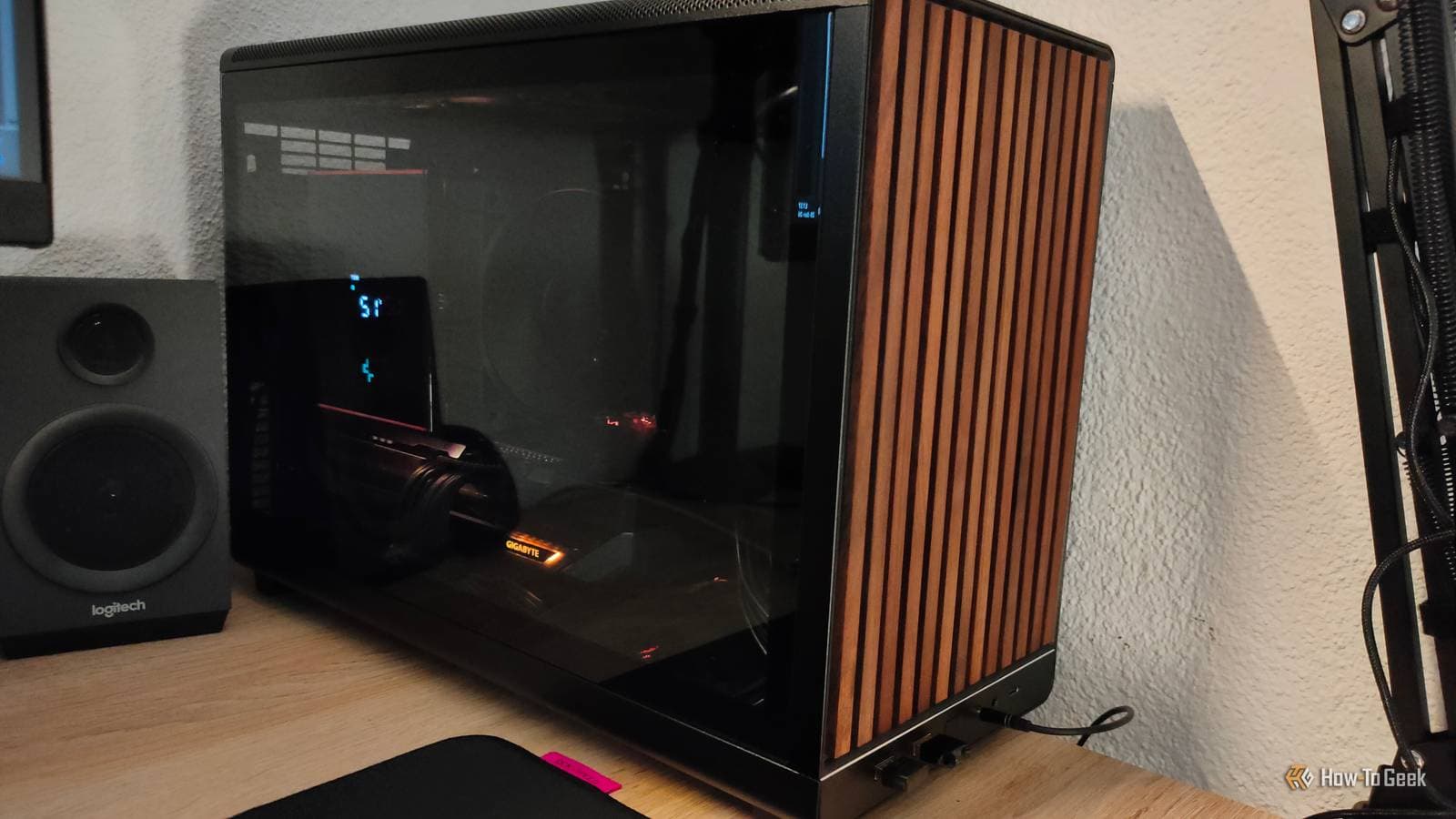
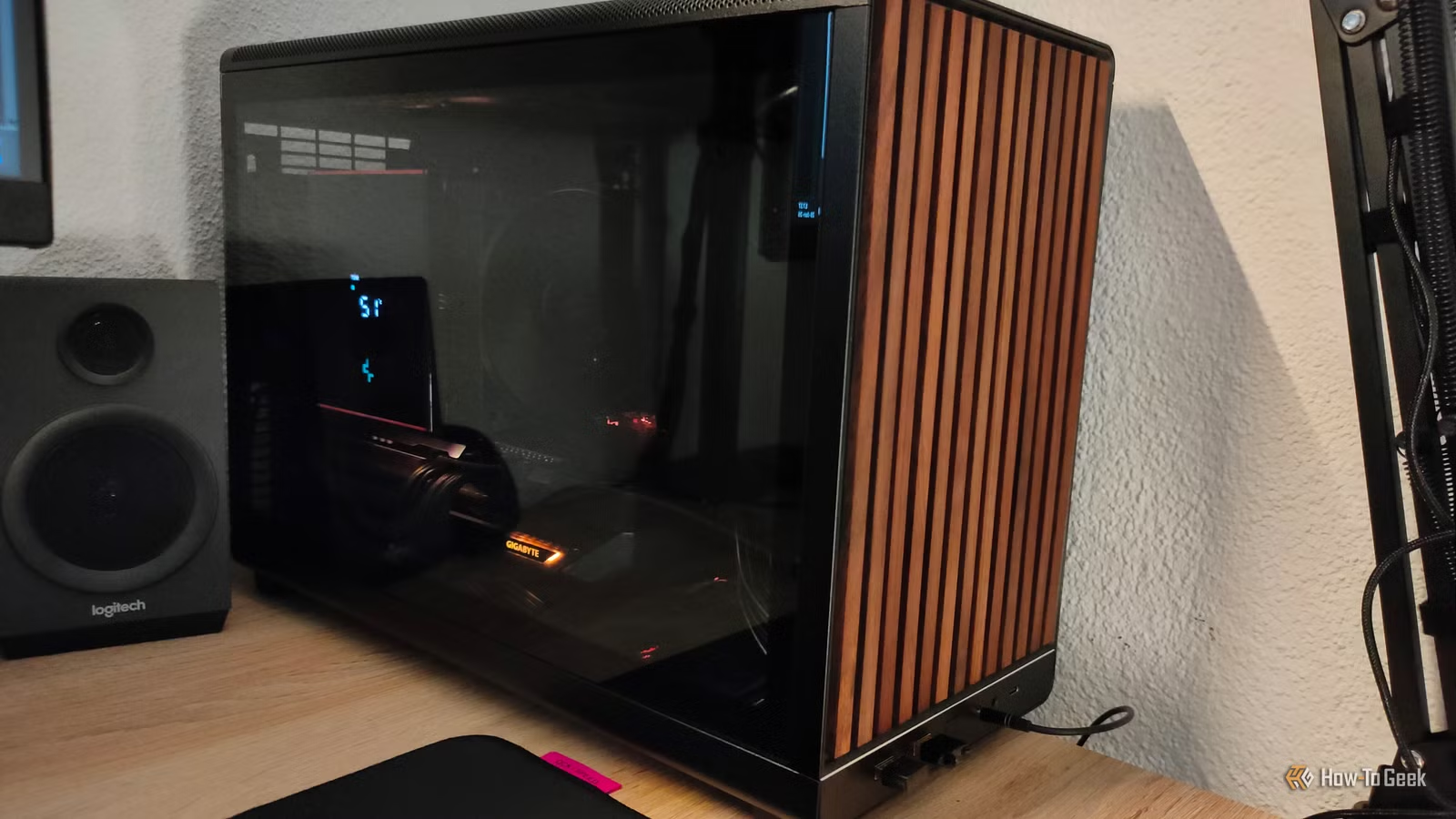
Here's a common home office pattern: your most powerful PC sits on your desk. Your older, weaker machine runs basic server duties in a closet. Dibakar Ghosh, writing for How-To Geek, argues this setup is backwards.
His reasoning starts with a simple observation. A workstation used 8 to 10 hours a day sits idle the rest of the time. That's 14 or more hours where expensive CPU and GPU hardware does nothing. Unlike humans, computers don't need rest. Why let them take any?
Put That Hardware to Work Around the Clock
Ghosh started keeping his powerful machine running overnight. He'd queue up Handbrake jobs to transcode and compress his video collection while he slept. He set up a Plex server to stream 4K content to his phone and tablet. Before long, the machine was running more Docker containers than work applications.
The label said 'workstation,' but the machine was already doing server work. A workstation just happened to run on it too.
This shift in thinking changes how you approach hardware purchases. Instead of asking 'What do I need for daily tasks?' you ask 'What do I need to run 24/7?' The answer usually favors the server role getting the better specs.
Server Tasks That Actually Need Power
Not every server task demands high-end hardware. A Pi-hole for DNS filtering runs fine on a Raspberry Pi. But several common home server jobs benefit from strong specs:
- Video transcoding with Handbrake or similar tools. Converting a large library takes days on weak hardware, hours on strong hardware.
- Plex or Jellyfin media servers. Streaming 4K content with on-the-fly transcoding needs CPU muscle or GPU acceleration.
- Running multiple Docker containers. Each container adds overhead. More RAM and faster storage help.
- Local AI experiments. Running LLMs or image generation models locally demands serious GPU memory.
- Game streaming. Services like Moonlight or Parsec stream games from your server to thin clients. The server does the heavy lifting.
For lighter server tasks that don't need powerful hardware
Your Daily Driver Can Be Light
Once heavy tasks move to the server, your daily workstation doesn't need much. Web browsing, email, document editing, and video calls run fine on modest hardware. A thin client, an older laptop, or a mini PC handles these jobs without breaking a sweat.
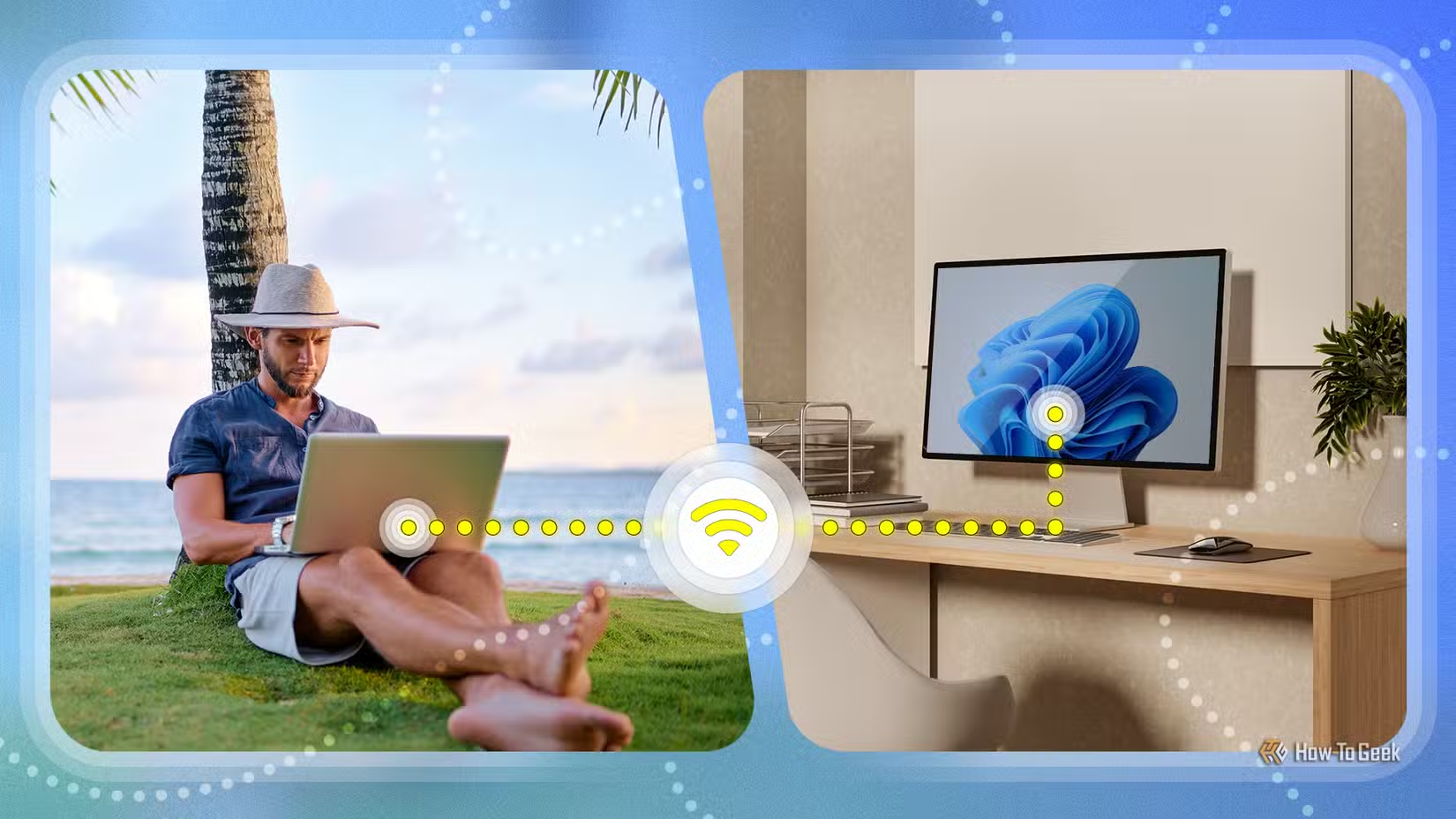
The real trick is remote access. Tools like Parsec, Moonlight, or even built-in remote desktop let you connect to your powerful server when you need its capabilities. You get a lightweight, quiet, cool-running machine on your desk. The server hums away somewhere else, handling the hard work.
This setup also works well for travel. Pack a light laptop. Connect to your home server over a VPN. You have access to your full computing power without carrying it.
Security Considerations
A powerful always-on server creates security responsibilities. It's exposed to the network more than a machine you turn off at night. Keep the OS updated. Use strong passwords or key-based authentication. Consider a firewall and VPN for remote access instead of exposing services directly to the internet.
The upside: your valuable data and applications live on one machine you control. No cloud subscriptions. No wondering where your files actually are. You trade convenience for responsibility, which some users prefer.
More on taking control of your home tech
When This Approach Makes Sense
This setup isn't for everyone. It works best if you already run server tasks at home, or want to. If your computing needs are simple and you never touch Docker, Plex, or video transcoding, a single good desktop still makes sense.
But if you find yourself leaving your workstation on overnight for long tasks, or wishing you could access your home machine remotely, or running out of resources when multiple services compete, consider the flip. Put the power where it runs 24/7. Keep something light on your desk.


Logicity's Take
Frequently Asked Questions
Frequently Asked Questions
How much does running a home server 24/7 cost in electricity?
It varies by hardware and local rates, but a typical home server draws 50-150 watts at idle. At $0.12 per kWh, that's roughly $5-15 per month. More powerful hardware under load uses more.
What's the best remote desktop software for accessing a home server?
Parsec and Moonlight work well for low-latency tasks including gaming. RustDesk and Tailscale offer good options for general remote access with strong security.
Can I use a Raspberry Pi as my daily workstation?
For basic web browsing and document editing, yes. A Raspberry Pi 5 handles light tasks. For anything heavier, you'll want more power or remote access to a stronger machine.
Does this setup work for gaming?
Yes, with game streaming. Services like Moonlight stream games from your server's GPU to a thin client. Latency matters, so a wired connection helps.
What happens if my home internet goes down while I'm away?
You lose remote access to your server. Consider a backup internet connection or cellular failover if uptime matters for your use case.
Need Help Implementing This?
Source: How-To Geek
Huma Shazia
Senior AI & Tech Writer
Produced with AI assistance and reviewed by the Logicity editorial team. Learn more in our Editorial Policy.






