Key Takeaways
- Cleanup tools cannot distinguish between junk files and important data like project assets or cloud sync files
- Duplicate file finders frequently break app paths and remove files needed by software
- Windows Storage Sense and built-in tools are safer alternatives recommended by experts
PC cleanup tools promise an easy fix: click a button, reclaim gigabytes, done. The reality is messier. These utilities cannot tell the difference between actual junk and files your future self will desperately need. That cache folder might be safe to nuke, or it might be the only copy of an asset your video editor requires. The tool does not know. It deletes anyway.
Monica J. White, writing for How-To Geek, argues the biggest storage mistake is not letting your drive fill up. It is handing deletion decisions to software that follows rigid rules without understanding context. A downloaded installer from three years ago might look like clutter. It might also be the only way to restore a legacy app you still rely on.
Why cleanup tools misjudge your files
These tools work by matching file types, folder locations, and age against predefined rules. Old files in temp folders? Delete. Duplicate names? Pick one, trash the rest. The logic sounds reasonable until you realize it has no concept of what those files actually do.
A ZIP file sitting in Downloads for two years might be a forgotten archive. Or it might contain the source files for a client project you completed but never moved to permanent storage. The cleanup tool sees age and file type. You see months of work about to vanish.
Marketing materials from aggressive cleanup utilities often claim they can recover 10-20% of your drive space. What they do not mention is how much of that "junk" is actually application data, cached files that speed up your software, or backups you forgot existed but will remember the moment they are gone.
The Downloads folder is not a trash can
Your Downloads folder accumulates everything. Bank statements, invoices, receipts, work documents, exported files, drivers. It is tempting to let a cleanup tool blast through it based on file age. That is a mistake.
Age alone is a terrible metric for importance. A PDF from 2021 might be the contract you need for a dispute. An installer from last year might be the only way to get a specific version of software before the company changed its licensing model. Clean this folder manually, or do not clean it at all.
Duplicate file finders break more than they fix
Duplicate finders sound useful. Nobody needs seven copies of the same installer. But "duplicate" means different things to different tools. Some check file names. Some check sizes. Some check hashes. And even genuinely identical files might exist in two locations for a reason.
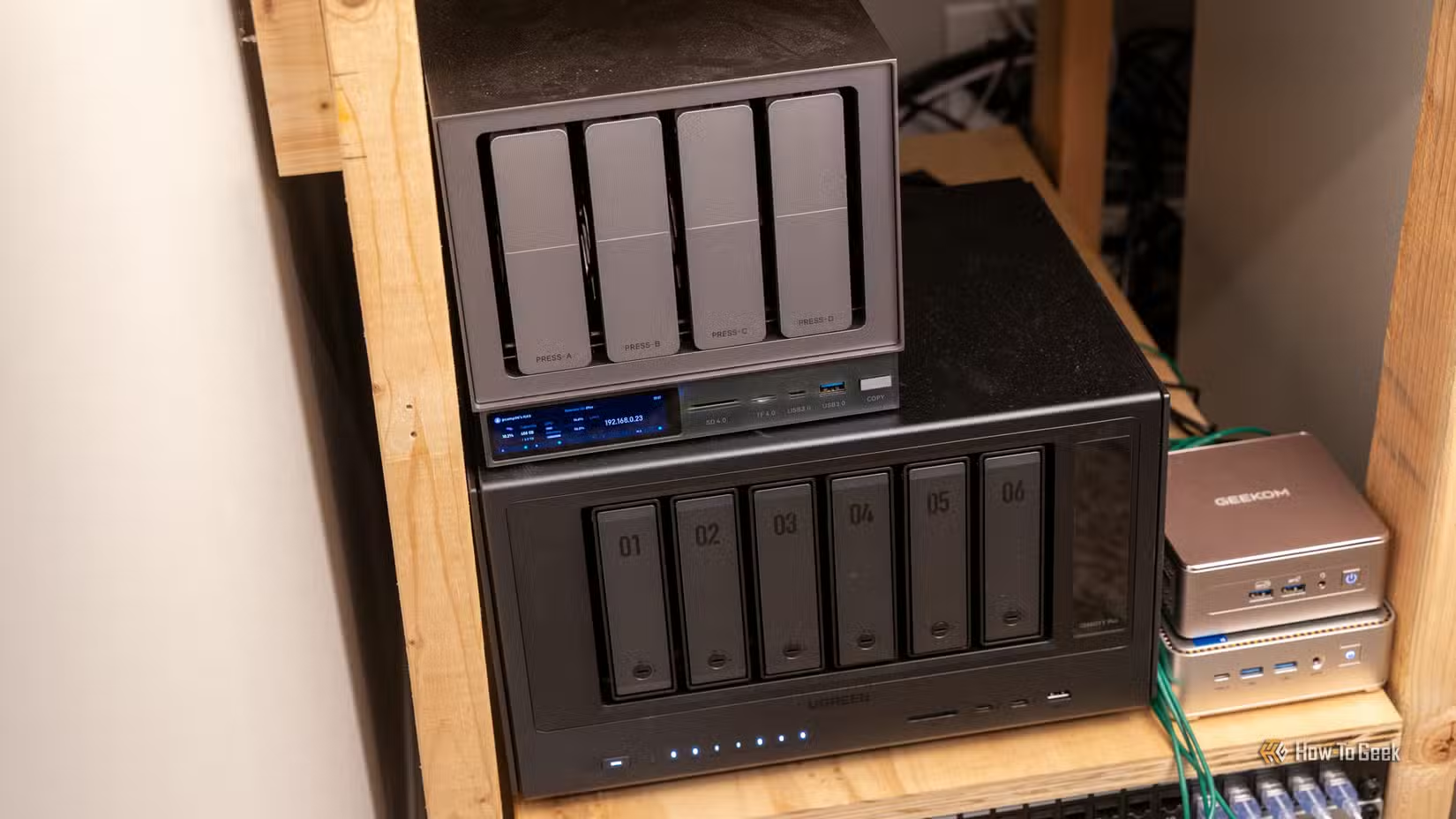
When a duplicate finder removes files from project folders, game directories, app folders, or cloud sync locations, the results are predictable. Broken paths. Missing assets. Sync conflicts. Applications that launch to error messages or refuse to open at all.
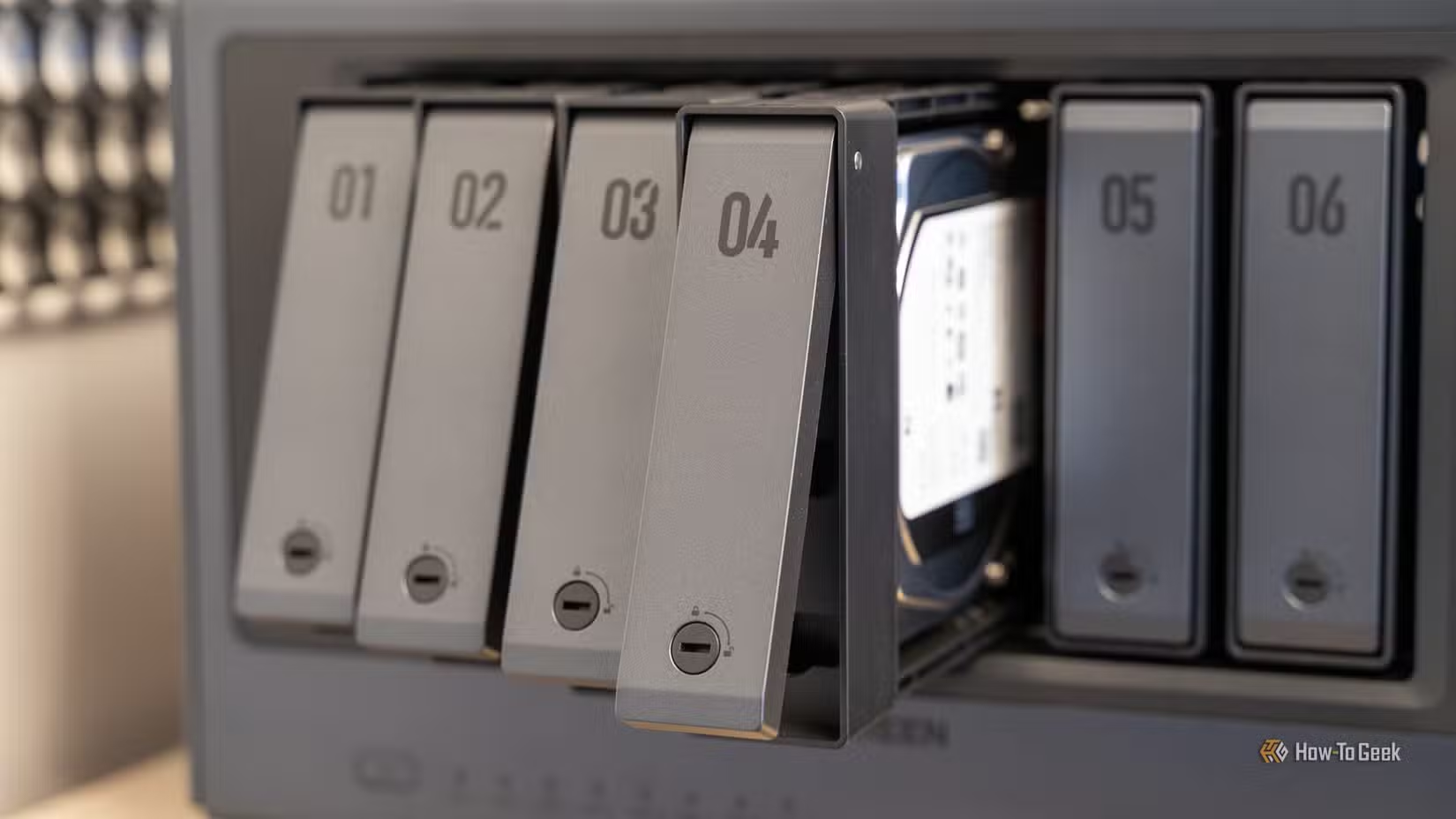
What the PC community actually recommends
Reddit communities like r/pcmasterrace and r/buildapc have reached a clear consensus: most third-party "cleaner" suites are snake oil. Registry cleaners in particular draw the sharpest criticism. Modern Windows experts recommend zero registry cleaners for performance improvement. The risk of system instability far outweighs any theoretical benefit.
The community favors built-in Windows tools like Storage Sense, which Microsoft designed to understand what is actually safe to remove. For users who want more control, focused utilities like BleachBit and WizTree get recommendations. The warning is consistent: avoid all-in-one optimization suites that bundle bloatware alongside their cleanup features.
A safer approach to storage management
Windows 10 and 11 include Storage Sense, which automatically removes temporary files, empties the Recycle Bin on a schedule, and clears old Downloads content based on settings you control. It is not as aggressive as third-party tools, and that is exactly the point.
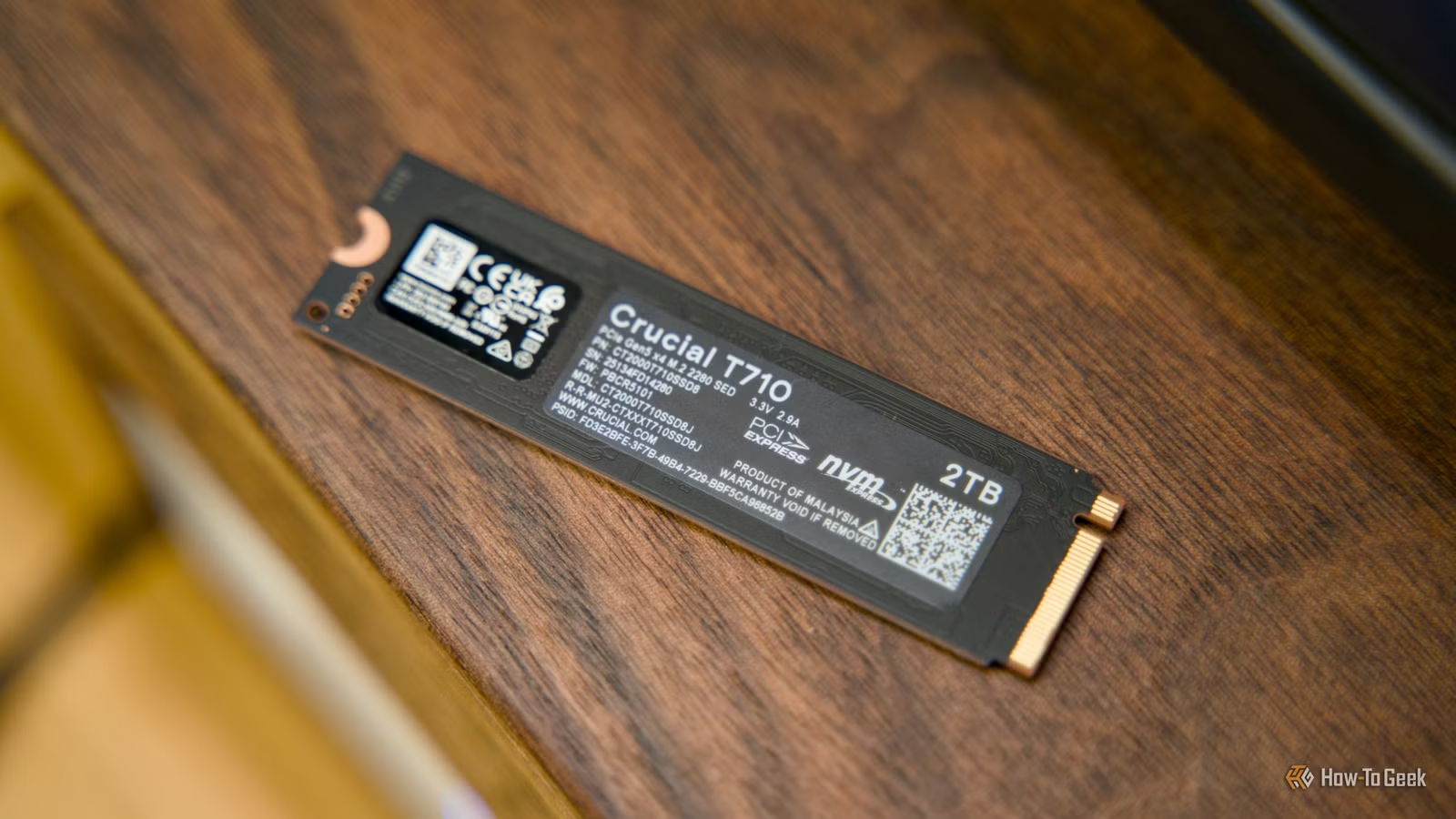
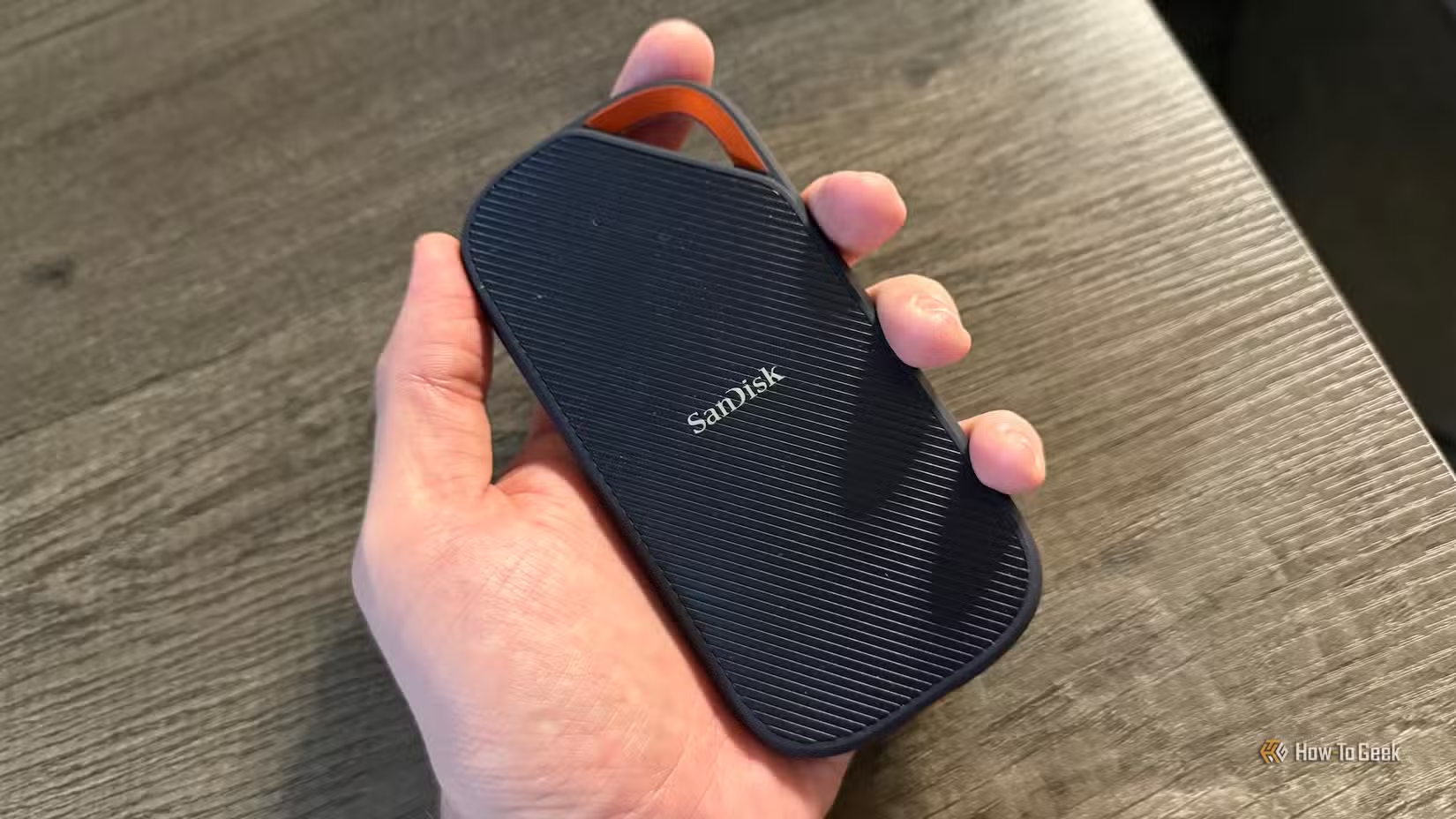
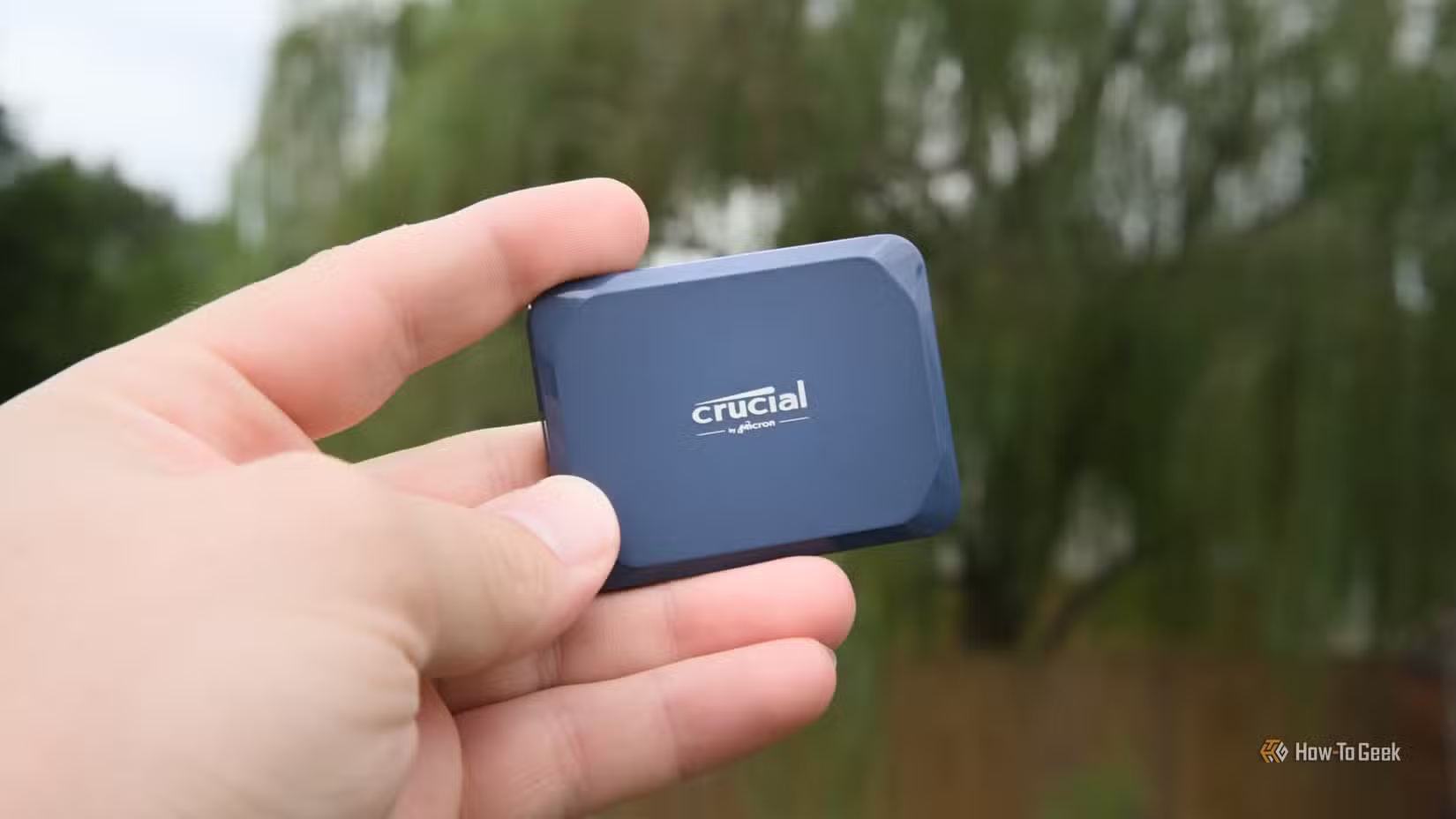
If you genuinely need more space, adding storage is cheaper and safer than risking data loss. NVMe SSDs have dropped in price significantly. A secondary drive for projects and downloads keeps your main SSD focused on the operating system and applications.
Logicity's Take
The cleanup tool industry thrives on a problem that Windows has largely solved. Storage Sense exists. It works. It does not accidentally delete your project files or break your applications. The aggressive marketing around third-party cleaners preys on users who do not know Microsoft already built a safer alternative into the operating system. If your drive is full, buy a second one. SSDs are cheap. Your data is not.
Frequently Asked Questions
Are PC cleanup tools safe to use?
Most third-party cleanup tools carry significant risk. They follow rigid rules and cannot distinguish between actual junk and important files. Windows built-in tools like Storage Sense are designed by engineers who understand which files are safe to remove.
Do registry cleaners improve PC performance?
No. Modern Windows experts recommend zero registry cleaners for performance improvement. These tools frequently cause system instability while providing no measurable benefit.
What is the safest way to free up storage on Windows?
Use Windows Storage Sense, which automatically removes temporary files and manages storage based on settings you control. For manual cleanup, delete files yourself rather than trusting automated tools.
Why do duplicate file finders cause problems?
Duplicate finders often remove files from project folders, game directories, or cloud sync locations. Even identical files might exist in multiple places intentionally, and removing them breaks application paths and causes sync conflicts.
Should I let cleanup tools access my Downloads folder?
No. Downloads folders contain important documents like invoices, receipts, and work files that may look like junk based on age alone. Clean this folder manually to avoid losing critical data.
Need Help Implementing This?
For guidance on setting up Windows Storage Sense, managing enterprise storage policies, or recovering from cleanup tool damage, contact our team at Logicity for personalized recommendations.
Source: How-To Geek
Manaal Khan
Tech & Innovation Writer
Produced with AI assistance and reviewed by the Logicity editorial team. Learn more in our Editorial Policy.






