Key Takeaways
- Ventoy stores multiple ISOs on a single USB drive, booting like a menu system without reformatting
- Rufus remains the better choice for clean, single-purpose bootable drives and Windows 11 bypass needs
- Anyburn offers beginner-friendly ISO management on Windows for virtual machine workflows
The Problem With Single-Boot USB Tools
Rufus has earned its reputation. With over 500 million downloads, it's the default choice when someone needs a bootable USB drive. It's fast, reliable, and handles Windows 11's hardware requirements with ease.
But there's a catch. Every time you want to boot a different ISO, you have to reformat the entire drive. For someone installing Windows once a year, that's fine. For hobbyists testing multiple Linux distros or running various operating systems on virtual machines, it becomes tedious fast.
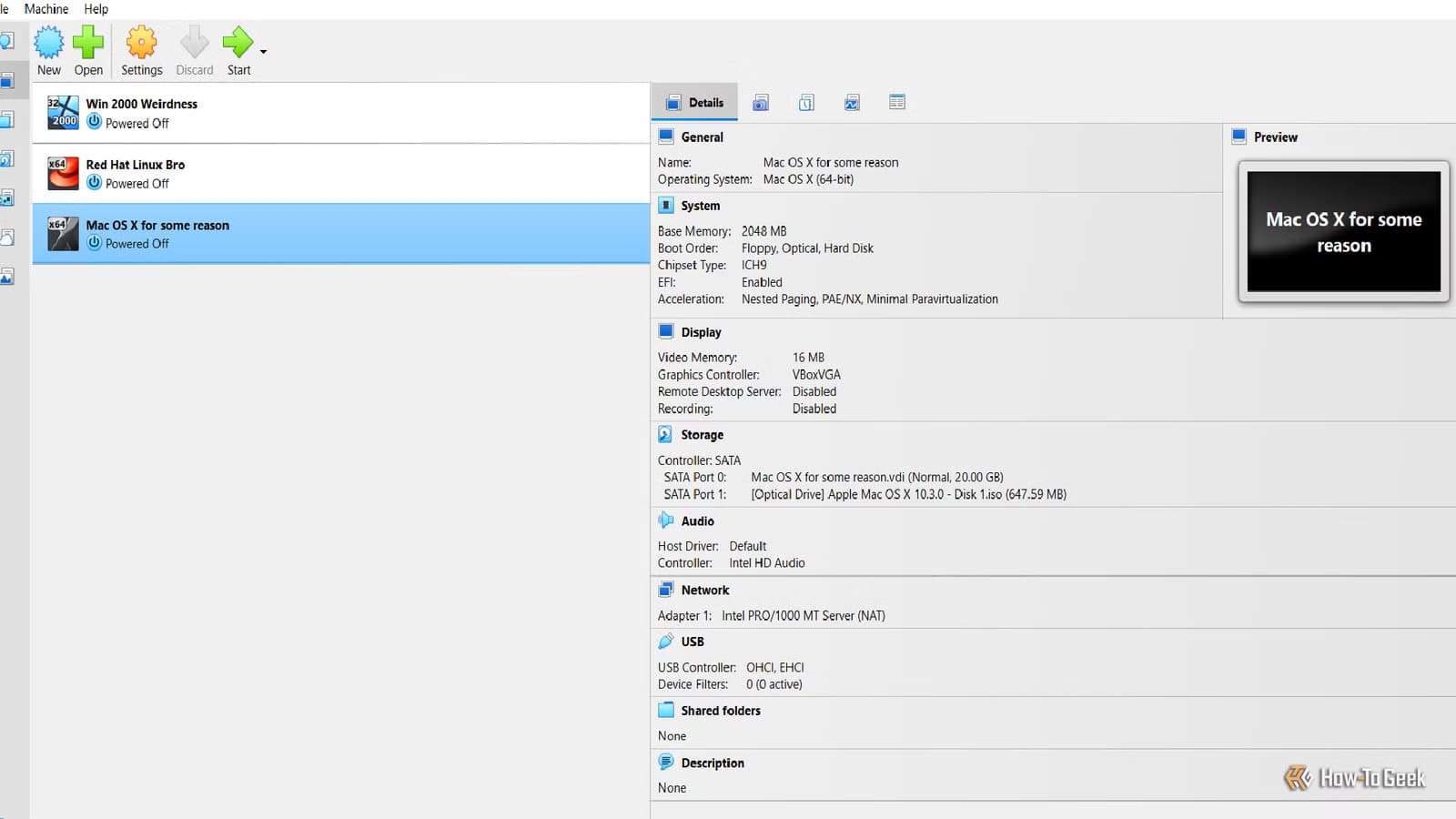
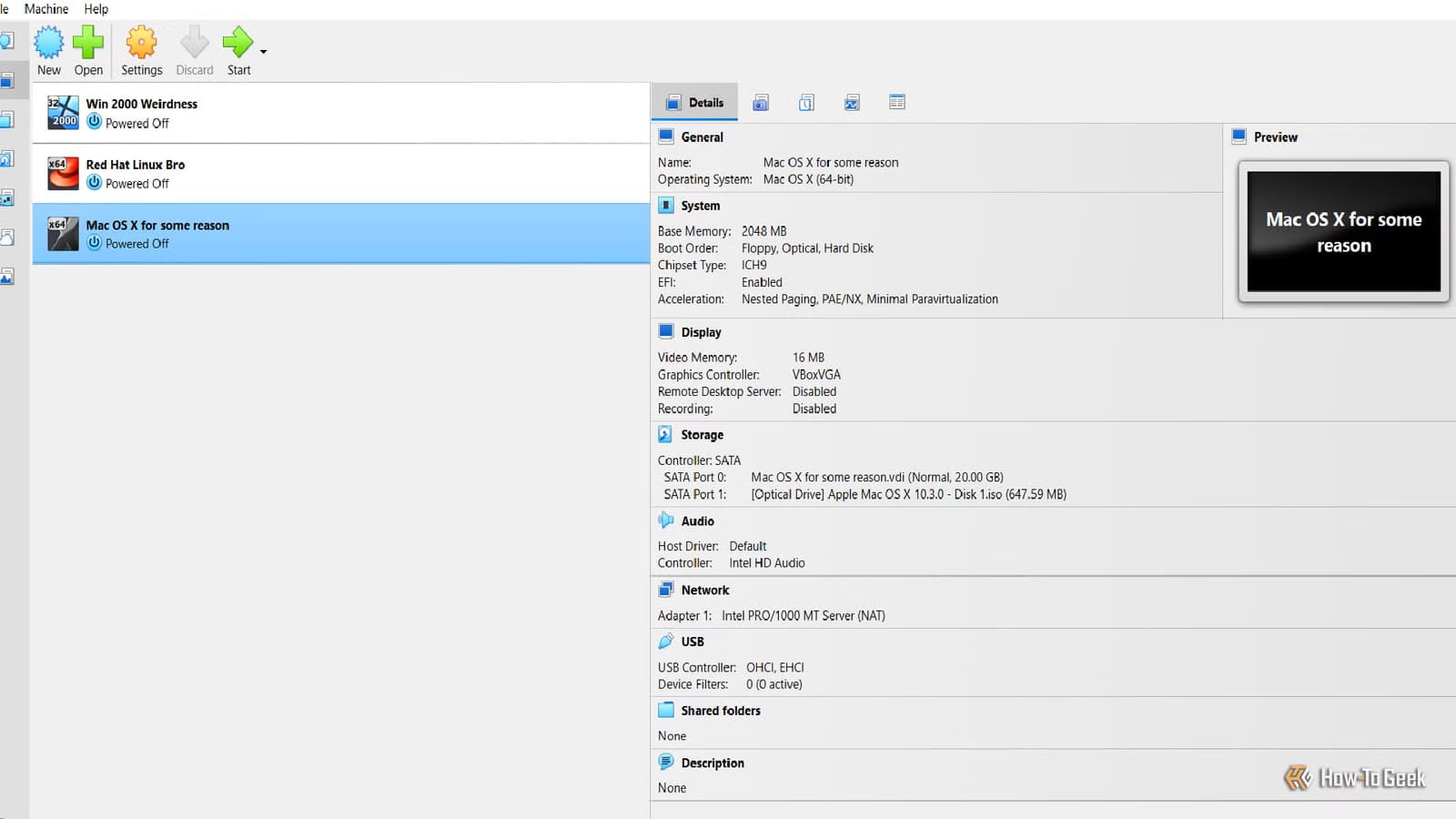
Technology writer David J. Buck ran into this exact problem while shuttling ISO files between VMs on his Windows and Linux machines. His solution: ditch Rufus for everyday use and switch to tools built for multi-ISO workflows.
Ventoy: One USB, Many Operating Systems
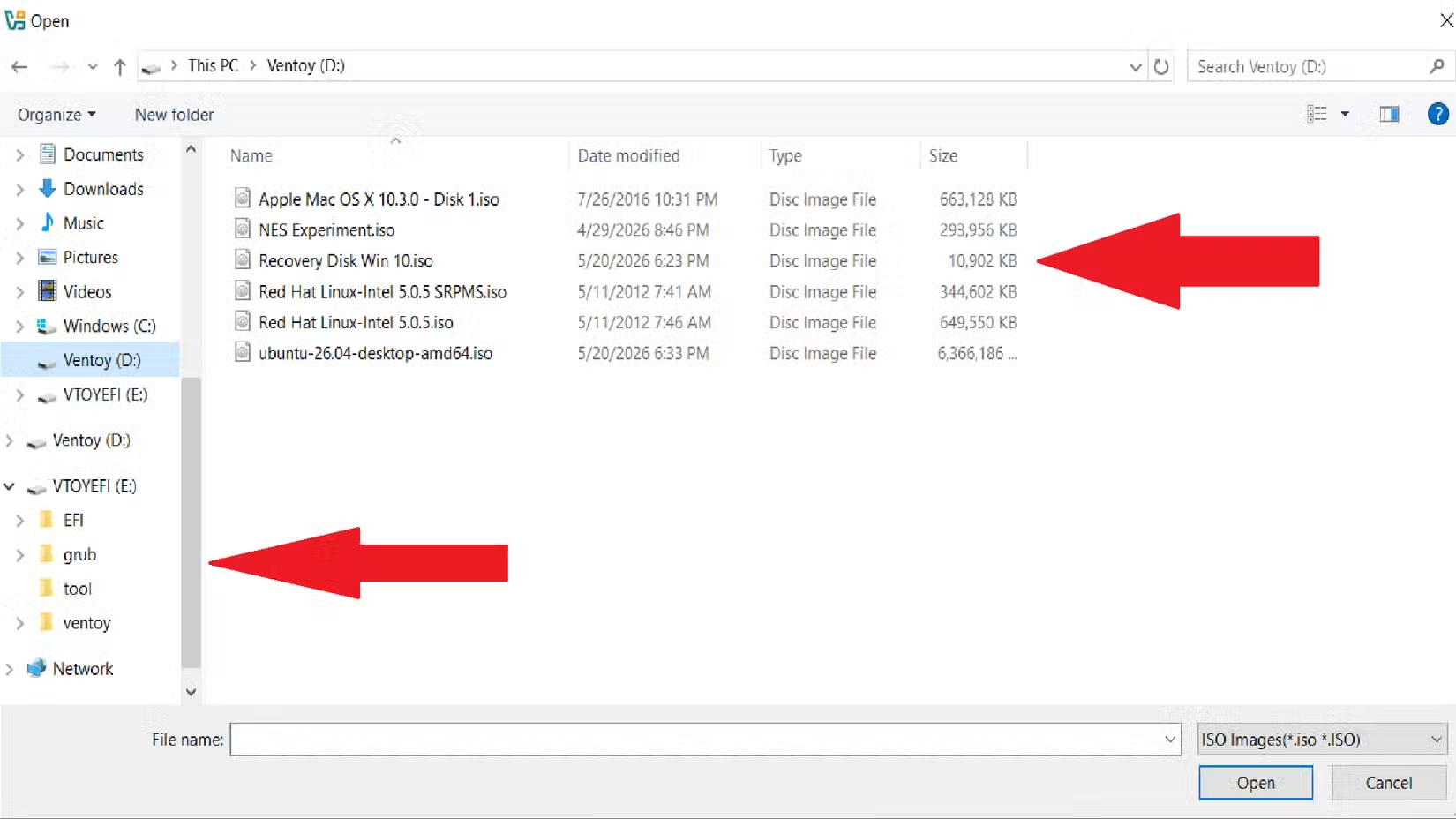
Ventoy takes a different approach. Instead of burning an ISO to a drive, it turns your USB stick into a storage device with a bootloader. You copy ISO files onto it like regular files. When you boot from the drive, a menu appears listing all the ISOs available. Pick one and it boots.
No reformatting. No re-flashing. Just drag and drop. The tool supports over 1,000 ISO files across various distributions, from mainstream Linux flavors to obscure recovery utilities.
“The beauty of Ventoy is that it turns your USB into a storage-based bootable drive; you never have to reformat for a new OS again.”
— David J. Buck, Technology Writer at How-To Geek
For "distro hoppers" who test different operating systems regularly, this changes the workflow entirely. One 32GB or 64GB USB can hold a dozen Linux distros, Windows installers, and recovery tools simultaneously.
Anyburn: The Windows Companion for VM Workflows
Ventoy handles bootable drives. But what about creating and managing ISOs for virtual machines? That's where Anyburn comes in.
Buck uses Anyburn on his Windows hobby machine for tasks Rufus wasn't built for: creating ISOs from folders, converting disc images between formats, and packaging files for transport to VMs. It's beginner-friendly, with a straightforward interface that doesn't require command-line knowledge.
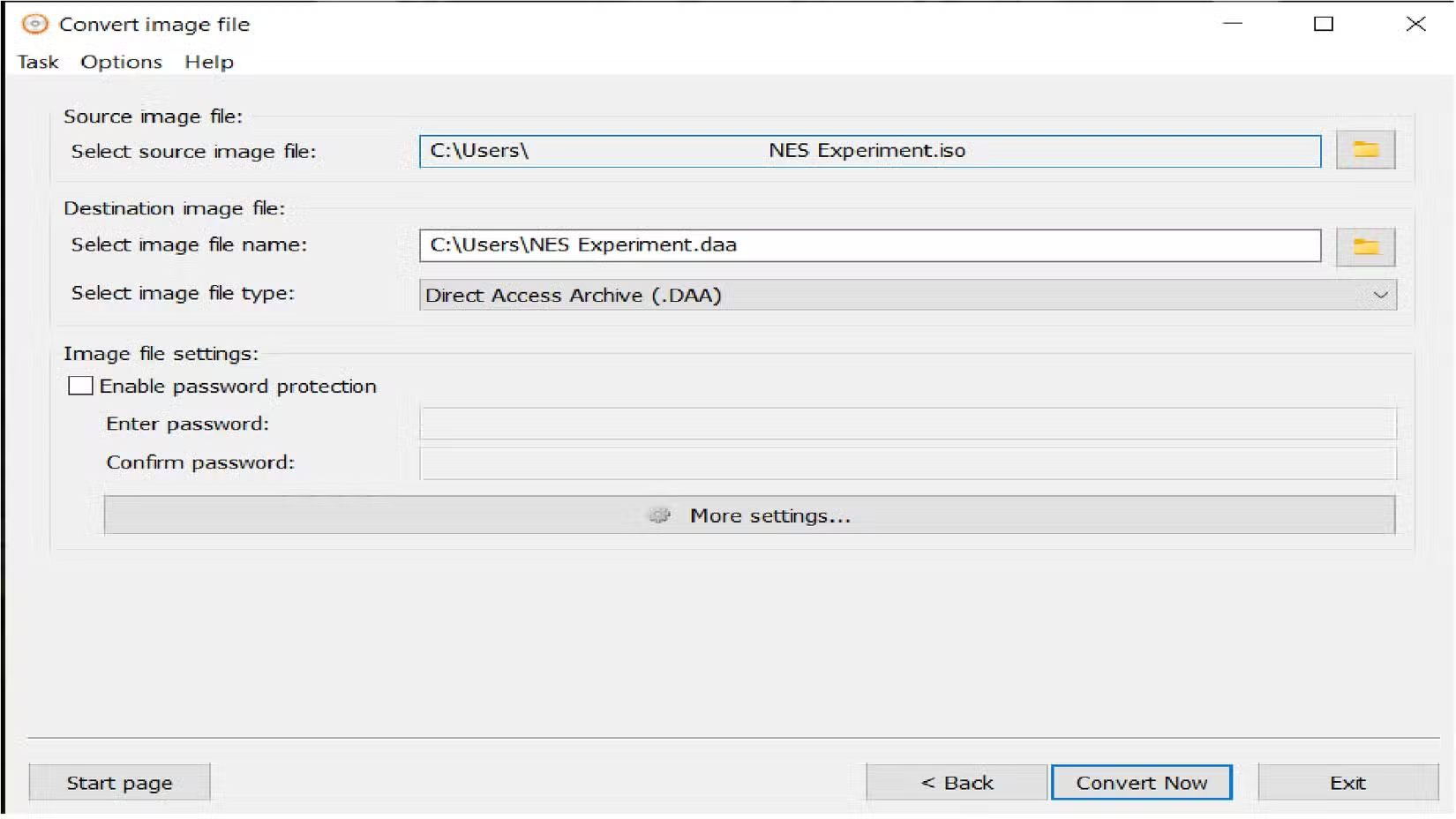
Not all ISOs need to be bootable. Some are just archives, a way to package software, media, or old projects into a single file. Buck mentions archiving his own music projects this way, keeping them in a format that any virtual machine can mount without fuss.
When Rufus Still Makes Sense
This isn't a case of Ventoy being universally better. The tools serve different purposes.
Rufus excels at creating clean, single-purpose bootable drives. It's the go-to when you need to bypass Windows 11's TPM and Secure Boot requirements. It's also simpler for one-off installations where you don't need multi-boot capability.
“Rufus remains the gold standard for those who need a clean, single-purpose bootable drive, especially when you need to bypass specific hardware requirements for Windows 11.”
— Tech community consensus, r/sysadmin
Community discussions on Reddit and HackerNews reveal a common strategy: keep two USB drives. A Ventoy drive for everyday testing and distro hopping, and a Rufus-made drive as a failsafe for hardware that struggles with Ventoy's more complex bootloader.
| Feature | Rufus | Ventoy | Anyburn |
|---|---|---|---|
| Primary use | Single bootable USB | Multi-boot USB | ISO creation/management |
| Reformatting needed | Each new ISO | Never | N/A |
| Multi-ISO support | No | Yes (1000+ ISOs) | No |
| Windows 11 bypass | Yes | Limited | No |
| Best for | One-off installs | Distro hoppers | VM workflows |
The Practical Setup for Hobbyists
If you're regularly testing operating systems or managing virtual machines, here's what the workflow looks like:
- Install Ventoy on a USB drive (one-time setup)
- Copy ISO files directly to the drive as needed
- Boot from the drive and select which OS to run
- Use Anyburn on Windows to create custom ISOs for VM transport
- Keep a separate Rufus drive for hardware compatibility edge cases
The time savings add up. Instead of reformatting a drive every time you want to try a new distro, you spend a few seconds copying a file.

Logicity's Take
Another look at when legacy defaults deserve reconsideration
More free tools that improve everyday computing workflows
Frequently Asked Questions
Can Ventoy boot Windows ISOs or only Linux?
Ventoy supports both. It handles Windows installation ISOs, Linux distros, recovery tools, and most other bootable disc images.
Does Ventoy work on Mac hardware?
Ventoy has limited Mac support. It works best on standard PC hardware with UEFI or Legacy BIOS boot modes.
Is Rufus still safe to use in 2026?
Yes. Rufus remains actively maintained and is the recommended tool for creating single-boot drives, especially when bypassing Windows 11 hardware requirements.
How much storage do I need for a Ventoy drive?
It depends on how many ISOs you want. A typical Linux ISO is 2-4GB, Windows is about 5-6GB. A 32GB drive holds several operating systems comfortably.
Can I use Anyburn on Linux?
No. Anyburn is Windows-only. On Linux, tools like Brasero or native command-line utilities handle similar ISO management tasks.
Need Help Implementing This?
Source: How-To Geek
Huma Shazia
Senior AI & Tech Writer
Produced with AI assistance and reviewed by the Logicity editorial team. Learn more in our Editorial Policy.