Key Takeaways
How to Use Your TV as a Computer Monitor - Updated 2020

- Connect via HDMI for the fastest, zero-cost setup with minimal input lag
- Wireless options like AirPlay and Googlecast work but introduce latency
- Samsung and LG TVs support remote PC access via IP address configuration
A dedicated monitor can cost anywhere from $300 to over $1,000 for high-end 4K or OLED panels. Your living room TV, sitting idle most of the day, can serve as a perfectly functional PC display with gear you already own. The setup takes five minutes on Windows, Mac, ChromeOS, or Linux.
This guide covers the three main connection methods: direct HDMI, wireless casting, and remote access for Samsung and LG smart TVs. Pick the one that fits your hardware.
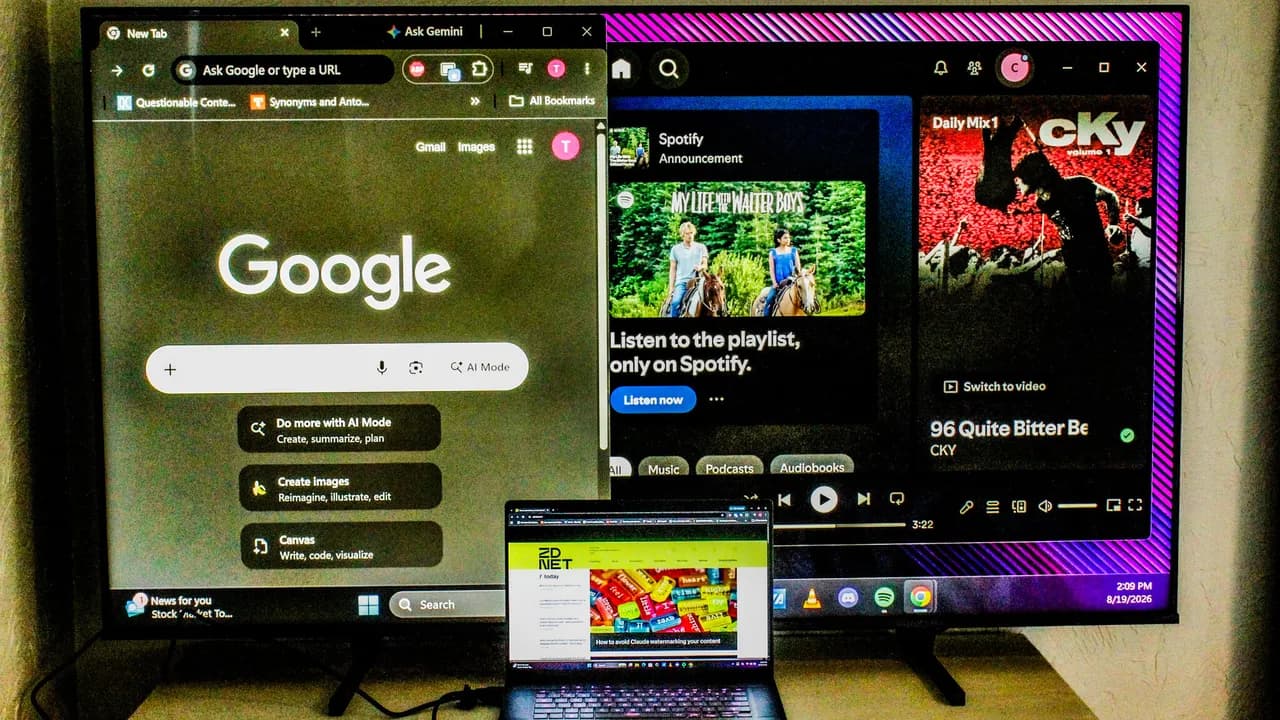
What you need before starting
For the HDMI route, you need an HDMI cable and a free HDMI port on both your TV and computer. Most laptops built after 2018 have either HDMI, USB-C with DisplayPort, or Thunderbolt output.
If your machine lacks HDMI, a USB-C-to-HDMI or DisplayPort-to-HDMI adapter costs $10 to $15. Note that since the TV still receives HDMI, you won't get the same data transfer speeds as a native DisplayPort or Thunderbolt monitor connection.
For wireless casting, your TV needs AirPlay (Apple devices) or Googlecast support. Most smart TVs sold in the last five years include one or both. Remote PC access is limited to recent Samsung and LG models with their dedicated apps.
Method 1: HDMI cable (fastest, zero cost)
This is the simplest approach. Connect one end of the HDMI cable to your computer, the other to your TV. Power on both devices.
- Plug the HDMI cable into your laptop or desktop's HDMI port
- Connect the other end to an available HDMI input on your TV
- Use your TV remote to select the correct HDMI input source
- Your desktop should appear on the TV screen automatically
On Windows, press Windows + P to choose between duplicate, extend, or second screen only. On Mac, go to System Settings > Displays to configure arrangement. ChromeOS and most Linux distributions detect the display automatically and offer similar options in their settings panels.
HDMI delivers the lowest latency and most reliable image quality. If you plan to use the TV for gaming or video editing, this is the only method worth considering.
Method 2: Wireless casting via AirPlay or Googlecast
Wireless mirroring works when running a cable across the room isn't practical. The tradeoff is latency. Both your TV and computer must compress, transmit, and decompress video frames in real time. Expect noticeable input lag and occasional resolution drops.
For AirPlay on a Mac, click the Control Center icon in the menu bar, select Screen Mirroring, and choose your TV from the list. On Windows or Chromebooks, open your browser or system settings and look for Cast options. Your TV must be on the same Wi-Fi network as your computer.
This method suits static tasks like spreadsheets, presentations, or browsing. It's not suitable for gaming or video work where frame timing matters.
Method 3: Remote PC access on Samsung and LG TVs
Newer Samsung and LG smart TVs include remote desktop apps that let you access your PC from the TV interface. This is different from mirroring. The TV acts as a thin client, and your computer can be in another room entirely.
First, enable remote access on your computer. Then install and configure the TV's remote access app with your machine's IP address. Here's how to find your IP on each platform:
Windows
Press the Windows key, type cmd, and open Command Prompt. Type ipconfig and press Enter. Look for the IPv4 address. Alternatively, go to Settings > Network & Internet > Wi-Fi or Ethernet, select your network, and scroll to find the IP address.
Mac
Open the Apple menu, go to System Settings > Network. Select Wi-Fi or Ethernet, click Details, and locate the IP address.
ChromeOS
Click the clock in the bottom right, then the Wi-Fi or Ethernet icon. Select the Information icon to view your IP address.
Linux
Open Settings and navigate to Wi-Fi or Network. Click the gear icon next to your connection to view the IP. From the terminal, run hostname -I for the internal IP, or ip addr and look for eth0 (wired) or wlan0 (wireless).
Once you have the IP, enter it in your TV's remote access app. The connection may require you to approve access from your computer on first use.
When a TV works, and when it doesn't
TVs make excellent monitors for general productivity, coding, video calls, and media consumption. The large screen is particularly useful for reviewing designs, reading documentation, or presenting to a small group.
They fall short for precision color work. Most consumer TVs prioritize vibrant colors over accuracy, and panel response times are slower than gaming monitors. If you're editing photos professionally or playing competitive shooters, a dedicated monitor is still the better choice.
Input lag varies by TV model. Check your TV's game mode in settings. It disables post-processing effects and can cut input delay significantly.
Logicity's Take
Using a TV as a monitor is an underrated workspace hack, especially for remote workers who already have a 55-inch screen gathering dust. The HDMI method costs nothing and works immediately. For CTOs outfitting small teams or founders bootstrapping from home, this beats buying a second monitor. Just don't expect monitor-grade color accuracy or sub-10ms response times. If you need a dedicated productivity display, budget panels from ASUS or Dell start around $150, but an existing TV gets you 90% of the utility for $0.
Frequently Asked Questions
Will using my TV as a monitor damage it?
No. TVs and monitors use the same panel technologies. Static images displayed for many hours daily can theoretically cause burn-in on OLED panels, but this takes years under extreme conditions.
Why is text blurry on my TV when connected to my PC?
TVs apply image processing that softens edges. Look for a PC mode or game mode in your TV's settings menu. This disables post-processing and sharpens text.
Can I use my TV as a second monitor while keeping my main monitor?
Yes. On Windows, press Windows + P and select Extend. On Mac, go to System Settings > Displays and arrange the screens. Your desktop will span both displays.
Does wireless casting work for gaming?
Not well. AirPlay and Googlecast introduce latency that makes real-time games unplayable. Use HDMI for any gaming.
Need Help Implementing This?
Logicity Labs helps teams build efficient remote workspaces and optimize their tech setups. Contact us if your company needs guidance on hardware configurations, workspace productivity, or IT infrastructure decisions.
Source: Latest news
Huma Shazia
Senior AI & Tech Writer
Produced with AI assistance and reviewed by the Logicity editorial team. Learn more in our Editorial Policy.