Key Takeaways
- Hold the + button instead of tapping to skip the menu
- Swipe up from the photo panel to access your full library
- Alternatively, share directly from the Photos app
Recent iOS updates buried the quickest way to add a photo to an iMessage behind an extra menu tap. Instead of going straight to your camera roll, tapping the + button now shows a grid of options: Camera, Stickers, Apple Cash, Polls, and more. The fix is a long-press, and it takes about two seconds to learn.
Why Apple added the menu (and why it's annoying)
Apple's iMessage has absorbed features steadily over the past few years. Polls, scheduled sends, Apple Cash transfers, and third-party app integrations all compete for space in that + menu. The tradeoff: the single most common action, attaching a photo, now takes an extra tap by default.
For anyone sending screenshots, receipts, or quick snaps throughout the day, that friction adds up. The workaround exists. Apple just never surfaced it.
How to skip the menu with a long-press
- Open an iMessage conversation.
- Tap and hold the + button in the bottom-left corner (next to the text field).
- Your most recent photos and videos appear immediately, no menu.
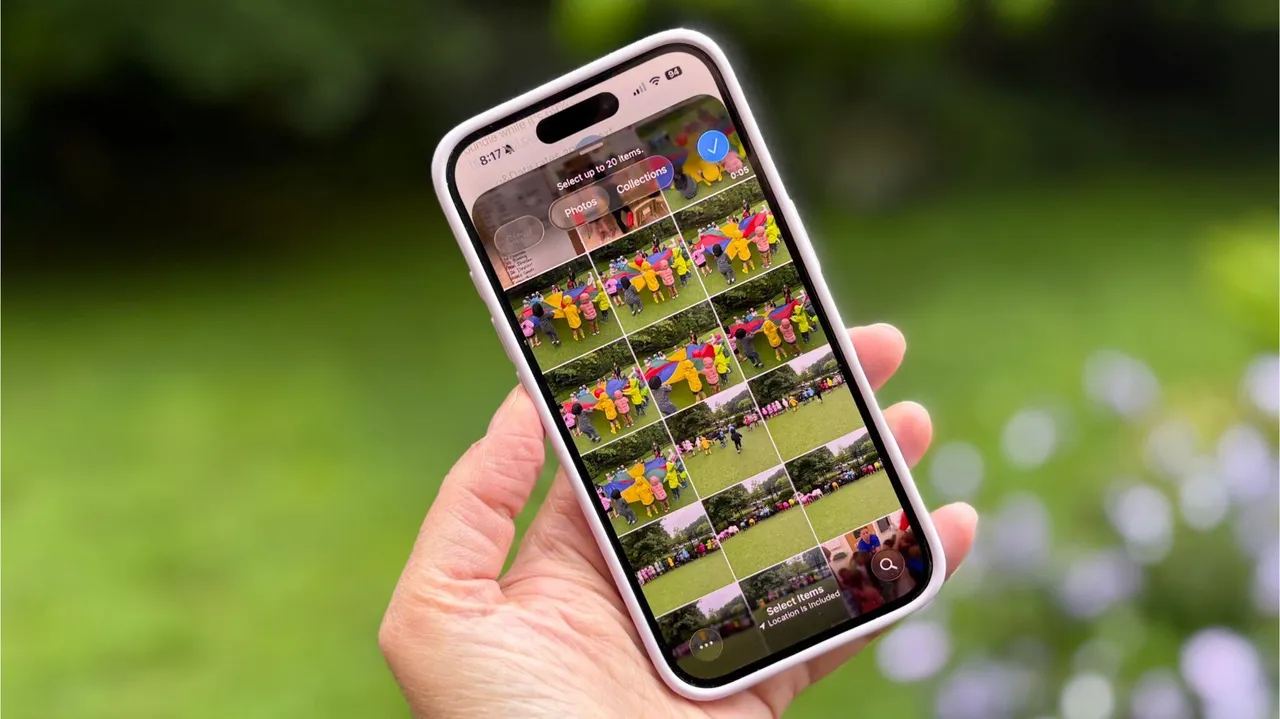
- Swipe up on the photo panel to browse collections or search your full library.
That's it. A single tap opens the menu; a long-press bypasses it entirely. The gesture isn't documented anywhere obvious in iOS settings, which is why most people never find it.
Alternative: share from the Photos app
If you're already browsing your camera roll, sending photos without opening iMessage first is faster.
- Open the Photos app.
- Tap Select in the top-right corner.
- Tap each photo or video you want to send (a blue checkmark confirms the selection).
- Tap the Share icon in the bottom-left corner.
- Choose Messages, enter a contact, and send.
This method is especially useful when you're selecting multiple images. The Photos app's selection mode handles batch picks more smoothly than the iMessage photo panel.
Other iOS friction worth fixing
Apple has added similar extra-tap patterns elsewhere. Saving a screenshot now requires tapping Done, then choosing Save to Photos, rather than a single swipe-to-dismiss. These micro-frictions stack. If you spend time in iOS settings, you can reclaim some of them.
Battery life is another area where hidden toggles matter. Turning off background app refresh for apps you rarely use, disabling location services for apps that don't need it, and switching to optimized charging all help. The interface doesn't guide you to these; you have to know to look.
Logicity's Take
Apple tends to bury power-user shortcuts under long-presses, 3D Touch, or gesture combos that never appear in any onboarding. The iMessage photo trick is a small win, but it reflects a broader pattern: iOS prioritizes discoverability of new features over speed for common tasks. If you find yourself annoyed by a new tap or menu, search for the long-press alternative. It probably exists.
Another hidden shortcut for bypassing extra clicks in a major OS
Frequently Asked Questions
Does the long-press trick work on iPad?
Yes. The same gesture works in iMessage on iPadOS. Tap and hold the + button to jump directly to your photo library.
Can I rearrange the icons in the iMessage + menu?
No. Apple doesn't allow reordering or hiding options in the + menu as of iOS 26. You can only bypass it with the long-press.
Will this shortcut change in future iOS updates?
Possibly. Apple has altered gesture behaviors before. For now, the long-press bypass works on iOS 26 and recent prior versions.
Why doesn't Apple surface this shortcut anywhere?
Apple rarely documents long-press gestures in onboarding. The company tends to assume users will discover them through experimentation or word-of-mouth.
Need Help Implementing This?
If you're managing device fleets or building iOS workflows for your team, knowing these shortcuts saves cumulative hours. Reach out to Logicity for tips on mobile productivity and IT operations.
Source: Latest news
Huma Shazia
Senior AI & Tech Writer
Produced with AI assistance and reviewed by the Logicity editorial team. Learn more in our Editorial Policy.