Key Takeaways
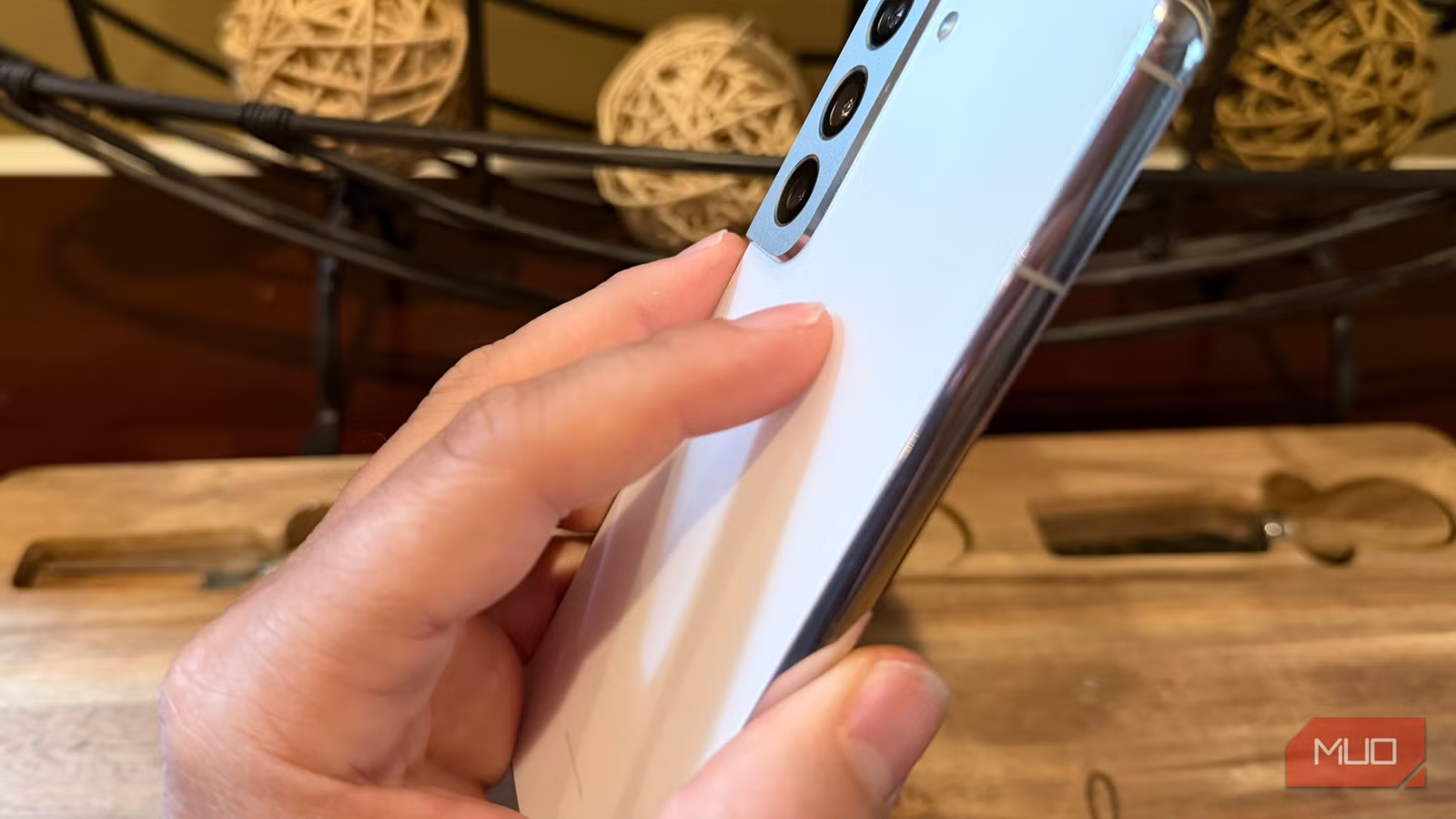
- Samsung Galaxy phones support back tap gestures through the RegiStar module in Good Lock, requiring Android 13+ and OneUI 5.0+
- Double tap and triple tap can be mapped to different actions like screenshots, app launches, or turning apps into floating windows
- Back tap feels more natural than Edge Panels because your index finger already rests on the back of your phone
Samsung Galaxy phones have a hidden back tap shortcut that lets you trigger actions by tapping the back of your device. The feature lives inside Good Lock's RegiStar module, and once you configure it, double or triple taps can launch apps, take screenshots, open floating windows, or toggle system functions. Apple shipped this in iOS 14 back in 2020. Samsung's version is arguably better because Android's customization options run deeper.
The setup takes about two minutes. The payoff is that your index finger, which already rests on the back of your phone when you hold it, becomes a productivity trigger. No swiping, no unlocking, no hunting through app drawers.
What you need before setting up Samsung back tap
The feature requires Android 13 or newer and OneUI 5.0 or later. If your Galaxy meets those requirements, you're good. You'll also need Good Lock installed. Samsung's customization suite has been downloaded over 100 million times, so there's a decent chance it's already on your phone.
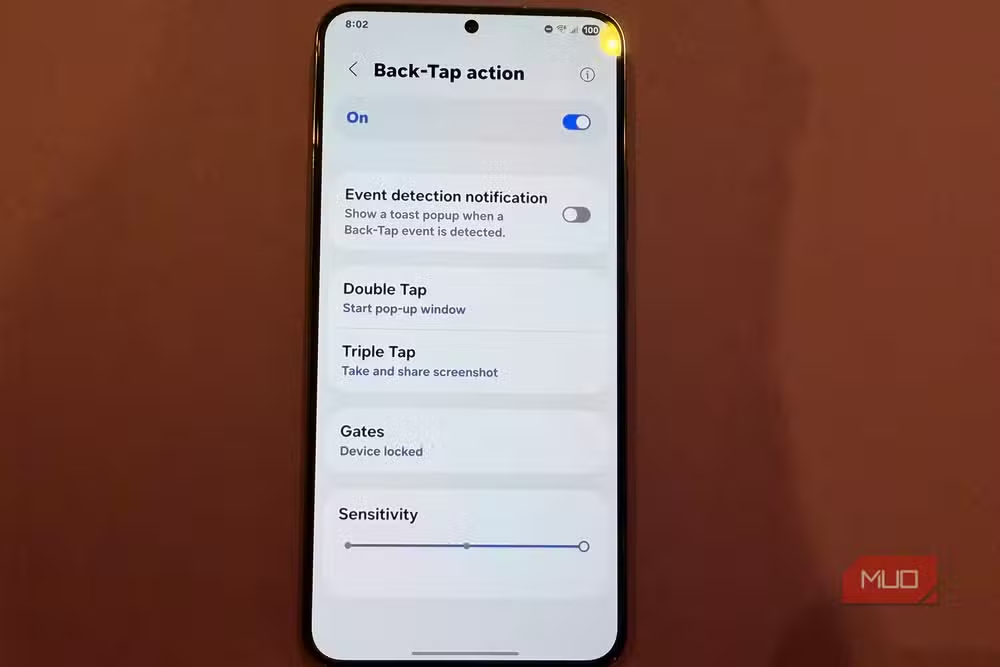
Open Good Lock and search for RegiStar. Install it. That's the module that controls back tap alongside other system tweaks like changing the press-and-hold behavior of the side key.
How to configure double tap and triple tap actions
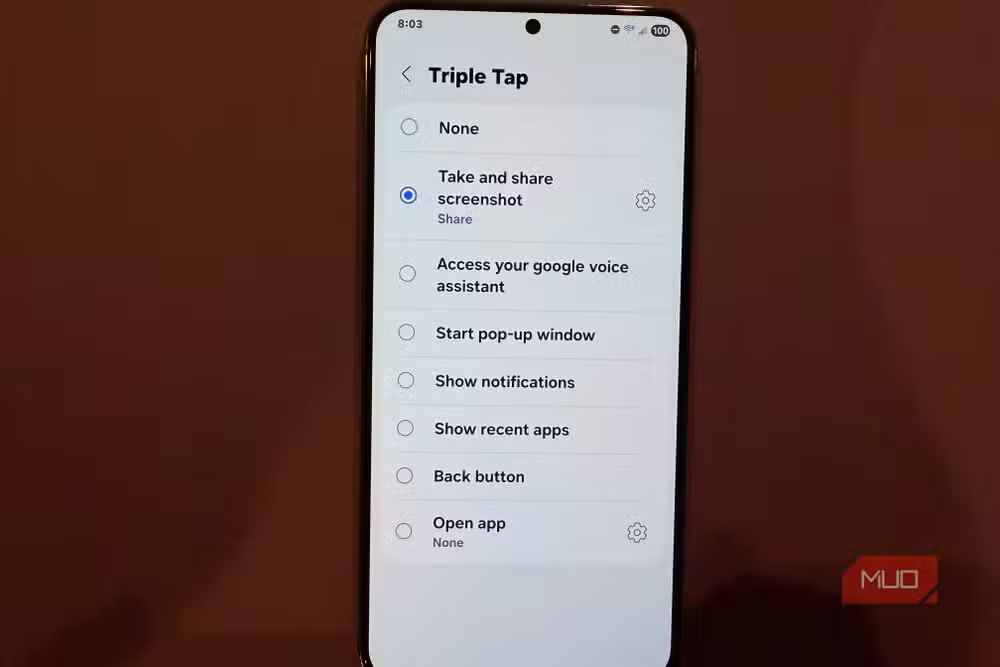
Inside RegiStar, you'll find separate settings for double tap and triple tap. Each can trigger a different action. The options include launching any app, taking a screenshot, opening the notification panel, toggling the flashlight, or starting a pop-up window.
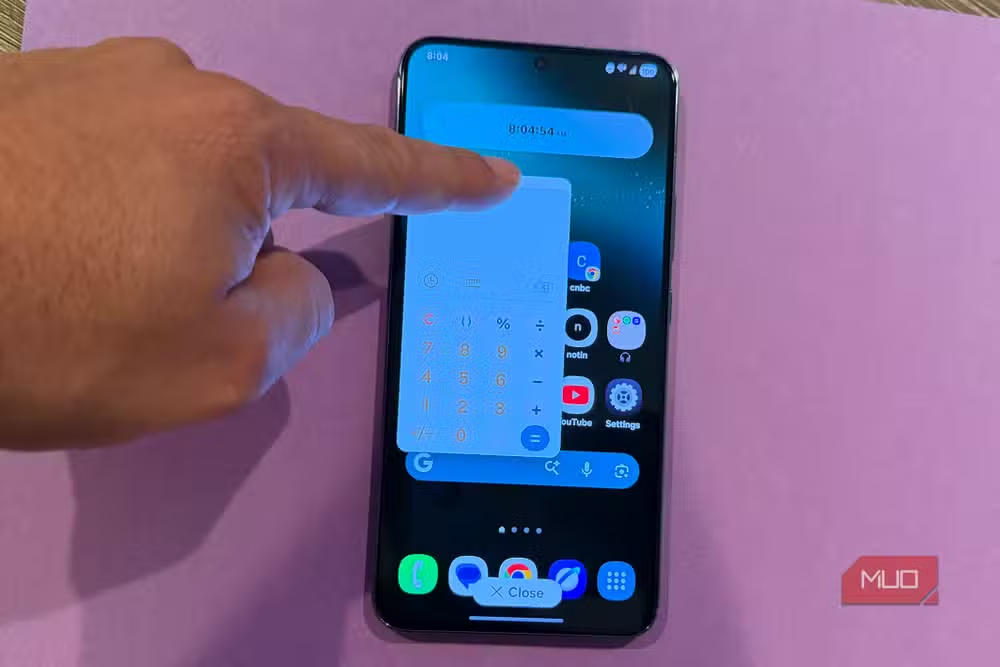
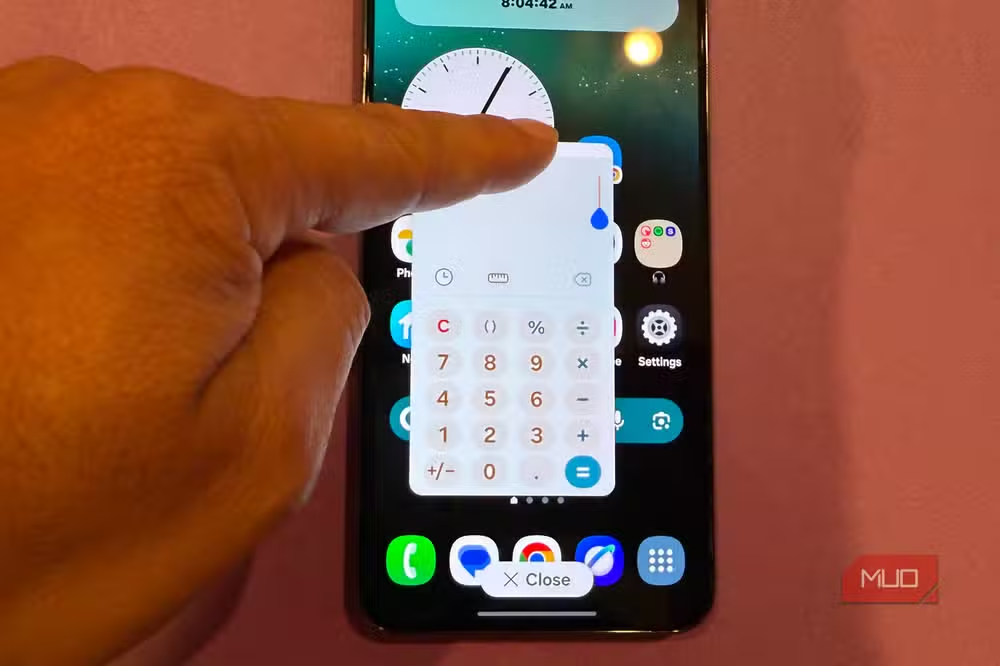
The pop-up window action is particularly useful. It takes whatever app you're in and shrinks it into a floating, resizable window that hovers over other apps. Calculator, calendar, notes, any reference tool. You can keep it on screen while working in another app. Because Android scales apps well, most work fine at smaller sizes.
The screenshot-and-share combo
One of the smartest configurations: set a tap action to take a screenshot and immediately open the share sheet. When you grab a screenshot, you usually want to send it somewhere. This skips the extra step of opening your gallery, finding the screenshot, and tapping share.
A double tap fires off the capture and brings up sharing options in one motion. It eliminates the finger gymnastics that screenshots usually require, especially on larger phones.
Using back tap as an app launcher
Another practical setup: map taps to launch specific apps. Double tap opens your messaging app. Triple tap opens your bank app. You can mix this with other actions too. Maybe double tap launches Messages while triple tap converts any app into a floating window.
This turns your phone's back panel into a hidden app launcher. No need to return to the home screen or swipe through Edge Panels.
Why back tap beats Edge Panels
Samsung's Edge Panels are powerful. You can customize them into a productivity hub with app shortcuts, contacts, tools, and clipboard access. But using them requires a swipe from the screen edge, which isn't always natural, especially during one-handed use.
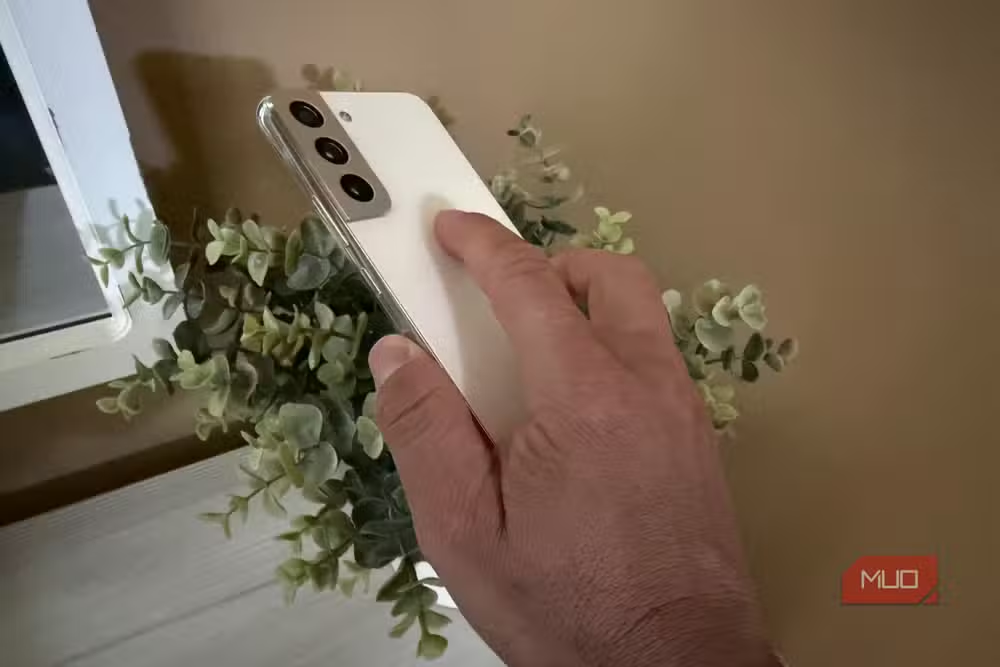
Back tap works because your finger is already there. Hold your phone right now. Your index finger probably rests on the back panel. That's the whole point. The gesture requires no reach, no adjustment, no looking at the screen to find a swipe target.
Samsung also lets you link different fingerprints to open different apps via the fingerprint sensor, but that's less natural than tapping. You have to shift your grip to reach the sensor. Back tap doesn't require that.
Picking the right actions for your workflow
Think about the multi-step actions you repeat daily. Taking and sharing screenshots is one. Launching a calculator while reading something else is another. Opening your most-used app without leaving the current screen. These are the actions worth mapping.
Avoid mapping actions you rarely use. Back tap is precious real estate. Two gesture slots, two frequently needed shortcuts. Don't waste one on toggling Wi-Fi if you do that twice a month.
Logicity's Take
Back tap is the kind of feature that sounds gimmicky until you actually use it. The reason it sticks is ergonomics: your finger naturally rests where the gesture happens. Samsung buried this in Good Lock rather than exposing it in system settings, which means most of the 1.4 billion Galaxy users will never find it. That's a missed opportunity. Apple made Back Tap a first-class setting in iOS 14. Samsung should do the same.
Frequently Asked Questions
Which Samsung phones support back tap?
Any Samsung Galaxy running Android 13 or newer with OneUI 5.0 or later. This includes recent models like the Galaxy S24, S23, S22, A54, A34, and others.
Is back tap built into Samsung phones by default?
No. You need to install the RegiStar module through Samsung's Good Lock app. Back tap is not available in the standard system settings.
Can I use both double tap and triple tap for different actions?
Yes. RegiStar lets you configure separate actions for double tap and triple tap, giving you two independent shortcuts.
Does back tap drain battery?
The impact is minimal. The phone's accelerometer detects the tap gestures, and accelerometers are low-power sensors that run continuously anyway for other features.
Can back tap accidentally trigger in my pocket?
Unlikely. The gesture detection requires firm, deliberate taps in quick succession. Random bumps and fabric movements don't match the pattern.
Need Help Implementing This?
If you're a business looking to train employees on mobile productivity features or need help standardizing device configurations across your team, reach out to the Logicity team for enterprise mobile consulting.
Source: MakeUseOf
Huma Shazia
Senior AI & Tech Writer
Produced with AI assistance and reviewed by the Logicity editorial team. Learn more in our Editorial Policy.






