Key Takeaways
How to Fix File Explorer Availability status Error in OneDrive On Windows 11
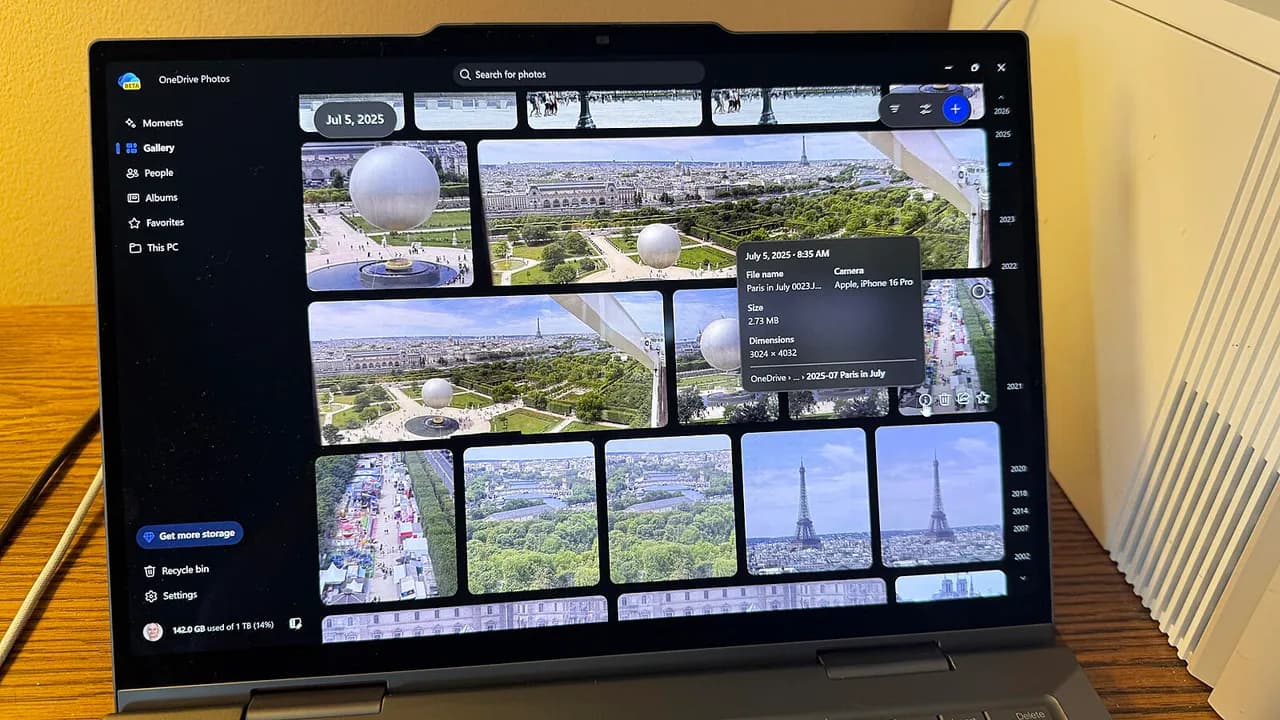
- Microsoft silently deployed OneDrive Photos to Windows 11 PCs through a OneDrive update, not a separate install
- The app includes facial recognition that groups photos by person, which raises privacy questions for enterprise users
- Users can disable face grouping and photo tagging through OneDrive's web settings
Microsoft has quietly pushed a new OneDrive Photos app to Windows 11 users. The app appeared in Start menus this week without warning, announcement, or user consent. It arrived through a OneDrive update, not a separate installation, which explains why many users didn't notice until it was already there.
The app itself is straightforward: it lets you view, organize, and edit photos stored in OneDrive. But the silent rollout and built-in facial recognition features raise questions that IT administrators and privacy-conscious users should consider before leaving it enabled.
Why did Microsoft push this without notice?
Microsoft's explanation is thin. "OneDrive Photos is already generally available today, and we're now previewing its new gallery as 'Photos (Preview)' for Windows Insiders in the Experimental channel," the company told PC World. "This update arrived through a OneDrive update rather than a separate install."
That statement creates more confusion than it resolves. Microsoft describes the app as a preview for Windows Insiders, but the app landed on regular production machines, not Insider builds. Users running standard Windows 11 installations found it in their Start menus without opting into any preview program.
This isn't the first time Microsoft has pushed features to Windows PCs without clear communication. The pattern frustrates IT teams who need to know what software is running on managed devices. An app that shows up unexpectedly, especially one with facial recognition capabilities, creates compliance headaches.
What the OneDrive Photos app actually does
Open the app from your Start menu, and you'll find six categories on the left: Moments, Gallery, People, Albums, Favorites, and This PC.
Gallery shows all photos, screenshots, and images stored in your OneDrive, sorted from newest to oldest. Hover over any image to see options for information, deletion, sharing, or favoriting. Click to open full-screen, where you can crop, adjust brightness, apply filters, or open the image in Paint or the legacy Microsoft Photos app.
Moments displays photos from the current calendar dates going back several years. Albums shows any collections you've created in OneDrive. Favorites collects images you've starred. This PC takes you to your local OneDrive photos folder.
The interface is cleaner than navigating OneDrive folders through File Explorer. For personal use, it's a reasonable way to browse cloud-synced photos. The editing tools are basic but functional.
The facial recognition feature that matters
The People category is where this app gets interesting, and potentially problematic. OneDrive Photos scans your photo library and groups images by face. It displays recognized faces and invites you to name each person. Once named or not, clicking a face shows all other photos containing that person.
Microsoft's position on privacy: "Face grouping is visible only to the account owner and is never shared; users also have the ability to opt out at any time. Microsoft does not use these facial scans to train its AI models, and all data is deleted after 30 days."
That's the company's claim. Whether it satisfies your organization's data handling requirements is a separate question. For companies operating under GDPR, CCPA, or sector-specific regulations, having biometric processing enabled by default on employee machines may require disclosure or consent processes you haven't built.
How to disable facial recognition and photo tagging
If you want the photo browsing features without the facial recognition, you can disable it. Open OneDrive Photos, select Settings on the left, then click More settings. This opens your OneDrive web page. Navigate to Photos, where you'll find explanations of how photo tagging and the People section work. Toggle off both switches to disable them.
For enterprise environments where you need to control this across multiple machines, you'll need to manage OneDrive policies. Microsoft hasn't published specific Group Policy settings for OneDrive Photos as of this writing, which means IT teams may need to use OneDrive's existing admin controls or push settings through configuration profiles.
How to remove OneDrive Photos entirely
If you don't want the app at all, removal depends on how it was installed. Since it arrived through a OneDrive update rather than as a standalone app, uninstalling it separately may not be straightforward. Check your Apps & features settings in Windows 11 to see if OneDrive Photos appears as a removable component.
Some users report that the app doesn't appear in the standard uninstall list, which suggests it may be tied to the OneDrive client itself. In that case, your options are to disable the app from starting, hide it from the Start menu, or wait for Microsoft to provide clearer removal instructions.
Right-click the app in the Start menu and select Unpin from Start to remove it from view. This doesn't uninstall it, but it stops the app from appearing in your regular workflow.
The real problem: silent deployment
The OneDrive Photos app itself is fine. It's well-designed, functional, and offers a cleaner photo browsing experience than File Explorer. The facial recognition, while potentially concerning, can be disabled.
The problem is how Microsoft delivered it. Software that processes biometric data shouldn't appear on machines without notice. Enterprise customers pay for Microsoft 365 with the expectation that they control what runs on their endpoints. Silent app deployments undermine that control.
This matters for organizations managing device fleets. When an app with facial recognition capabilities appears without your knowledge, you have a potential compliance gap. Your data processing agreements may not cover it. Your privacy disclosures may not mention it. Your users may not have consented to it.
Related guidance on controlling AI-powered features and protecting user privacy in productivity tools
What IT teams should do now
First, check whether OneDrive Photos has appeared on your managed devices. Look in the Start menu Apps list or use your endpoint management tools to scan for the app.
Second, decide whether facial recognition is acceptable in your environment. If not, push the OneDrive settings change that disables photo tagging and People grouping.
Third, document the app's presence for your compliance records. If you're subject to regulations covering biometric data, you may need to update your data processing documentation to reflect this capability, even if you've disabled it.
Finally, consider whether this changes your approach to OneDrive updates. If Microsoft can push apps with biometric features through routine updates, you may want tighter control over OneDrive versioning on managed devices.
Logicity's Take
Microsoft's silent rollout of OneDrive Photos follows a troubling pattern. The company increasingly treats Windows as a platform for pushing its services, whether users asked for them or not. The app itself competes with Google Photos (free with 15GB storage) and Apple Photos (integrated with iCloud), but neither of those platforms installs new apps on your computer without warning. For enterprise customers paying premium prices for Microsoft 365, the lack of deployment notice is the real issue. When your vendor can push facial recognition software to your endpoints through a routine update, you've lost a degree of control you may have assumed you had.
Frequently Asked Questions
Can I uninstall OneDrive Photos from Windows 11?
The app may not appear in standard uninstall lists since it arrived through a OneDrive update. You can unpin it from Start menu and disable its features through OneDrive web settings. Full removal may require waiting for Microsoft guidance or managing OneDrive installation components.
Does OneDrive Photos facial recognition share my data?
Microsoft states that face grouping is visible only to the account owner, never shared, and not used to train AI models. Facial scan data is deleted after 30 days. Users can disable the feature entirely through OneDrive settings.
Why did OneDrive Photos appear on my regular Windows 11 PC?
Microsoft pushed the app through a OneDrive client update, not as a separate installation. Despite Microsoft calling it a preview for Windows Insiders, it appeared on standard production machines without Insider enrollment.
Need Help Implementing This?
If your organization needs help managing Windows 11 endpoint policies, OneDrive configurations, or compliance documentation for biometric features, contact Logicity's consulting team for guidance tailored to your environment.
Source: Latest news
Manaal Khan
Tech & Innovation Writer
Produced with AI assistance and reviewed by the Logicity editorial team. Learn more in our Editorial Policy.