Key Takeaways
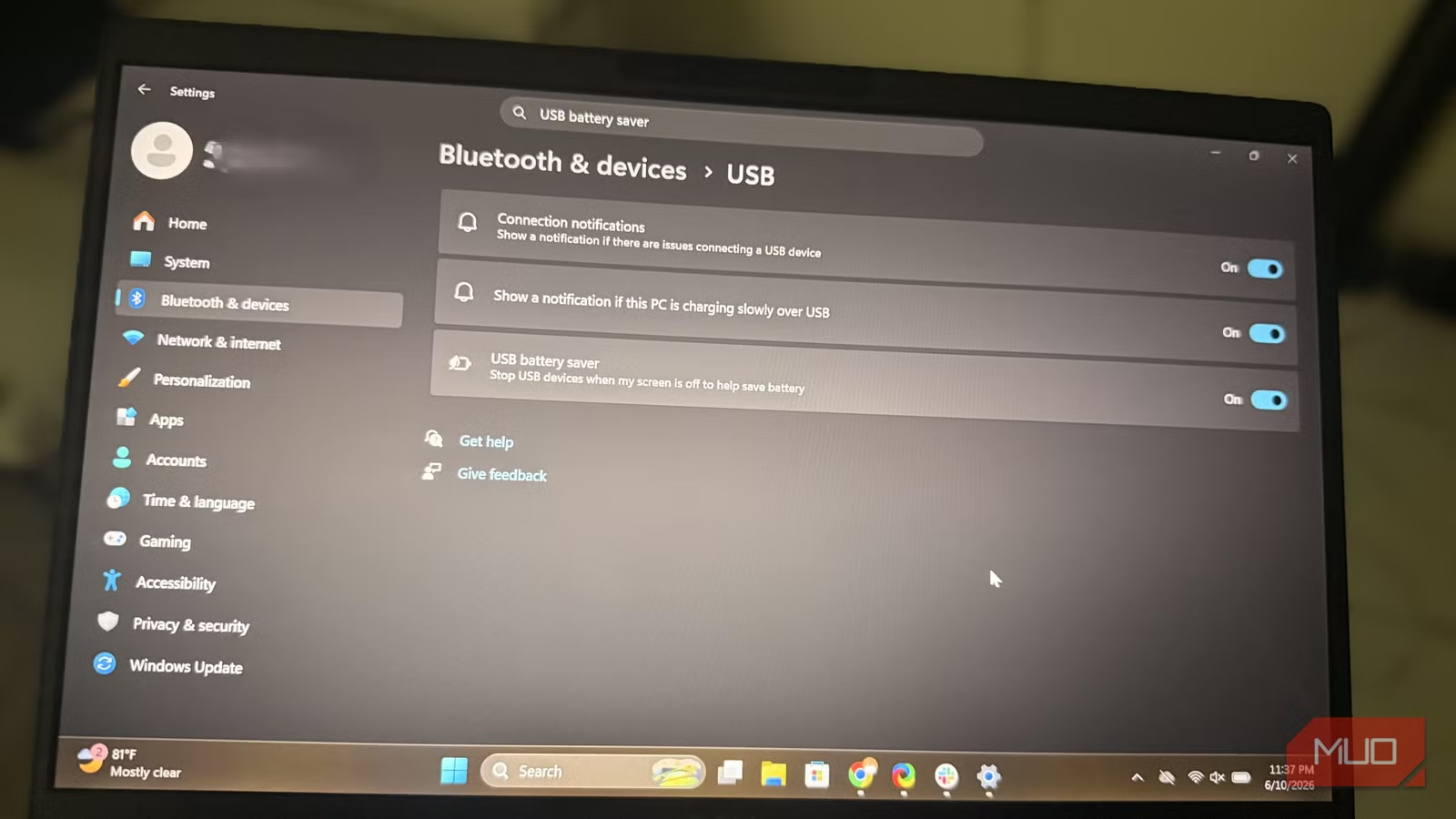
- Windows USB selective suspend often mistakes paused file transfers for device inactivity, cutting power to external drives
- Disabling USB battery saver in Windows Settings plus unchecking power management in Device Manager solves most random disconnects
- Over 80% of reported external drive disconnect issues stem from power management, not hardware failure
If your external SSD or NVMe enclosure keeps vanishing from File Explorer mid-transfer, the problem probably isn't your cable. It's a Windows USB power management setting that aggressively suspends ports it thinks are idle. Disabling it takes about a minute and fixes the issue immediately.
The feature is called USB battery saver on Windows 11 (or USB selective suspend on older builds). It's designed to conserve power by putting inactive USB devices into a low-power state. Helpful for laptops running on battery. Catastrophic for external storage drives during file transfers.
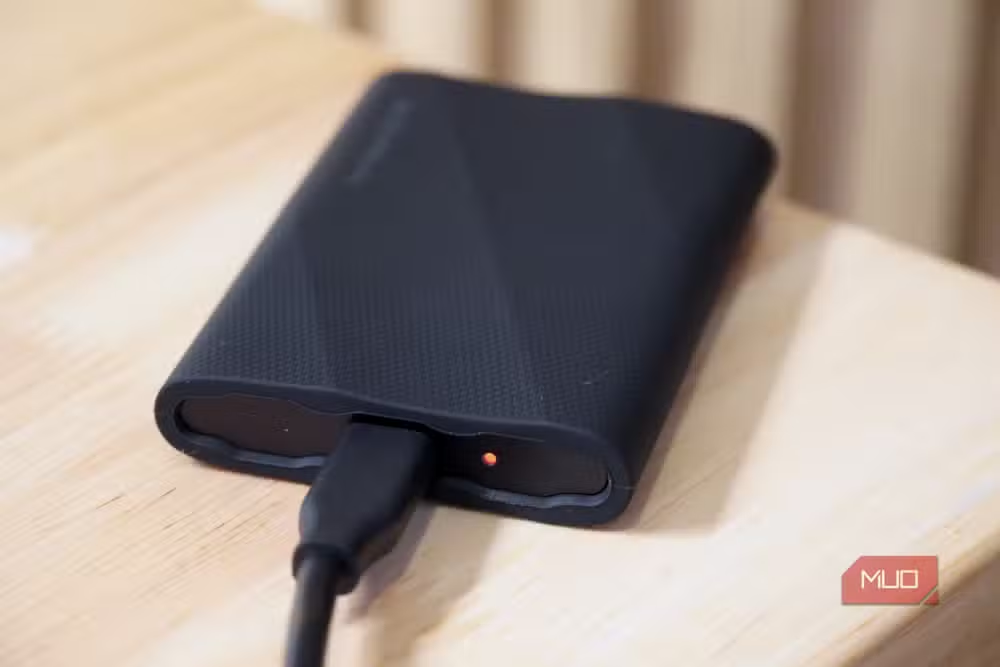
Why Windows disconnects your external drive
The USB battery saver monitors activity on connected ports. When it detects inactivity, it cuts power to save a few watts. The problem: external SSDs and NVMe enclosures don't communicate with Windows like keyboards or mice. During heavy file transfers, brief pauses are normal. Windows misreads these pauses as inactivity and suspends the port.
The result? Your drive disappears. Sometimes you hear the disconnect chime, and a few seconds later the drive reappears. Sometimes the transfer fails silently. Sometimes the drive stays gone until you physically unplug and replug it.

On desktop PCs, this power-saving measure is essentially pointless. The watts saved are negligible when the machine is plugged into the wall. But Windows enables the setting by default regardless of form factor.
How to tell if power management is the culprit
The telltale sign: the drive comes back almost immediately after disconnecting. If hardware were actually failing, it wouldn't recover on its own within seconds. That behavior points to a device briefly losing power and automatically reconnecting when Windows restores it.
Start by ruling out the obvious. Swap the cable. Try a different USB port. If the disconnects persist, you're likely dealing with power management rather than a hardware defect. Running drive diagnostics can confirm there's nothing wrong with the SSD itself.
The fix: two settings to disable
Turning off USB battery saver requires changing two separate settings. They look similar but control different parts of the power management stack.
First, open Windows Settings. Navigate to Bluetooth & devices, then USB. Toggle off USB battery saver. On older Windows 11 builds, this setting is called USB Selective Suspend and lives in the Control Panel. Press Win + R, type "control powercfg.cpl", and hit Enter. Click Change plan settings next to your power plan, then Change advanced power settings. Expand USB settings, then USB selective suspend setting. Set both "On battery" and "Plugged in" to Disabled.
Second, open Device Manager. Expand Universal Serial Bus Controllers. For each USB Root Hub entry, right-click and open Properties. Go to the Power Management tab and uncheck "Allow the computer to turn off this device to save power." Repeat for all USB Root Hub entries.
Both settings need to be disabled. The first controls the operating system's global USB power policy. The second controls per-device power management at the hardware level. Miss either one, and the disconnects may continue.
What about battery life?
If you're on a laptop, disabling USB power management will have a minor impact on battery. But the tradeoff is clear: slightly shorter battery life versus corrupted file transfers and lost data. For desktop users, there's no tradeoff at all. The power savings are effectively zero.
According to tech support forums, over 80% of reported external drive disconnect issues trace back to power management settings, not hardware failure. The fix works because it addresses the actual root cause rather than treating symptoms.
Logicity's Take
This is a design flaw Windows has carried for years. The OS prioritizes battery efficiency over data integrity, which makes sense for peripherals like keyboards but is genuinely dangerous for storage devices. Microsoft should exempt mass storage devices from selective suspend by default. Until they do, every Windows user with external drives needs to know about this buried setting.
Frequently Asked Questions
Does disabling USB battery saver affect other USB devices?
Keyboards, mice, and webcams will draw slightly more power when idle, but you won't notice any performance difference. The impact is only meaningful for battery life on laptops.
Why does Windows enable this setting by default?
USB selective suspend was designed to extend laptop battery life by reducing power draw from inactive devices. Microsoft enables it by default on all Windows installations regardless of whether the machine is a laptop or desktop.
Can USB selective suspend cause data corruption?
Yes. If the drive disconnects during a write operation, the file being transferred can be corrupted or lost entirely. This is why disabling the setting matters for external storage.
Will this fix work for USB hubs and docking stations?
The same power management settings apply to USB hubs. If devices connected through a hub are disconnecting, disabling selective suspend on the hub's root controller should resolve it.
Need Help Implementing This?
If you're managing multiple workstations or company devices, consider pushing these settings via Group Policy. The USB selective suspend setting can be enforced organization-wide to prevent data loss from aggressive power management.
Source: MakeUseOf
Manaal Khan
Tech & Innovation Writer
Produced with AI assistance and reviewed by the Logicity editorial team. Learn more in our Editorial Policy.






