Key Takeaways
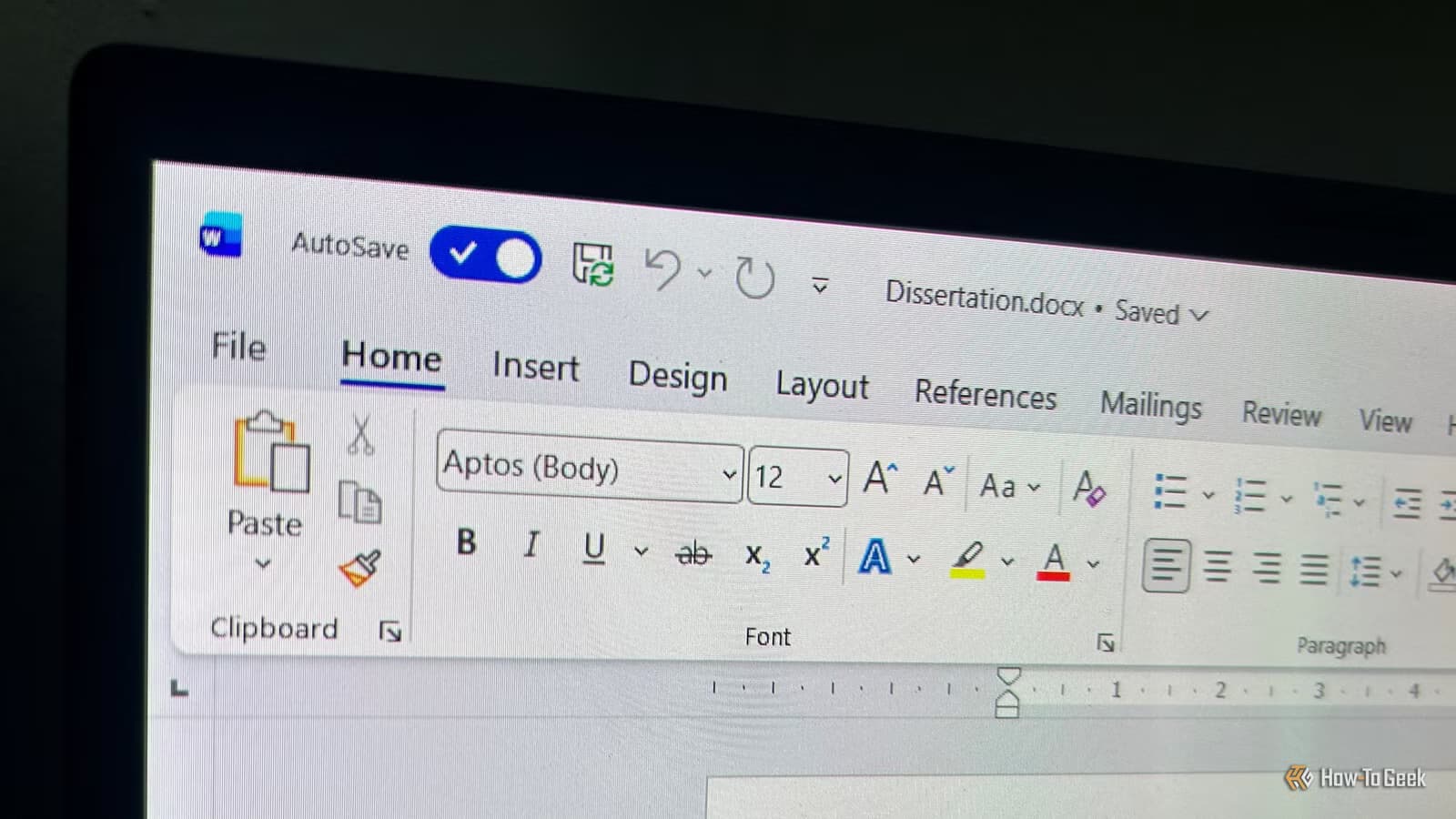
- AutoSave and Version History together create a recovery timeline that survives closing your document
- Version History lets you restore deleted content even after Ctrl+Z stops working
- The feature works automatically for files stored in OneDrive or SharePoint
Microsoft 365's Version History feature, combined with AutoSave, quietly solved one of Office's oldest frustrations: losing work after closing a file. Most users know AutoSave exists. What they don't realize is that files stored in OneDrive or SharePoint maintain a rolling timeline of previous versions, recoverable even days later.
The feature isn't new. AutoSave and Version History have been around for years. But their combined power only works when files live in Microsoft's cloud storage, and many users still keep documents locally without understanding what they're giving up.
Why Ctrl+Z fails you when it matters most
Every Office user knows the undo command's fatal flaw: it dies when you close the document. Delete a paragraph, save the file, close Word, and return the next day. That content is gone. The undo buffer reset when you closed the window.

Version History changes the equation. Think of it as a timeline that survives closing the file entirely. Microsoft 365 snapshots your document at intervals, and those snapshots persist across sessions, computers, and days. If you spent Thursday afternoon deleting paragraphs and rewriting, then Friday morning realized the original was better, Version History lets you retrieve it.
The catch: your file must live in OneDrive or SharePoint. Local documents don't get this protection. Neither do files you only edit offline.
How Microsoft 365 Version History actually works
When AutoSave is active on a cloud-stored file, Microsoft 365 continuously saves your changes. Simultaneously, it creates version snapshots at regular intervals and whenever another user makes edits. These versions are accessible through File > Info > Version History, or by right-clicking the file in OneDrive.
Each snapshot shows the date, time, and who made changes. You can preview any version before restoring it, or copy specific content from an old version without replacing the current file entirely.
The retention period varies by plan. Microsoft 365 personal and business accounts typically keep versions for 60 days or longer. SharePoint administrators can configure different retention policies for enterprise deployments.
Collaboration disasters, solved
Shared documents create shared risk. A colleague reformats your entire presentation. Someone deletes rows from a financial spreadsheet. A client accidentally pastes over your carefully worded proposal.
Version History turns these disasters into minor inconveniences. Roll back to the version from before your colleague touched the file. The restore takes seconds. No awkward conversations about lost work, no frantic attempts to reconstruct what was there before.
The same principle applies to your own mistakes. Save a new project over an old template. Delete the wrong worksheet. Remove a section you later realize was important. With Version History, these are recoverable errors instead of permanent losses.
What about local files?
If you insist on working with local documents, you're back to the old rules. AutoRecover can sometimes salvage unsaved work after a crash, but it's designed for emergencies, not routine protection. No version timeline exists for files outside OneDrive or SharePoint.
Microsoft has clearly bet on cloud storage as the default. The company reported over 400 million paid Microsoft 365 subscribers, and OneDrive integration is central to the value proposition. Version History is the carrot meant to pull holdouts into the cloud.
The case for trusting AutoSave
Old habits die hard. Many users still compulsively press Ctrl+S, not trusting that AutoSave actually works. Others worry that automatic saving means accidental changes get locked in.
Version History addresses the second concern directly. Yes, AutoSave commits your changes continuously. But the version timeline means those changes aren't permanent in the way they used to be. You can always go back.
The bigger shift is mental. Cloud-stored documents in Microsoft 365 are fundamentally safer than local files ever were. The combination of continuous saving and version snapshots provides protection that manual backups rarely matched in practice.
Logicity's Take
Microsoft built a genuinely useful safety net here, then buried it under quiet feature additions. The company's marketing emphasizes collaboration and mobile access, but version history solves a more universal problem: human error. For teams that haven't moved to OneDrive or SharePoint yet, this feature alone might justify the migration. The 60-day version retention creates an undo buffer that actually respects how people work, not how software engineers wish they worked.
Frequently Asked Questions
Does Microsoft 365 Version History work with local files?
No. Version History only works with files stored in OneDrive or SharePoint. Local documents don't maintain a version timeline.
How long does Microsoft 365 keep previous versions of my documents?
Microsoft 365 typically retains versions for 60 days or longer, depending on your subscription type. SharePoint administrators can configure custom retention policies.
Can I recover a document version after someone else edited my file?
Yes. Version History tracks all changes by all editors. You can preview and restore any previous version, regardless of who made subsequent edits.
Is Version History the same as AutoRecover?
No. AutoRecover is an emergency feature that tries to salvage unsaved work after a crash. Version History continuously snapshots your document across sessions and stores multiple retrievable versions.
Does AutoSave work offline?
AutoSave works offline for synced OneDrive files, but changes sync and version snapshots are created when you reconnect to the internet.
Need Help Implementing This?
If your organization is still running documents on local servers or shared drives, migrating to OneDrive or SharePoint unlocks Version History protection across your entire file ecosystem. Contact your IT team or Microsoft partner to assess migration paths and retention policies that fit your compliance requirements.
Source: How-To Geek
Huma Shazia
Senior AI & Tech Writer
Produced with AI assistance and reviewed by the Logicity editorial team. Learn more in our Editorial Policy.






