Key Takeaways
- Linux freezes rarely mean data loss - the OS usually keeps running beneath the graphical interface
- TTY sessions let IT teams recover work without forcing users to lose unsaved documents
- Proper freeze recovery protocols can reduce per-incident downtime from 30+ minutes to under 5
According to [How-To Geek](https://www.howtogeek.com/linux-is-frozen-this-is-how-you-can-get-back-to-your-session-without-losing-data/), when a Linux desktop appears frozen, the operating system itself is usually running just fine beneath the crashed graphical interface. This means IT teams can recover unsaved work and restore sessions without rebooting.
Read in Short
Linux desktops that appear frozen are rarely actually crashed. The graphical interface runs as a separate program on top of the OS, so IT teams can use TTY console sessions to save work, kill problematic processes, and restore productivity without rebooting. This knowledge cuts incident resolution time from 30+ minutes to under 5 for trained teams.
Why Linux Desktop Freezes Cost More Than You Think
Here's what happens when an employee's Linux workstation freezes: they call IT, IT walks them through a hard reboot, and anywhere from 30 minutes to 2 hours of work disappears. Multiply that across your development team, data science group, or design department, and you're looking at real money.
The frustrating part? Most of these incidents don't require a reboot at all. Linux systems are built with redundancy. The graphical desktop environment (GNOME, KDE, or whatever your team uses) runs as just another program. When it crashes, the underlying operating system keeps humming along. Your employees' unsaved documents are still in memory.
The question isn't whether recovery is possible. It's whether your IT team knows how to do it.
What Is a TTY Session and Why Should IT Teams Care?
TTY stands for Teletypewriter, a throwback to computing's earliest days. But don't let the old name fool you. These text-based console interfaces are your emergency exit when the graphical desktop stops responding.
Think of your Linux system as a building with multiple floors. The graphical desktop is the fancy lobby where most people work. TTY sessions are the service elevators. They run independently. When the lobby floods, the service elevators keep working.
Quick Technical Context
Linux systems typically have 6 TTY consoles available (TTY1 through TTY6). Your graphical desktop usually runs on TTY1 or TTY7. The others sit idle, waiting for exactly these emergency situations. Accessing them requires a simple keyboard shortcut: Ctrl+Alt+F2 through F6.
From a business perspective, TTY sessions mean your IT team has options. Instead of telling an employee to reboot and lose everything, they can walk them through accessing a text console, saving files, and properly restarting just the graphical interface.
How to Recover From a Frozen Linux Desktop
Let's walk through the actual recovery process. This is what your IT team should document in their runbooks.
Step 1: Verify It's Actually Frozen
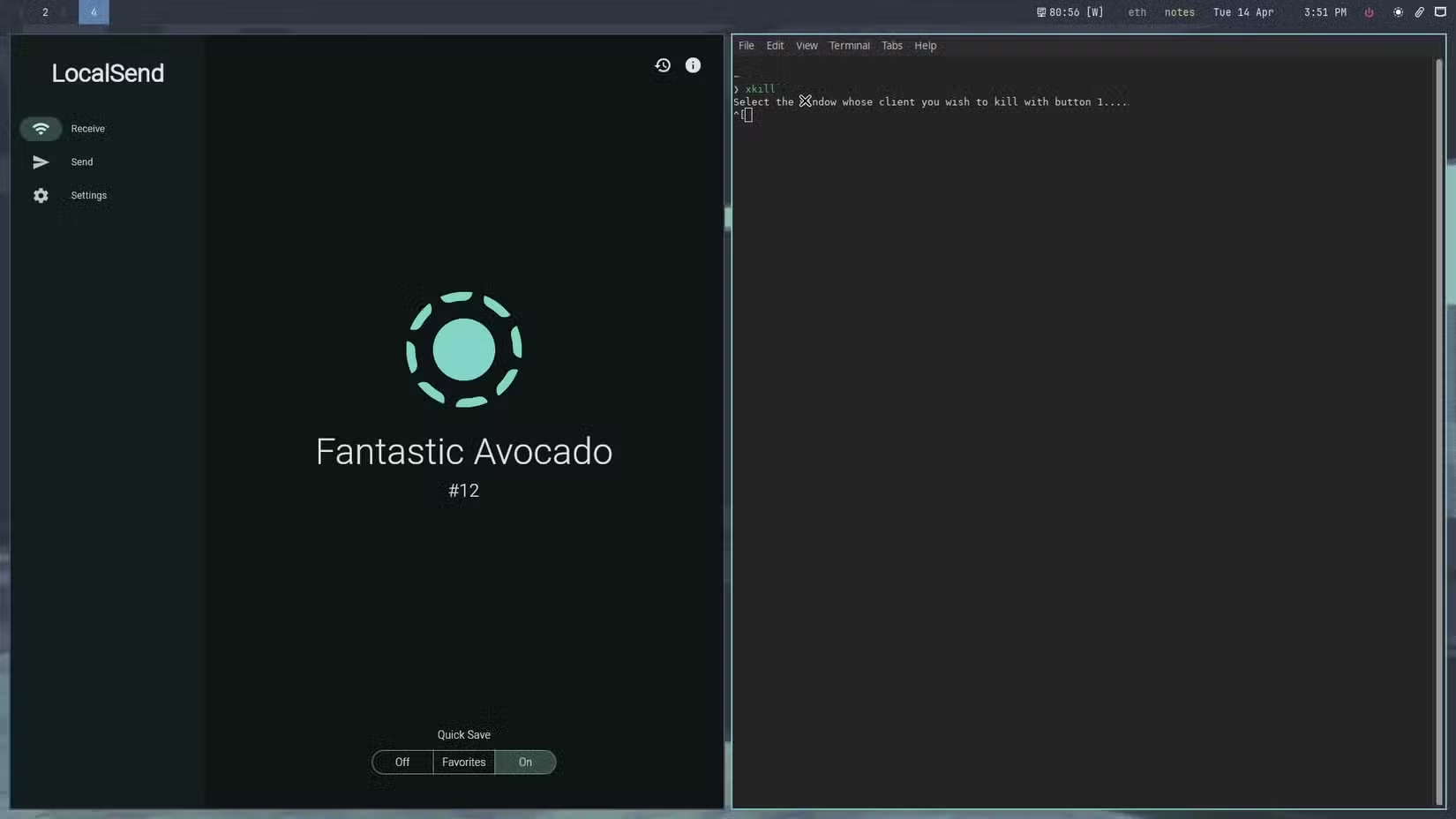
Before jumping to TTY sessions, check if the system is responding at all. Sometimes only a single application hangs while everything else works fine. If the employee can open a terminal window, they can type 'xkill' and click on the frozen application to force-close it.
xkillThe cursor turns into a crosshair. Click any window to terminate it immediately. Simple, fast, no data loss in other applications.
Step 2: Access the TTY Console
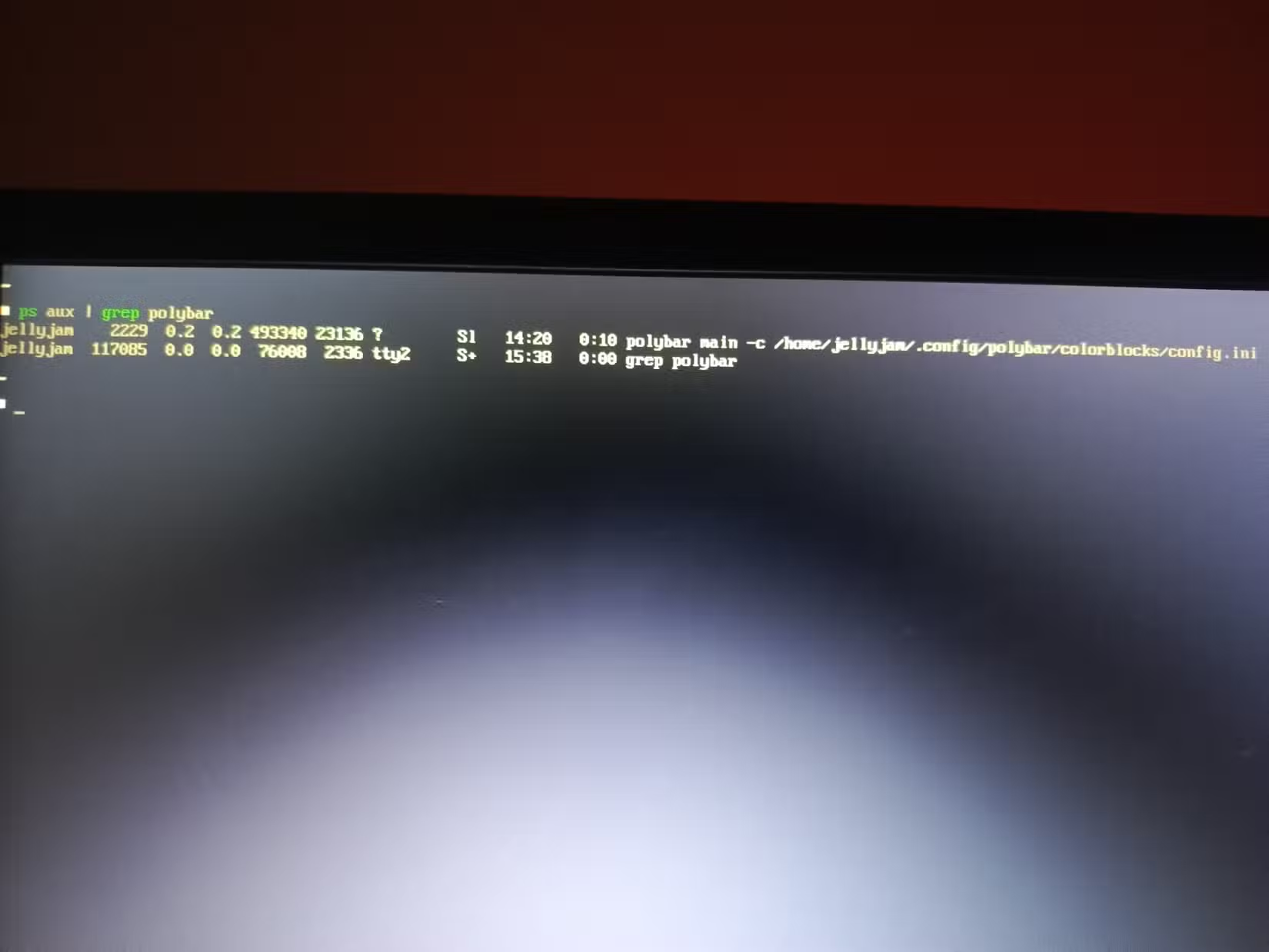
If the entire desktop is unresponsive (mouse doesn't move, keyboard shortcuts don't work), it's time to try the TTY approach. Have the employee press Ctrl+Alt+F2. The screen will go black and display a text login prompt.
They'll need to log in with their regular username and password. No special admin credentials required.
Step 3: Identify and Kill Problematic Processes
Once logged in, your IT team can use tools like htop or btop to see what's consuming system resources. These tools show CPU usage, memory consumption, and let you kill processes directly.
htopNavigate to the offending process, press F9, and select SIGKILL. The process terminates. Often, this alone unfreezes the graphical desktop.
Step 4: Restart Just the Desktop Environment
If killing individual processes doesn't work, your team can restart the entire desktop environment without rebooting the system. The specific command depends on which display manager your organization uses, but the principle is the same: stop the graphical service, start it again.
This preserves any background processes, open SSH connections, running scripts, or other work that doesn't depend on the graphical interface.
When TTY Recovery Won't Work: Kernel Panics
There's one scenario where this approach fails: kernel panics. When the Linux kernel itself crashes, the entire system locks up. TTY consoles won't respond. The only option is a hard reboot.
How do you tell the difference? In a kernel panic, even the keyboard LEDs stop responding. Caps Lock won't toggle. The system is truly dead.
| Symptom | Desktop Freeze | Kernel Panic |
|---|---|---|
| Mouse responds | No | No |
| Keyboard LEDs toggle | Yes | No |
| Ctrl+Alt+F2 works | Yes | No |
| Recovery possible | Yes, via TTY | No, reboot required |
| Unsaved work | Usually recoverable | Lost |
The good news? Kernel panics are rare on properly maintained systems. Desktop environment crashes are far more common, and those are exactly what TTY sessions handle well.
Building Linux Recovery Into Your IT Playbook
For organizations running Linux workstations at scale, proper freeze recovery should be standard IT training. Here's what that looks like:
- Document the TTY access shortcut (Ctrl+Alt+F2) in your IT knowledge base
- Train helpdesk staff to walk users through text-based login
- Pre-install htop or btop on all workstations for process management
- Create a one-page quick reference card for common recovery commands
- Track freeze incidents to identify patterns (specific hardware, software, or user behavior)
Organizations that treat Linux recovery as a core competency see faster incident resolution and happier employees. Nobody likes losing two hours of work because IT's only answer was 'try rebooting.'
Understanding how tech infrastructure investments affect enterprise computing priorities
The Business Case for Linux Desktop Recovery Training
Let's do the math. A typical software development team of 20 people might experience 2-3 desktop freeze incidents per month across the group. Without TTY recovery knowledge:
- Average time to resolution: 35 minutes (includes IT response time, reboot, application restart)
- Work lost per incident: 45 minutes (assuming employees save periodically but not constantly)
- Monthly productivity impact: 3-4 hours of developer time
- Annual cost: Roughly $15,000-20,000 in lost productivity
With proper TTY recovery protocols:
- Average time to resolution: 5-8 minutes
- Work lost per incident: Near zero (files recovered before desktop restart)
- Monthly productivity impact: Under 30 minutes
- Annual cost: Under $2,000
The training investment? Maybe 2 hours of IT team time plus documentation. The ROI is obvious.
Preventing Linux Desktop Freezes in the First Place
Recovery is good. Prevention is better. Most Linux desktop freezes fall into predictable categories:
✅ Pros
- • Regular system updates patch bugs that cause freezes
- • Adequate RAM prevents memory exhaustion (16GB minimum for development workstations)
- • SSD storage eliminates swap thrashing that can lock up systems
- • Monitoring tools catch runaway processes before they crash the desktop
❌ Cons
- • Graphics driver issues remain a common pain point, especially with NVIDIA hardware
- • Certain web browsers consuming excessive resources (looking at you, Chrome with 50 tabs)
- • Poorly optimized electron apps that leak memory over time
- • Virtual machine software occasionally conflicts with desktop environments
Smart IT teams track freeze incidents by cause. After a few months, patterns emerge. Maybe it's always the same application. Maybe it's machines with insufficient RAM. Data-driven prevention is more effective than blanket policies.
Another example of technical complexity becoming accessible with the right knowledge
Frequently Asked Questions
Frequently Asked Questions
How much does Linux freeze recovery training cost?
Training is essentially free since it's built into the operating system. The investment is 2-3 hours of IT staff time to learn TTY commands and create documentation. Most organizations see positive ROI within the first month through reduced downtime.
Will this work on all Linux distributions?
Yes. TTY sessions are a fundamental Linux feature present in Ubuntu, Fedora, Red Hat Enterprise Linux, Debian, and every other major distribution. The keyboard shortcut (Ctrl+Alt+F2) is universal.
Can regular employees learn this or is it IT-only?
Tech-savvy employees can absolutely learn basic TTY recovery. However, most organizations find it more efficient to have IT handle these incidents remotely or via phone guidance. The commands require some comfort with text interfaces.
Does this affect compliance or security requirements?
No. TTY sessions require the same authentication as graphical logins. Users can only access their own accounts. Audit logging continues to function normally. This is standard Linux functionality, not a security workaround.
How do I know if my organization should invest in Linux workstations?
Linux workstations make sense for development teams, data science groups, and technical staff who benefit from Linux-native tooling. The lower licensing costs offset the slightly higher IT training requirements. Organizations with 10+ technical employees typically see positive TCO.
Logicity's Take
At Logicity, we run Linux workstations across our development team in Hyderabad. When you're deep in a Claude API integration or debugging an n8n workflow, a desktop freeze can mean losing hours of context, not just code. We've found that TTY recovery knowledge is now part of our onboarding for technical staff. The five minutes it takes to learn Ctrl+Alt+F2 has saved us countless hours of lost work. What strikes us about this topic is how often business leaders underestimate the operational maturity gap between Windows-trained IT teams and Linux environments. Windows freezes usually do require a reboot. Linux doesn't. But if your IT team applies Windows thinking to Linux problems, you're paying for downtime you don't need. For Indian tech companies especially, where developer costs are rising and competition for talent is fierce, these small efficiency gains compound. A development team that never loses work to system freezes is a happier team. Happy teams retain better. The math works.
Need Help Implementing This?
Logicity helps businesses build resilient technical operations, from developer workstation management to AI-powered automation workflows. If your team is scaling Linux infrastructure and needs guidance on operational best practices, reach out at logicity.in.
Source: How-To Geek
Manaal Khan
Tech & Innovation Writer
Produced with AI assistance and reviewed by the Logicity editorial team. Learn more in our Editorial Policy.