Key Takeaways
- Adaptive Theme app uses your phone's ambient light sensor to trigger dark and light mode automatically
- Setup requires USB debugging and a secondary device with Chrome, but takes under two minutes
- You can customize the brightness thresholds that trigger each mode
Android's system-wide dark mode has one annoying limitation: the automation options are crude. You can set a rigid schedule, or let it follow sunrise and sunset times. Neither approach accounts for the obvious variable that actually matters: how bright your environment is right now.
If you walk into a dark conference room at noon, your phone stays blindingly bright. If you're working under office lights at 9 PM, it switches to dark mode anyway. The built-in options ignore the sensor that could solve this problem: the ambient light sensor already sitting in your phone.
A free app called Adaptive Theme: Auto Dark Mode fixes this. It reads your light sensor and switches themes based on actual brightness around you, not what time zone calculations say the sun should be doing.
What you need before starting
The setup is not as simple as flipping a toggle, but it takes less than two minutes. You need:
- Your Android phone
- A USB cable
- A secondary device with Chrome or Microsoft Edge (this can be a PC or even another Android phone)
The secondary device requirement exists because the app needs a special permission that Android does not allow apps to grant themselves. You will use a web-based tool to push the permission via USB debugging.
Step 1: Install the app and enable Developer Options
Download Adaptive Theme: Auto Dark Mode from the Google Play Store. Open the app and tap Start Setup.
The app will first ask you to enable Developer Options if you have not already. Tap Open Settings to jump there. On most Android phones, you enable Developer Options by going to Settings > About Phone and tapping the Build Number seven times. A toast message confirms when it activates.
Step 2: Enable USB Debugging
Once Developer Options is on, find USB Debugging within that menu and enable it. This allows your phone to accept commands from a connected computer or device.
USB Debugging sounds technical, but for this use case you are only granting a single permission through a web interface. You can disable it again after setup if you prefer.
Step 3: Connect to the web setup tool
Connect your phone to your secondary device using a USB cable. In the Adaptive Theme app, tap Continue.
On your secondary device, open Chrome or Edge and go to lexip.dev/setup. This is a web-based tool that communicates with your phone over USB.
On the setup page, click Start Setup. A popup will show available devices. Select your phone and click Connect.
Your phone will display an Allow USB debugging prompt. Accept it. Then, back in the browser, click Grant Permission. The app now has what it needs to control your theme based on light sensor readings.
Step 4: Set your brightness thresholds
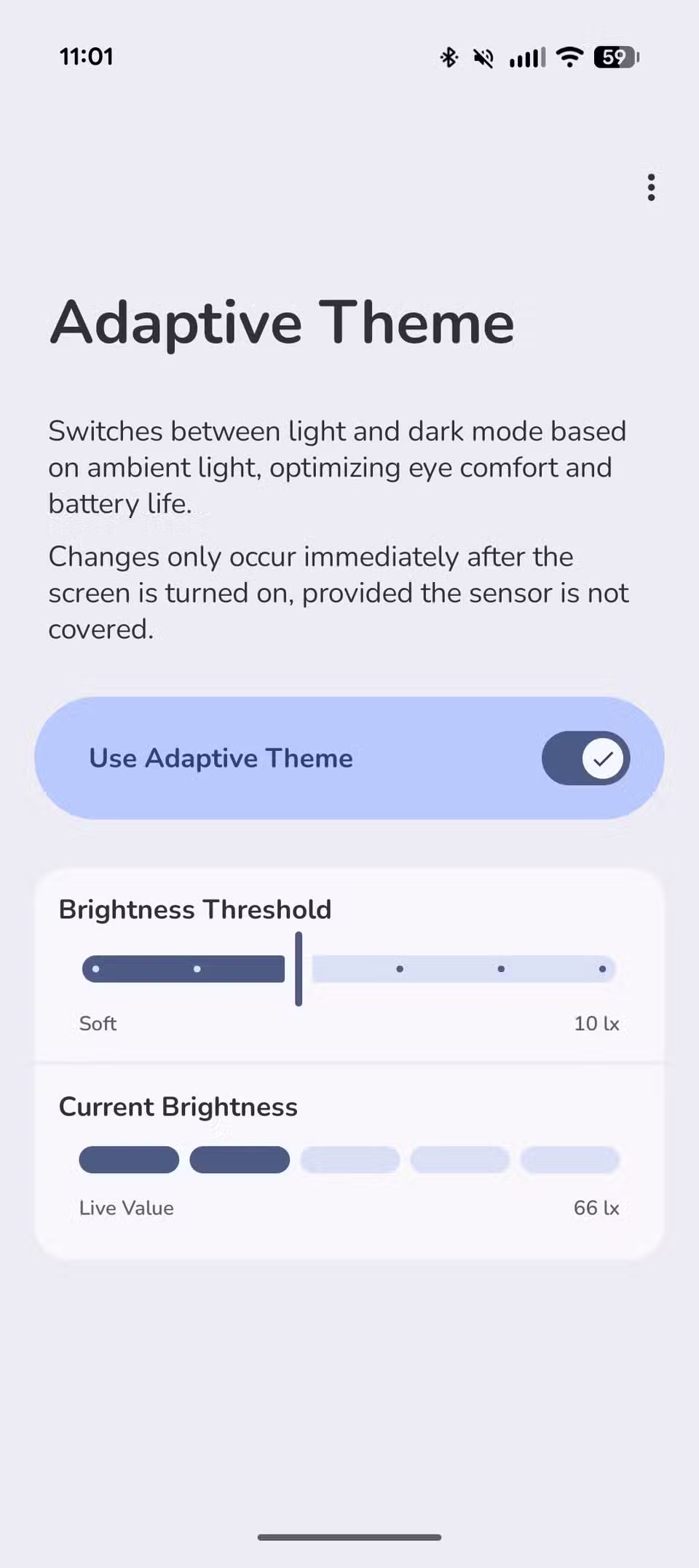
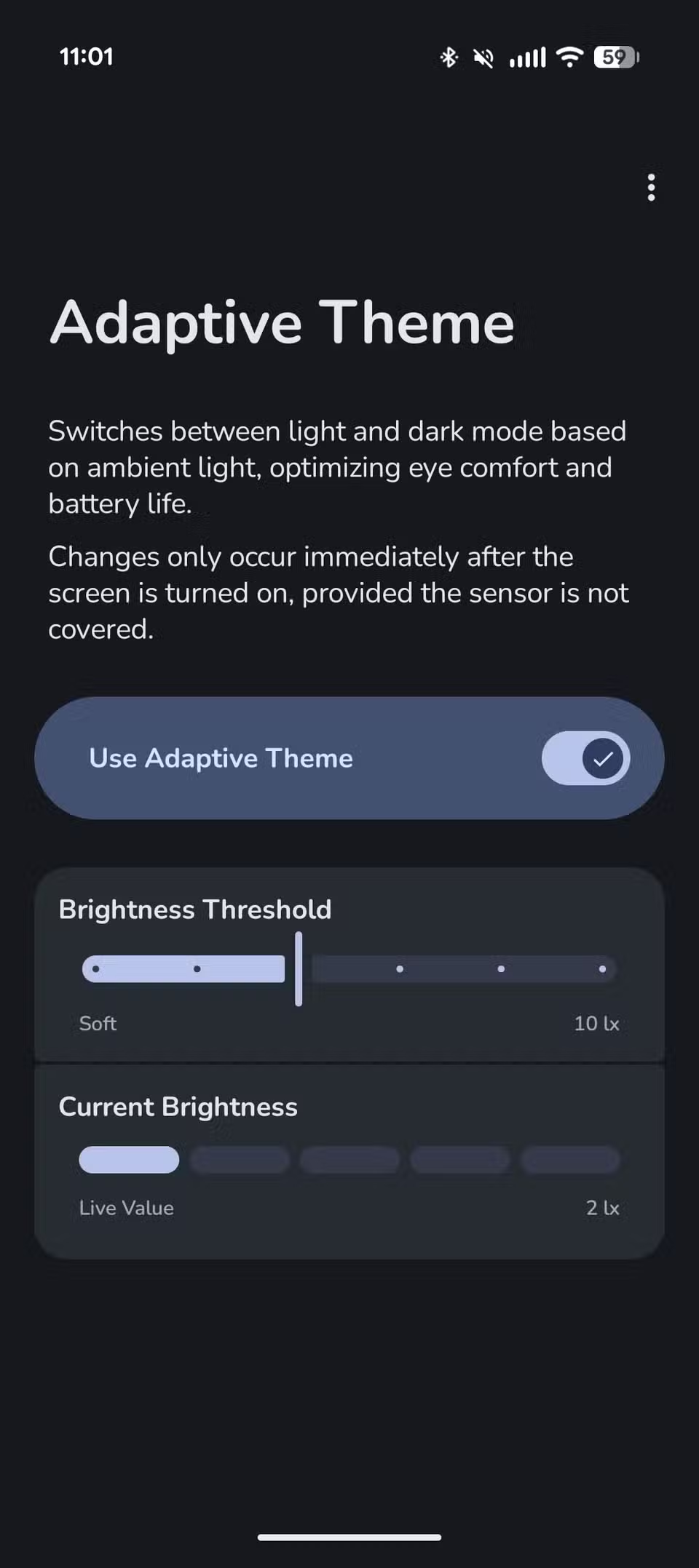
The final step is customizing when dark mode and light mode activate. The app lets you set lux thresholds. Below one number, dark mode turns on. Above another, light mode activates.
You can experiment with these values based on your typical environments. A dim bedroom might read 50 lux. A bright office might hit 500. The defaults work for most people, but tuning them to your routine makes the switching feel seamless.
Logicity's Take
Why this matters for your workflow
Dark mode is not just cosmetic. In low light, a bright screen causes eye strain and disrupts focus. In bright environments, dark mode can make text harder to read. Getting the switching right removes a small but constant friction from your day.
For anyone who moves between offices, home, and travel, schedule-based automation fails constantly. Sensor-based switching means one less thing to manually adjust.
Another practical hack for getting more from your existing hardware
Frequently Asked Questions
Does Adaptive Theme drain battery?
The app uses the ambient light sensor, which consumes minimal power. It is the same sensor your phone already uses for auto-brightness.
Can I disable USB Debugging after setup?
Yes. Once the permission is granted, you can turn USB Debugging off. The app will continue working.
Does this work on all Android phones?
It works on most Android phones with an ambient light sensor, which includes nearly all modern devices. Some heavily customized manufacturer skins may have compatibility issues.
Why does the app need a secondary device for setup?
Android restricts apps from granting themselves certain permissions. The web tool uses ADB over USB to grant the necessary permission, which requires a connected device running a browser.
Need Help Implementing This?
Source: How-To Geek
Huma Shazia
Senior AI & Tech Writer
Produced with AI assistance and reviewed by the Logicity editorial team. Learn more in our Editorial Policy.






