Key Takeaways
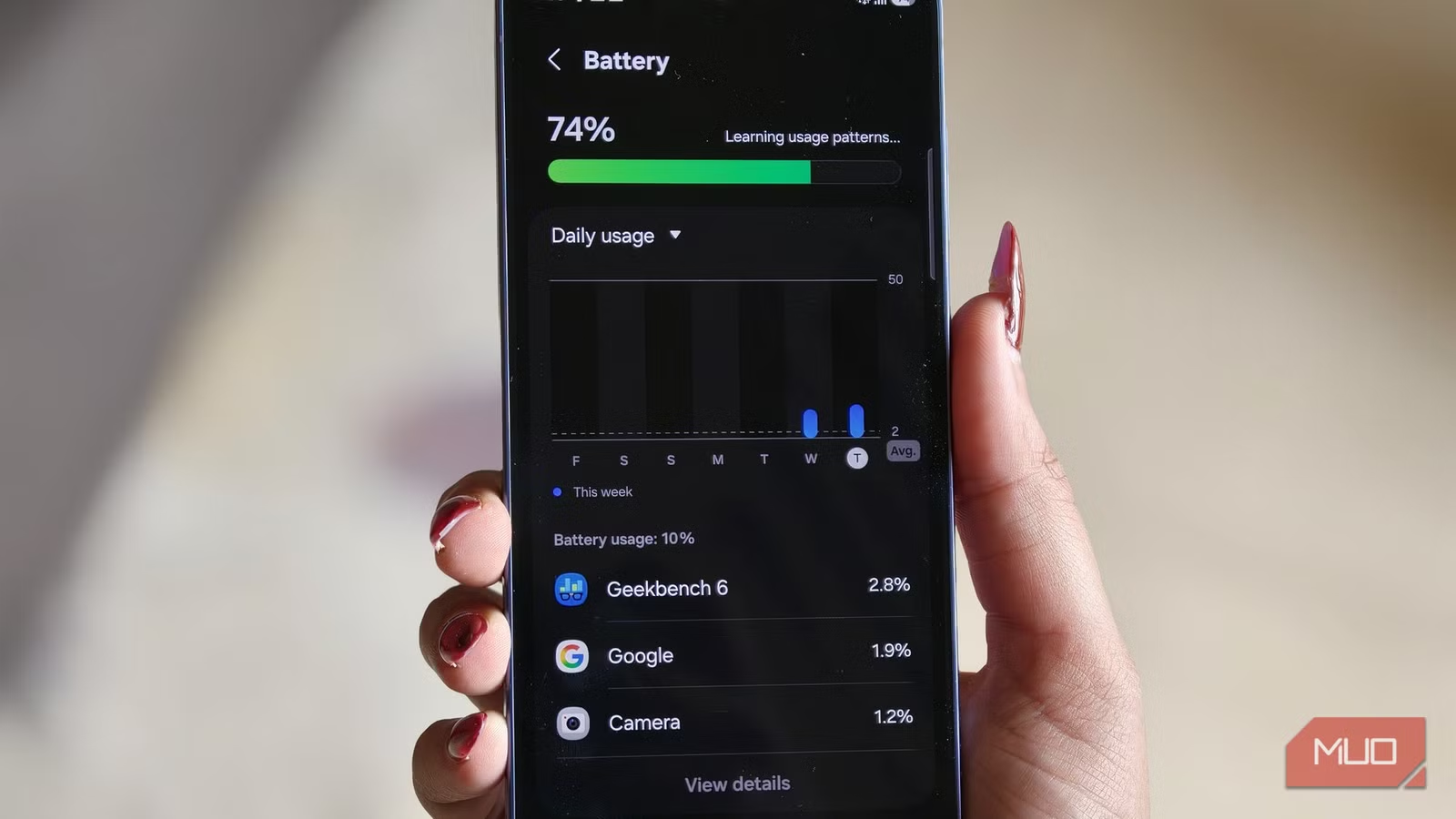
- Samsung's battery optimization puts unused apps into deep sleep, blocking notifications and forcing restarts
- Disable 'Put unused apps to sleep' or add critical apps to the 'Never sleeping apps' list in Settings > Device Care > Battery
- Turning off Adaptive Battery and Auto optimization prevents unpredictable app closures and silent reboots
Samsung Galaxy phones rank as the most aggressive app-killers among Android manufacturers, according to developer benchmarks on dontkillmyapp.com. The company's battery optimization system automatically puts apps to sleep, often causing missed notifications, delayed messages, and apps that constantly reload from scratch. If your Galaxy S24 Ultra or any recent Samsung phone feels sluggish despite premium hardware, the culprit is probably software.
The good news: Samsung lets you disable this behavior. The settings aren't buried too deep, and the difference can be dramatic. Here's what to change.
Why does Samsung kill background apps?
Samsung's One UI software decides which apps deserve to keep running. Apps you haven't opened recently get put to sleep. From there, they can be moved into deep sleep, where they won't run in the background at all until you manually reopen them. The goal is battery life. The side effect is that your alarm app might not wake you up on weekends, or critical work messages arrive hours late.
Developer reports estimate that 30-50% of push notifications can be delayed or lost entirely due to aggressive app sleeping on Samsung devices. With Samsung shipping over 240 million Galaxy phones globally in 2023, this affects a massive user base.
How to disable Samsung's background usage limits
Navigate to Settings > Device Care > Battery > Background usage limits. This screen controls most of the app-killing behavior on your phone. You'll see four options:
- Put unused apps to sleep: Toggle this off to stop automatic app sleeping entirely
- Never sleeping apps: Add your critical apps here to permanently exempt them
- Sleeping apps: Apps currently napping that wake up when you open them
- Deep sleeping apps: Apps fully restricted from any background activity
You don't need to disable the entire system. A more balanced approach: go through the sleeping apps list, pull out anything you need reliable notifications from, and add those to "Never sleeping apps." Let the apps you rarely use stay in sleep mode. This preserves some battery benefit while fixing the notification problem.
Alternatively, just turn off "Put unused apps to sleep" entirely and move on.
Turn off Adaptive Battery and Auto optimization
Background usage limits aren't the only culprit. Adaptive Battery uses AI to predict which apps you'll need and restricts the rest. In theory, this is smart. In practice, the prediction engine can decide your messaging app isn't important while you're asleep, so you wake up to a pile of undelivered notifications.
From the Background usage limits screen, tap the three-dot menu in the top-right corner and select Adaptive battery. If your phone already delivers acceptable battery life, turn this off. Apps will behave predictably instead of "intelligently."
Inside Device Care, you'll also find Auto optimization. This feature periodically restarts your device and force-closes background apps on a schedule. Samsung claims it keeps things running smoothly. What it actually does: interrupts whatever you had running and resets apps you wanted open. Turn it off. Your phone won't quietly reboot or close apps while you aren't looking.
What about battery life after these changes?
This is the tradeoff. Disabling aggressive app-killing means some apps will run in the background, consuming battery. But modern flagship phones, including Samsung's own Galaxy S24 Ultra, have batteries large enough that the impact is usually minimal. The difference between "excellent" and "very good" battery life isn't worth missing important notifications.
If battery life matters more than instant notifications for certain apps, use the selective approach: only add your critical apps to the "Never sleeping" list.
Why Samsung is worse than other Android phones
Most Android manufacturers implement some form of battery optimization, but Samsung's implementation stands out. The Urbandroid Team, developers of Sleep as Android, documented the problem: "Samsung's text file that instructs the firmware which apps to kill is present on every Samsung device, yet there are no APIs or settings to change its behavior." The system operates at a level that even developers can't fully control.
XDA Developers forums contain extensive documentation on disabling Samsung's app-killing through ADB commands for power users. But for most people, the settings changes above should be enough.
Logicity's Take
Samsung's aggressive battery optimization made sense when phone batteries were smaller and users demanded all-day life. In 2026, with 5000mAh+ batteries standard on flagships, the tradeoff no longer makes sense. Samsung should ship with less aggressive defaults and let users opt into stricter battery saving rather than making notification reliability something users have to manually restore.
Frequently Asked Questions
Will disabling Samsung's app sleeping drain my battery significantly?
On modern Galaxy flagships with large batteries, the impact is usually minor. Most users report losing 5-10% daily battery life at most, while gaining reliable notifications.
Why do I keep missing notifications on my Samsung phone?
Samsung's battery optimization puts apps into sleep or deep sleep mode, preventing them from running in the background. This stops notifications until you manually open the app.
What's the difference between sleeping apps and deep sleeping apps on Samsung?
Sleeping apps can wake up and deliver notifications with some delay. Deep sleeping apps are completely restricted and won't do anything in the background until you open them manually.
Does Samsung's Adaptive Battery learn my usage patterns over time?
Yes, but its predictions aren't always accurate. It may restrict apps you need at unexpected times, like messaging apps over weekends when your usage pattern differs.
Can I disable Samsung's app-killing using ADB commands?
Yes, power users can use ADB commands documented on XDA Developers forums for more granular control, but the built-in settings changes work for most users.
More ways to optimize your devices for productivity
Need Help Implementing This?
If you're managing mobile device policies for a team and need to configure Samsung phones for reliable app behavior, contact us for enterprise MDM guidance.
Source: MakeUseOf
Huma Shazia
Senior AI & Tech Writer
Produced with AI assistance and reviewed by the Logicity editorial team. Learn more in our Editorial Policy.