Key Takeaways
- Claude's default universal settings work against you when you have specific tasks
- Projects let you set custom instructions that only apply to chats within that project
- Creating multiple projects with different personas makes Claude far more useful
The Common Mistake: Treating Claude Like a Search Bar
When you first open Claude, the instinct is to treat it like Google with a personality. You type a question into a fresh chat, hit enter, and get frustrated when the response feels generic or misses the point. Sound familiar?
Adam Davidson, writing for How-To Geek, spent months making this exact mistake. His realization? The problem wasn't Claude. It was how he was using it.
Claude ships configured to be universally useful. That's a feature for casual users but a limitation for anyone with specific, repeatable tasks. The AI has no context about your work, your preferences, or your communication style. Every conversation starts from zero.
The Fix: Projects with Custom Instructions
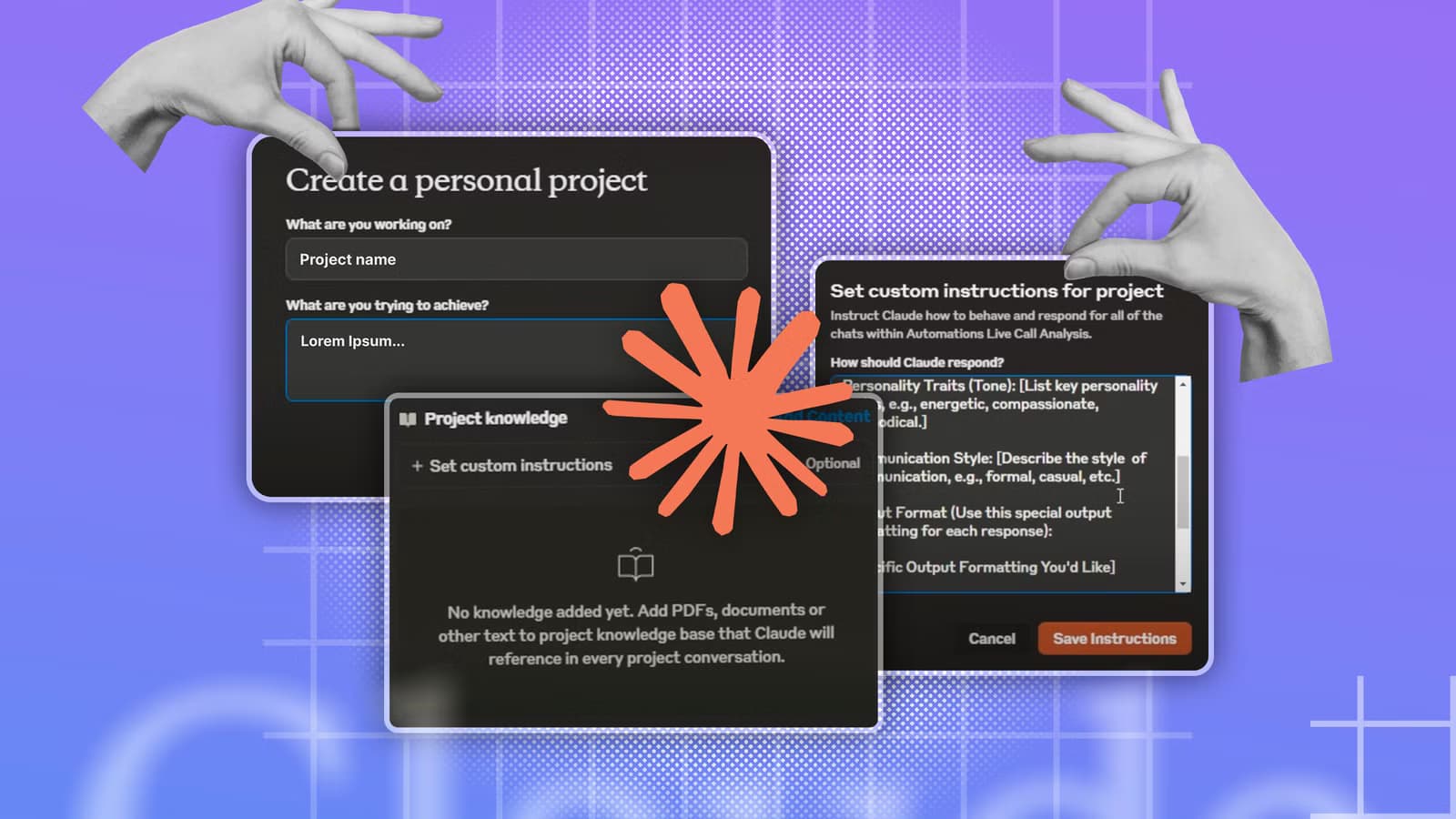
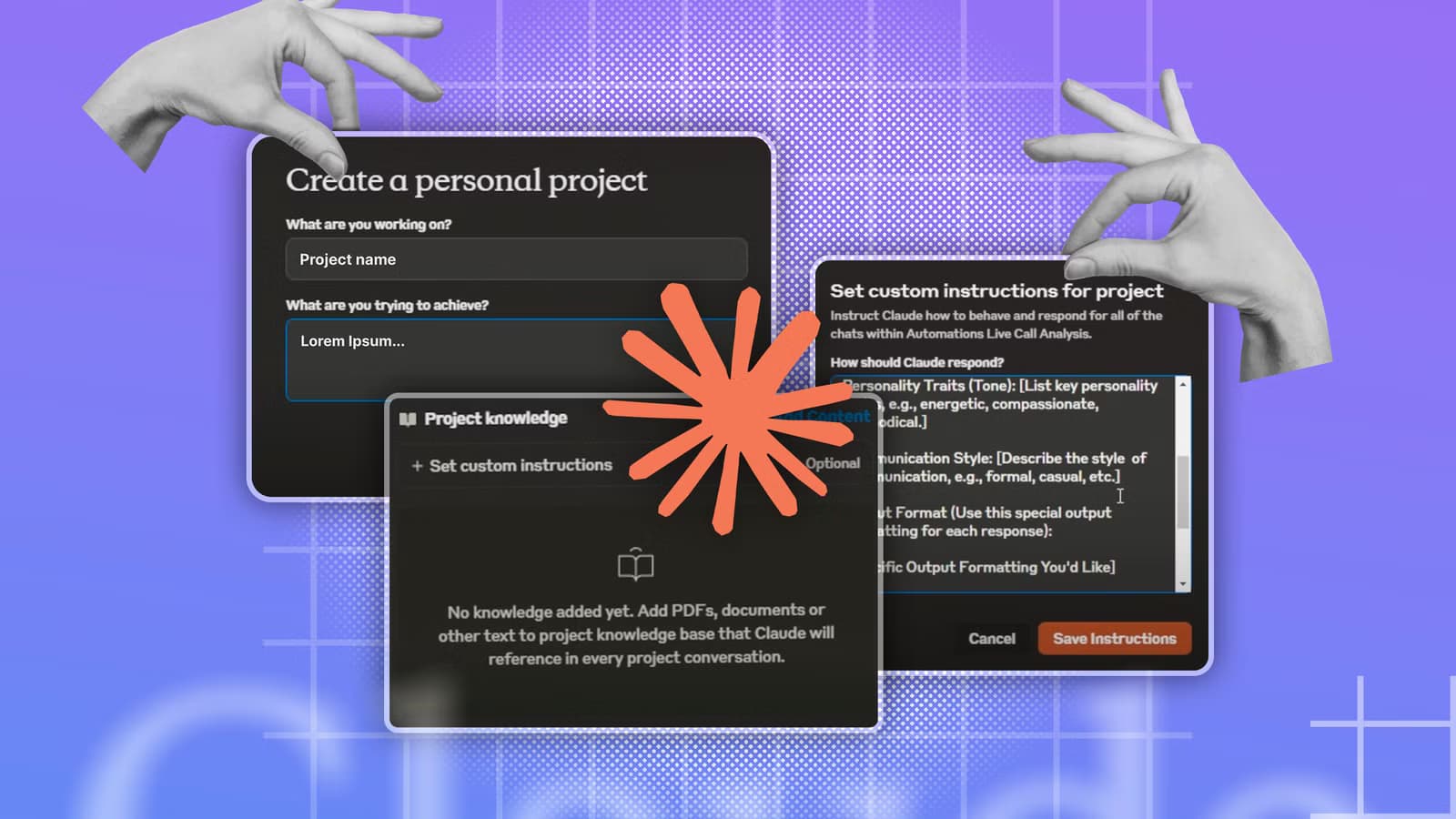
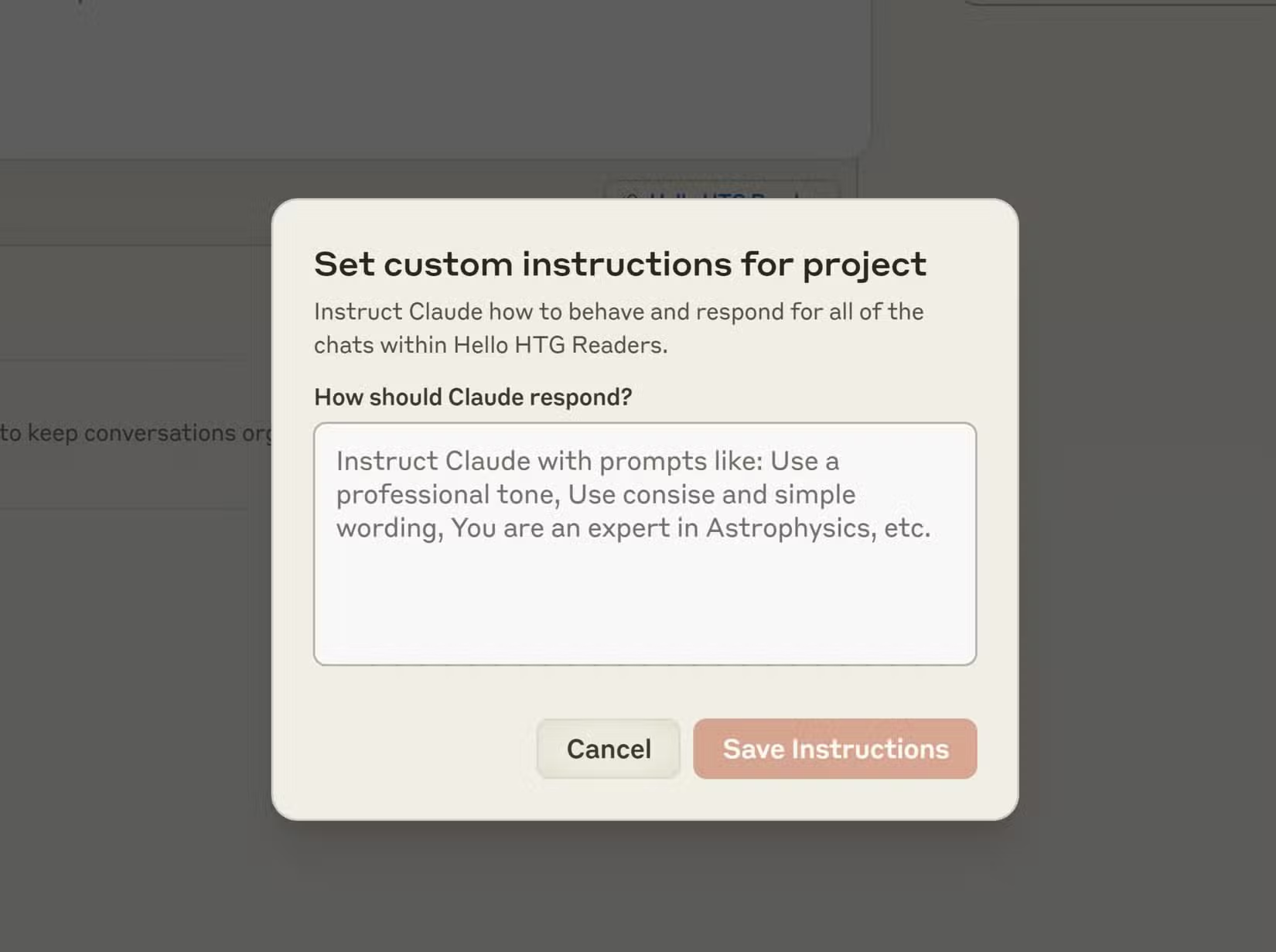
Claude offers a feature called Projects that most users overlook. When you create a project, you can set custom instructions that apply only to chats within that project. Outside the project, those instructions don't exist.
This matters because your needs change based on what you're doing. Writing marketing copy requires a different Claude than debugging Python code. Drafting legal documents needs a different tone than brainstorming product names.
With Projects, you create multiple Claude personas. Each one remembers its instructions every time you open a new chat within that project. No more re-explaining what you need at the start of every conversation.
How to Set Up Your First Project
- Open Claude and navigate to the Projects section in the sidebar
- Create a new project and give it a clear name (e.g., 'Technical Writing' or 'Code Review')
- Write custom instructions that define how Claude should behave in this context
- Start a chat within the project. Your instructions now apply automatically
The key is writing good custom instructions. Be specific about tone, format preferences, and any domain knowledge Claude should assume you have. If you're a developer, tell Claude to skip basic explanations. If you're writing for a specific audience, describe that audience.
Example: Creating a Code Review Persona
Say you want Claude to help review pull requests. Your custom instructions might include: 'Assume I'm a senior developer. Focus on security issues, performance problems, and maintainability. Skip style nits unless they affect readability. Format feedback as a bulleted list with line references.'
Now every chat in that project starts with Claude understanding exactly what you need. You paste code, and the response matches your expectations without preamble or over-explanation.
Another practical look at AI-assisted development workflows
Why This Works Better Than Global Instructions
Claude does offer account-level custom instructions. The problem: those instructions apply to every chat. What helps you write marketing copy might hurt your coding sessions. Global instructions force you to find a lowest common denominator that works everywhere, which usually means working well nowhere.
Projects let you specialize. You can have five different Claudes running simultaneously, each optimized for a different part of your work.

Logicity's Take
Practical Project Ideas
- Email Drafting: Set tone, formality level, and common sign-offs
- Research Assistant: Define your expertise level and citation preferences
- Meeting Notes: Specify formatting, action item style, and summary length
- Content Writing: Include brand voice guidelines and target audience details
- Technical Documentation: Set assumed reader knowledge and formatting standards
Each project becomes a saved context you return to repeatedly. The setup cost is paid once. The benefit compounds with every use.
Frequently Asked Questions
Do Claude Projects require a paid subscription?
Projects are available on Claude Pro and Team plans. Free tier users have limited or no access to this feature.
Can I share a Claude Project with my team?
Team plan subscribers can share projects with colleagues, allowing everyone to use the same custom instructions and maintain consistency.
How many projects can I create?
Claude doesn't impose a hard limit on project count. Create as many as you need for different use cases.
Do custom instructions count against my context window?
Yes, custom instructions use tokens from your available context. Keep them concise but specific to maximize room for actual conversation.
Need Help Implementing This?
Source: How-To Geek
Huma Shazia
Senior AI & Tech Writer
Produced with AI assistance and reviewed by the Logicity editorial team. Learn more in our Editorial Policy.