Key Takeaways
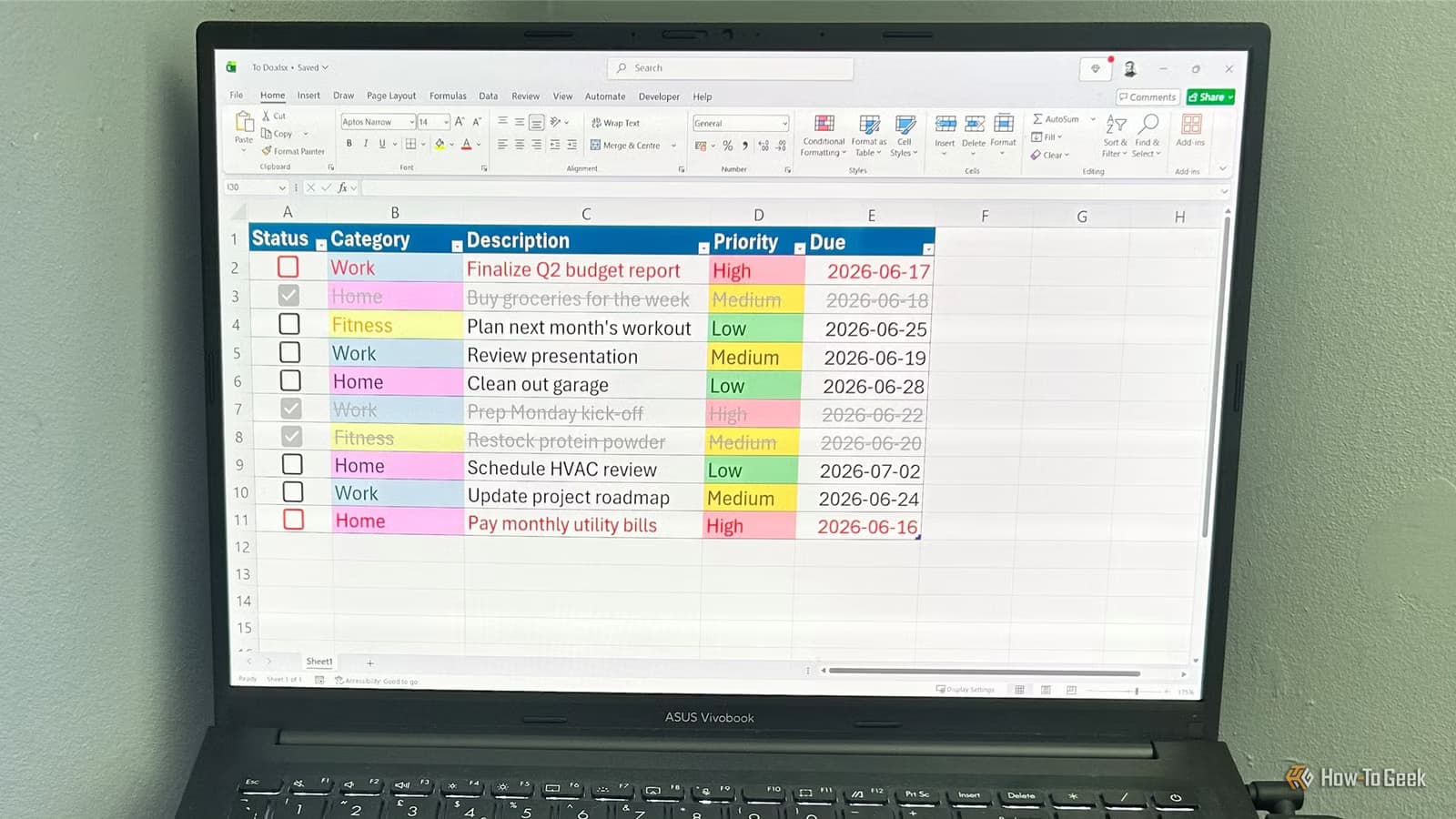
- A single Excel table with filters can replicate 'My Day' and inbox views from apps like Todoist
- Data validation creates consistent category dropdowns that work like app tags
- Conditional formatting adds color-coded priorities without any subscription cost
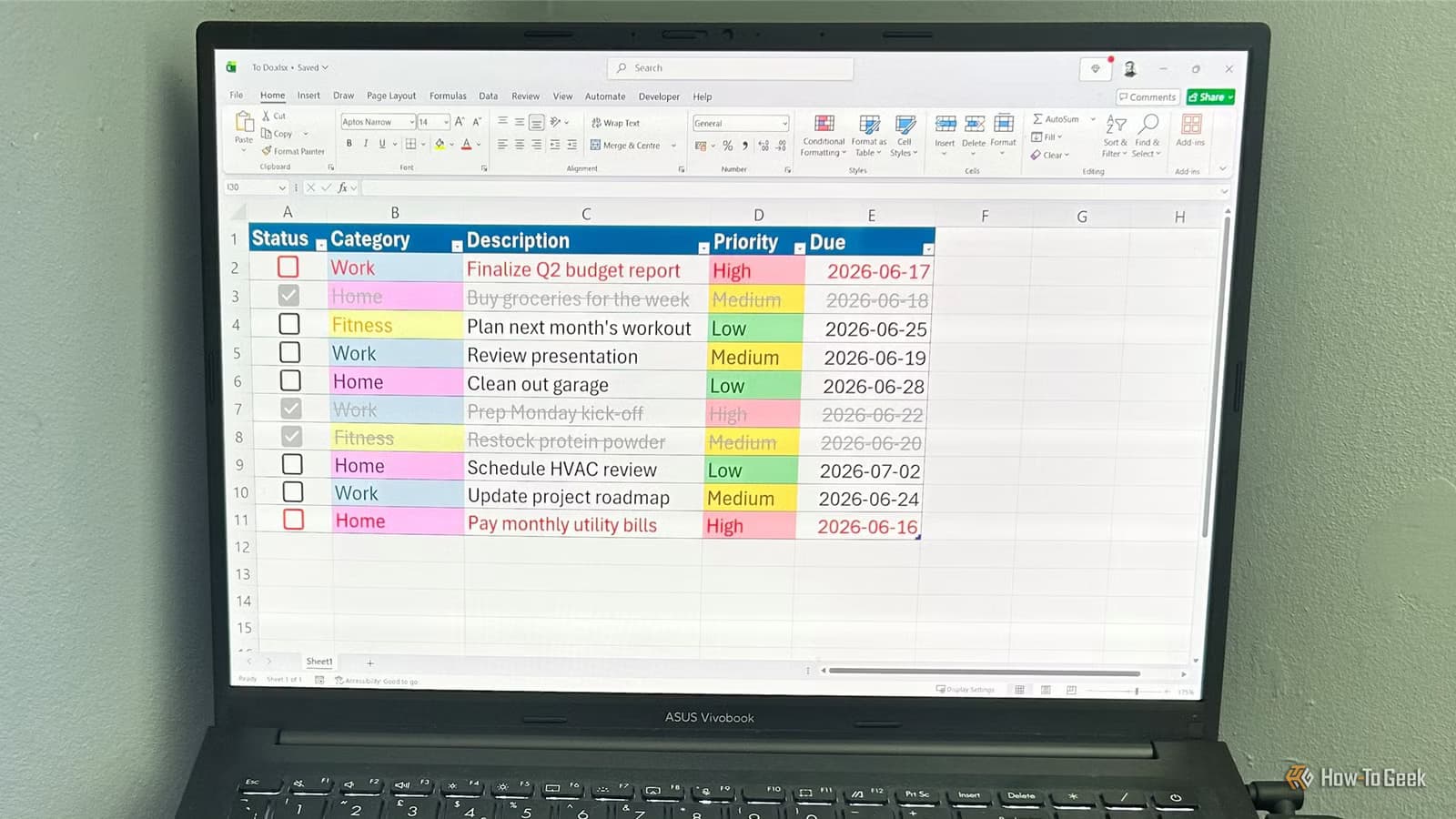
A How-To Geek writer has documented how he replaced his entire task management setup with Microsoft Excel, ditching paid features from apps like Todoist in the process. The approach uses Excel tables, data validation, and conditional formatting to build a system that handles filtering, tagging, and priority tracking without subscriptions.
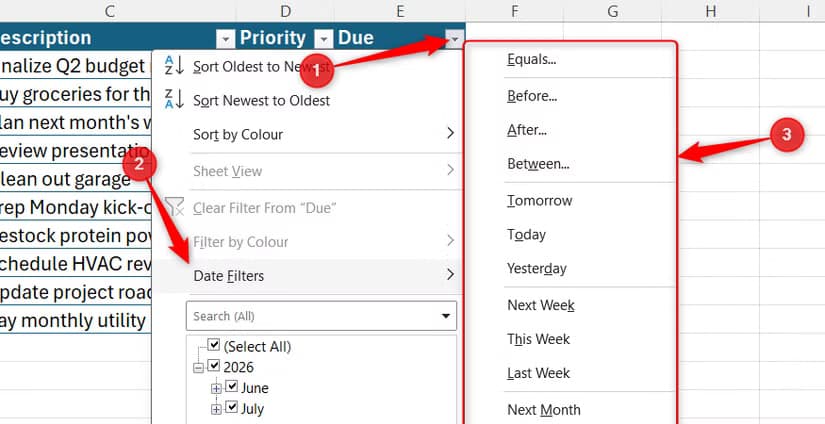
The core insight is simple: dedicated to-do apps charge for features Excel already has. Date filters in Excel can show tasks due today, tomorrow, next week, or between any two dates. That flexibility exceeds the preset views most task apps offer. The setup requires no plugins and works in any version of Excel that supports tables.
Why a single table beats multiple worksheets
The first instinct when building a task system is to create separate tabs for work, personal, and projects. Tony Phillips, the author, tried this and found tasks slipping through the cracks. His solution: collapse everything into one master table that functions as a unified inbox.
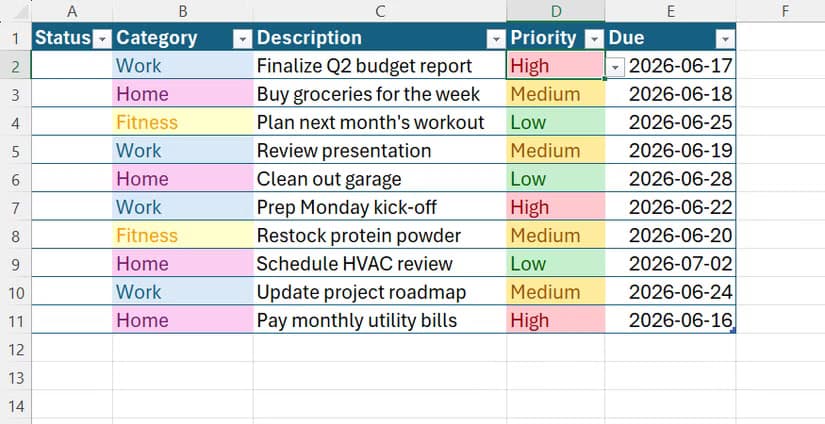
Excel tables expand automatically when you add rows. New tasks inherit your existing filters, formulas, and formatting. No manual copying required. The setup starts with five columns: Status, Category, Description, Priority, and Due.
To create the table, select your headers and one empty row below them, then press Ctrl+T. Check 'My table has headers' and format the Due column as a date. The table grows as you type in new rows.
Phillips recommends a table style without banded rows. The cleaner look makes the conditional formatting you add later easier to read.
How to build a tagging system with data validation
Apps like Todoist let you tag tasks by category. Excel replicates this with data validation. Select your Category column, open the Data tab, click Data Validation, choose 'List' in the Allow field, and type your categories separated by commas.
Every cell in that column now shows a dropdown menu with your options. This prevents typos and keeps your data consistent. If your categories change often, create them in a separate named table column instead of typing them directly. That way you can add or remove options without updating validation rules manually.
Color-coded priorities with conditional formatting
Color tags in to-do apps help you spot urgent tasks at a glance. Excel's conditional formatting does the same thing. Select your Category column, go to Home > Conditional Formatting > Highlight Cell Rules > Equal To. Type a category name, choose a fill color, and repeat for each category.
Apply the same logic to your Priority column. Create a data validation dropdown with Low, Medium, and High, then set conditional formatting rules. Red for high priority, yellow for medium, green for low. The table updates in real time as you assign priorities.
Date filtering replaces 'My Day' views
Premium task apps sell 'My Day' and 'Upcoming' views as features. Excel tables include date filters by default. Click the dropdown arrow on your Due column header and you can filter to tasks due today, tomorrow, this week, this month, or any custom date range.
The flexibility here exceeds what most apps offer. You can filter to 'year to date' or 'between two specific dates' without upgrading to a paid tier. Combined with category and priority filters, you can drill down to exactly what you need to see.
What this approach lacks
Excel won't send you push notifications. It doesn't sync across devices unless you save to OneDrive or SharePoint. There's no natural language input like 'remind me tomorrow at 9am.' And collaborative features require sharing the file manually.
For solo users who already pay for Microsoft 365, these tradeoffs matter less. You get a system you fully control, with no feature walls or subscription upsells. Power users can extend it with formulas for overdue task counts, completion rates, or recurring task templates.
Another approach to replacing dedicated apps with built-in tools
Logicity's Take
The real appeal here isn't saving $4 a month on Todoist. It's owning your data and workflow logic completely. When you build in Excel, you can export, backup, and transform your task history however you want. You're not locked into a proprietary format that disappears if the app shuts down or changes pricing. For anyone who already lives in spreadsheets, this approach removes a context switch from their day.
Frequently Asked Questions
Can Excel sync tasks across devices?
Yes, if you save the file to OneDrive or SharePoint. The file updates across devices, though you won't get mobile push notifications like dedicated apps provide.
Does this work in Google Sheets?
The core features translate. Google Sheets supports tables, data validation, and conditional formatting with slightly different menu paths.
How do I track completed tasks?
Use the Status column with data validation options like 'To Do', 'In Progress', and 'Done'. Filter out completed tasks when you want a clean view.
Can I set up recurring tasks in Excel?
Not automatically. You would need to manually add rows or create a more complex system with helper columns and formulas to calculate next due dates.
Need Help Implementing This?
If you want to build a custom Excel productivity system or need help migrating your task data from another app, reach out to Logicity's consulting team for spreadsheet automation and workflow design.
Source: How-To Geek
Huma Shazia
Senior AI & Tech Writer
Produced with AI assistance and reviewed by the Logicity editorial team. Learn more in our Editorial Policy.