Key Takeaways
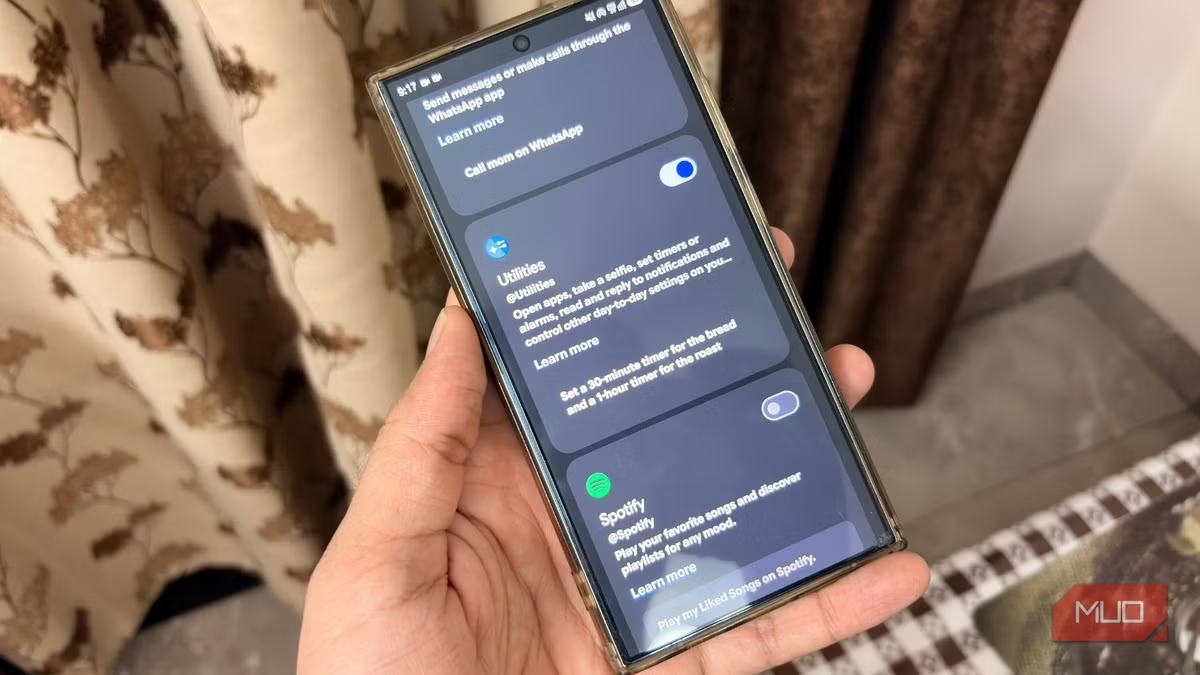
- Gemini Utilities transforms Gemini from a chatbot into a functional system assistant with 15+ native device controls
- The extension must be manually enabled in Gemini settings to unlock features like timers, flashlight, and volume control
- Over 20 million users adopted Gemini Utilities within six months of its 2026 rollout
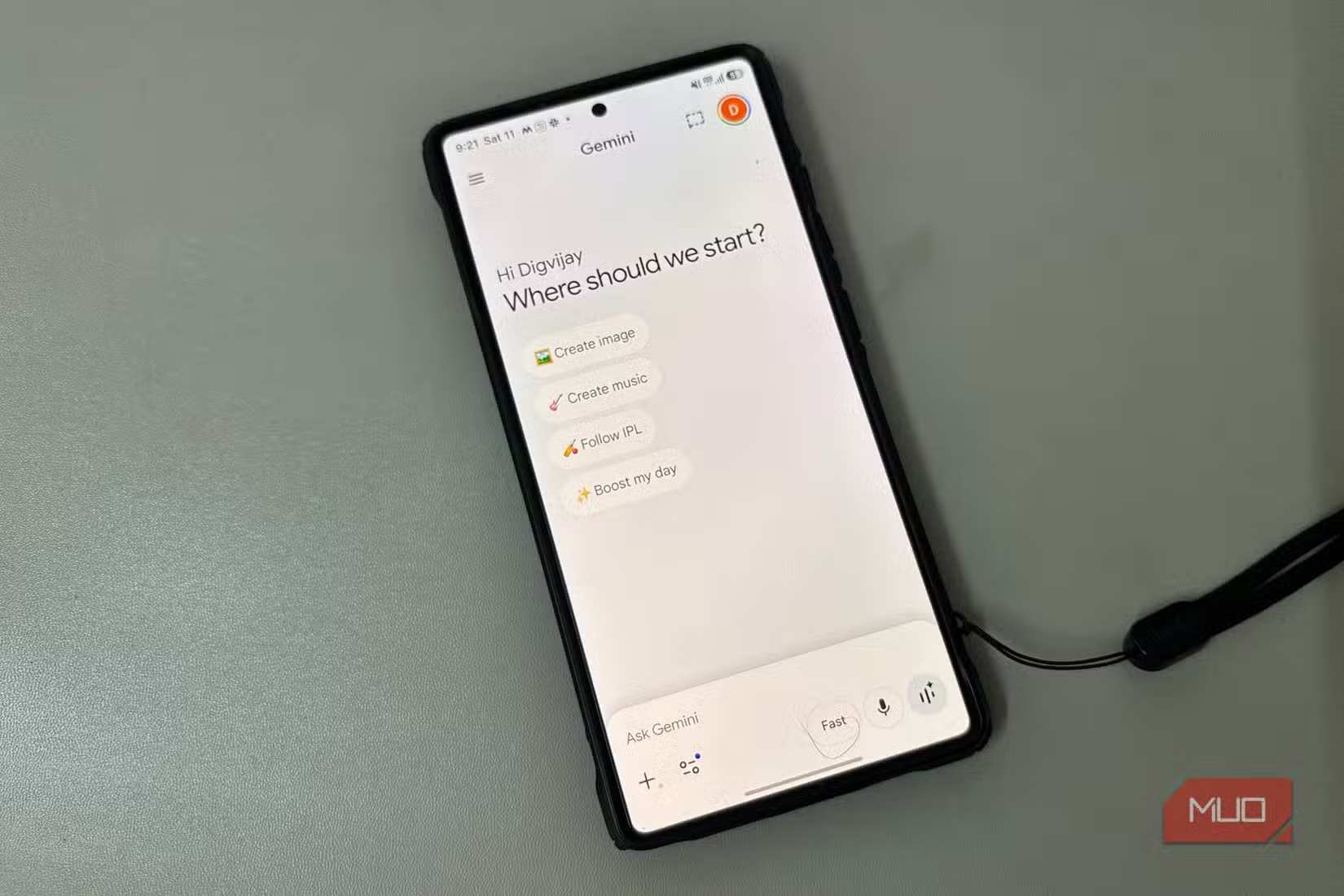
When Google pushed Gemini as the replacement for Google Assistant, the promise was exciting: a large language model sitting on your phone, handling everything your assistant used to do but smarter. Reality fell short. Ask Gemini to set a timer and it fumbled. Request the flashlight and you got a web search result instead.
The conversational abilities were impressive. The actual utility was not. For many Android users, Gemini became that smart assistant who just sat in the corner waiting to be called on, then disappointed when summoned.
Tech writer Sagar Naresh at MakeUseOf finally cracked the problem. The fix was hiding inside the app the whole time: a feature called Gemini Utilities that transforms the chatbot into a genuine system assistant.
What Gemini Utilities Actually Does
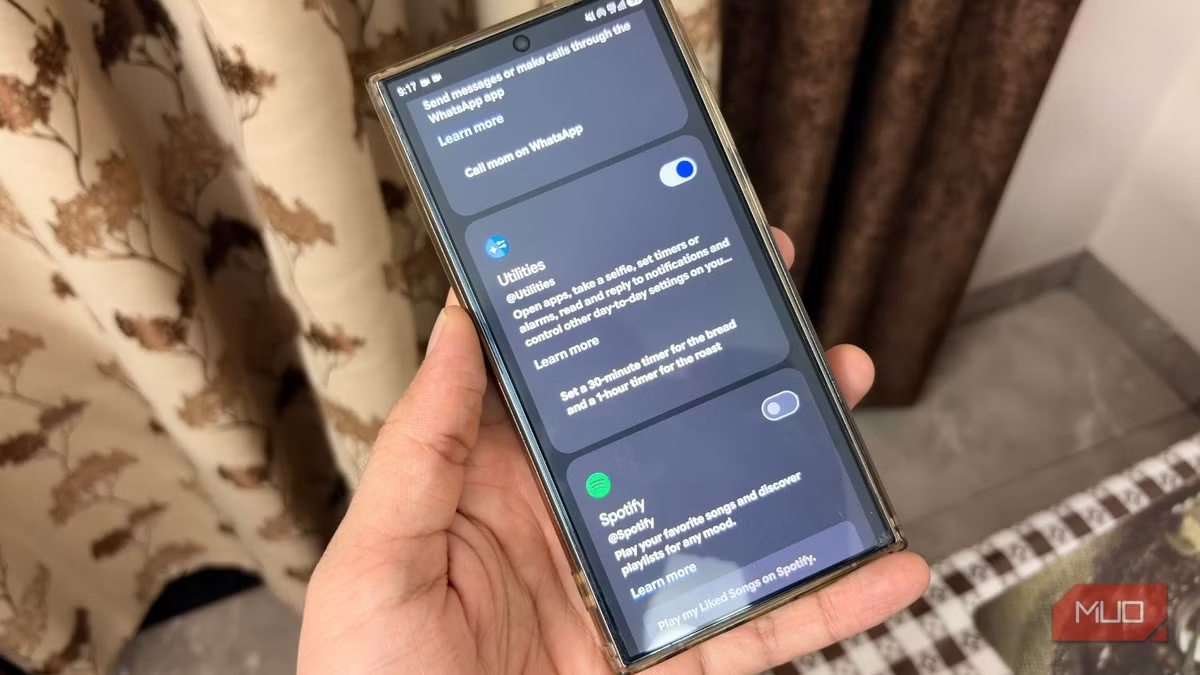
Gemini Utilities is an extension that gives Gemini direct access to Android system controls. Once enabled, Gemini can execute 15+ native device actions without fumbling or falling back to web searches.
- Toggle flashlight on/off
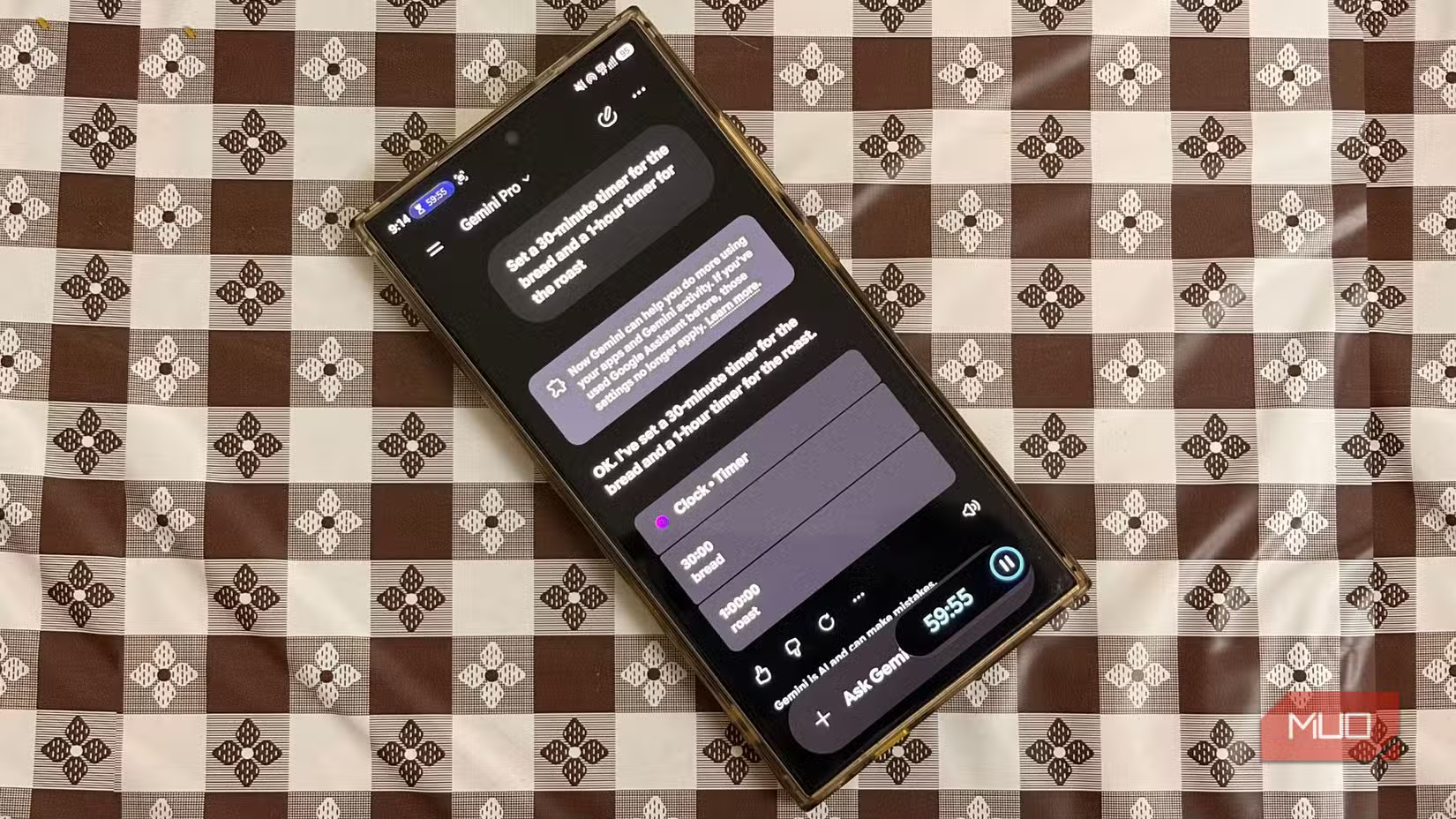
- Set timers and alarms
- Adjust volume levels
- Take screenshots
- Control media playback
- Manage basic system settings
These are the tasks Google Assistant handled reliably for years. Gemini struggled with them because it was designed primarily as a conversational AI, not a device controller. Utilities bridges that gap.
Why This Matters Beyond Basic Tasks
The shift from chatbot to system agent is significant. One industry analyst put it bluntly:
That's not hyperbole. Gemini with Utilities enabled can handle multi-step system workflows directly from the lock screen. It's no longer just answering questions. It's executing tasks.
How to Enable Gemini Utilities
The extension exists but isn't enabled by default. That's why most users never discovered it. Here's how to turn it on:
- Open the Gemini app on your Android device
- Tap your profile icon and go to Settings
- Look for Extensions or Utilities in the menu
- Toggle Gemini Utilities to enabled
- Grant the requested system permissions
If the option doesn't appear, your region may not have received the rollout yet. Early adopters on Reddit found that force-stopping the Gemini app and clearing its cache could trigger the extension to appear before official regional availability.
The Subscription Question
Basic Gemini Utilities work on the free tier. Advanced capabilities tied to the Pro and Ultra models require a Google One AI Premium subscription at $20 per month. For most users, the free tier covers the essential system controls that make Gemini actually useful.
Comparing AI assistant capabilities and limitations
Community Response
On r/Android and r/GooglePixel, the prevailing sentiment has crystallized into what users call the "RIP Google Assistant" meme. Tech journalist Artem Russakovskii confirmed the feature works as advertised, documenting Gemini finally handling basic system tasks like alarms and timers natively.
The discussion has moved past whether Gemini works to how well it handles complex, multi-command prompts compared to the legacy Assistant. Early consensus: it's better, especially when chaining multiple actions together.
What Still Doesn't Work
Gemini Utilities doesn't solve every frustration. Some users report inconsistency with third-party app integrations. Certain voice commands still trigger web searches when they shouldn't. The extension improves system-level control but doesn't make Gemini perfect.
For Samsung users specifically, Gemini's interaction with OneUI features can be hit or miss. If you're experiencing battery issues with Samsung's background services, that's a separate problem.
Fixing related Samsung system service issues
Logicity's Take
Frequently Asked Questions
Is Gemini Utilities free?
Yes. Basic system controls work on the free Gemini tier. Advanced Pro and Ultra model features require Google One AI Premium at $20/month.
Why can't I find Gemini Utilities in my settings?
The feature rolled out regionally. Try force-stopping Gemini and clearing its cache to trigger the extension. If it still doesn't appear, your region may not have access yet.
Does Gemini Utilities replace Google Assistant completely?
For system controls like timers, alarms, flashlight, and media playback, yes. Some third-party app integrations and specific voice commands may still work better on legacy Assistant.
What phones support Gemini Utilities?
Any Android phone running Gemini as the default assistant. Pixel and Samsung devices have the most complete integration, particularly the Galaxy S26 and Pixel 10 series.
How many system actions can Gemini Utilities perform?
Over 15 native system-level actions including flashlight toggle, volume control, screenshot capture, timer/alarm setting, and media playback control.
Need Help Implementing This?
Source: MakeUseOf
Huma Shazia
Senior AI & Tech Writer
Produced with AI assistance and reviewed by the Logicity editorial team. Learn more in our Editorial Policy.