Key Takeaways
- Google Maps Timeline now stores location data on-device instead of in the cloud
- Monthly recaps moved from email to in-app notifications after 2024 privacy changes
- You must enable Timeline and notification permissions to receive travel summaries
Spotify Wrapped for Your Travels
Recaps are everywhere. Spotify popularized them with Wrapped, and now dozens of apps generate year-end or monthly summaries. Google Maps has its own version. It tracks your travel history and compiles monthly highlights. But getting these recaps requires some setup, and the feature works differently than it did a couple of years ago.
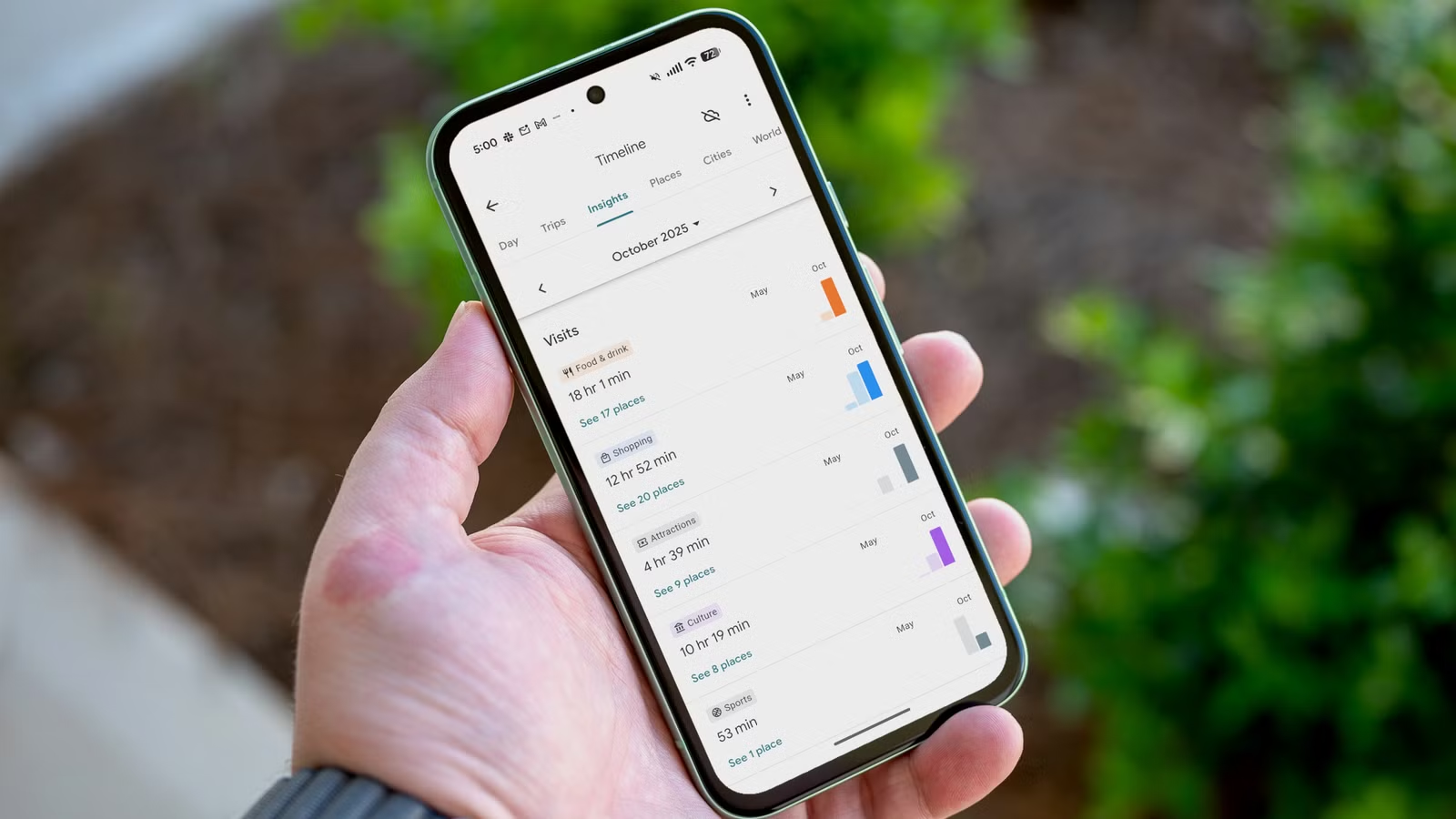
The recaps rely on Google Maps Timeline, which logs everywhere you've visited with your phone. It can be useful for remembering that restaurant you visited three months ago or tracking your commute patterns. But there are obvious privacy concerns with any service that logs your every movement.
Timeline Changed in 2024
Google overhauled its location data storage policies in 2024. The company moved from cloud storage to on-device storage for location backups. This is better for privacy. Your location history stays on your phone rather than sitting on Google's servers.
The trade-off: you can no longer view your location timeline on the web or on any device that didn't record the data. If you switch phones, your old timeline doesn't come with you unless you manually back it up.
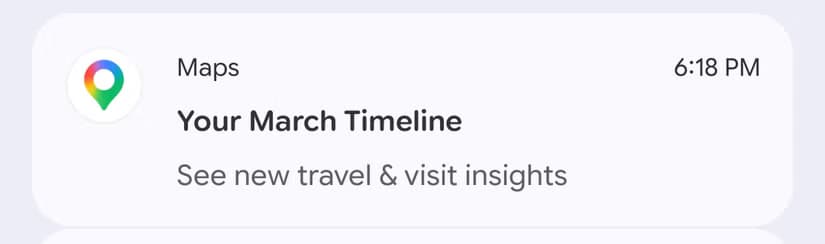
This change also affected monthly recaps. Before 2024, Google sent monthly and yearly recap emails with nice visuals and easy-to-read highlights. Those emails no longer exist. Instead, you get a notification from the Google Maps app on your phone. It's not as polished as the old email format, but it still works.
How to Enable Timeline Recaps
Getting monthly recap notifications requires a few settings to be enabled on Android or iPhone. The most important is Timeline itself.
- Open Google Maps and tap your profile icon in the top right
- Select "Your Timeline" from the menu
- If Timeline is disabled, you'll see a floating button that says "Timeline is off"
- Tap the button to begin setup
- You'll be taken to Google Account settings for Timeline
- Tap "Turn on" and read the information about what data Google will collect
After enabling Timeline, Google Maps will start logging your location. It takes time to build up enough data for meaningful recaps. Don't expect a notification after your first week.
Check Your Notification Settings
Even with Timeline enabled, you won't see recaps if notifications are blocked. Make sure Google Maps has permission to send notifications on your phone.
On Android, go to Settings > Apps > Google Maps > Notifications. On iPhone, go to Settings > Notifications > Google Maps. Ensure the main notification toggle is on.
Google Maps has multiple notification categories. Look for any Timeline-specific or recap-specific toggles and enable them. The exact naming varies by phone manufacturer and OS version.
Privacy Considerations
Timeline tracks everywhere you go. That's useful for recaps but concerning for privacy. The 2024 changes helped by keeping data on your device instead of Google's cloud. But the data still exists on your phone.
Anyone with access to your unlocked phone can view your Timeline. This includes locations you visited, how long you stayed, and the routes you took. Consider whether this trade-off makes sense for your situation.
You can delete specific entries from your Timeline. Open Google Maps, go to Your Timeline, and select a day. Tap on individual locations to remove them. You can also delete entire days or ranges of dates.
Logicity's Take
What You'll See in Recaps
Monthly recaps show highlights from your travels. Expect summaries like total distance traveled, number of places visited, and notable locations. The notification links to your full Timeline where you can explore details.
The recaps aren't as detailed as Spotify Wrapped or similar services. There's no shareable card with fancy graphics. It's more of a personal summary than a social feature.
Frequently Asked Questions
Can I view Google Maps Timeline on my computer?
No. Since 2024, Timeline data is stored on-device only. You can only view it on the phone that recorded the data.
Will my Timeline transfer to a new phone?
Not automatically. You need to manually back up and restore Timeline data when switching devices. The process varies by phone.
How do I delete my entire Google Maps Timeline?
Go to Google Maps > Your Timeline > Settings (three dots) > Delete all Timeline data. This cannot be undone.
Why don't I get monthly recap notifications?
Check that Timeline is enabled and that Google Maps has notification permissions. You also need enough travel data for Google to generate meaningful summaries.
Need Help Implementing This?
Source: How-To Geek
Huma Shazia
Senior AI & Tech Writer
Produced with AI assistance and reviewed by the Logicity editorial team. Learn more in our Editorial Policy.






