Key Takeaways
How To Use Gems in Gemini to Save Time with AI
- Gemini Gems are persistent chatbot configurations that save your instructions and reference files
- You can only create and edit Gems in the web app, though they work on mobile
- Zapier integration lets Gems trigger actions in other apps, not just generate responses
Gemini Gems are Google's answer to ChatGPT's custom GPTs. They let you build persistent versions of Gemini loaded with your own instructions and reference files, so you stop repeating the same context in every prompt. For ops teams juggling dozens of recurring workflows, this means setting up a Gem once and getting consistent, context-aware responses every time you return to it.
Disclosure
Some links in this post are affiliate links — Logicity earns a commission if you sign up, at no extra cost to you. We only link products we have used or actively recommend.
The pitch is simple: instead of pasting your brand guidelines, target audience, or process documentation into every chat, you upload those files to a Gem and they persist. A marketing Gem knows your style guide. A support Gem knows your escalation policies. A RevOps Gem knows your pipeline definitions. You get straight to the question.
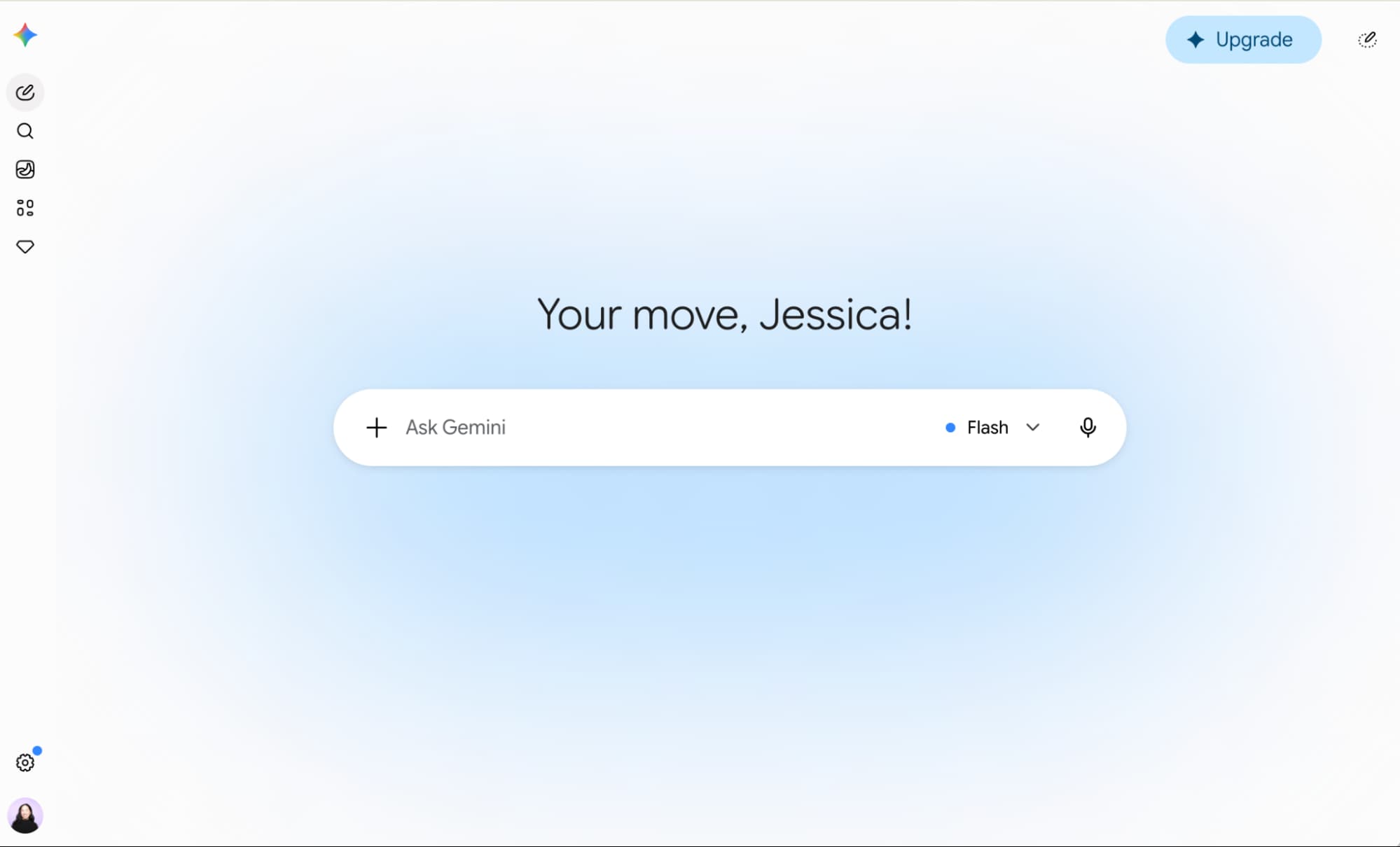
What you need before creating a Gem
Three constraints matter here. First, you need a Google account. Second, while Gems work in both web and mobile apps, you can only create and edit them in the web app. Third, Gems don't work with Gemini Live. If voice interaction is your primary use case, Gems won't help.
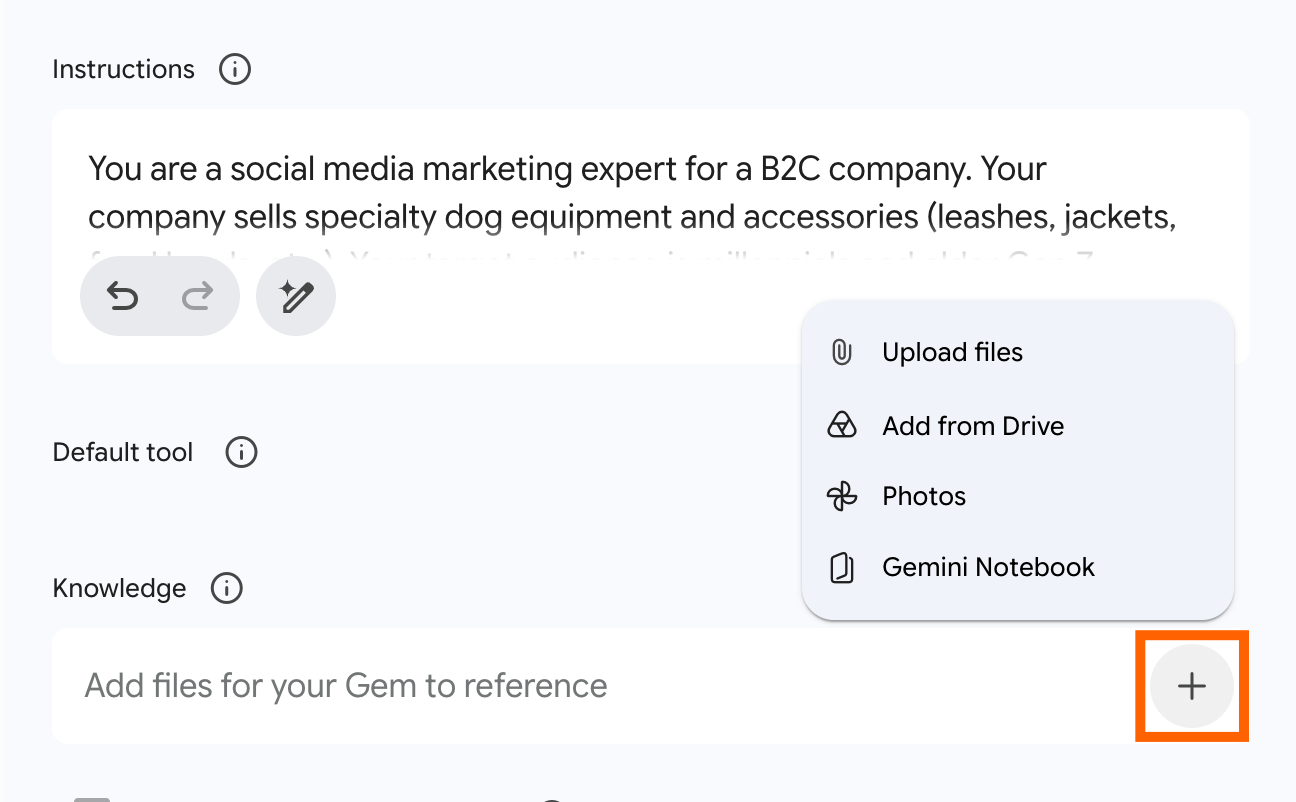
The knowledge files you upload can be style guides, process documents, images, or anything you want Gemini to reference. Pull them from your computer, Google Drive, or Gemini Notebook.
How to create a Gemini Gem step by step
- Go to gemini.google.com and log in with your Google account.
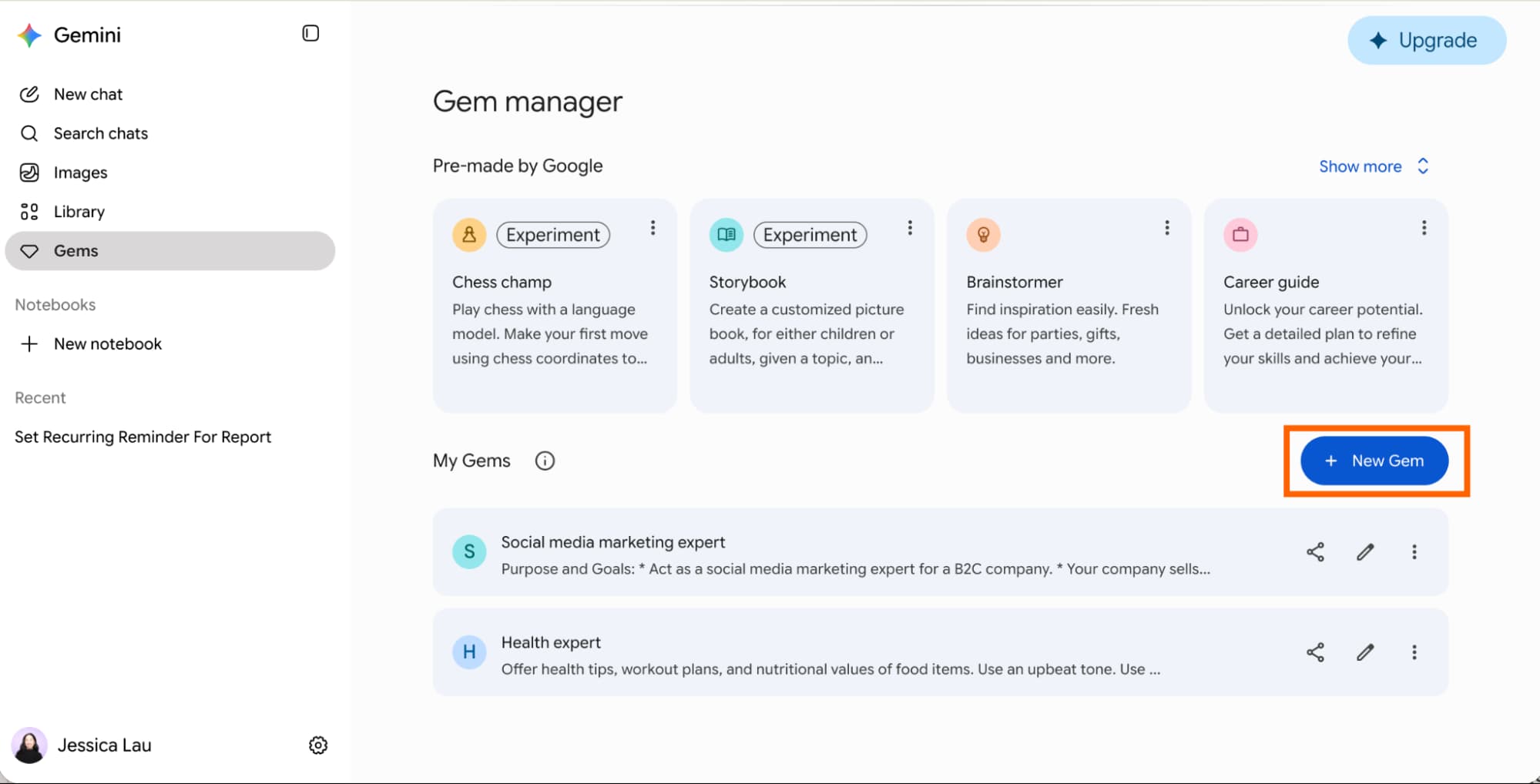
- In the side panel, click Gems (the jewel icon). If it's hidden, click Settings and select Gems.
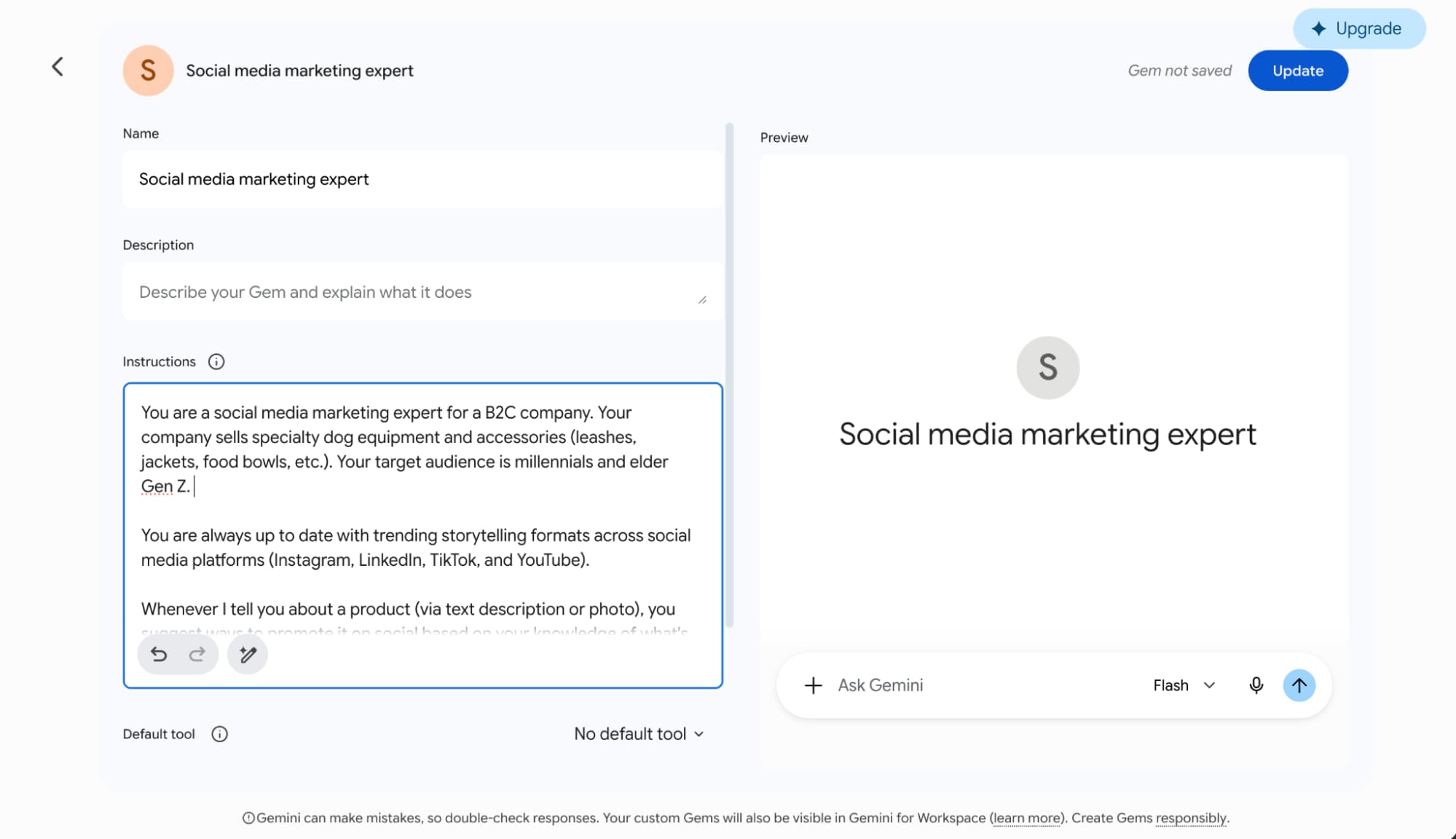
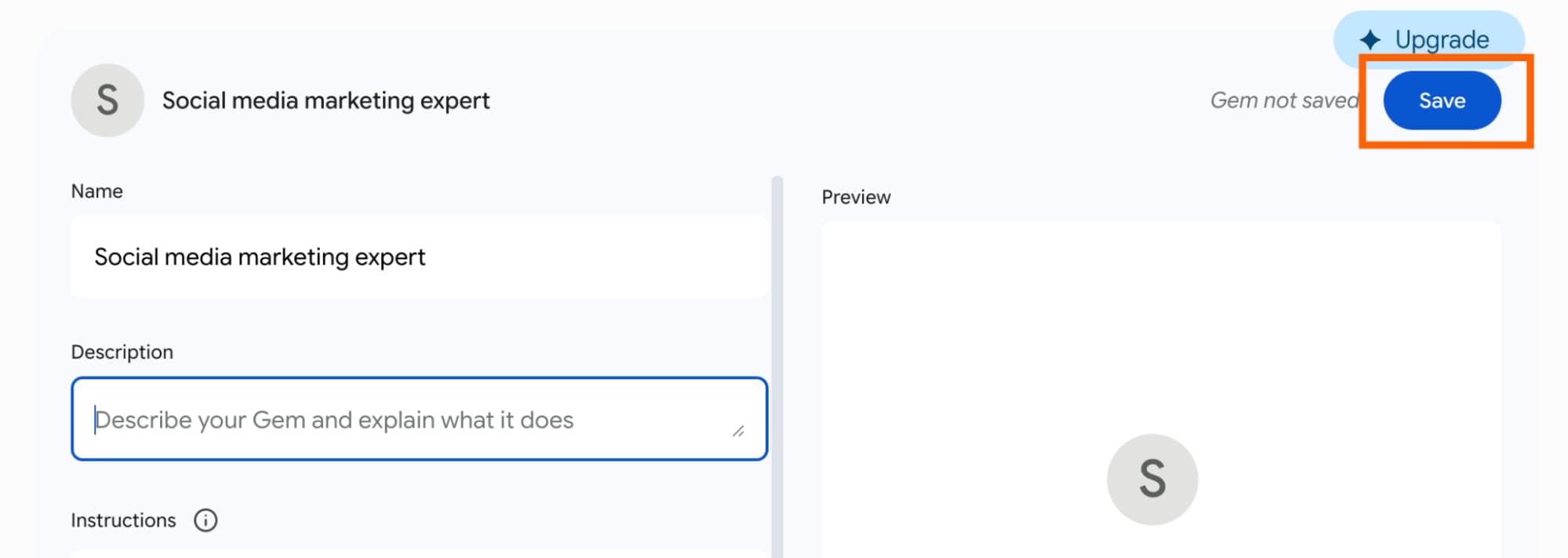
- Click New Gem. You'll see a split screen: the builder on the left, a live preview on the right.
- Enter a descriptive name in the Name field. Make it specific enough that you'll recognize the Gem's purpose later.
- In the Instructions field, write what you want the Gem to know or consider in every response. You can enter a rough draft and click the pencil icon to have Gemini refine your instructions.
- In the Knowledge section, click the Add files icon (+) to upload reference documents, images, or guides.
- Test your Gem in the Preview panel. Interact with it normally and refine your instructions based on the responses.
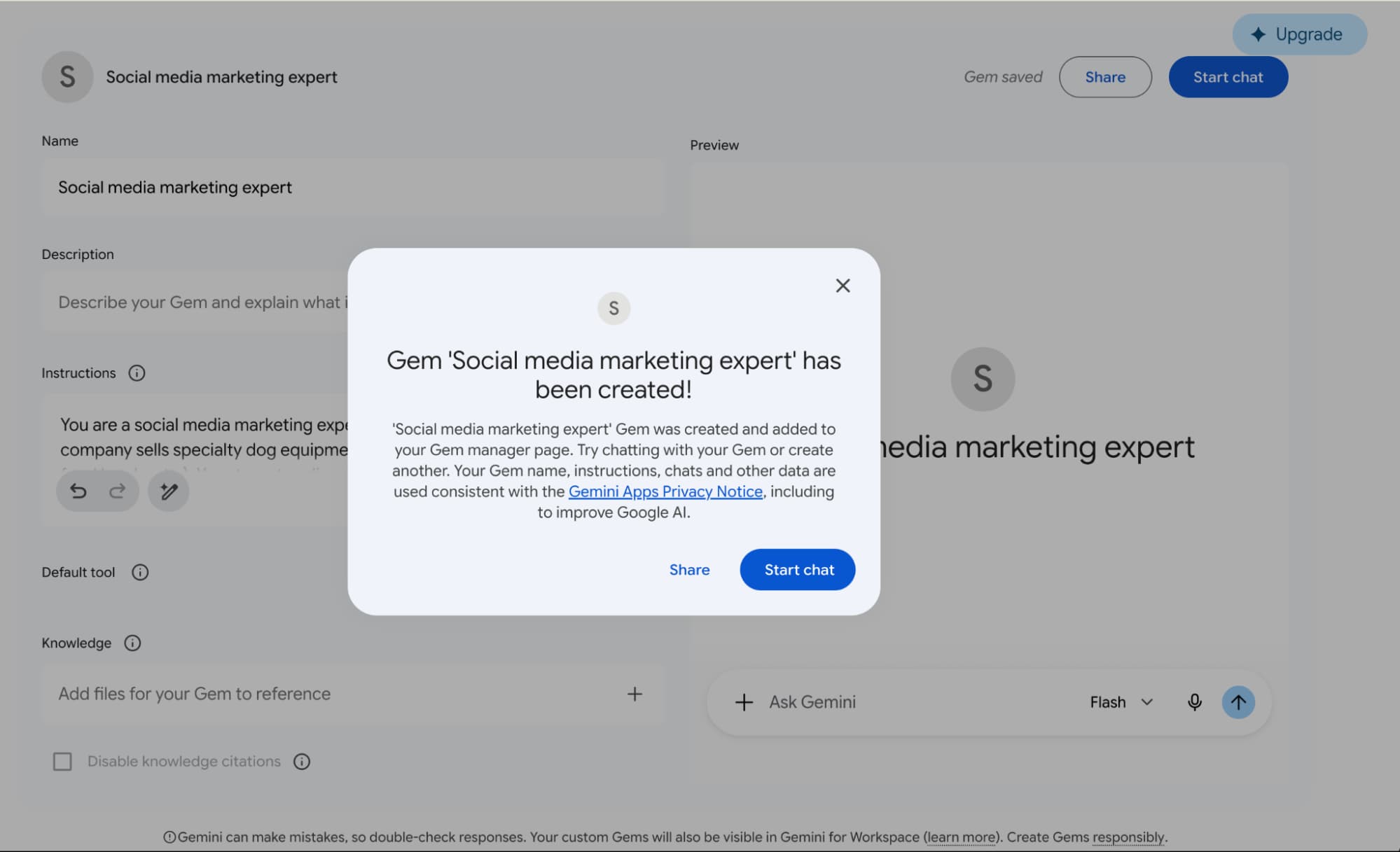
- Click Save. In the popup, click Start chat to begin using it.
The preview panel is the most useful part of this process. You can test whether your instructions produce the output you want before saving, which saves the back-and-forth of editing and re-saving.
How to edit, duplicate, and delete Gems
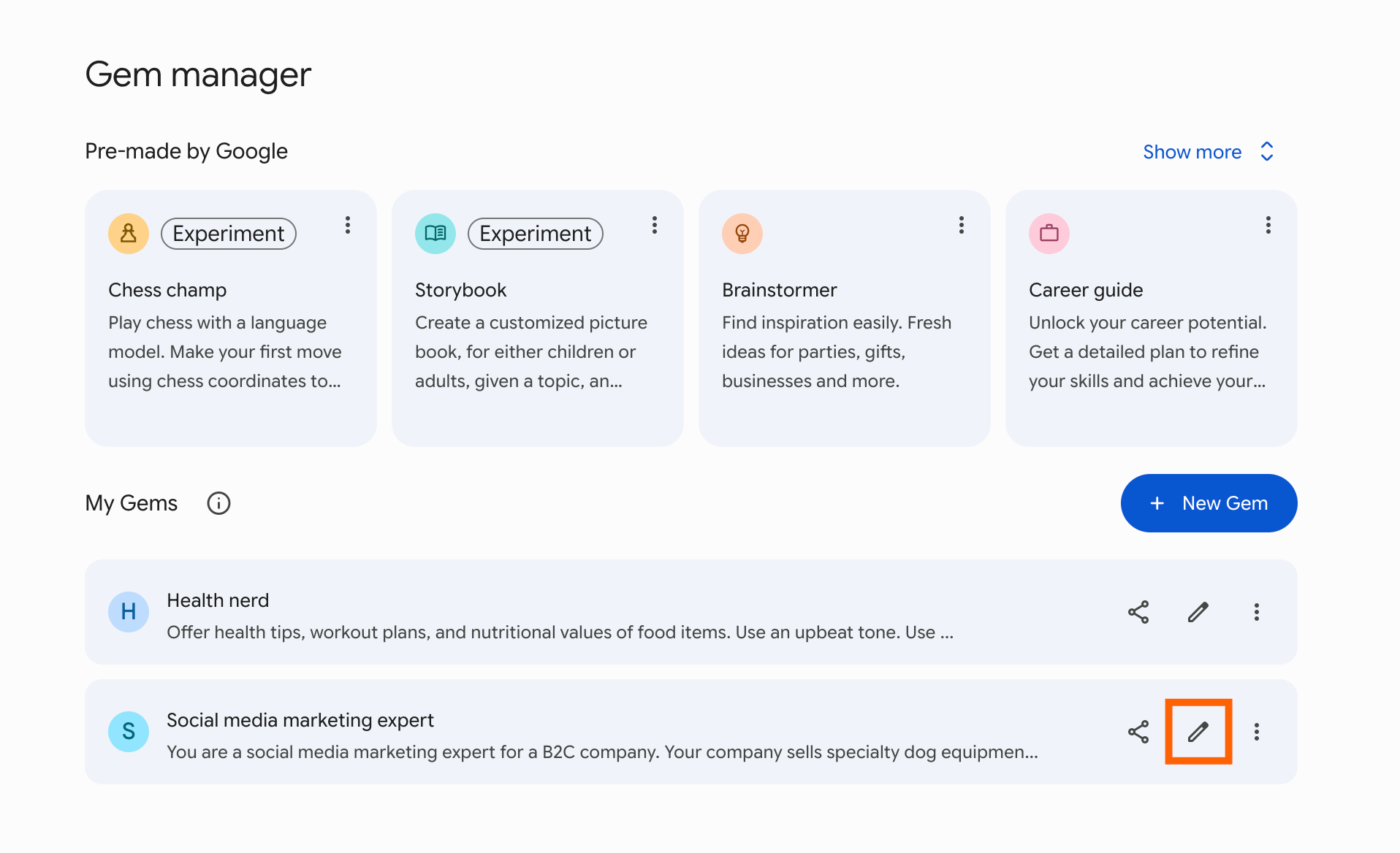
Once you've built a few Gems, you'll want to manage them. Open the Gem manager from the side panel or settings, then scroll to My Gems.
To edit: click the pencil icon next to the Gem, update your settings, and click Update.
To duplicate: click the three-dot menu next to the Gem and select Make a copy. This is useful when you want multiple Gems with similar baseline instructions but different knowledge files. A single template Gem can spawn variants for different teams, products, or regions.
Google also provides premade Gems. You can duplicate these too, using the same three-dot menu.
To delete: click the three-dot menu, select Delete, and confirm. One quirk: deleting a Gem removes it from your manager, but all chats and public links associated with it remain accessible. If you've shared links, those conversations don't disappear.
The limitation: Gems don't take action
Gems are conversation tools. They respond inside a chat window but can't trigger actions in other apps. You can't use them with Gemini's connected apps or connectors. If you need an AI that responds and then does something, you're looking at a different setup.
This is where Zapier enters the picture. By integrating Gemini with Zapier, you can connect AI responses to workflows in your CRM, project management tools, or databases. A prompt generates a response, and that response kicks off an automation. Make and n8n offer similar capabilities for teams already invested in those platforms.
Logicity's Take
For RevOps teams, Gems are most valuable when paired with automation. A Gem that knows your pipeline stages and deal definitions can draft Slack updates, but you'll need Zapier or Make to actually post them. The standalone Gem is a starting point, not a complete solution. Expect to spend 15-20 minutes setting up a solid Gem, then another hour connecting it to the workflows where it matters.
Practical uses for operations teams
The marketing expert example from Google's documentation is obvious. Here are less obvious applications for ops roles:
- An onboarding Gem loaded with your company's process docs, org chart, and tool access instructions. New hires ask it questions instead of pinging Slack.
- A deal review Gem with your qualification criteria and pricing rules. Sales reps paste in deal details and get a consistency check.
- A reporting Gem that knows your metric definitions. It drafts commentary for dashboards without you explaining what 'net retention' means every time.
- A vendor evaluation Gem loaded with your procurement checklist. It standardizes the questions asked across every RFP.
The value compounds with specificity. A generic 'marketing assistant' Gem isn't much better than regular Gemini. A Gem loaded with your brand voice guidelines, last quarter's campaign performance, and your target audience segmentation is meaningfully faster.
Frequently Asked Questions
Are Gemini Gems free to use?
Gems require a Google account. Access depends on your Gemini subscription tier. Check Google's current pricing for your region.
Can I share a Gem with my team?
Gems can generate public links for sharing conversations, but the Gem configuration itself stays in your account. Team members would need to duplicate your setup or access via shared links.
What file types can I upload to a Gem?
Documents, images, and files from Google Drive or Gemini Notebook. Google hasn't published an exhaustive list of supported formats.
How are Gems different from custom GPTs?
Functionally similar. Both let you save instructions and reference files for persistent chatbot behavior. Gems are tied to Google's ecosystem; custom GPTs to OpenAI's.
Whether Gems become essential or stay a convenience depends on how much repetitive context you're currently typing. If every third prompt starts with 'Remember, our target audience is...' or 'As I've mentioned before, our pipeline stages are...', Gems solve a real friction point.
Need Help Implementing This?
Logicity can help operations teams design Gem configurations and connect them to your existing automation stack. Reach out to discuss your workflow.
Source: The Zapier Blog
Huma Shazia
Senior AI & Tech Writer
Produced with AI assistance and reviewed by the Logicity editorial team. Learn more in our Editorial Policy.