Key Takeaways
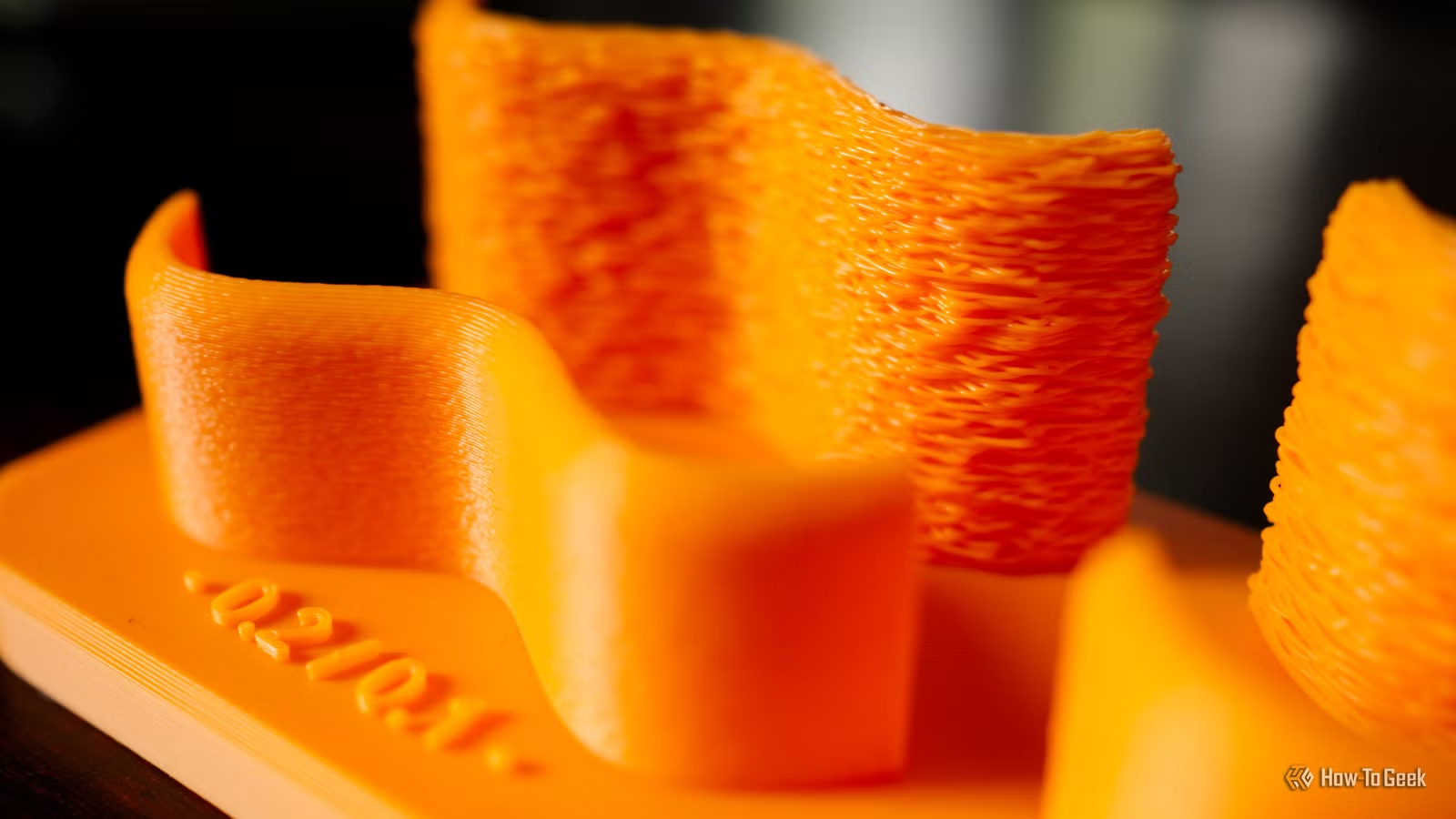
- Fuzzy skin adds texture to vertical surfaces, hiding layer lines and seams without post-processing
- The effect is adjustable via thickness and point distance settings in your slicer
- Best suited for decorative items, grips, or prints where smooth finish isn't required
Fuzzy skin is a slicer setting that masks the telltale layer lines of FDM 3D printing by deliberately roughening outer surfaces. Enable it, dial in two or three parameters, and your prints come out looking textured rather than striped. The technique has been around for years, but most hobbyists ignore it because they assume "smooth" equals "good." That's backwards for plenty of use cases.
How does fuzzy skin actually work?
FDM printers build objects layer by layer, stacking molten filament in horizontal rings. Each ring leaves a visible line where it meets the next. Fuzzy skin disrupts this pattern by introducing tiny, randomized nozzle movements or extrusion variations as the outer wall is printed. The result is an uneven micro-texture that scatters light and hides the horizontal banding.
The effect applies primarily to vertical and curved surfaces. Flat top layers remain untouched, and infill stays normal. Your slicer lets you choose whether fuzzy skin covers only the outermost contour, all contours and walls, or specific regions you define. Slicers like Bambu Studio, PrusaSlicer, and Cura all support the feature with slightly different parameter names.
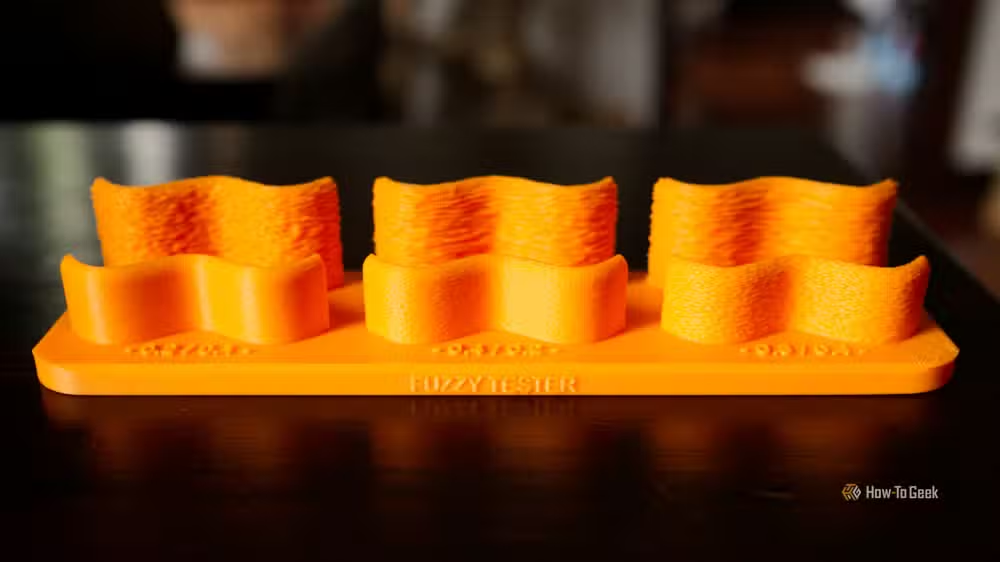
Beyond layer lines, fuzzy skin eliminates two other annoyances. Seams, the vertical lines where each layer starts and stops, disappear into the texture. Ghosting, the ripple artifacts caused by printer vibrations during fast direction changes, also becomes invisible. If your printer's frame isn't perfectly rigid, fuzzy skin can paper over mechanical shortcomings.
What settings control the effect?
Three main parameters determine how fuzzy your print turns out. Point distance sets how often the nozzle deviates. Smaller values create denser, finer grain. Thickness controls how far the nozzle strays from the ideal path. Larger values produce a more pronounced, rougher look. Mode lets you pick between displacement (nozzle movement), extrusion (flow variation), or combined.
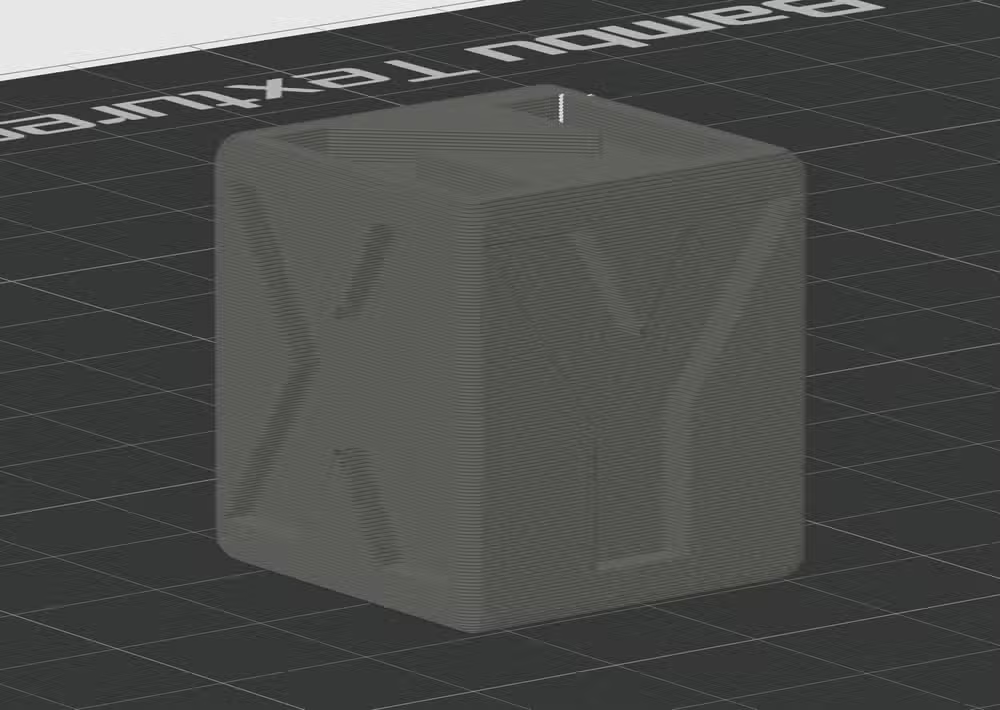
Bambu Studio's defaults use 0.8 mm point distance and 0.3 mm thickness. That yields a coarse, obviously textured surface. Drop thickness to 0.05 mm and distance to 0.4 mm, and the finish resembles the subtle stipple of a textured PEI build plate. The slicer preview shows the effect before you print, so experimentation costs nothing but time.
When should you actually use it?
Fuzzy skin trades smoothness for consistency. A print without fuzzy skin might have some smooth sections and some obvious banding, depending on geometry and print speed. A fuzzy-skin print is uniformly rough. That trade-off makes sense for decorative items, organizers, stands, cases, basically anything where detail isn't critical.
One Reddit user printed a necklace stand with fuzzy skin and the result didn't look like a 3D print at all. The texture also adds grip, making it useful for phone cases, tool handles, or anything you'd rather not have slide out of your hand. And if you're printing something that's supposed to look like stone, metal, or wood, fuzzy skin sells the illusion better than a slick plastic surface.
Where fuzzy skin fails: anything requiring tight tolerances or fine detail. Threads, snap-fit joints, text, logos. The randomized texture will blur or distort small features. Functional parts that need to mate precisely should stay smooth.
How to dial in your own settings
Download a fuzzy skin test model from Printables or Thingiverse, a small cube or cylinder with multiple surfaces. Print it several times with different thickness and point distance combinations. Start with the slicer defaults, then halve the thickness and observe the difference. The preview helps, but real prints under real lighting reveal more.
Keep notes. A spreadsheet with thickness, distance, mode, and a photo of each result will save you from re-running the same experiments later. Once you find a setting you like, save it as a preset in your slicer so you can toggle it on for future projects without hunting for the numbers.
Does filament type matter?
PLA works well because it's stiff and holds the micro-texture after cooling. PETG and ABS also work, though their slight stringing tendencies can interact with fuzzy skin in unpredictable ways. Flexible filaments like TPU are less predictable. The extrusion variations that create fuzzy skin can cause under-extrusion on soft materials if your retraction settings aren't dialed in.
Matte filaments pair especially well with fuzzy skin. The texture diffuses light, and matte PLA already absorbs rather than reflects, so the combination produces a finish that looks almost injection-molded.
Logicity's Take
Fuzzy skin is one of those features that sits in plain sight while users chase expensive upgrades. A $300 printer with fuzzy skin can produce results that look better than a $1,500 machine printing smooth, because the texture masks the mechanical imperfections inherent to all FDM systems. If you're printing decorative items or functional parts where grip matters, ignoring fuzzy skin is leaving quality on the table.
Frequently Asked Questions
Does fuzzy skin increase print time?
Slightly. The nozzle makes extra movements, which adds a few percent to total print time. For most models the difference is negligible.
Can I apply fuzzy skin to only part of a model?
Yes. Most slicers let you paint fuzzy skin onto specific surfaces or exclude regions, so you can keep threads or mating faces smooth.
Does fuzzy skin work with resin printers?
No. Fuzzy skin is an FDM slicer feature that manipulates nozzle movement. Resin printers cure entire layers at once and don't have an equivalent.
Will fuzzy skin hide poor bed adhesion artifacts?
Only on vertical surfaces. The first layer, which contacts the bed, isn't affected by default fuzzy skin settings.
What's the difference between displacement and extrusion mode?
Displacement moves the nozzle off-path. Extrusion varies how much filament is pushed out. Combined uses both for a more pronounced effect.
Need Help Implementing This?
If you're running a makerspace, prototyping lab, or hardware startup and want to standardize slicer profiles across your team, Logicity can connect you with consultants who specialize in 3D printing workflows. Reach out via our contact page.
Source: How-To Geek
Manaal Khan
Tech & Innovation Writer
Produced with AI assistance and reviewed by the Logicity editorial team. Learn more in our Editorial Policy.






