Key Takeaways
- Microsoft designs Windows with enterprise networking defaults that remain active on home PCs.
- Services like Print Spooler and Smart Card often sit idle, consuming memory and increasing the attack surface.
- Disable services with caution, test your system, and always rely on built-in service descriptions before making changes.
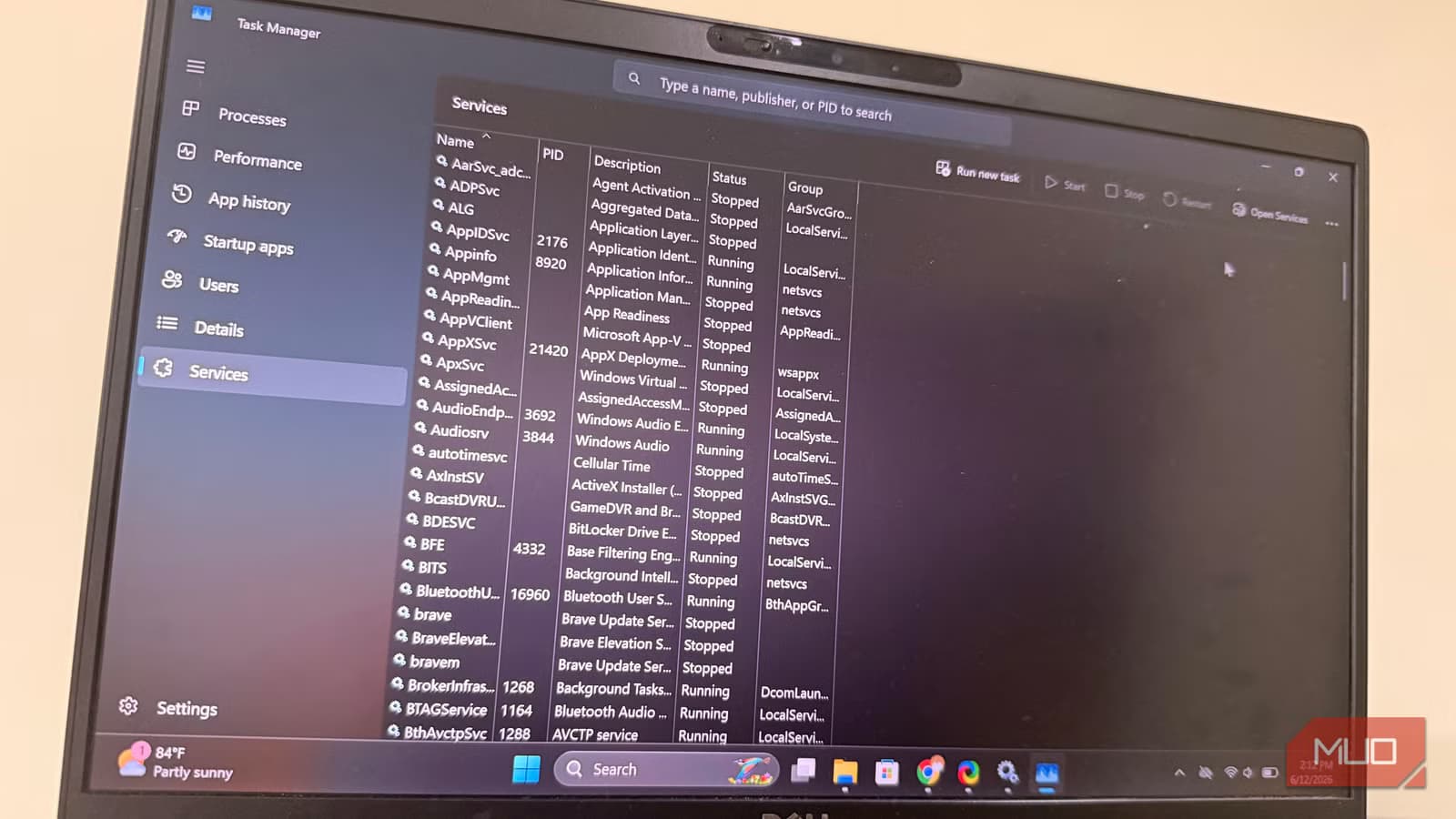
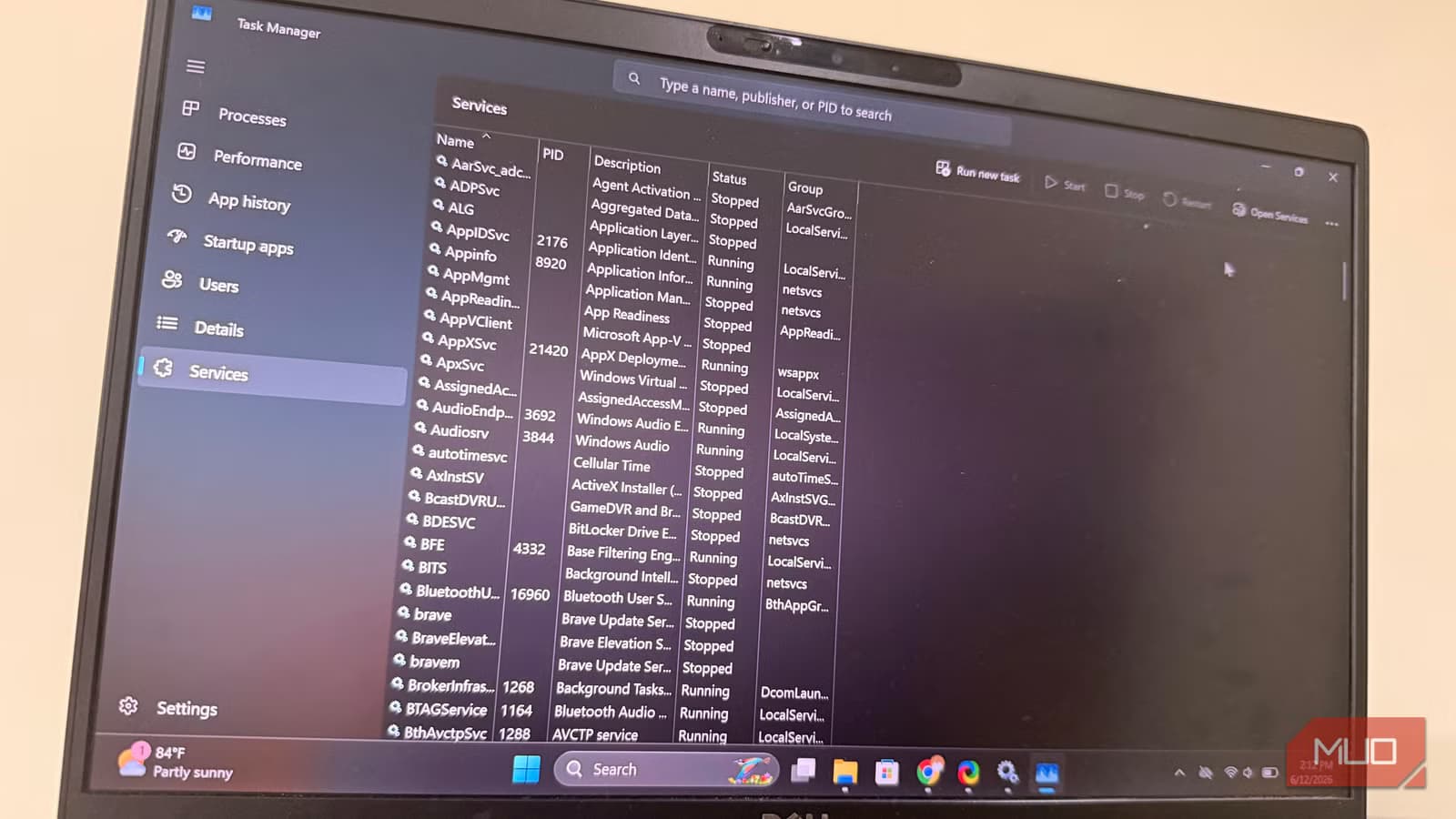
Every time you boot a Windows PC, dozens of processes start automatically in the background. While essential for system operation, many of these are designed to support massive corporate networks, not individual home systems. For a user seeking a lean, efficient environment, these services often qualify as unnecessary bloat.
Windows is engineered to be a one-size-fits-all OS, which means it runs a multitude of background services to ensure compatibility with everything from enterprise servers to home laptops—most of which the average user never touches. By identifying and disabling services that do not align with your specific usage, you can reclaim system resources and slightly reduce your machine's overall security attack surface.
Which Windows services are safe to disable?
The Print Spooler is perhaps the most common example of a service that persists for no practical reason on home machines. It manages print jobs sent from applications to a printer. Even if you haven't touched a physical printer in years, the Spooler runs in the background waiting for requests.
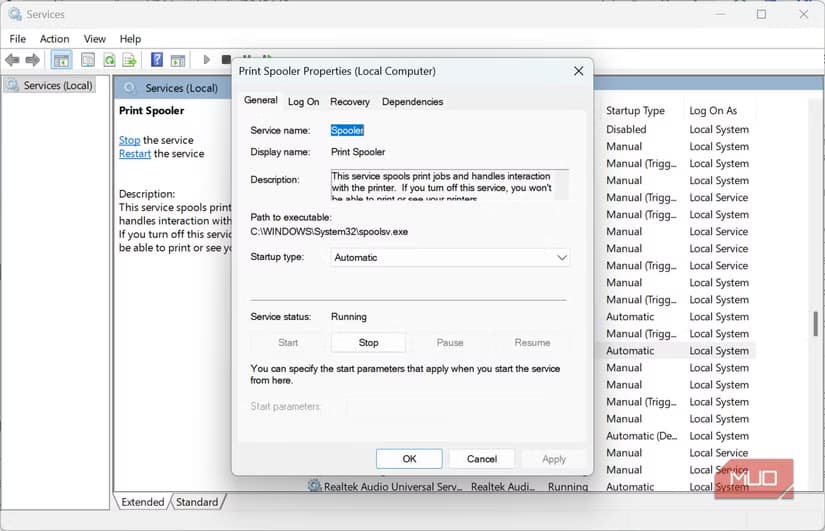
While the resource usage is relatively low, its existence is largely irrelevant to those who print digitally or not at all. Furthermore, its role as a persistent background process has historically made it a security target, as seen in the 2021 PrintNightmare vulnerability.
Similarly, the Smart Card service handles physical smart card authentication, common in military or high-security government environments. Most home users will never need to connect a smart card reader to their PC, yet the service remains active by default. Checking the description within the Windows Services app can confirm if your daily workflow requires it—for most, the answer is no.
Managing file shortcuts and search behavior
Distributed Link Tracking is another service that aims to maintain file shortcuts if the underlying file location changes. While helpful for networked storage in an office, it is rarely needed for local home storage. Disabling it usually causes no issues, as most home PCs do not rely on the complex network references this service was built to manage.
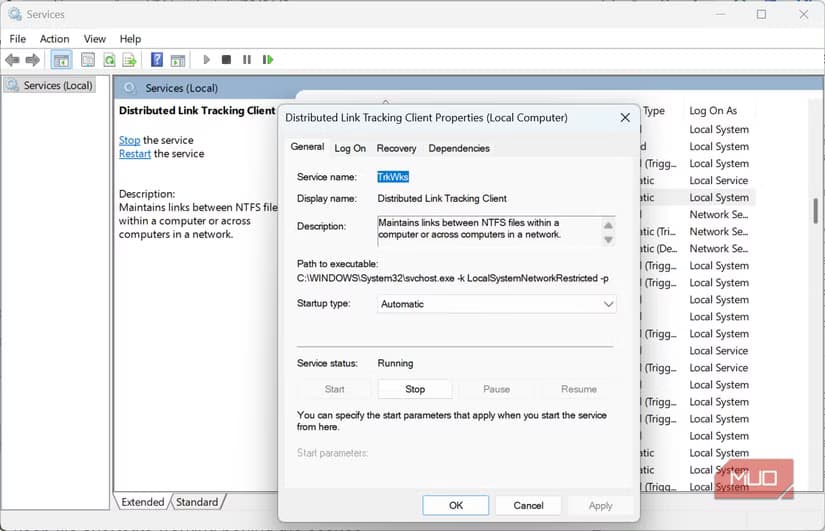
Windows Search is arguably the most impactful service on this list. It indexes files to speed up finding them later, which consumes significant hardware resources. While useful for many, power users often find the constant background crawling excessive for their storage patterns.
Logicity's Take
The obsession with disabling services often outpaces the actual performance gains. Modern hardware handles these processes easily, and disabling the wrong one can lead to stability issues that are far more annoying than saving 100MB of RAM. Approach this as a targeted pruning exercise rather than an attempt to 'debloat' the system to the bone.
To safely modify these settings, open the Services app, double-click the target process, set the Startup type to Disabled, and stop the service. Always restart your system and test your regular workflow for a few days before deciding they can remain permanently off.
Frequently Asked Questions
Will disabling these services make my PC significantly faster?
For most modern PCs, the performance impact is negligible. The primary benefit is reducing background noise and the potential attack surface.
How do I know if I need a service?
Use the built-in description in the Windows Services app. If you do not use the feature it describes, you likely do not need the service.
What happens if I disable a service I actually need?
You might encounter errors, broken features, or stability issues. If this happens, return to the Services app and set the Startup type back to its original setting.
Need Help Implementing This?
If you are uncertain about modifying these services, start by creating a system restore point. This allows you to revert your PC to its exact state if an adjustment causes unexpected behavior.
Source: MakeUseOf
Manaal Khan
Tech & Innovation Writer
Produced with AI assistance and reviewed by the Logicity editorial team. Learn more in our Editorial Policy.