
Key Takeaways

- Case-sensitive matching prevents misclassification of customer tiers and inventory codes
- Automates manual data review that typically takes 2-4 hours per week
- Reduces reporting errors in compliance-sensitive industries by catching casing discrepancies
Read in Short
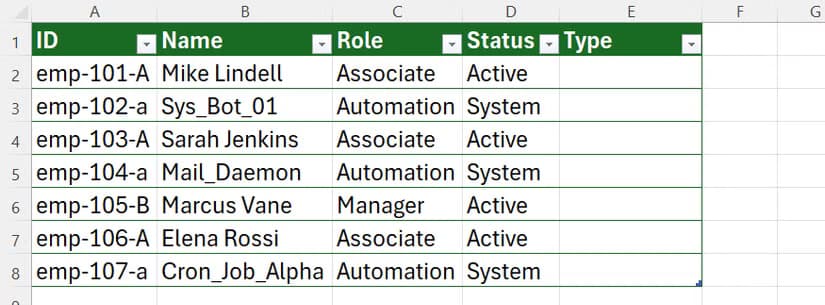
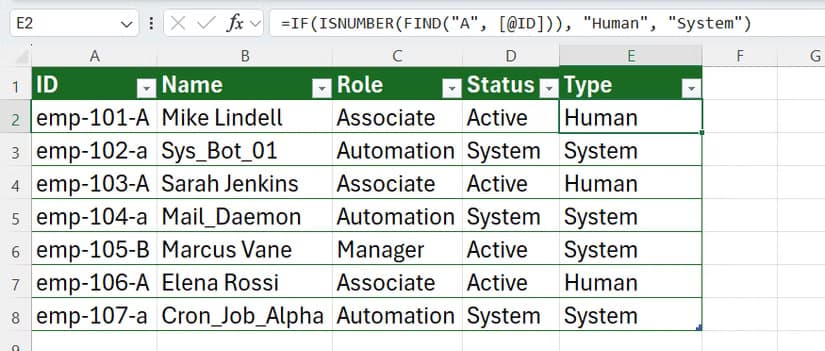
The Excel FIND function is case-sensitive, making it essential for distinguishing between IDs like 'A-1001' (human accounts) and 'a-1001' (automated systems). Unlike SEARCH, FIND treats uppercase and lowercase as different values. This prevents data misclassification that leads to reporting errors, compliance issues, and hours of manual cleanup.
According to [How-To Geek](https://www.howtogeek.com/microsoft-excel-find-function-case-sensitive/), most Excel functions ignore the difference between capital and lowercase letters, which creates problems when case-sensitive IDs are critical to your workflow. The FIND function acts as a strict gatekeeper, treating casing as a critical data point rather than a suggestion.
Here's why this matters for your business: if your team manages customer tiers, inventory SKUs, or compliance tags where casing indicates different categories, using the wrong Excel function means silent data corruption. Your reports look accurate but contain misclassified records that compound over time.
Why Does Case Sensitivity Matter in Business Data?
In many enterprise systems, casing is the only thing separating two categories of data. An uppercase 'A' might represent a human associate while a lowercase 'a' represents an automated system account. Healthcare providers use casing to distinguish between patient-facing and internal records. Financial services firms encode risk levels through letter casing in reference codes.
When your Excel formulas can't distinguish between these, you get misrouted reports, incorrect billing, and compliance documentation that doesn't match your actual data. The fix isn't hiring more people to manually check records. It's using the right function.
Executive Summary
FIND is Excel's case-sensitive text locator. Use it when: (1) your IDs use casing to encode meaning, (2) you're validating data imports from systems with case-sensitive conventions, or (3) compliance requires exact-match verification. Skip it when casing doesn't matter to your workflow.
How Does the Excel FIND Function Work?
The FIND function locates a specific character or text string and returns its numerical position within the cell. The syntax is straightforward:
=FIND(find_text, within_text, [start_num])- find_text (required): The exact text you want to locate, enclosed in double quotes
- within_text (required): The cell or string containing your data
- start_num (optional): Where to begin searching (defaults to position 1)
If FIND can't locate an exact case-sensitive match, it returns the #VALUE! error. This is actually useful for business applications. You can use IFERROR to wrap FIND and create binary flags: match found or no match. That's your automation hook.
Excel FIND vs SEARCH: Which Should Business Teams Use?
This is where most Excel users get tripped up. SEARCH and FIND look nearly identical but behave differently in ways that affect your data integrity.
| Feature | FIND | SEARCH |
|---|---|---|
| Case Sensitivity | Yes (strict matching) | No (ignores case) |
| Wildcard Support | No | Yes (* and ?) |
| Error on No Match | #VALUE! | #VALUE! |
| Best Use Case | ID validation, compliance checks | Fuzzy text searching |
| Performance Impact | Minimal | Minimal |
The decision tree is simple. If casing encodes meaning in your data, use FIND. If you're searching for keywords regardless of how they're typed, use SEARCH. Most business data quality issues stem from using SEARCH when FIND was needed.
Business Use Case: Flagging Customer Tier IDs
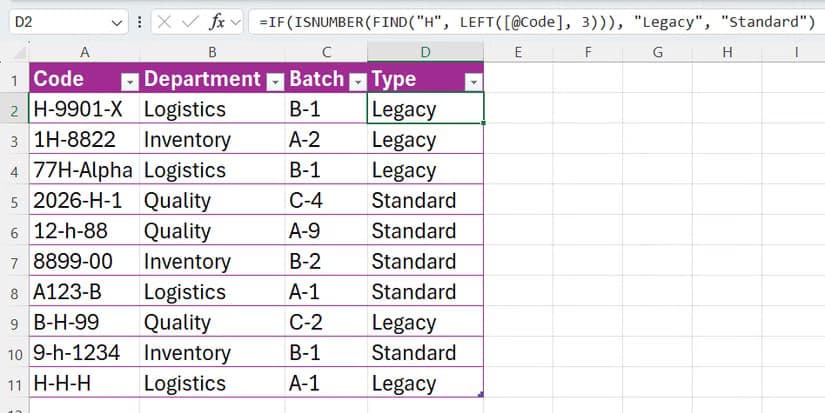
Let's walk through a scenario that affects customer success and finance teams. Your CRM exports customer IDs where uppercase letters indicate premium tiers and lowercase letters indicate standard accounts. The billing team needs to separate these for different invoice workflows.
Without case-sensitive matching, a customer with ID 'PRO-A-2024' gets lumped together with 'PRO-a-2024'. That's the difference between a $50,000 enterprise contract and a $500 SMB subscription being routed to the wrong billing queue.
The formula that solves this:
=IF(ISNUMBER(FIND("A",B2)),"Premium","Standard")This returns 'Premium' only when an uppercase A exists in the cell. Lowercase 'a' returns 'Standard'. Your billing automation now routes correctly without manual intervention.
How Much Time Does Automated Data Validation Save?
Operations managers consistently underestimate how much time goes into manual data verification. When your Excel formulas don't catch case discrepancies, someone has to review exports line by line before they go into dashboards or client reports.
For a mid-size company processing 10,000 records monthly, automating case-sensitive checks with FIND eliminates roughly 15-20 hours of manual review per month. At an average analyst salary, that's $400-600 in direct labor savings monthly, plus the indirect cost of delayed reports and catch-up work.
When automation tools fail, manual processes become critical. Here's how to build redundancy.
Compliance Applications: Why Auditors Care About Casing
In regulated industries, case-sensitive data isn't a preference. It's a requirement. Healthcare systems use casing to differentiate between patient-identifiable and de-identified records in the same datasets. Financial services firms encode compliance status through specific letter patterns.
When you're preparing audit documentation, being able to prove that your Excel workbooks correctly identified and segregated case-sensitive categories demonstrates data governance maturity. Auditors notice when organizations have systematic validation versus ad-hoc manual checks.
The FIND function combined with conditional formatting creates visual verification that case-sensitive rules are being applied consistently across your datasets.
Common Pitfalls When Using FIND in Business Workflows
✅ Pros
- • Catches data quality issues that SEARCH misses entirely
- • Integrates with IF, IFERROR, and conditional formatting for automation
- • Zero additional software cost since it's native to Excel
- • Works in both Excel desktop and web versions
❌ Cons
- • Returns errors instead of blank cells when no match exists (requires IFERROR wrapper)
- • Doesn't support wildcards, limiting fuzzy matching capabilities
- • Team members unfamiliar with case sensitivity may override formulas
- • Large datasets with many FIND calls can slow recalculation
The biggest operational risk isn't the function itself. It's knowledge transfer. When the person who built the case-sensitive validation leaves, their replacement often doesn't understand why FIND was used instead of SEARCH. Document your formulas with cell comments explaining the business logic.
More ways to reduce operational costs using tools you already have access to.
When Should You Move Beyond Excel for Data Validation?
Excel handles case-sensitive validation well for datasets under 100,000 rows. Beyond that threshold, or when you need real-time validation as data enters your systems, consider moving validation logic upstream into your database or application layer.
Signs you've outgrown Excel-based validation include: recalculation times exceeding 30 seconds, multiple team members editing validation formulas, and errors appearing in production reports despite existing checks. At that point, the ROI on a proper data quality tool or custom validation pipeline becomes positive.
Data integrity isn't just about accuracy. Security matters when business data moves between systems.
Logicity's Take
At Logicity, we build automation workflows for startups and mid-size companies using n8n, custom APIs, and database-level validation. Here's our honest take on Excel FIND: it's the right tool for 80% of case-sensitive validation needs. We've seen clients spend $15,000 on data quality platforms when a well-structured Excel workbook with FIND, IFERROR, and conditional formatting would have solved their problem. The key is documentation. When we audit client workflows, the Excel files that cause problems aren't using the wrong functions. They're using the right functions without any explanation of why. Add comments. Create a 'Formula Logic' sheet in your workbook. Train your team on case sensitivity. You don't need a $500/month SaaS tool to validate customer tier codes. You need a 30-minute team training session and formulas that explain themselves. That said, if you're processing more than 50,000 records daily or need real-time validation in a web application, Excel becomes a bottleneck. At that scale, we typically recommend moving validation into the data pipeline using Python or database constraints. The Excel workbook becomes your prototyping environment, not your production system.
Frequently Asked Questions
Frequently Asked Questions
What's the difference between FIND and SEARCH in Excel?
FIND is case-sensitive and treats 'A' and 'a' as different characters. SEARCH ignores case and supports wildcards. Use FIND when casing encodes meaning in your data (customer tiers, inventory codes, compliance tags). Use SEARCH for general text lookups where exact casing doesn't matter.
How do I avoid #VALUE! errors when using FIND?
Wrap your FIND formula in IFERROR to return a fallback value when no match exists. Example: =IFERROR(FIND("A",B2),"Not Found") returns 'Not Found' instead of an error when the uppercase A isn't present.
Can FIND handle multiple search terms at once?
No, FIND searches for one text string at a time. For multiple case-sensitive checks, nest multiple FIND functions within an OR or AND statement, or use a helper column for each search term and combine results.
Is the FIND function available in Google Sheets?
Yes, Google Sheets has an identical FIND function with the same case-sensitive behavior and syntax. Your formulas will work in both platforms without modification.
How much time does case-sensitive validation actually save?
For teams processing 5,000-10,000 records monthly, automated case-sensitive validation typically saves 15-20 hours of manual review time per month. The ROI compounds when you factor in reduced error correction and faster report delivery.
Need Help Implementing This?
Logicity specializes in workflow automation for growing businesses. If your data validation needs have outgrown spreadsheets, or you want to build robust pipelines that catch errors before they hit production, we can help. We work with n8n, custom APIs, and database-level validation to create systems that scale with your business. Get in touch to discuss your data quality challenges.
Source: How-To Geek
Manaal Khan
Tech & Innovation Writer
Produced with AI assistance and reviewed by the Logicity editorial team. Learn more in our Editorial Policy.






