Key Takeaways
- Everything indexes 500,000+ files in under 1 second by reading NTFS metadata directly
- Windows Search's background indexing causes CPU spikes, disk thrashing, and still misses files
- Power users on Reddit rank Everything as the first app to install on a fresh Windows build
Why Windows Search Fails at Its One Job
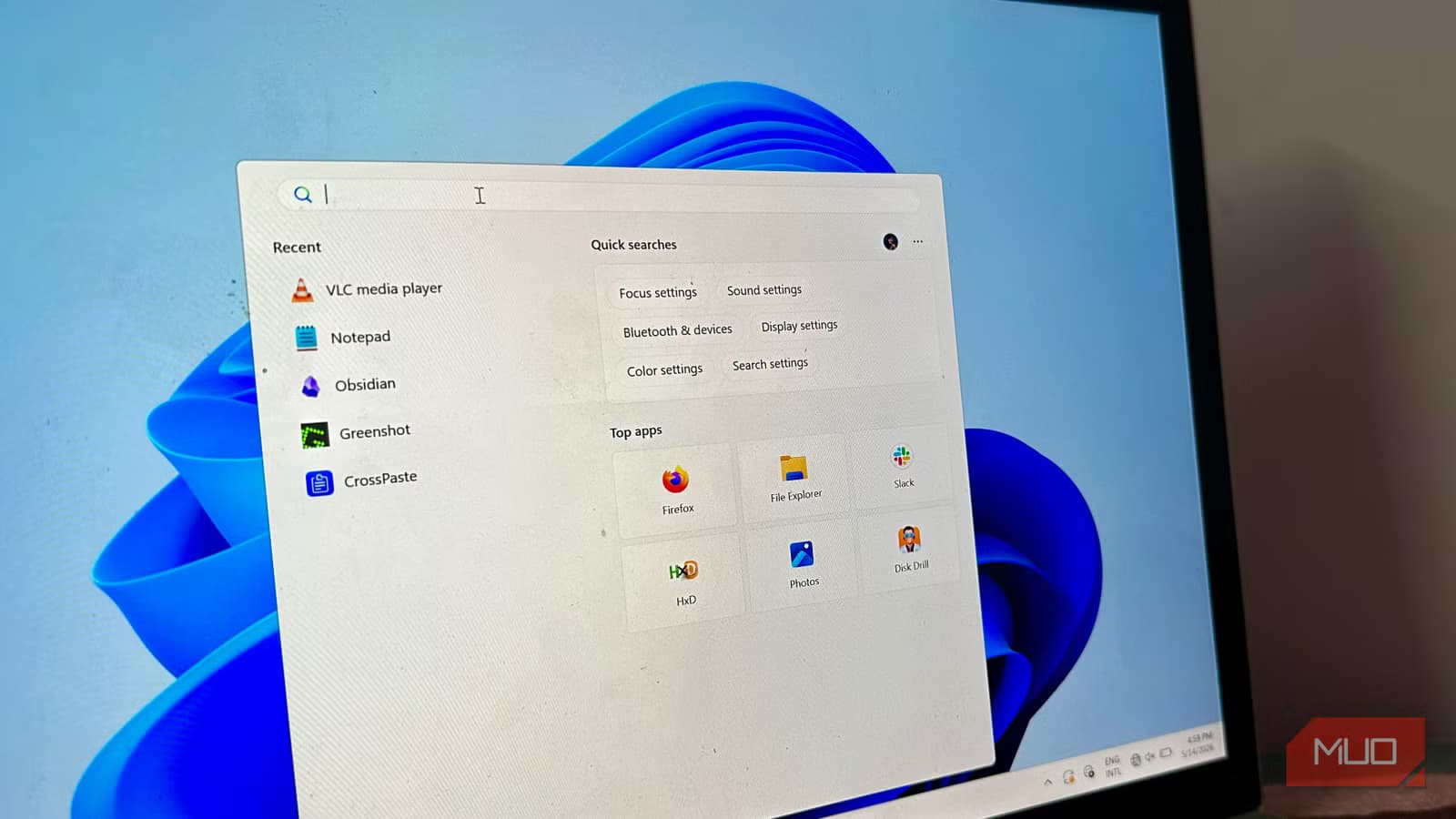
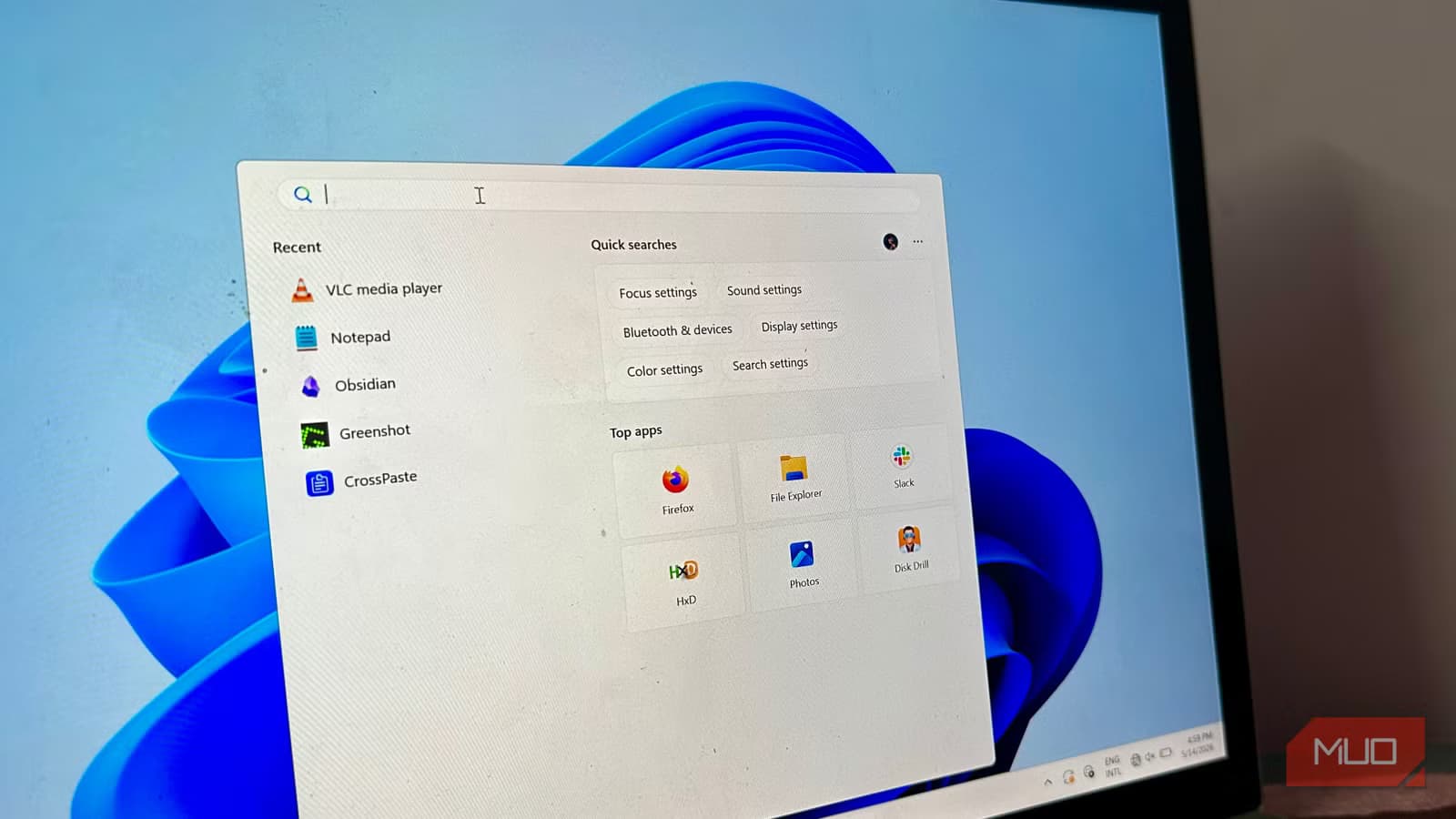
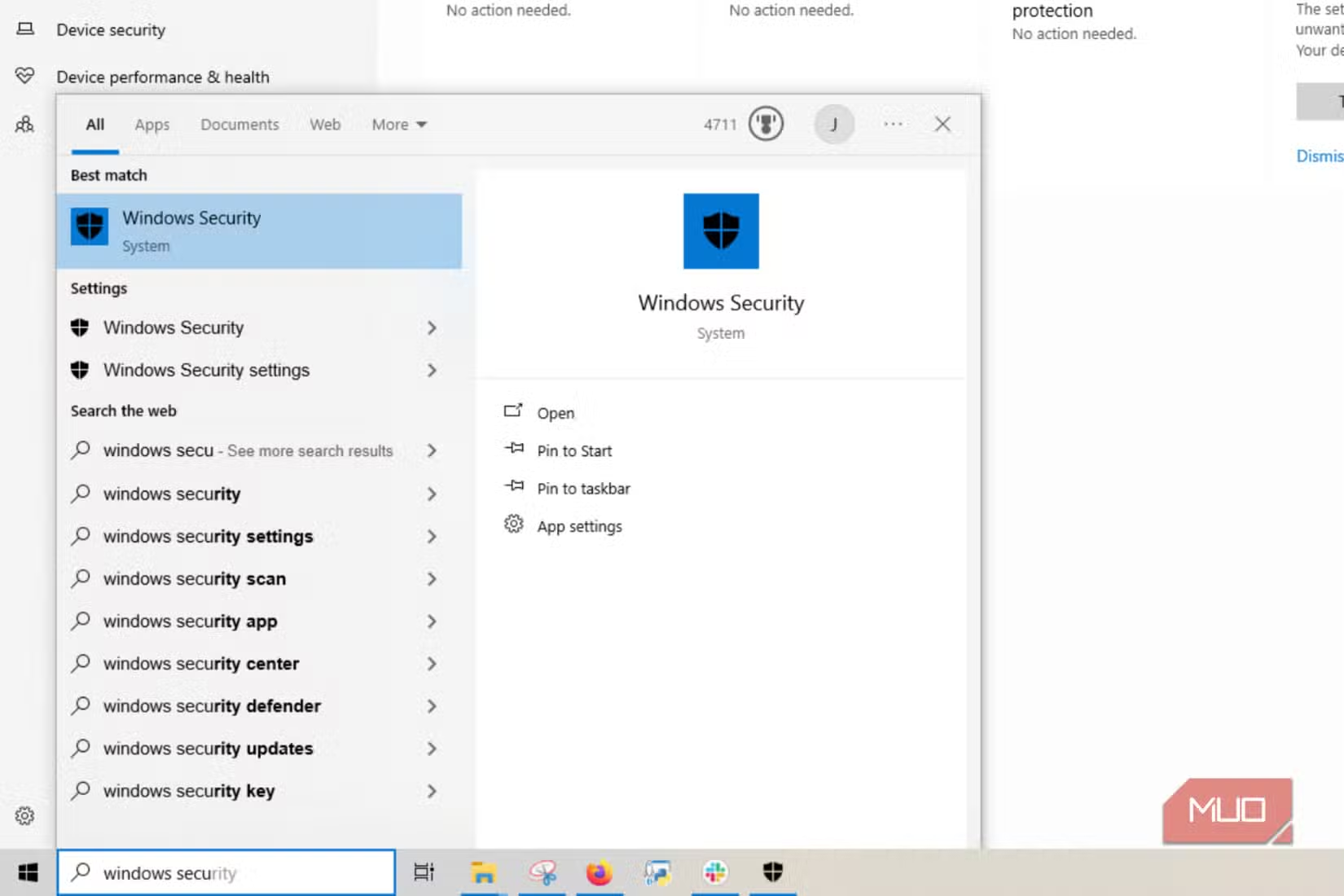
Windows Search doesn't just map where files sit on your disk. It crawls your entire directory tree, digs into file contents, and parses XML structures using specialized plugins called iFilters. That sounds thorough. In practice, it means constant disk reads to keep the index current.
When the indexer hits a corrupted file, a massive database, or a format it can't parse, those plugins stall or loop indefinitely. Your CPU spikes. Your disk thrashes. You wait.
The problem compounds as storage grows. The Windows Search database doesn't scale well. It balloons in proportion to your files, performance drops, and eventually the indexer fails outright. Network drives make it worse. Despite all this resource drain, it still misses files.
Some administrators disable the backup mechanism to let the indexer run flat out. That trades one problem for another: sustained disk activity, heat buildup, and throttling on older drives. You end up choosing between a background process that fights your work or an index so stale that File Explorer is faster.
How Everything Bypasses the Problem Entirely
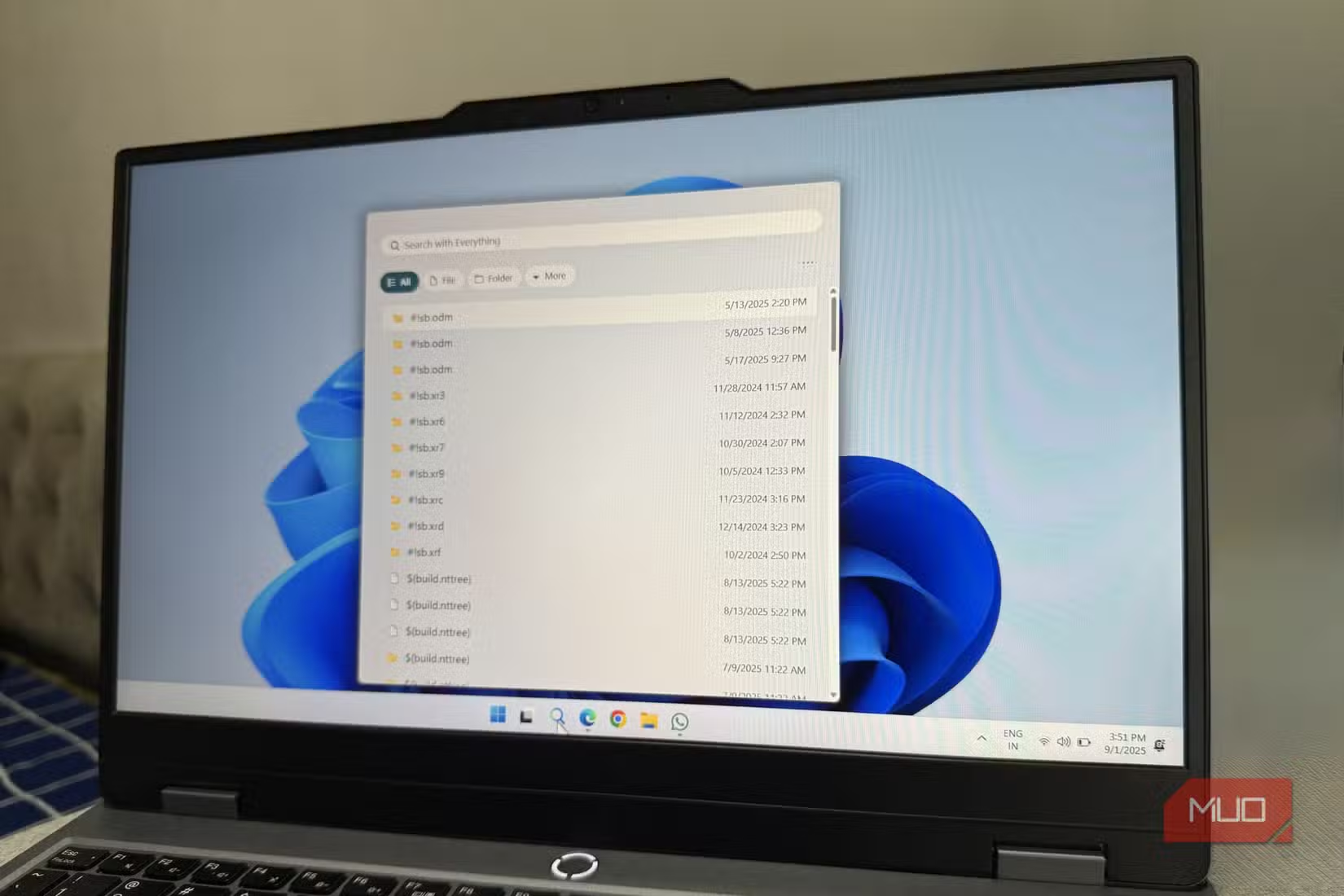
Everything, a free tool from Voidtools, takes a different approach. Instead of crawling files and parsing contents, it reads the NTFS Master File Table directly. The MFT is the file system's own index of every file and folder on the drive. It already exists. Everything just reads it.
The result: Everything indexes over 500,000 files in under one second on a standard SSD. Search results appear as you type, with no spinning wheel, no CPU spike, no background process grinding against whatever you're actually trying to do.
The tradeoff is that Everything only searches filenames and paths, not file contents. For most search tasks, that's exactly what you need. You know the file exists. You just can't remember where you put it.
What Power Users Actually Do
Reddit's r/WindowsPowerUsers consistently ranks Everything as the first thing to install on a fresh Windows build. The reasoning is simple: it works, it's fast, and it stays out of the way.
On HackerNews, discussions about file search alternatives often pivot to security. Windows Search integrates with the OS's permission model. Everything reads the MFT directly, which means it can see files regardless of Windows permissions. For single-user machines, that's fine. For shared or enterprise systems, that's worth considering.
✅ Pros
- • Indexes 500,000+ files in under one second
- • Results appear as you type with zero latency
- • Minimal CPU and disk usage
- • Free and open source
❌ Cons
- • Searches filenames only, not file contents
- • Bypasses Windows permission model
- • Only works on NTFS drives
Alternatives Worth Knowing
Microsoft's PowerToys Run offers a native alternative with recent performance improvements. It integrates with the OS and handles more than file search, including app launching, calculations, and web searches. It's slower than Everything but more versatile.
Listary is another option that overlays search on top of File Explorer and Open/Save dialogs. It's useful if you want instant search without changing how you work.
More free tools that replace bloated defaults
How to Set Up Everything
- Download Everything from voidtools.com
- Run the installer and grant admin access for MFT reading
- Wait about one second for the initial index
- Press a hotkey (configurable) to open the search bar from anywhere
That's it. There's no configuration wizard, no indexing schedule to set, no plugins to install. The default settings work for most people.
When Windows Search Still Makes Sense
If you need to search inside documents, spreadsheets, or PDFs, Windows Search does that. Everything does not. If you're in an enterprise environment with strict permission requirements, Windows Search respects those. Everything does not.
For most personal and small-team use cases, though, filename search covers 90% of the need. That remaining 10% probably isn't worth the indexing overhead.
Logicity's Take
Frequently Asked Questions
Is Everything safe to install?
Yes. Voidtools has been developing Everything since 2009. The app is open source, widely reviewed, and recommended by Microsoft MVPs. It requires admin access only to read the NTFS Master File Table.
Does Everything work on network drives?
Not directly. Everything reads NTFS metadata from local drives. For network shares, you need ETP (Everything Transfer Protocol) running on the remote machine, which is more complex to set up.
Can Everything search inside files like PDFs or Word documents?
No. Everything searches filenames and folder paths only. If you need full-text search, you'll need Windows Search, a dedicated document management tool, or a search utility like Agent Ransack.
Will Everything slow down my computer?
No. Everything uses about 10-20MB of RAM and negligible CPU. It monitors NTFS journal changes rather than rescanning, so the initial one-second index stays current without ongoing disk activity.
Does Everything replace Windows Search or run alongside it?
It runs alongside. Windows Search continues operating in the background unless you disable it manually. Many users disable the Windows Search service after installing Everything to reclaim system resources.
Need Help Implementing This?
Source: MakeUseOf
Manaal Khan
Tech & Innovation Writer
Produced with AI assistance and reviewed by the Logicity editorial team. Learn more in our Editorial Policy.