Key Takeaways
How to Compare 2 Documents for Changes in Microsoft Word
- Word's Compare tool in the Review tab highlights every difference between two documents automatically
- Always output changes to a new document so you preserve both originals
- Google Docs has a similar feature under Tools > Compare documents
Positioning two Word files side by side and scanning for changes line by line is a reliable way to miss something and give yourself a headache. Microsoft Word has a built-in comparison tool that does this work automatically, flagging every deletion, addition, and formatting shift. The feature lives in the Review tab, but it's buried just deep enough that most people never find it.
How to compare two Word documents in the desktop app
The comparison tool works on the desktop version of Word for Windows and Mac. There's no equivalent in Word for Web. Open a blank document first, then follow these steps.
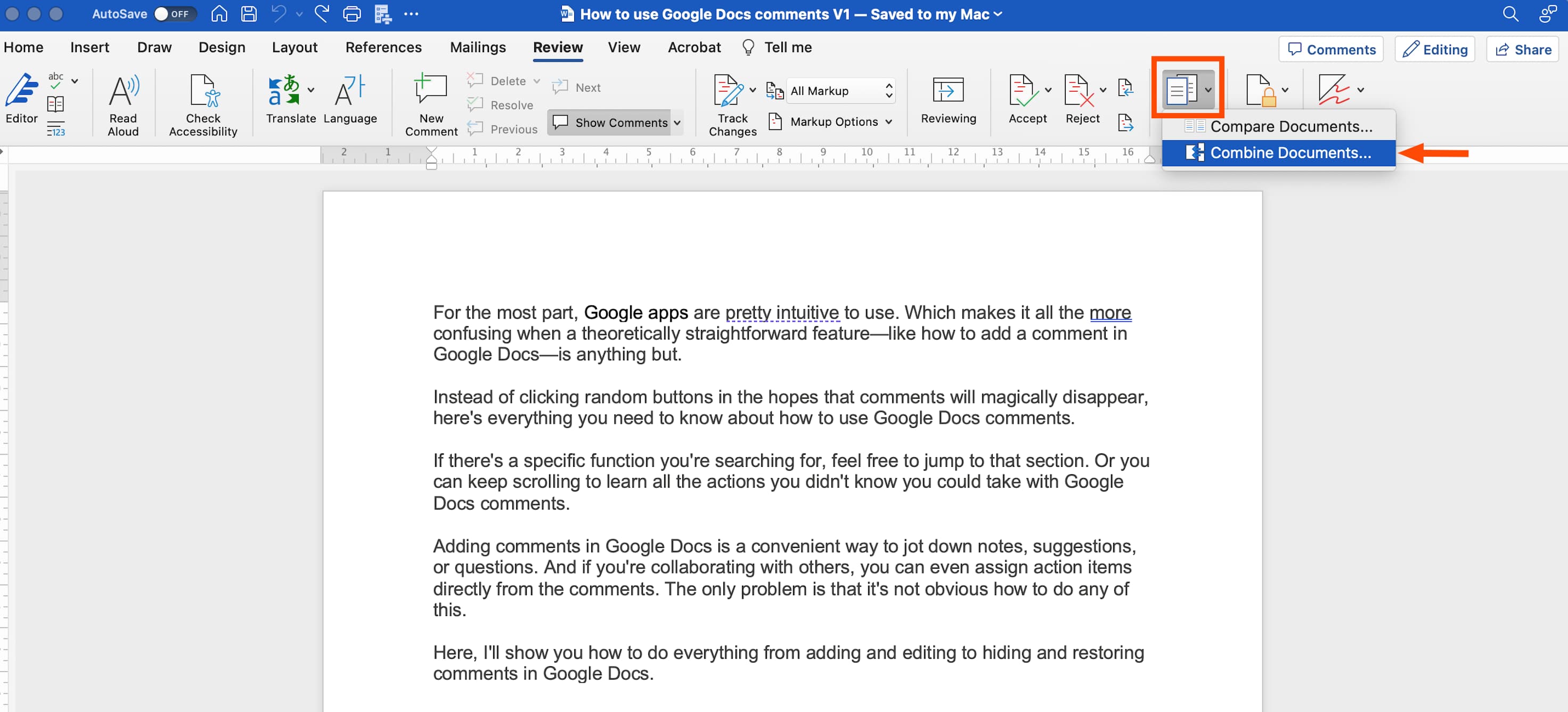
- In the upper ribbon, click Review.
- Click Compare, then click Compare Documents.
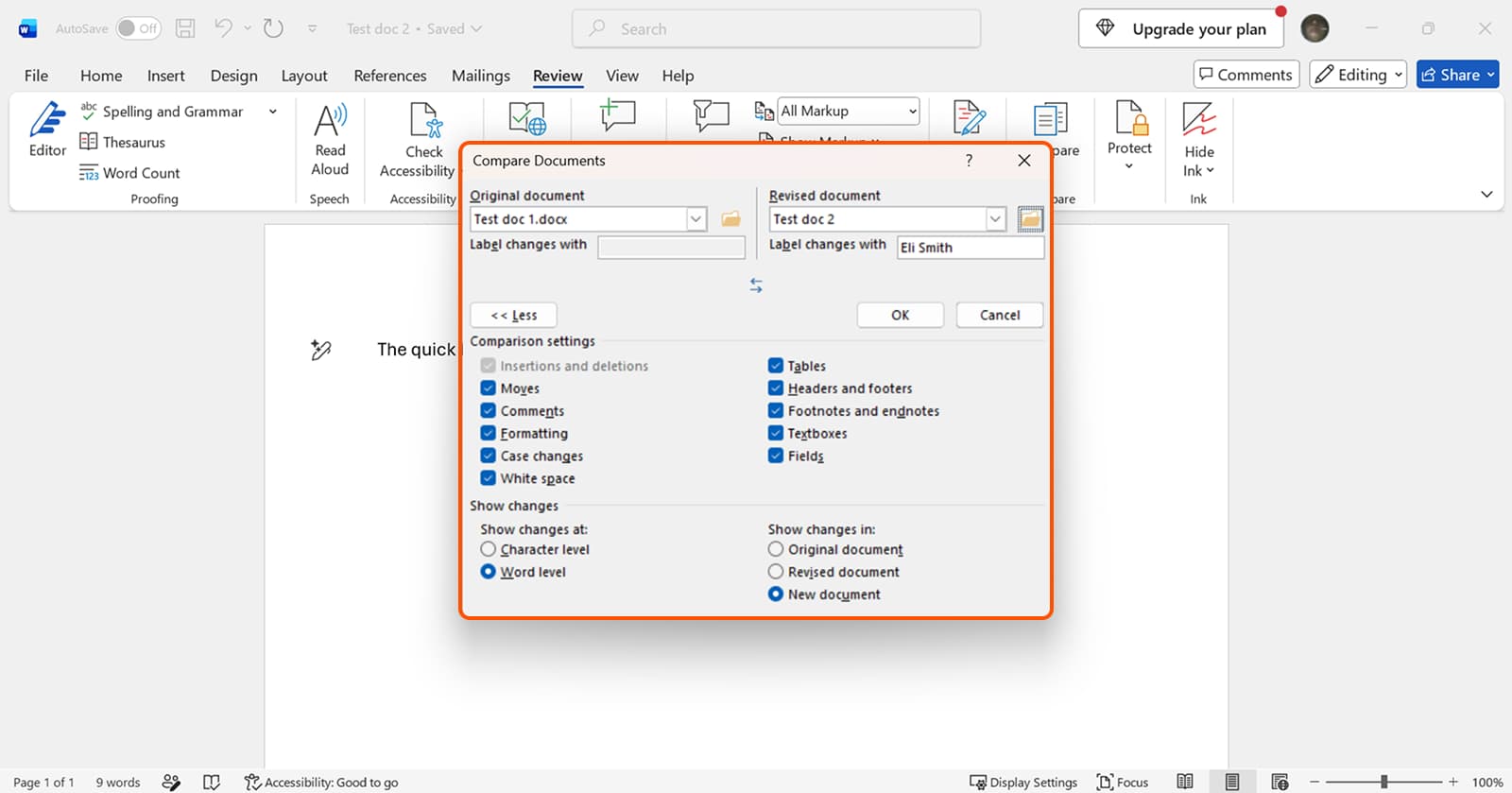
- In the Compare Documents window, select your Original document (the baseline version) and your Revised document (the version with changes).
- In the Label changes with field, enter a name to identify who made the edits.
- Under Show Changes, select New document so Word creates a fresh file instead of overwriting either original.
- Click OK.
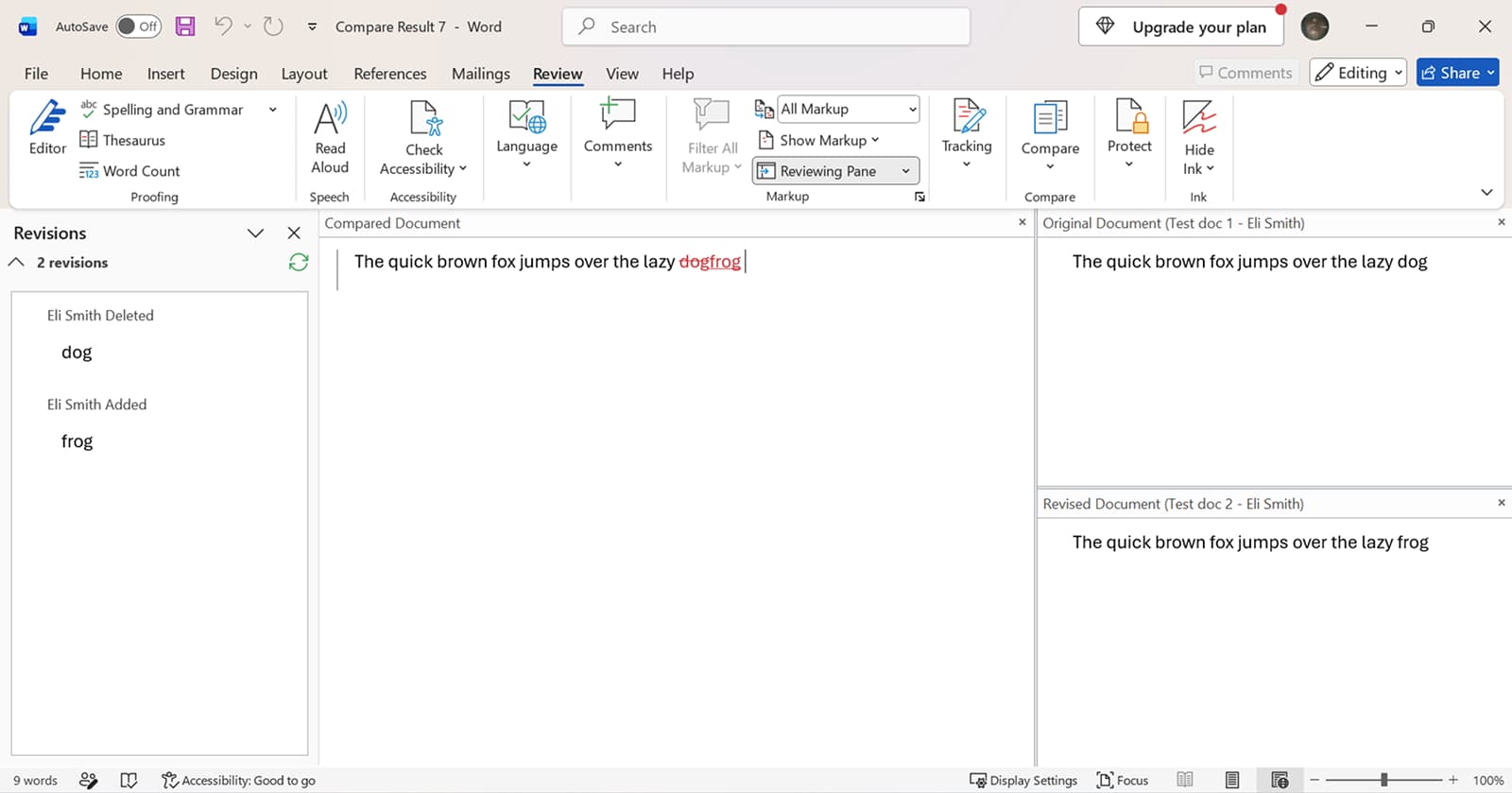
Word merges the two files and displays differences in a Markup Area panel on the right. In the main document, changed text appears in red with underlines. Deletions show as strikethrough. You can step through each change or scroll through the document and spot edits at a glance.
How to merge all changes into one clean document
Once you've reviewed the differences, you probably want to accept or reject them and produce a final version without all the red ink. Word gives you two paths.
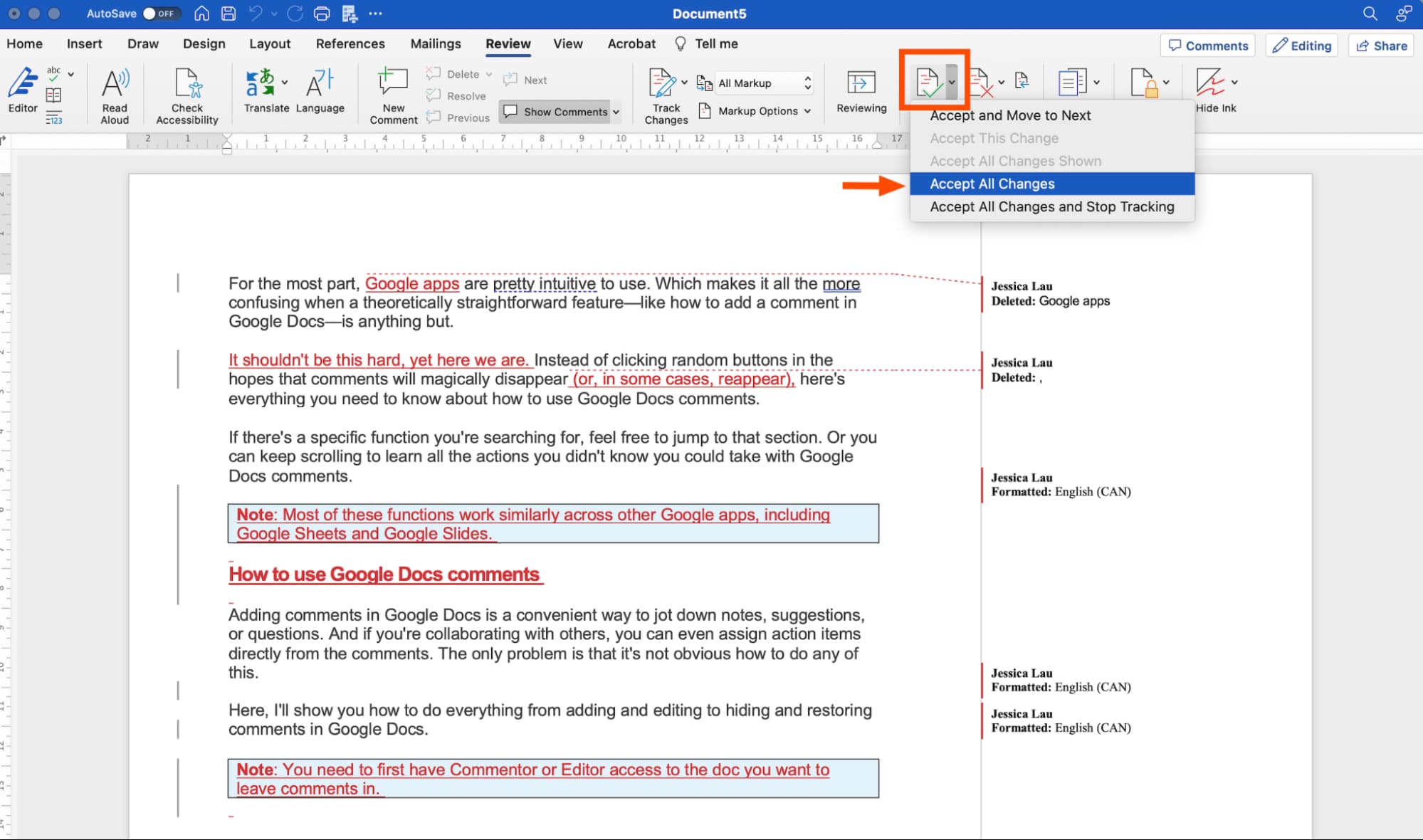
- Accept all at once: In the Review tab, click the down arrow next to Accept, then click Accept All Changes. Every edit from the revised document becomes permanent.
- Accept selectively: Click Accept and Move to Next to review each change individually. Reject the ones you don't want.
Press Ctrl+S (or Cmd+S on Mac) to save when you're done. If you compared into a new document, you'll name and save it separately from both originals.
Compare vs. Combine: which one to use
Word also has a Combine Documents option in the same Compare menu. The difference is subtle but matters.
Compare works best when you have two versions of the same document and want to see what changed. Combine is designed for situations where two editors worked on the same original and you need to merge their tracked changes into a single file. If both reviewers already used Track Changes, Combine preserves those edits without creating duplicate markup.
Neither feature exists in Word for Web. Microsoft's browser-based version tracks changes in a way that's closer to Google Docs, but it doesn't offer the side-by-side merge workflow.
The manual option: side-by-side view
If you prefer eyeballing differences yourself, Word can at least arrange the windows for you.
- Open both documents.
- In either document, click View in the ribbon.
- In the Window group, click View Side by Side (the icon looks like two documents next to each other).
- Enable Synchronous Scrolling if you want both documents to scroll together.
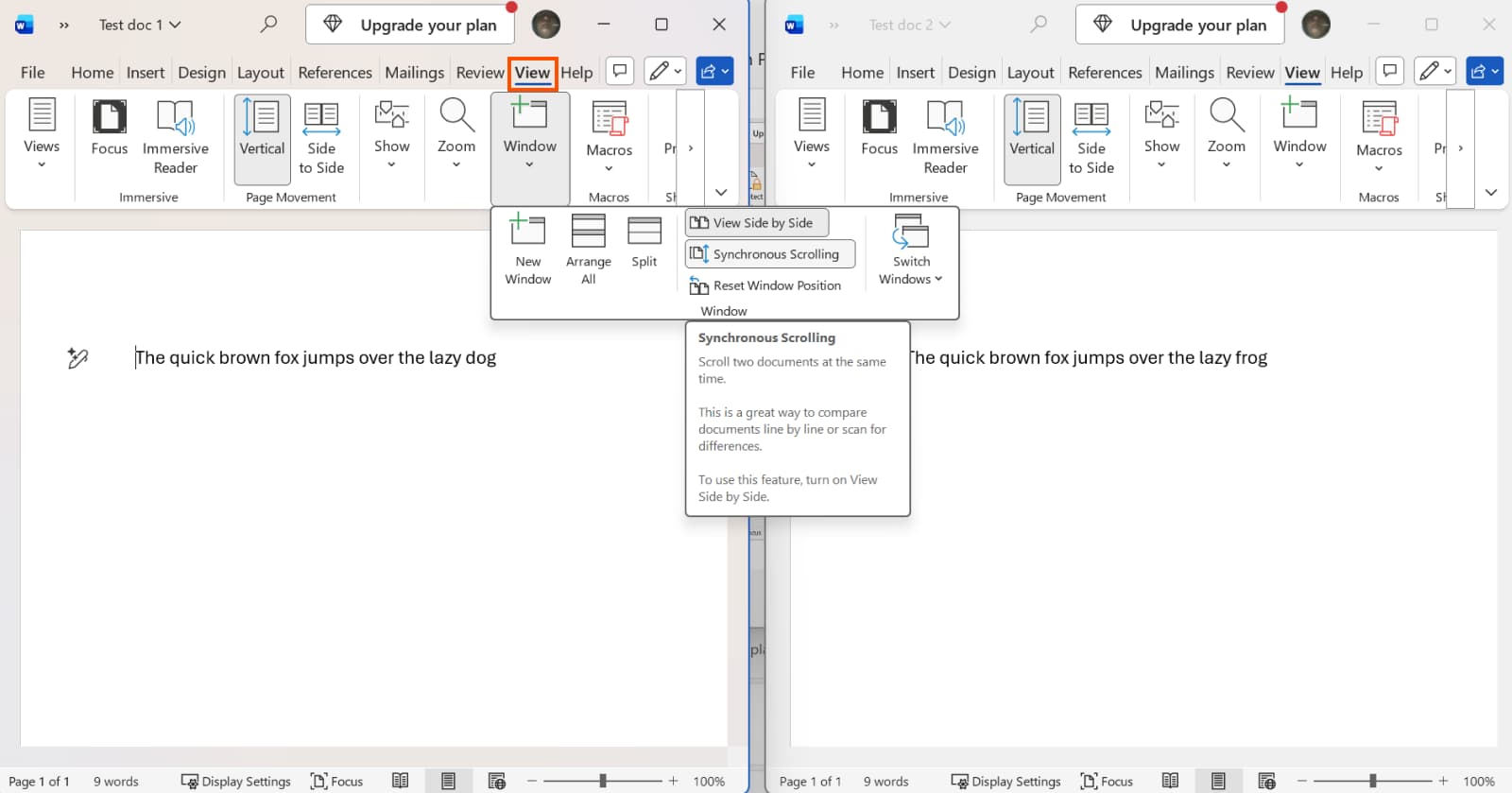
This method doesn't highlight differences for you. It's useful for quick visual checks, but for anything longer than a page, the Compare tool will catch things your eyes won't.
Logicity's Take
For RevOps teams juggling contract redlines, SOW revisions, or proposal drafts across multiple stakeholders, Word's Compare tool is the faster path. The manual side-by-side method is fine for a paragraph, but it doesn't scale. If your team handles high volumes of document revisions, tools like [Zapier](https://logicity.in/r/zapier) can automate notifications when files change in SharePoint or Google Drive, so you know when to run a comparison.
Disclosure
Some links in this post are affiliate links — Logicity earns a commission if you sign up, at no extra cost to you. We only link products we have used or actively recommend.
How to compare documents in Google Docs
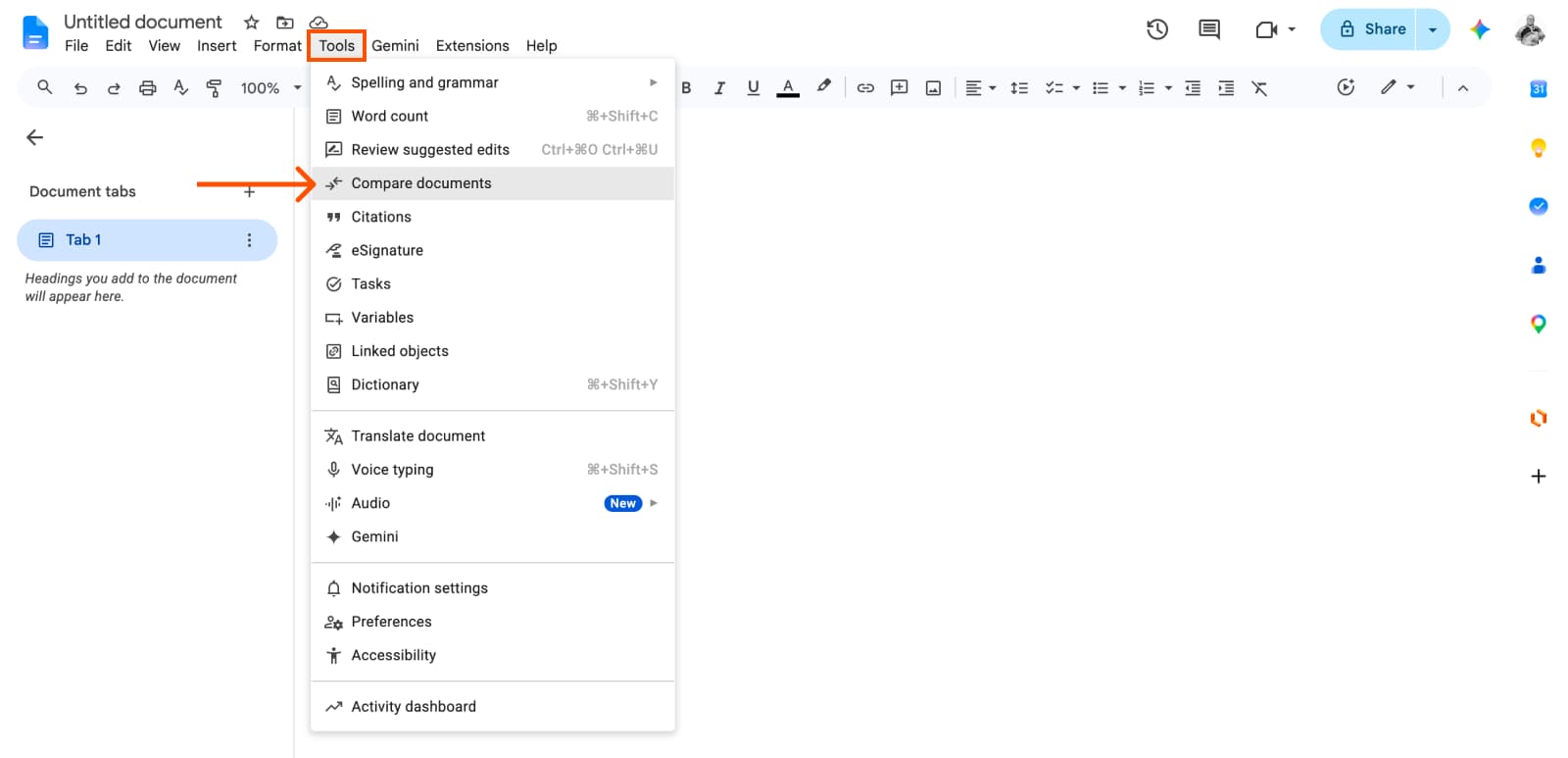
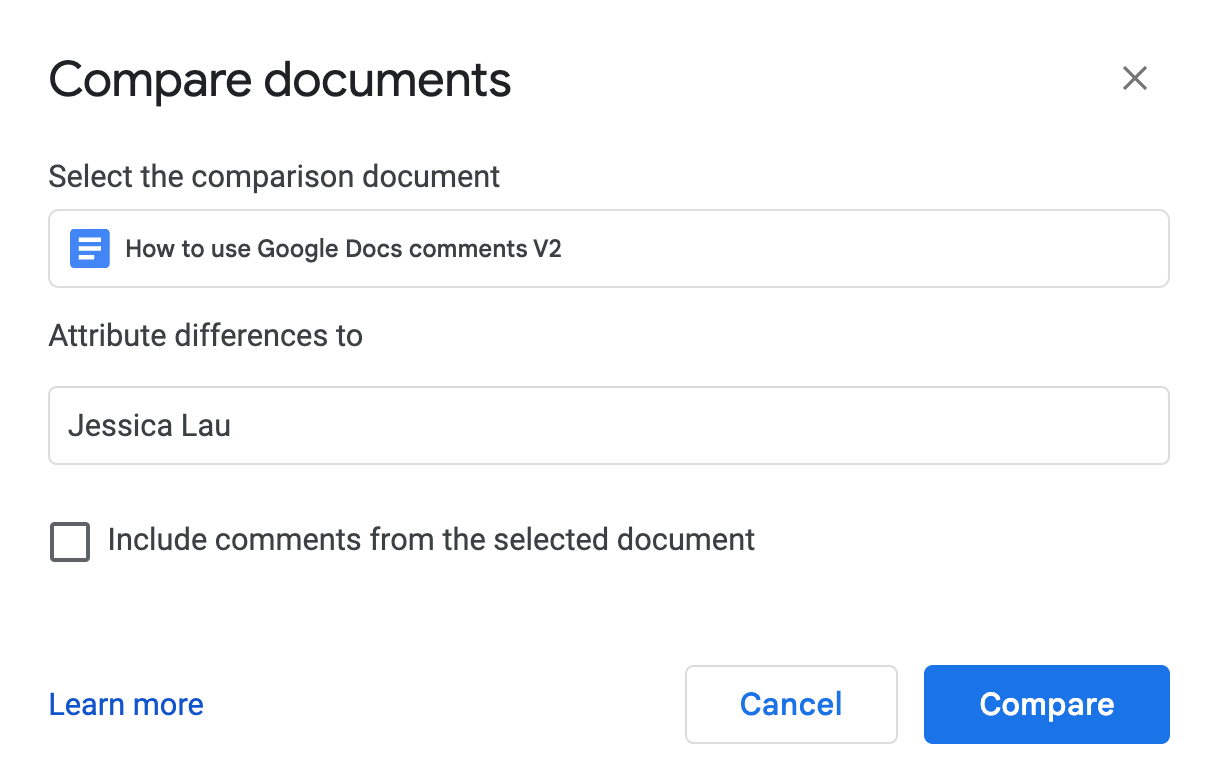
Google Docs has its own comparison tool. The workflow is slightly different, and there's one important limitation: it always outputs changes to a new document. You can't write them back into the original.
- Open the original document in Google Docs.
- Click Tools in the menu bar, then click Compare documents.
- Select the second document from your Drive.
- In the Attribute differences to field, enter a name to label the changes.
- Optionally, check Include comments from the selected document.
- Click Compare.
Google Docs creates a new document showing all differences in Suggestion mode. Accept or reject each change by clicking the checkmark or X in the comment bubble. The original and revised documents stay untouched.
Unlike Word, Google Docs doesn't have a Combine option. If multiple editors worked on the same file, you'll need to run separate comparisons or use Version History to see who changed what.
When to automate the comparison step
For one-off contract reviews, clicking through these menus takes about 30 seconds. But if your team compares documents regularly, such as weekly vendor agreements or recurring proposal templates, the manual process adds up.
Automation platforms like Make or n8n can trigger workflows when a new file lands in a folder, sending a Slack message or starting a review task. They can't run Word's internal Compare tool, but they can ensure someone knows a comparison needs to happen, and they can archive versions automatically so you're always comparing against the right baseline.
Frequently Asked Questions
Can I compare Word documents in the browser?
No. Word for Web doesn't have a Compare Documents feature. You need the desktop app for Windows or Mac.
Does the comparison work between .doc and .docx files?
Yes. Word converts .doc files internally when you run a comparison. Both files can be in different formats.
What if my document has images or tables?
Word's Compare tool focuses on text changes. It won't highlight differences in embedded images, but it will flag changes to table content and structure.
Can I compare a Word document to a Google Doc directly?
Not directly. Export the Google Doc as a .docx file first, then compare both in Word or convert the Word file to Google Docs format and compare there.
Need Help Implementing This?
If your team processes high volumes of contract revisions or document approvals, we can help you build workflows that catch changes automatically. Reach out to the Logicity team for a consultation.
Source: The Zapier Blog
Manaal Khan
Tech & Innovation Writer
Produced with AI assistance and reviewed by the Logicity editorial team. Learn more in our Editorial Policy.