Key Takeaways
- Verify your boarding pass and digital ID are saved for offline use in your wallet app before leaving home
- Download entertainment from streaming apps while on WiFi since airplane WiFi is often unreliable or paid
- Check your airline's app for gate changes and delays since push notifications can be unreliable
The worst time to realize your boarding pass won't load is when you're standing at the gate with a line of impatient travelers behind you. Airport WiFi is unreliable. Cellular signals inside terminals can be dead zones. And streaming services don't work at 35,000 feet unless you planned ahead.
A simple phone checklist, run the night before or the morning of your flight, prevents these headaches. Here are seven Android apps worth opening before you head to the airport.
1. Google Wallet: Confirm Your Documents Work Offline
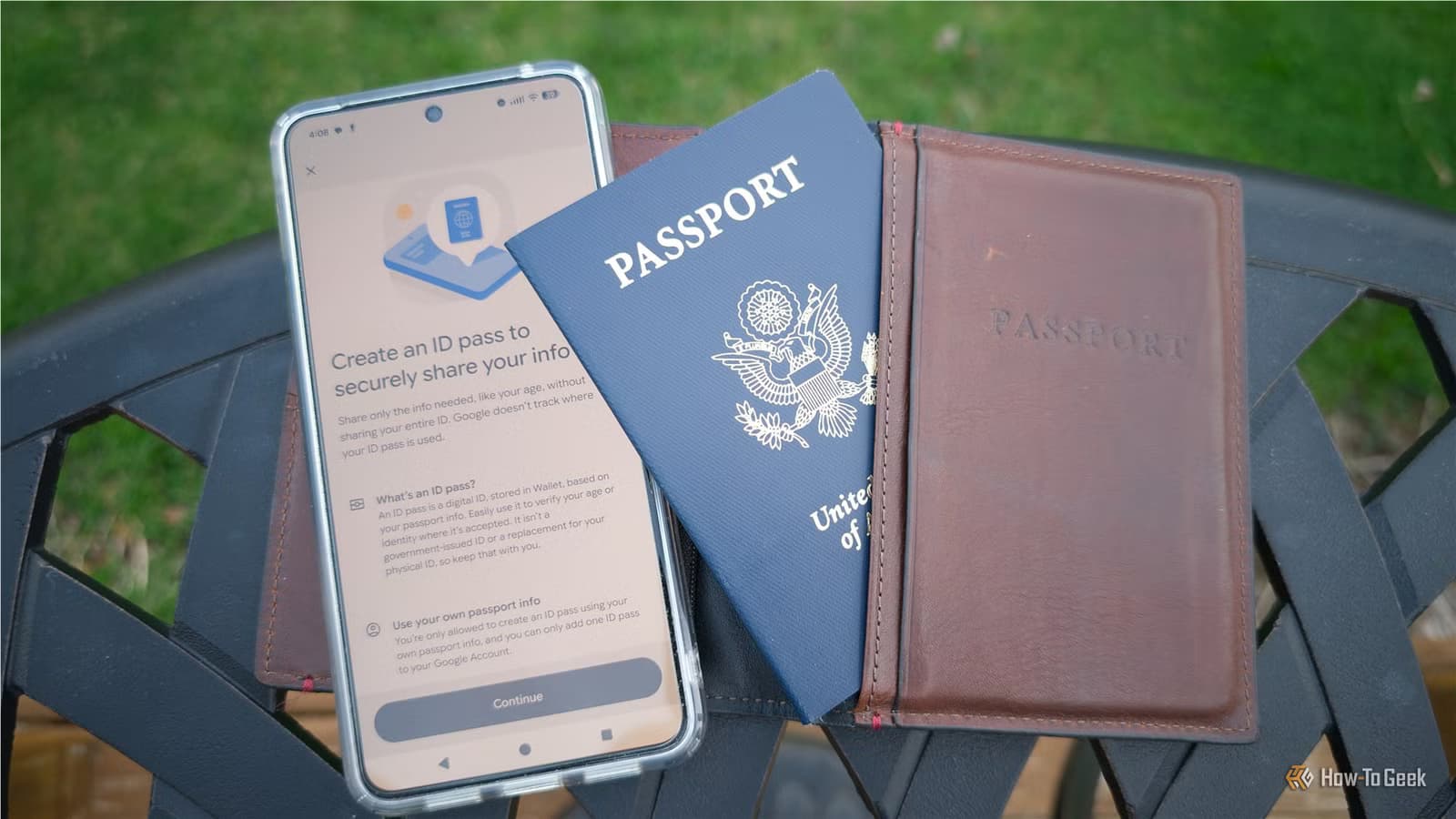
Your boarding pass, digital ID, and any travel documents should be accessible without an internet connection. Open Google Wallet and verify that your pass is actually saved for offline use. If you use a digital passport or state ID, check those too.
As a backup, screenshot everything important and upload it to your cloud storage. Apps glitch at the worst times. If you lose your phone or it dies, you can pull up those screenshots on any device.
2. Your Airline's App: Check for Gate Changes
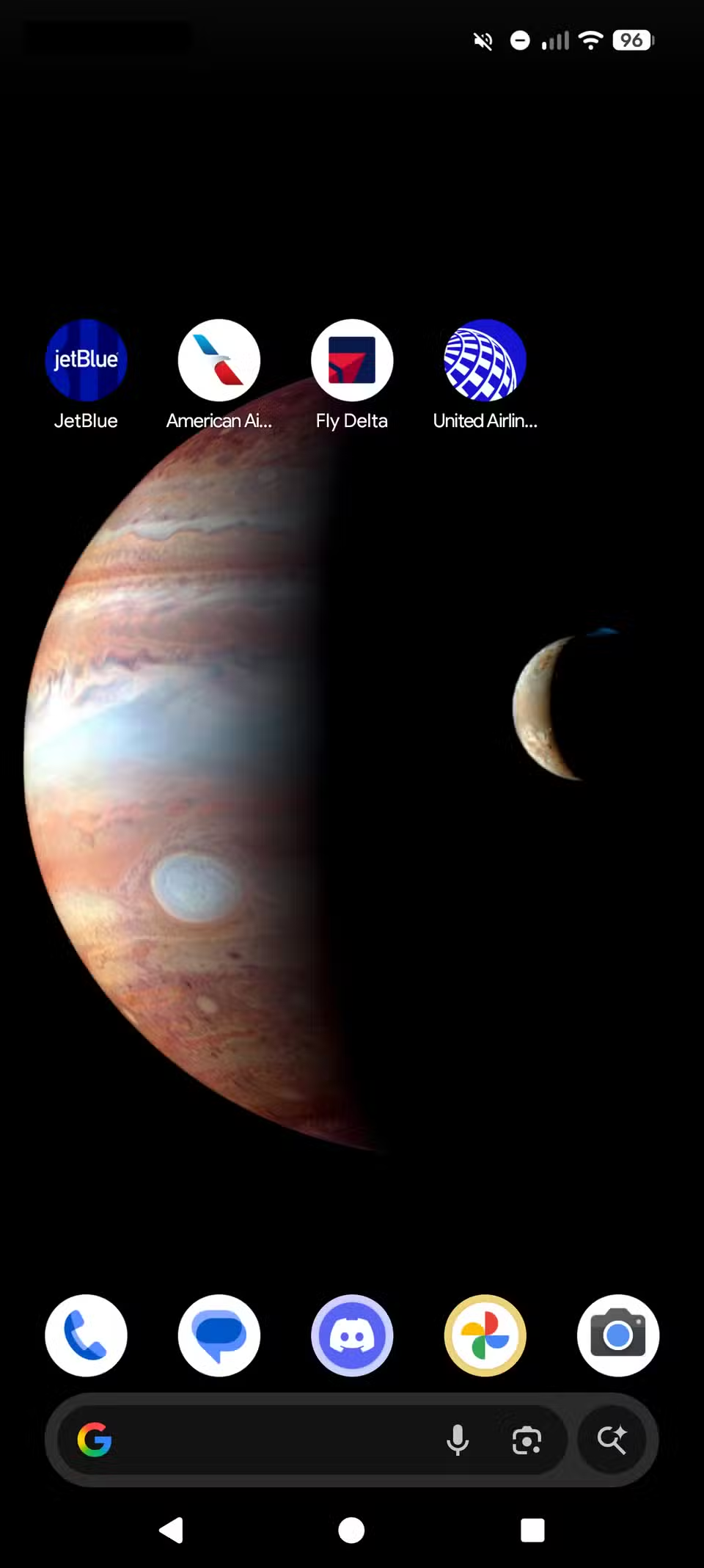
Every major airline has a dedicated app showing your gate, flight status, and boarding time. The problem is that push notifications can be unreliable. You might not get alerted to a gate change until you're already at the wrong end of the terminal.
Open the app before you leave home. Confirm your flight details are current. Then check it again when you arrive at the airport. Don't trust that a notification will find you.
3. Netflix, Prime Video, or Your Streaming App
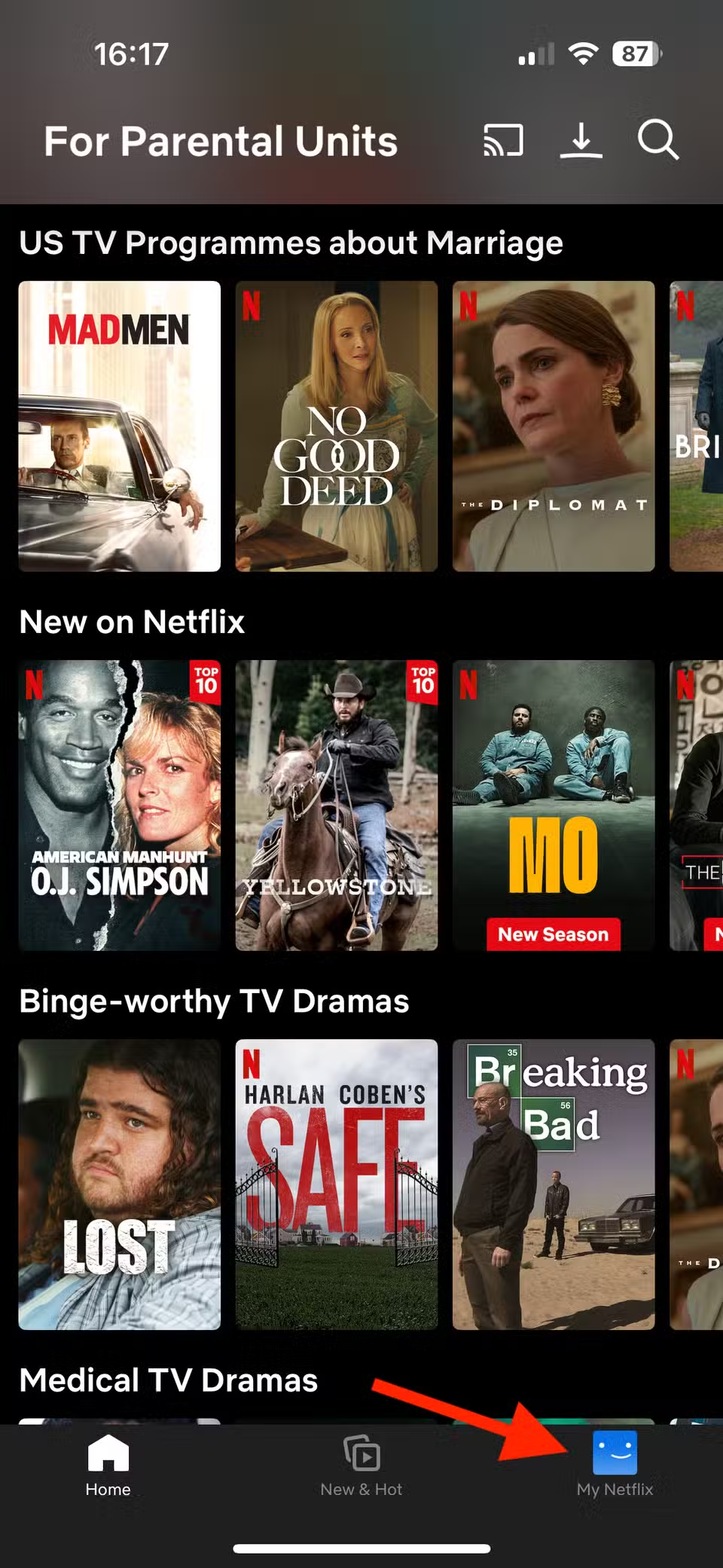
In-flight WiFi exists, but it's often slow, expensive, or both. The solution is downloading content while you're still on your home WiFi.
Open Netflix, Prime Video, Disney+, or whatever service you use. Download a few movies or episodes. Check that the downloads actually completed. Nothing worse than finding a progress bar stuck at 40% when you're already airborne.
4. Spotify or Your Music App
Same logic applies to music and podcasts. Streaming audio uses less bandwidth than video, but airplane WiFi still isn't reliable for it. Download your playlists and podcast episodes before you leave.
Spotify Premium users can toggle the Download switch on any playlist. Free users can download podcasts. Apple Music, YouTube Music, and Pocket Casts all have similar offline options.
5. Google Maps: Download Offline Maps for Your Destination
You land in a new city. Your phone connects to a slow network. You need directions to your hotel. This is when having an offline map saves you.
Open Google Maps before your flight. Search for your destination city. Tap your profile picture, select Offline Maps, and download the area you'll need. The download can be large, so do this on WiFi.
6. A Flight Tracking App
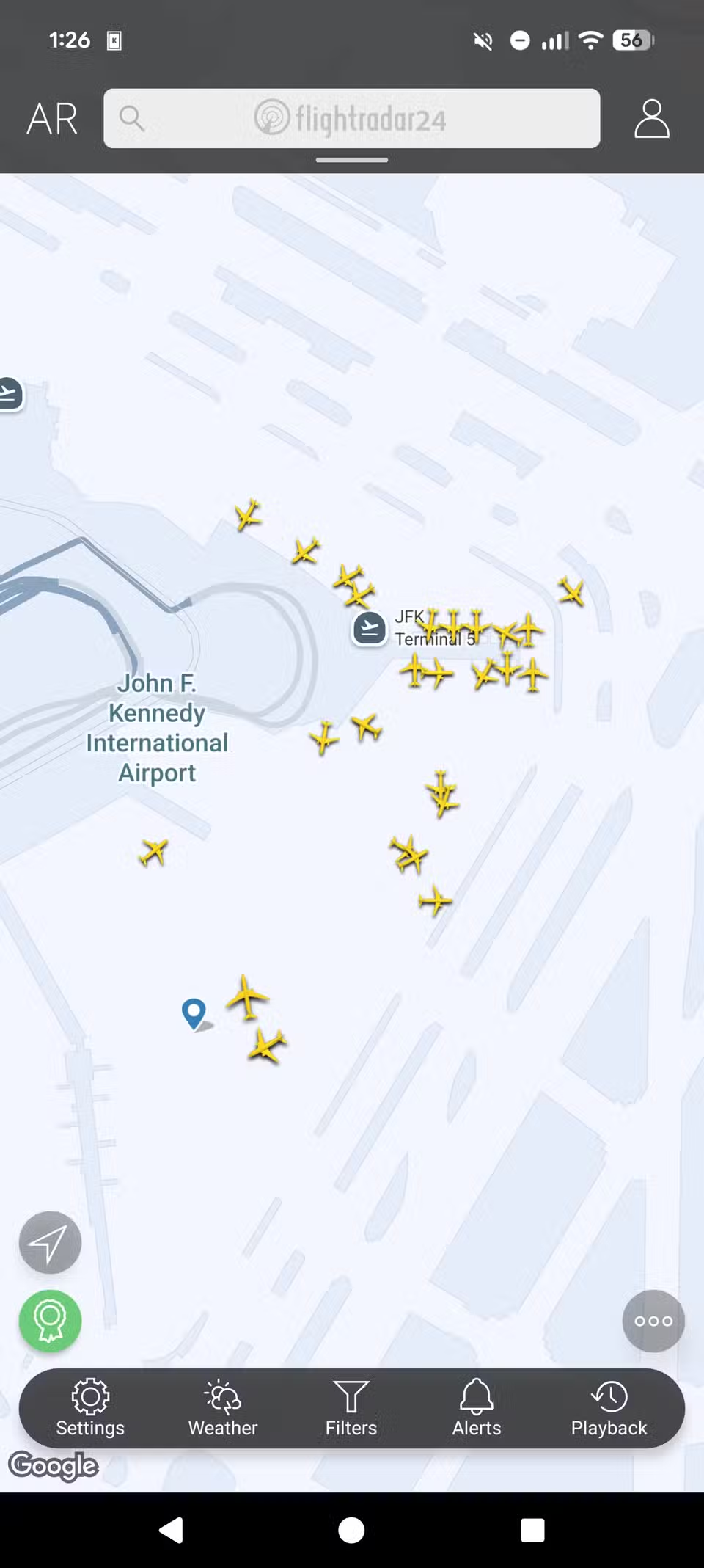
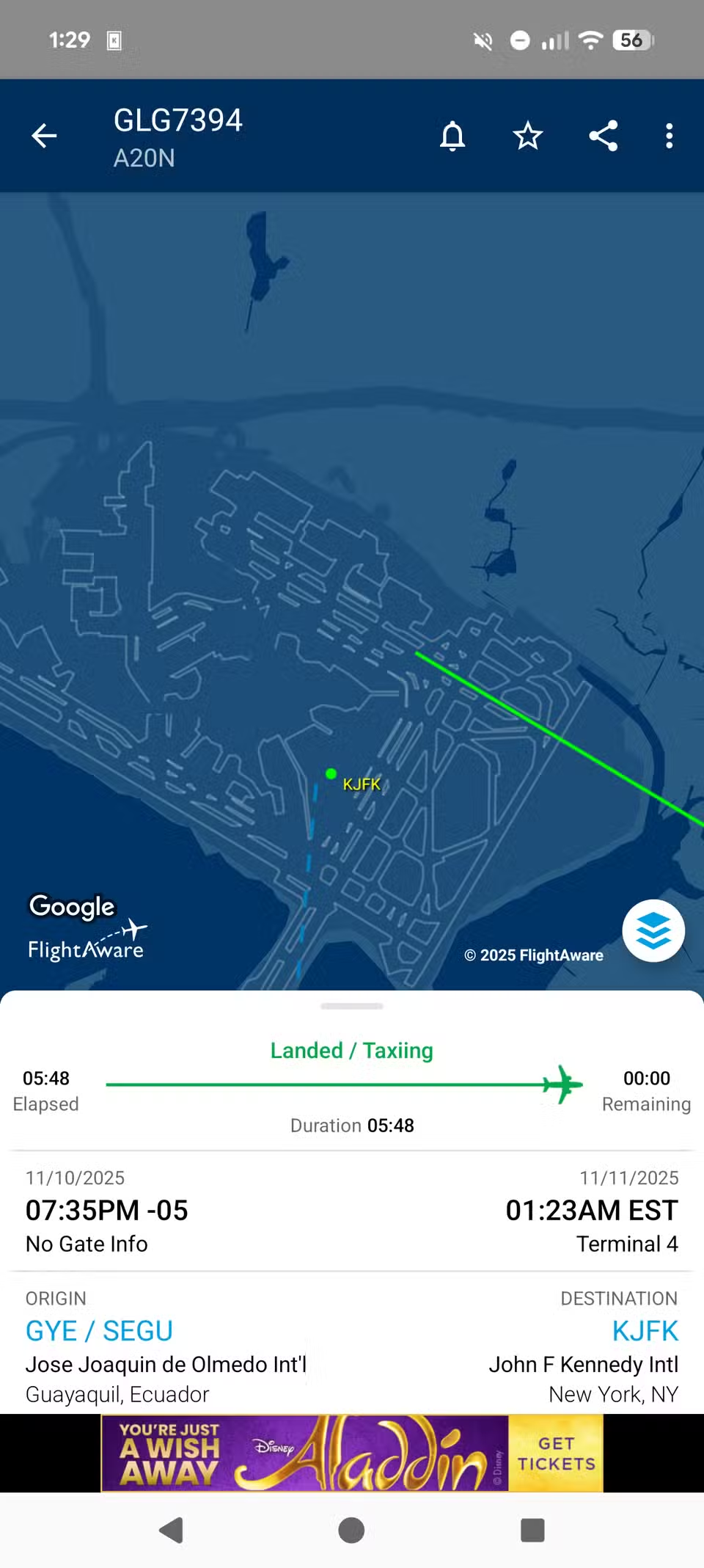
Apps like Flighty or FlightAware often update faster than airline apps. They pull data from multiple sources and can alert you to delays before your airline does.
Add your flight to the tracker app before you leave. These apps also show useful details like your aircraft type, its previous flights, and historical on-time performance for your route.
7. Your Password Manager
Hotel WiFi login pages, rental car confirmations, loyalty program numbers. Travel involves logging into things. Make sure your password manager is synced and you can access it offline.
If you use Bitwarden, 1Password, or Google Password Manager, open the app and let it sync. Some managers require periodic authentication. Better to handle that at home than in an airport.
The Five-Minute Pre-Flight Routine
You don't need to spend an hour preparing your phone. A quick walkthrough the night before covers most scenarios:
- Open Google Wallet, verify your boarding pass loads offline
- Open your airline app, check your gate and flight status
- Open Netflix or your streaming app, download 2-3 hours of content
- Open Spotify, download your travel playlist
- Open Google Maps, download your destination city
- Open your flight tracker, add your flight
- Open your password manager, let it sync
That's it. Seven apps, five minutes. You'll thank yourself when the airport WiFi refuses to cooperate.
Logicity's Take
Frequently Asked Questions
Do I need premium subscriptions to download content for flights?
For most streaming services, yes. Netflix, Spotify, and Disney+ require paid plans for offline downloads. Podcasts are often free to download regardless of subscription status.
How much storage do offline maps and downloads use?
A city-sized offline map in Google Maps uses 100-500 MB. A two-hour movie download ranges from 500 MB to 2 GB depending on quality settings. Check your phone's available storage before downloading.
Will my digital ID work if my phone battery dies?
No. Always carry a physical ID as backup. Some airports and TSA checkpoints don't accept digital IDs yet anyway.
Are flight tracking apps more accurate than airline apps?
They often update faster because they aggregate data from multiple sources including air traffic control. For delays and cancellations, a dedicated tracker can give you a head start.
More Android customization tips
Need Help Implementing This?
Source: How-To Geek
Manaal Khan
Tech & Innovation Writer
Produced with AI assistance and reviewed by the Logicity editorial team. Learn more in our Editorial Policy.