Key Takeaways
- The ls command defaults to terse output designed for 80x25 character displays from the 1970s
- Adding -i to rm creates a confirmation prompt that can save you from accidental deletions
- Shell aliases let you change defaults for interactive use while keeping original behavior available
Why Linux Defaults Feel Stuck in 1970
Almost every Linux command accepts options to change its behavior. When you don't specify any, the command uses defaults. The problem: those defaults were chosen decades ago for hardware that no longer exists and use cases that don't match how most people work today.
The original ls output, for example, was optimized for 80x25 character terminal displays. Some defaults go back even further, to when terminal output was printed on paper. Modern displays offer at least four times that space, yet the defaults remain unchanged.
Many defaults also prioritize scripting over interactive use. That's sensible for automation, but frustrating when you're typing commands yourself. The fix is simple: shell aliases that override defaults for your interactive sessions while leaving the original behavior available when you need it.
The ls Command: Actually Useful File Listings
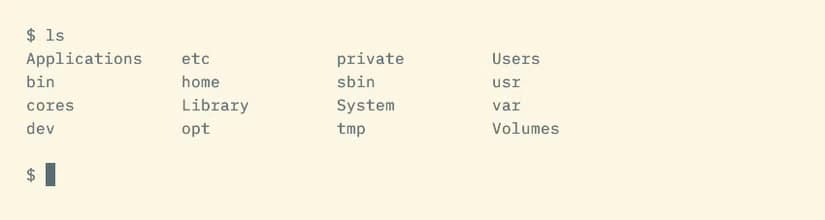
The ls command is one of the first that every Linux beginner learns. Its default output shows just file names in a cramped multi-column layout. That made sense for paper printouts. It makes less sense on a 4K display.
A better default uses four flags: -FGhl. Here's what each does:
- -F adds symbols to indicate file types (executables, directories, etc.)
- -G enables color coding for different file types
- -h shows human-readable file sizes (4.8M instead of 4997740)
- -l displays files in a list with permissions, owners, and dates
alias ls='ls -FGhl'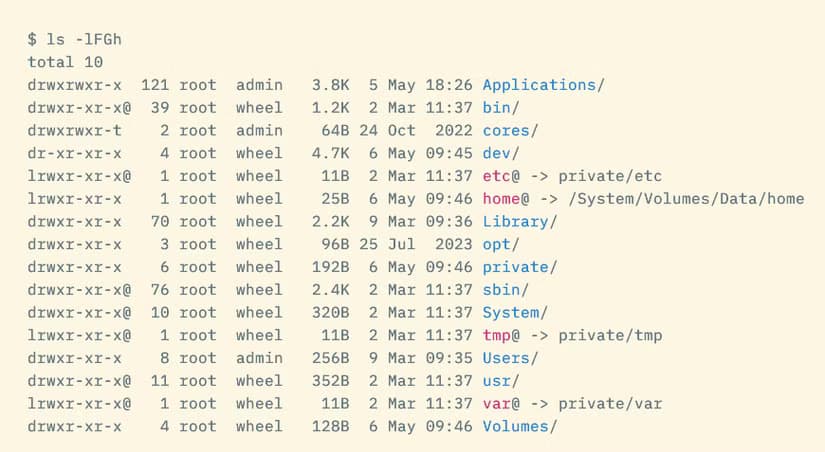
Some people prefer creating a new command name like ll instead of overriding ls. The advantage of overriding: muscle memory works in your favor. The alias ll='ls -la' approach is also common if you want both options.
One note: GNU ls (used on most Linux distributions) uses --color=auto instead of -G. Check your system's man page if the flags don't work as expected.
If you need the original multi-column output, pass -C to override the -l flag. Or use \ls or command ls to run the non-aliased version.
The rm Command: A Safety Net for Deletions
Windows has the Recycle Bin. macOS has the Trash. The Linux command line has rm, which deletes files immediately and permanently. For users coming from graphical environments, this can be anxiety-inducing.
You probably won't destroy your entire system with a mistyped rm command. But removing the wrong file is easy, especially when using wildcards. The -i flag adds a confirmation prompt before each deletion.
alias rm='rm -i'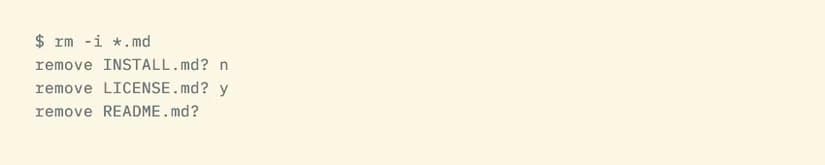
This is particularly useful if your backup strategy is, let's say, optimistic. The confirmation adds friction, but that friction exists precisely where you want it: between intention and irreversible action.
The mkdir Command: Creating Parent Directories
By default, mkdir fails if the parent directory doesn't exist. Want to create projects/2024/reports? You'll get an error unless projects/2024 already exists.
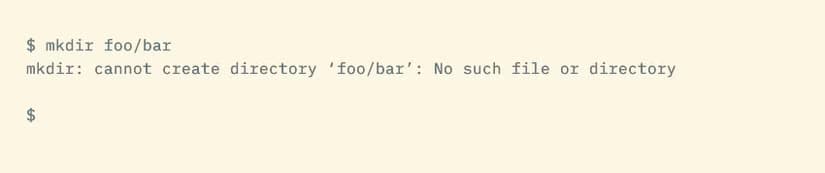
The -p flag tells mkdir to create parent directories as needed. It also suppresses errors if the directory already exists, which is useful in scripts.
alias mkdir='mkdir -p'How to Set These Aliases Permanently
Aliases typed at the command line disappear when you close the terminal. To make them permanent, add them to your shell's configuration file.
For Bash, that's ~/.bashrc. For Zsh (the default on macOS), it's ~/.zshrc. Add your alias commands at the end of the file, save, and either restart your terminal or run source ~/.bashrc (or the equivalent for your shell).
Some distributions have separate files for aliases, like ~/.bash_aliases. Check if your .bashrc sources this file before creating a new one.
When Defaults Matter: Scripts vs Interactive Use
One reason these defaults persist: changing them would break countless scripts. Shell scripts often rely on the exact output format of commands like ls. Adding colors or changing column layouts would break parsing.
Aliases only apply to interactive shells, not scripts. When you run a bash script, it doesn't load your .bashrc aliases by default. This means you can safely change interactive defaults without worrying about breaking automation.
If you do need the original behavior interactively, prefix the command with a backslash. \ls runs the actual ls command, ignoring any alias.

Logicity's Take
Frequently Asked Questions
Will changing these aliases break my shell scripts?
No. Aliases only apply to interactive shells. Scripts run in non-interactive shells that don't load your .bashrc or .zshrc aliases by default.
How do I run the original command without the alias?
Prefix the command with a backslash (\ls) or use the command builtin (command ls). Both bypass aliases and run the actual executable.
Do these aliases work on macOS?
Mostly. macOS uses BSD versions of these commands, which have slightly different flags. For ls, use -G for colors on macOS, or install GNU coreutils via Homebrew for consistency with Linux.
Where do I put aliases to make them permanent?
Add them to ~/.bashrc for Bash or ~/.zshrc for Zsh. Some systems use a separate ~/.bash_aliases file. After editing, run 'source ~/.bashrc' or restart your terminal.
Need Help Implementing This?
Source: How-To Geek
Huma Shazia
Senior AI & Tech Writer
Produced with AI assistance and reviewed by the Logicity editorial team. Learn more in our Editorial Policy.