Key Takeaways
- Pre-installed apps like Clipchamp, Teams, and Xbox run background processes that affect boot times and system responsiveness
- Win11Debloat is a free GitHub tool that removes bloatware more thoroughly than manual uninstallation
- Microsoft collects user data by default. Disabling privacy toggles and promotional settings improves both performance and reduces distractions
The Bloatware Problem Is Real
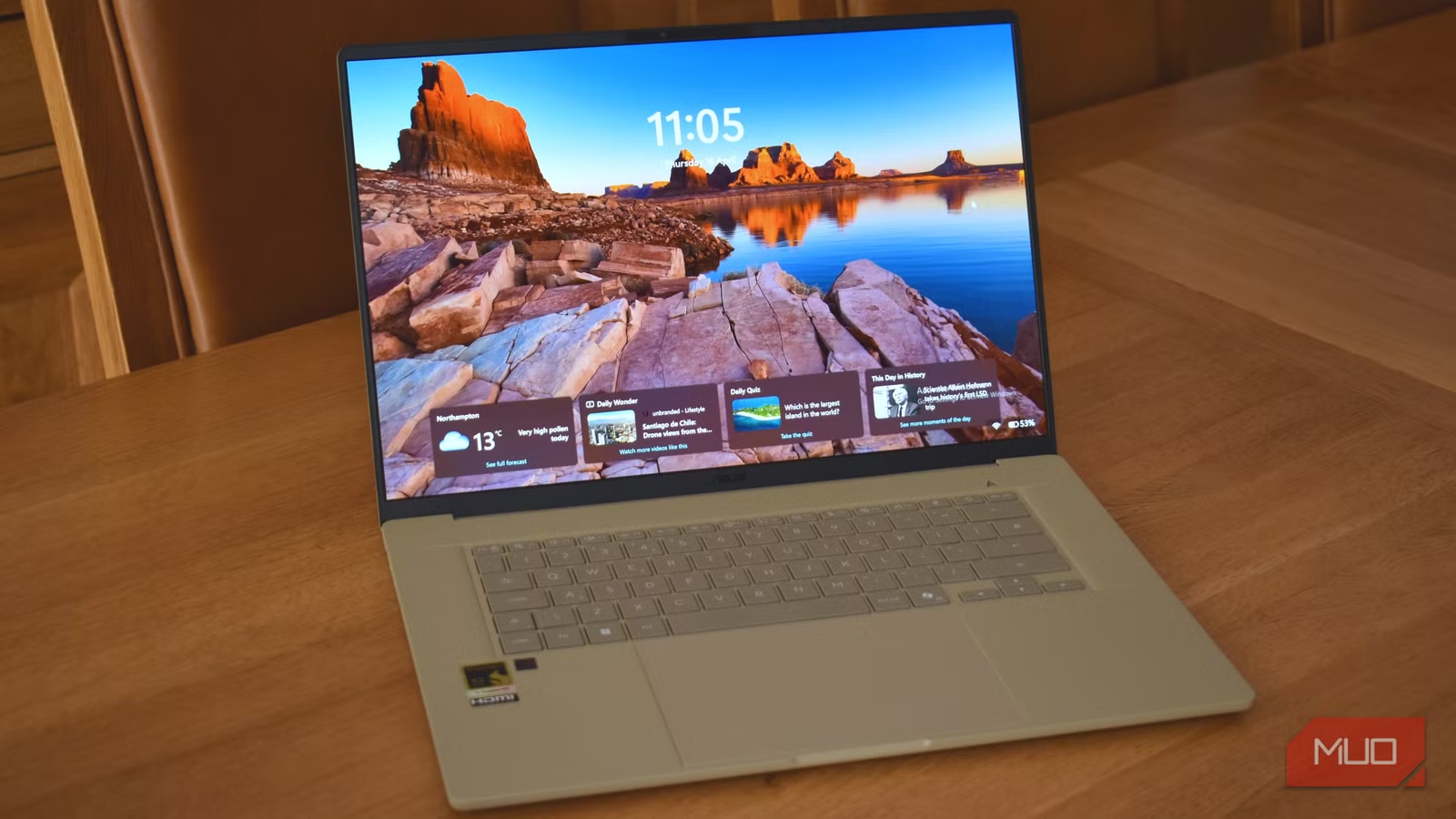
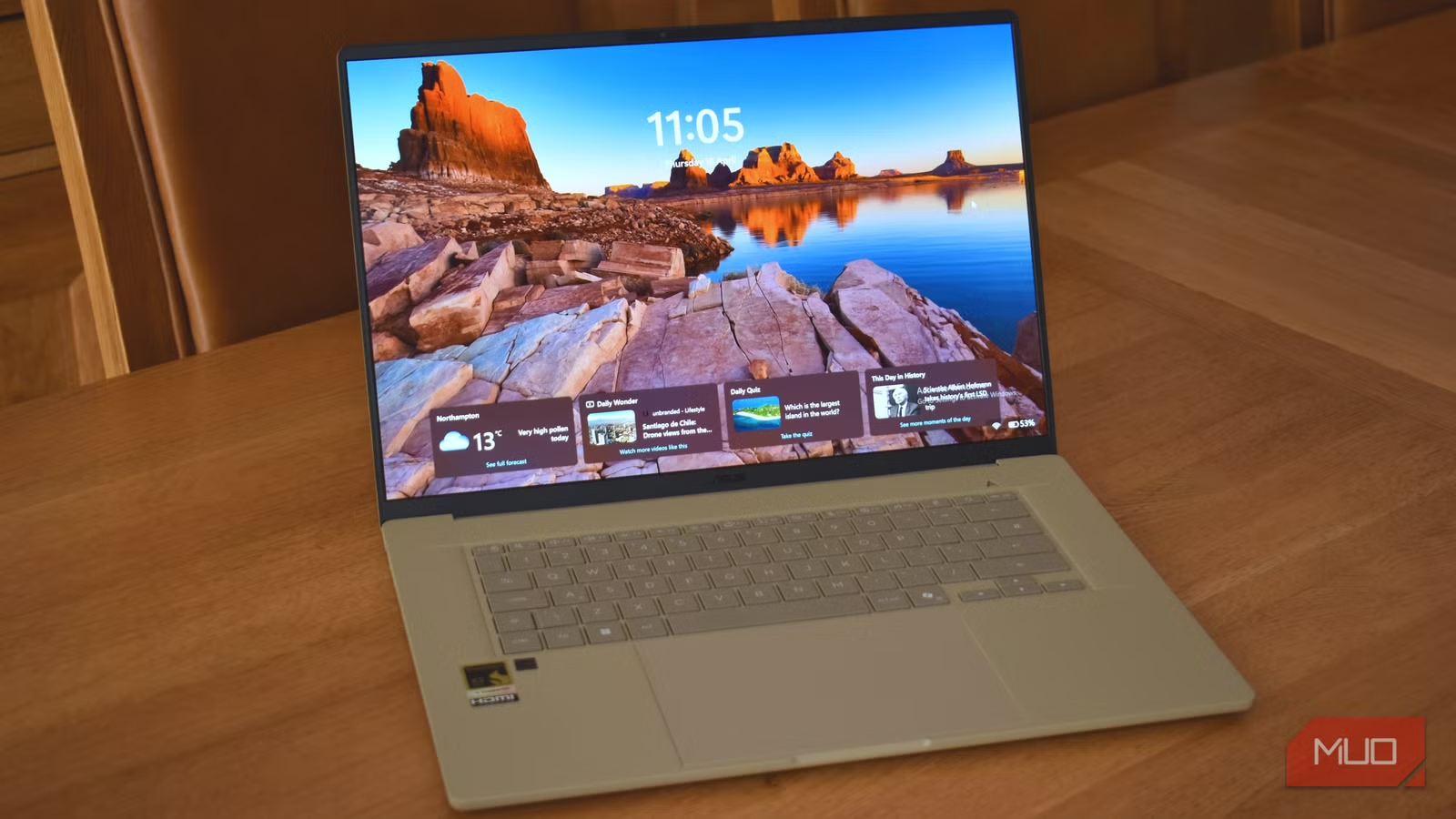
Windows 11 ships with a surprising amount of pre-installed software. You get Clipchamp, Teams, Xbox, Outlook, To Do, Edge, OneDrive, and several others before you even open the Start menu. Laptop manufacturers make it worse by bundling their own utilities, trial software, and third-party apps.
The issue isn't just clutter. Many of these apps launch at boot and run background processes constantly. On modern Windows 11 builds, average idle RAM usage sits at 3.7GB, partly due to increased AI service integration. That's before you open anything.
Step 1: Remove Bloatware with Win11Debloat
You can manually uninstall apps one by one through Settings, but a dedicated tool does the job faster and more thoroughly. Win11Debloat, available free on GitHub, removes all the pre-installed apps Microsoft doesn't let you uninstall through normal means.
The tool handles Xbox services, Cortana remnants, and manufacturer bloatware in a single pass. It takes about five minutes compared to the 20-plus minutes of clicking through Settings menus.
“The best Windows 11 installation is one where the user remains in control of their resources, not the telemetry.”
— Chris Titus, Tech Enthusiast and Developer
Step 2: Disable the Hidden Ads
Paying for a Windows license doesn't mean you've paid to avoid ads. Microsoft calls them "recommendations" and "suggestions," but they appear in the Start menu, File Explorer, notification panel, and Settings app. They don't tank performance, but they make your PC feel cluttered and distracting.
Disabling them requires digging through the Settings app. Look for toggles related to "suggestions," "recommendations," and "tips" across Personalization, System, and Privacy sections. Plan to spend five to ten minutes finding them all.
Step 3: Lock Down Privacy Settings
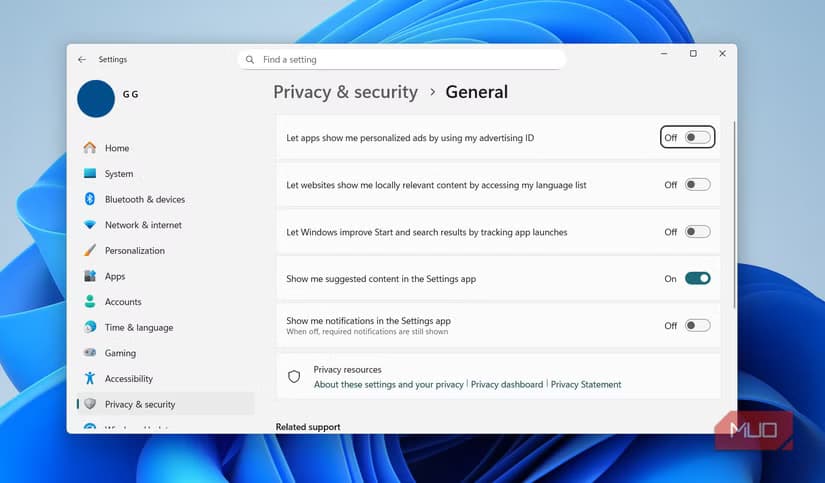
By default, Windows 11 collects data about which apps you use, which websites you visit, and how you interact with the OS. Most privacy toggles favor Microsoft's data collection out of the box.
Navigate to Settings > Privacy & Security and review each category. Disable advertising ID, location services (if you don't need them), and diagnostic data sharing. This reduces background network activity and CPU usage from telemetry services.
Step 4: Configure Windows Update Behavior
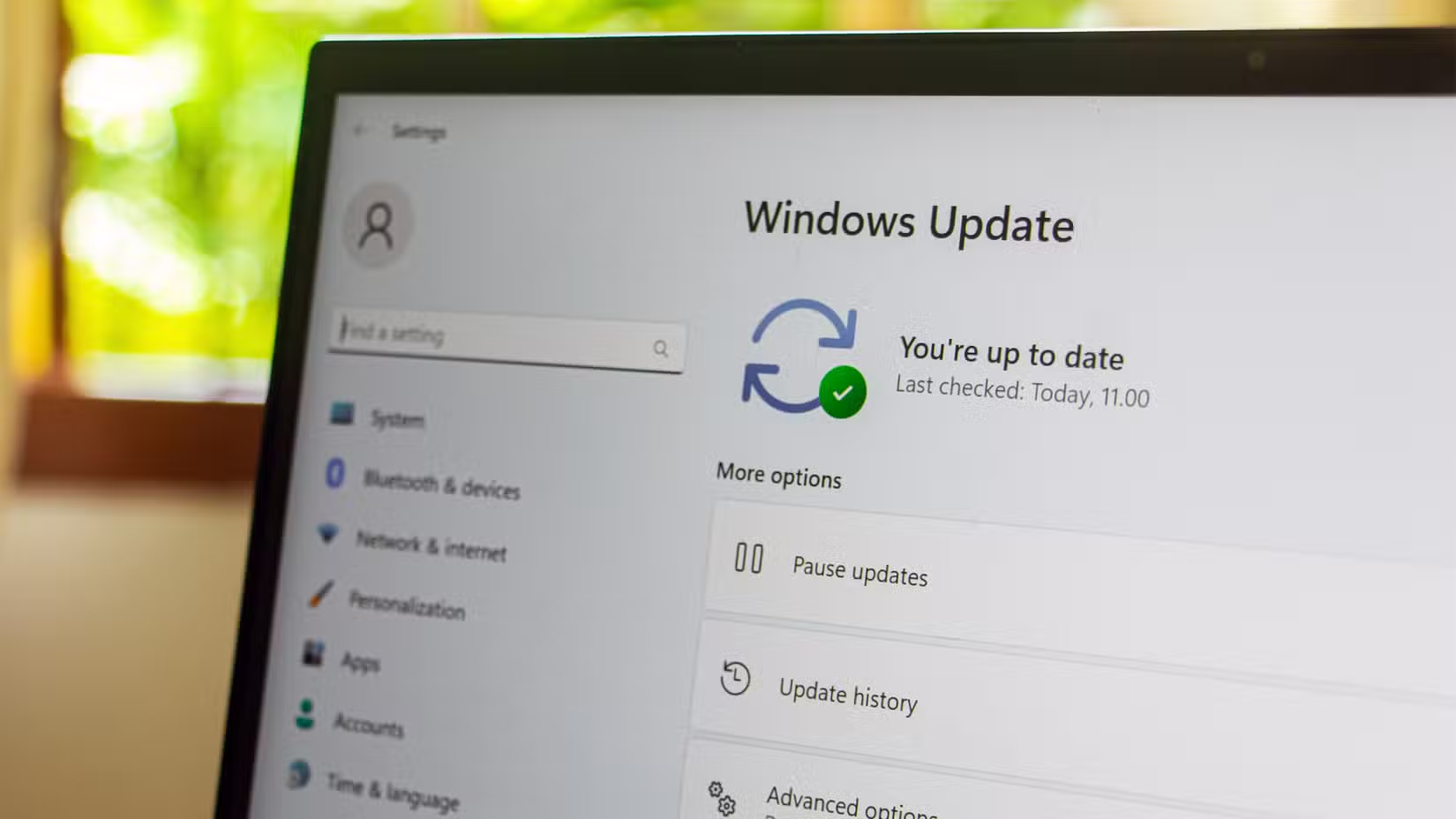
Windows 11 updates aggressively by default. This includes restarting your PC during work hours if you ignore notifications long enough. The June 2026 update brought a "Low Latency Profile" that improved app launch speeds by 40%, but updates can still interrupt your workflow.
Set active hours in Settings > Windows Update > Advanced options. This tells Windows when you're actually using your PC, preventing restarts during those times. You can also pause updates for up to five weeks when stability matters more than new features.
Step 5: Install Your Essential Apps
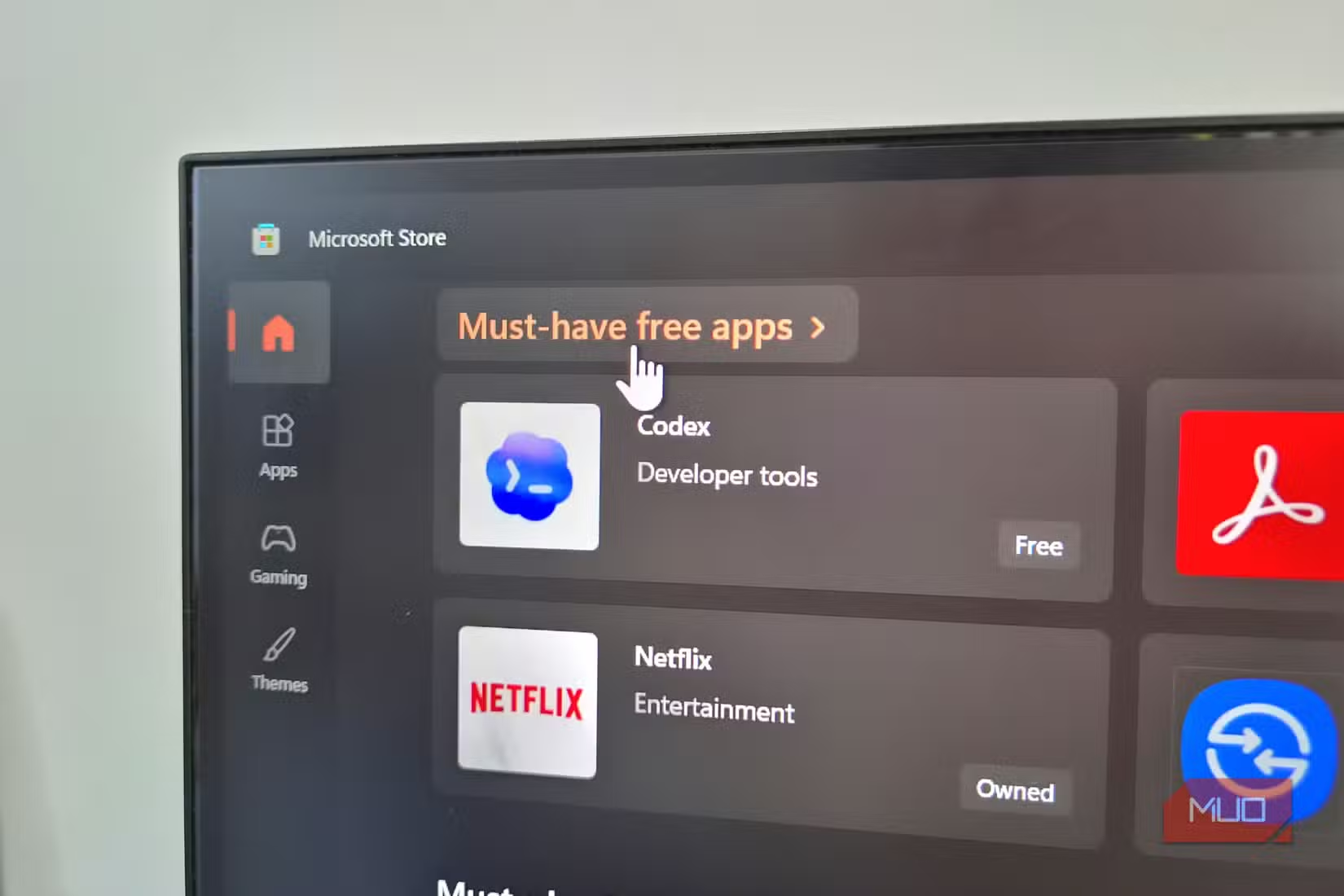
After removing what you don't need, install what you do. The Microsoft Store has improved since Windows 10, but many users still prefer direct downloads for browsers, media players, and productivity tools.
Package managers like winget (built into Windows 11) let you install multiple apps with a single command. Running 'winget install Firefox VLC 7zip' in Terminal handles three installations without clicking through wizards.
Why This Matters Post-Windows 10
Windows 10 support ended in October 2025. Windows 11 now holds 72.8% of the global desktop market. For most users, there's no alternative besides switching to macOS or Linux.
“With the end of Windows 10 support, users aren't just switching operating systems; they're migrating their entire workflows into a faster, AI-driven environment.”
— Satya Nadella, CEO of Microsoft
The AI-driven environment Nadella mentions comes with trade-offs. Background AI services consume resources. Telemetry runs constantly. These five tweaks don't change what Windows 11 fundamentally is, but they put you back in control of how it behaves.
The Community Debate: Placebo or Real Gains?
On Reddit's r/Windows11 and r/pcgaming communities, users argue over whether debloating scripts actually improve performance or just feel better psychologically. The consensus: on NVMe SSDs, Windows 11 is already fast. But removing background processes does reduce CPU spikes and free up RAM.
Chris Titus Tech, whose Windows utility tools have become standard in the PC customization community, maintains that debloating remains the top way to reclaim system responsiveness in 2026. Whether you notice the difference depends on your hardware and tolerance for background activity.
Logicity's Take
Frequently Asked Questions
Is Win11Debloat safe to use?
Win11Debloat is open-source and available on GitHub, where you can review the code before running it. It's widely used in the PC customization community. However, removing certain components may affect features you rely on, so review what it removes first.
Will debloating Windows 11 break anything?
Removing Xbox services breaks Xbox Game Bar and cloud saves for PC games. Removing OneDrive integration disconnects cloud sync. Most users won't miss these features, but check before removing components tied to services you use.
How much RAM does debloating actually save?
Results vary by hardware and installed bloatware. Users typically report 500MB to 1.5GB reduction in idle RAM usage after a thorough debloat. The bigger benefit is often reduced CPU spikes from background processes.
Do I need to repeat these steps after major Windows updates?
Feature updates can re-enable some settings and reinstall certain apps. Privacy toggles and ad settings usually persist, but you may need to re-run debloating tools after major updates.
Can I undo changes if something breaks?
Create a system restore point before running any debloating tool. This lets you roll back if you remove something essential. Win11Debloat also has options to reinstall components it removed.
Another look at tech trends that seemed promising but didn't survive real-world usage patterns
Need Help Implementing This?
Source: MakeUseOf
Manaal Khan
Tech & Innovation Writer
Produced with AI assistance and reviewed by the Logicity editorial team. Learn more in our Editorial Policy.