Key Takeaways
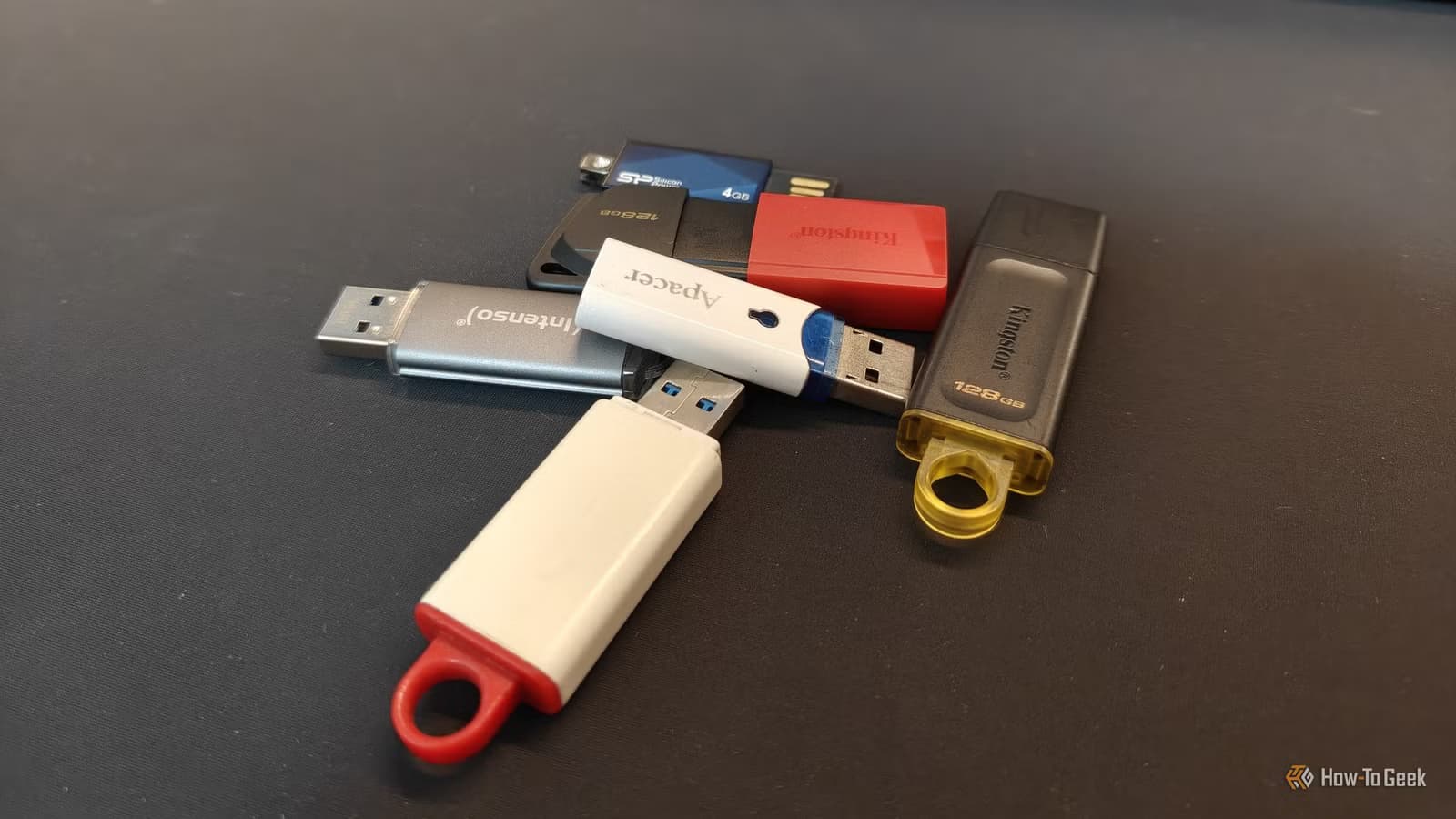
- 1GB USB drives are ideal for BIOS updates since most UEFI systems require FAT32 formatting
- Keeping an old drive empty and dedicated prevents grabbing the wrong files during critical tasks
- Small flash drives remain practical for portable tools, recovery media, and simple file transfers
Why Your Old Flash Drives Still Matter
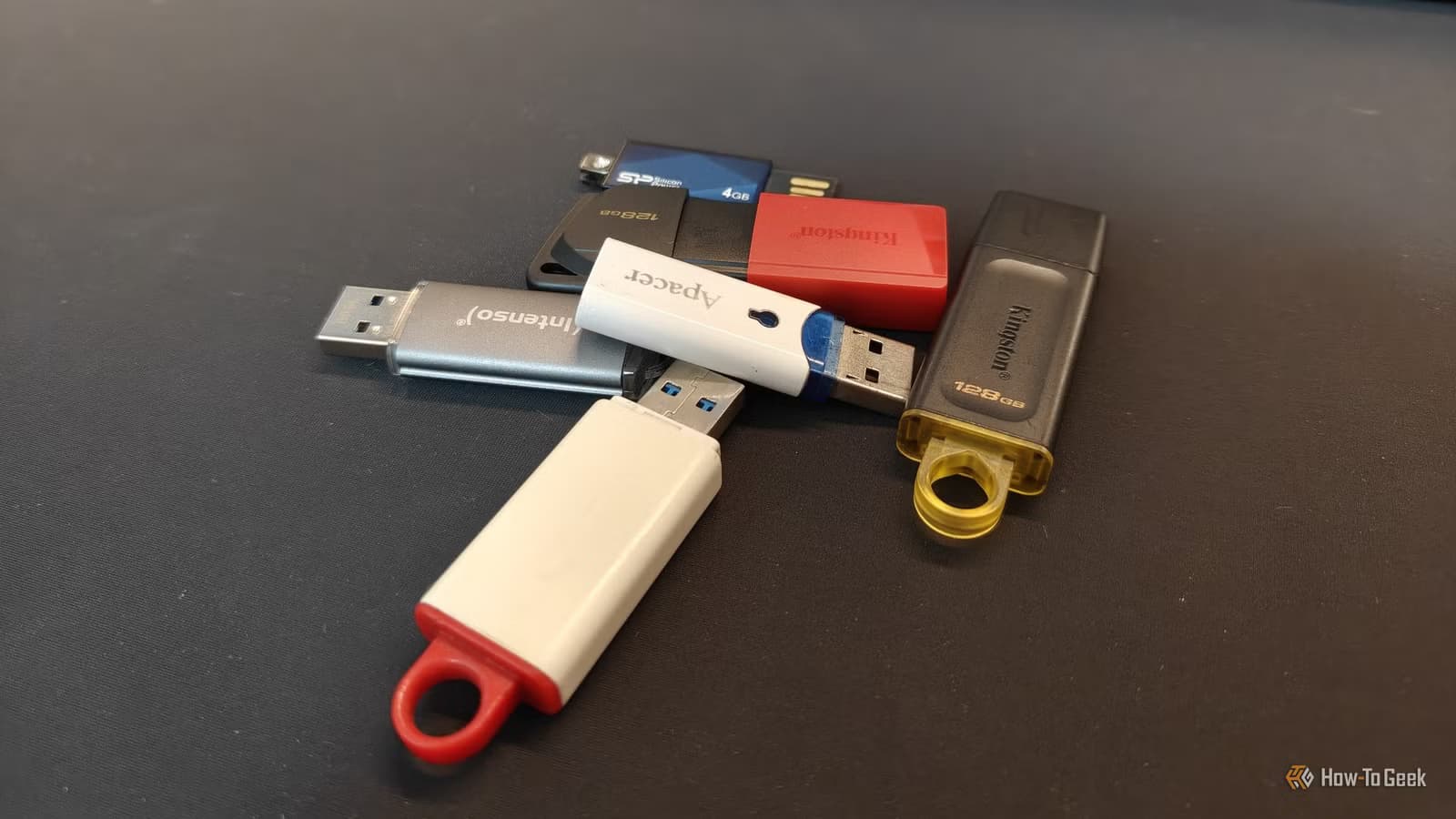
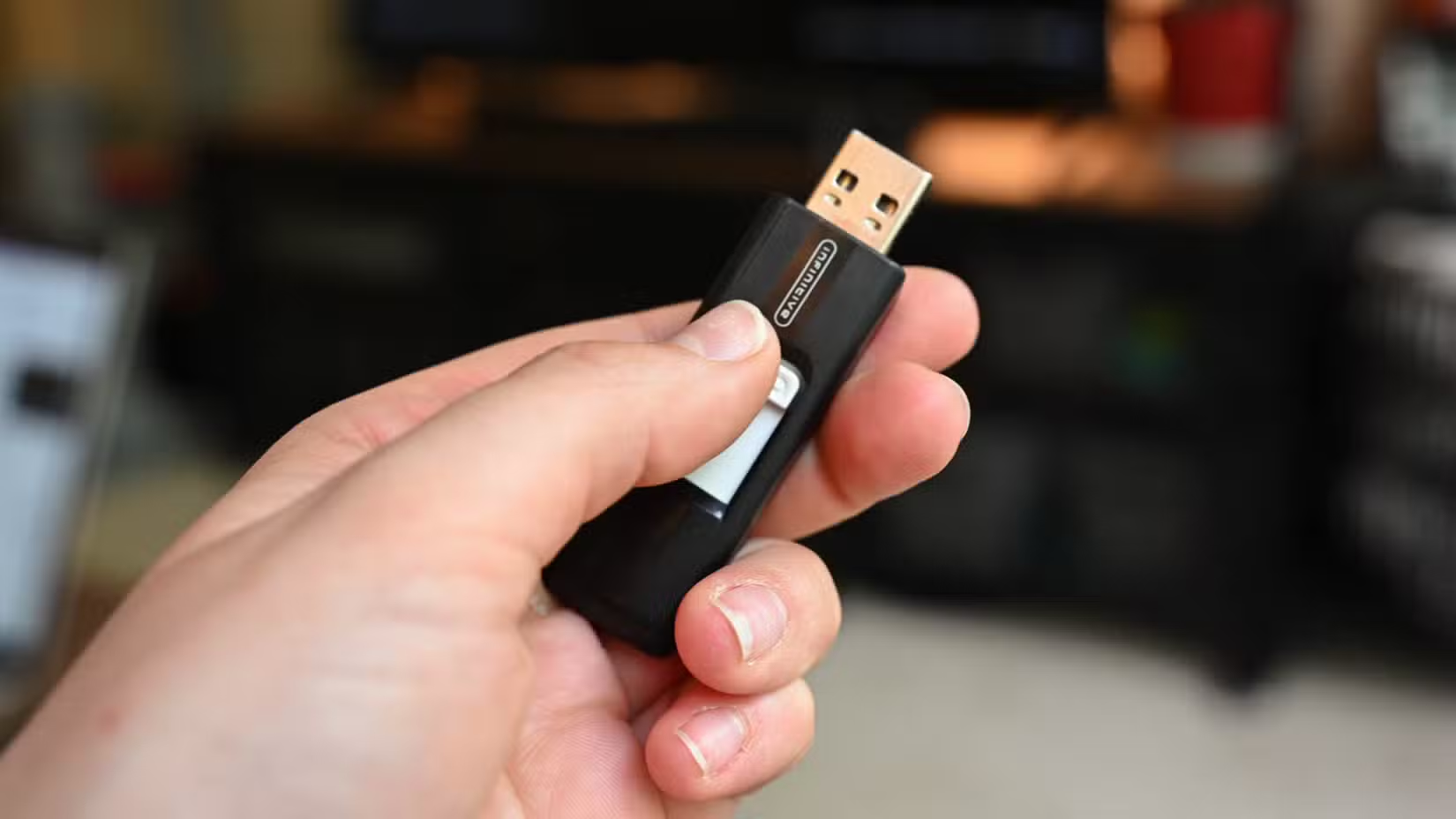
Most of us have a few ancient USB flash drives rattling around in desk drawers. They're too small for modern file storage and too old to trust with important data. Yet throwing away a functioning drive feels wrong. Here's the thing: these tiny drives aren't useless. They're actually perfect for specific tasks where modern high-capacity drives fail or overcomplicate things.
BIOS and UEFI Updates: The Perfect Match
Updating your BIOS is one task where a 1GB drive genuinely outperforms a 128GB one. BIOS images typically run under 32MB, so even a decade-old drive has room for several versions. But size isn't the real advantage.
The real issue is formatting. Many modern UEFI implementations can't read NTFS-formatted drives. They require FAT32. Most people format their large drives as NTFS because FAT32 has a 4GB file size limit. That means your fancy new 256GB drive might be useless for BIOS updates.
As one tech writer puts it, he rarely grabs his "good" flash drives for BIOS updates. Instead, he reaches for a 17-year-old 1GB Apacer drive he bought as a kid. It's always formatted FAT32, always empty, and always ready. No risk of accidentally grabbing the wrong file when the drive contains only what you need.
Dedicated Purpose Drives
There's something to be said for a drive that does one thing. A 1GB drive labeled "BIOS" or "Recovery" sits in a drawer doing nothing until you need it. No confusion about which files are on it. No accidental deletion of important data because you needed space for vacation photos.
Modern drives encourage hoarding. You fill them with years of downloads, random backups, and files you'll "sort later." When you need to flash a BIOS update at 2am, digging through 50GB of clutter isn't ideal. A small, empty, single-purpose drive solves that problem.
Portable Tools and Lightweight OS Installers
Many portable applications fit comfortably on a 1GB drive. Password managers, text editors, diagnostic tools, antivirus scanners. You can build a useful toolkit that boots from any machine.
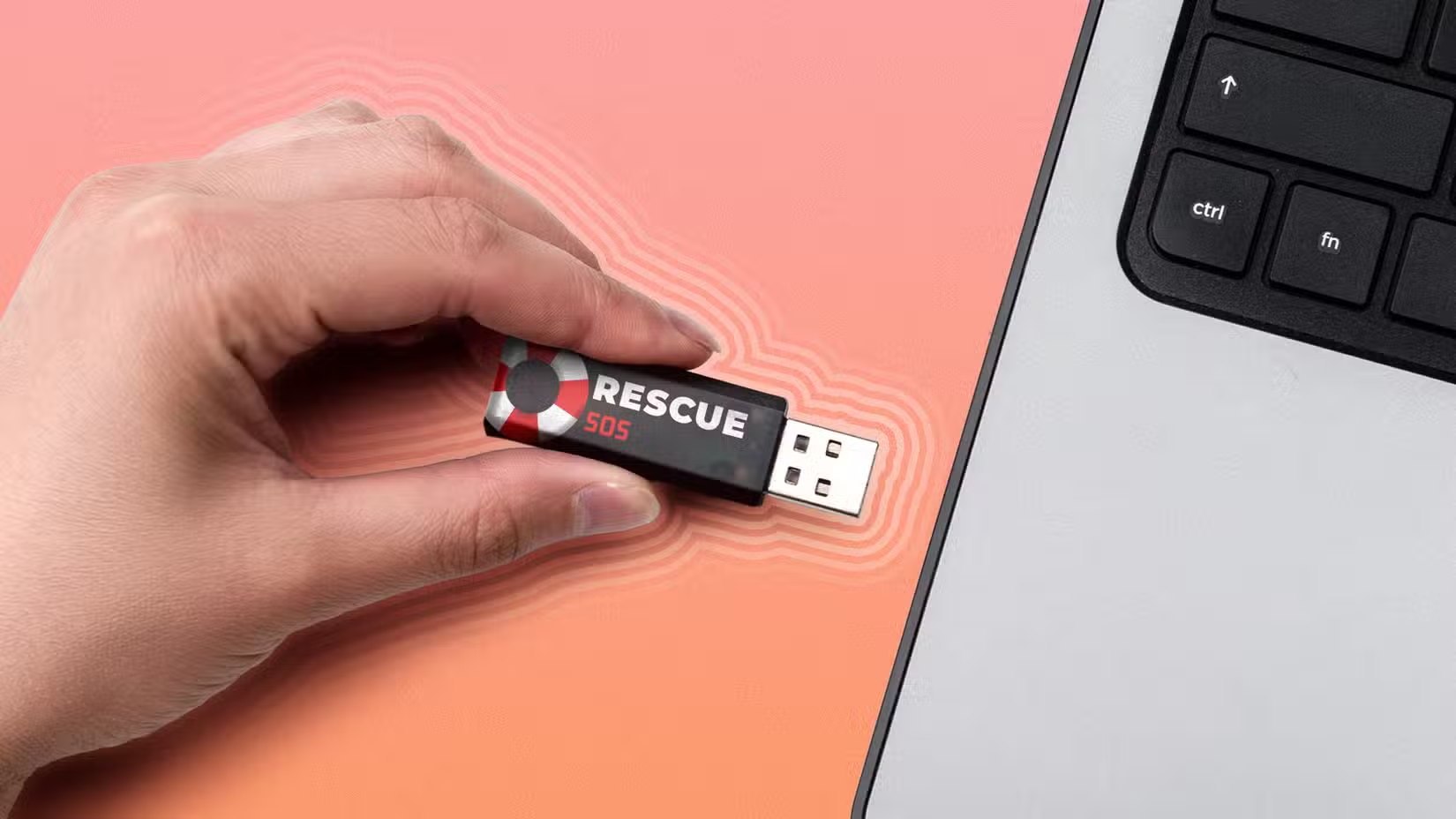
Lightweight Linux distributions designed for system rescue or diagnostics often run well under 1GB. Having a pre-made rescue drive ready can save hours when a system won't boot. You're not searching for installation media or downloading ISOs on your phone. The drive is there, prepared, waiting.
When Old Drives Win by Being Expendable
Sometimes you need to hand someone a USB drive knowing you won't get it back. Maybe you're sharing files with a colleague, handing over documents at a conference, or giving software to a client. Using a $50 high-speed drive for that feels wasteful. An old 1GB drive costs nothing because you already own it.
The same logic applies to risky environments. If you're plugging a drive into an unknown machine, you'd rather risk an old drive than your daily-use storage. Malware doesn't care about capacity.
The Reliability Question
Yes, old flash drives can fail. Flash memory has finite write cycles, and older drives used less durable technology. But for read-heavy tasks like BIOS updates or running portable tools, wear isn't a major concern. You're not writing gigabytes of data daily. You're storing a few files and reading them occasionally.
The key is matching the task to the tool. Don't use an old drive for your only backup of important files. Do use it for tasks where small, simple, and FAT32-formatted matters more than speed or capacity.
Logicity's Take
Frequently Asked Questions
Why do BIOS updates require FAT32 formatted drives?
Many UEFI implementations only support FAT32 for booting and flashing. NTFS, the default format for large drives, isn't universally readable by firmware. FAT32's simplicity makes it reliable across different motherboard manufacturers.
How can I tell if my old USB drive still works?
Format the drive and run a verification tool like H2testw or F3. These programs write data to every sector and verify it can be read back correctly. Any errors indicate the drive is failing.
What's the best way to format an old USB drive for BIOS updates?
Use Windows Disk Management or a tool like Rufus to format the drive as FAT32. Make sure to select FAT32 specifically, as Windows defaults to NTFS for drives over 32GB.
Can I use an old USB drive for Windows installation media?
Windows 11 installation media typically exceeds 5GB, which won't fit on a 1GB drive. However, lightweight Linux distributions and specialized recovery tools often fit comfortably.
Should I throw away old USB drives that I don't use?
Not necessarily. Even if you don't need them for the tasks described here, USB drives contain personal data. Securely wipe them before disposal, or keep them for occasional single-purpose use.
Storage and memory constraints affect computing at every level
Need Help Implementing This?
Source: How-To Geek
Manaal Khan
Tech & Innovation Writer
Produced with AI assistance and reviewed by the Logicity editorial team. Learn more in our Editorial Policy.