Key Takeaways
- Samsung TV Plus, Samsung Internet, and Samsung Global Goals are safe to uninstall immediately
- Many pre-installed Samsung apps duplicate Google services you already use
- Entry-level Galaxy phones lose up to 15% of storage to bloatware
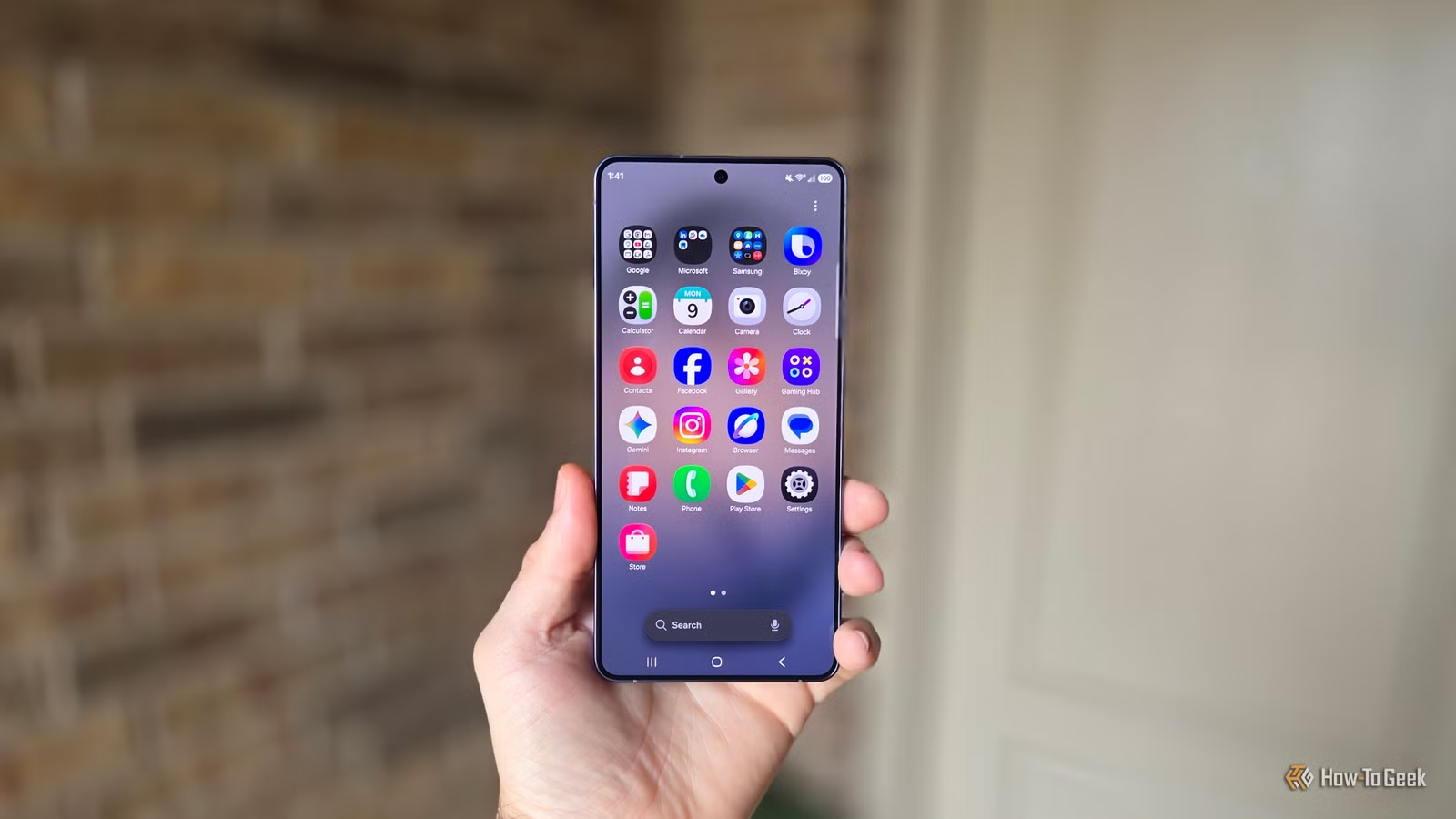
You buy a new Galaxy S26 Ultra. You power it on. You complete the setup wizard. Then you open the app drawer and find dozens of apps you didn't ask for. Samsung Internet sits next to Chrome. Samsung Wallet competes with Google Wallet. Microsoft apps you'll never open take up precious space.
This is the bloatware problem that plagues every Samsung phone, and it's been this way for years. Cory Gunther, a senior tech writer at How-To Geek who has reviewed Samsung devices for 14 years, shares the five apps he removes from every new Galaxy phone.
Why Samsung Ships So Much Bloatware
Samsung bundles duplicate software suites on every Galaxy device. You get Samsung's apps and Google's apps, both fighting for the same jobs. The company wants you locked into their ecosystem. The result is wasted storage and a cluttered interface.
On entry-level Galaxy A-series phones, pre-installed apps consume roughly 15% of internal storage. That's a meaningful chunk on devices with limited capacity. Even flagship phones lose gigabytes to redundant software.
About 60% of power users report disabling or uninstalling at least three default Samsung apps within their first week of ownership. If you're reading this, you're probably part of that group.
1. Samsung TV Plus
Samsung TV Plus is a free, ad-supported streaming service. It sounds useful until you realize it's mostly old content available on dozens of other apps. You don't need a subscription or login, but the tradeoff is heavy ads and a weak content library.
You've probably seen Samsung TV Plus on your Samsung television. The phone version is the same app, bundled without your consent. Unless you're desperate for free reruns, hit uninstall. You won't miss it.
2. Samsung Internet Browser
You only need one web browser on your phone. Google Chrome comes pre-installed on nearly all Android devices, and you probably already use it on your laptop and other devices. Samsung Internet is the redundant app here.
Samsung Internet isn't bad. It's reasonably fast, somewhat customizable, and runs on the same Chromium engine as Chrome. But it's not as polished, and it doesn't sync with Chrome on your other devices. For most users, it adds nothing.
Explores the browser market dynamics that make Chrome the default choice
3. Samsung Global Goals
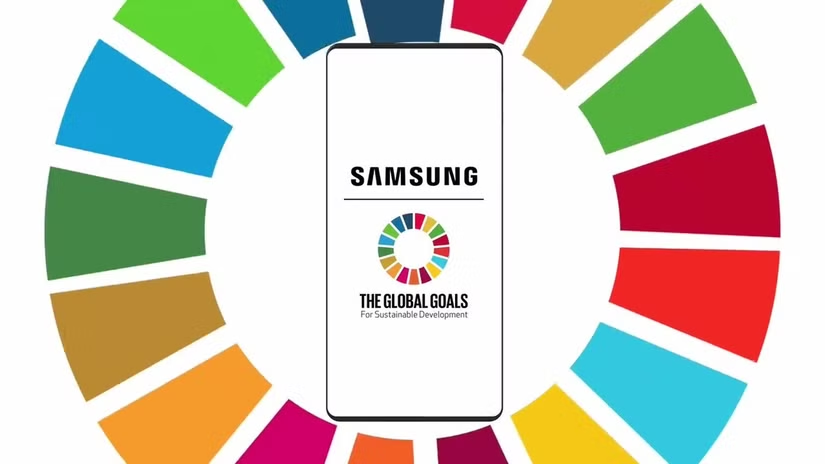
Samsung Global Goals is one of the stranger pre-installed apps. It's tied to the United Nations' Sustainable Development Goals and shows you ads in exchange for Samsung donating to charity. The concept is admirable. The execution is weird.
Most users open this app once, get confused, and never return. If you want to support charitable causes, there are more direct ways than watching mobile ads. Uninstall it and donate directly instead.
The Microsoft Bundle
Samsung has a partnership with Microsoft that results in several pre-installed apps: LinkedIn, OneDrive, and Microsoft 365. If you're a Microsoft 365 subscriber, you might keep these. Everyone else should remove them.
These apps aren't harmful. They're just taking up space if you don't use Microsoft's ecosystem. OneDrive in particular tends to nag you about backing up photos to a service you don't pay for.
How to Actually Remove These Apps
Some Samsung apps can be uninstalled directly. Long-press the app icon, tap "Uninstall," and confirm. Others can only be disabled, which hides them and stops background activity but doesn't free up storage.
For complete removal, power users turn to ADB (Android Debug Bridge) commands from a computer. The Universal Android Debloater tool is popular on Reddit communities like r/Samsung and r/GalaxyS24. It lets you remove apps that Samsung won't let you uninstall through normal means.
- Disabling is safer for beginners and requires no computer
- ADB uninstall is more thorough but requires USB debugging and basic command line knowledge
- A factory reset will restore all removed apps, so keep your debloat script handy
What About Samsung's Good Apps?
Not every Samsung app deserves deletion. Samsung Notes, Samsung Health, and the Samsung camera app are solid. The Galaxy Store has some exclusive deals. Samsung DeX is genuinely useful for productivity.
The goal isn't to purge everything Samsung. It's to remove the duplicates and the apps you'll never use. Keep what works for you.

Logicity's Take
Frequently Asked Questions
Can I permanently remove Samsung bloatware without rooting?
Yes. Using ADB commands from a computer, you can uninstall most pre-installed apps without rooting your device. The Universal Android Debloater tool simplifies this process.
Will disabling Samsung apps free up storage space?
Disabling an app stops it from running and removes updates, but the base app remains. You'll recover some space from updates, but full uninstallation requires ADB.
Which Samsung apps should I keep?
Samsung Notes, Samsung Health, the camera app, and Samsung DeX are well-regarded. Keep apps that add features Google doesn't provide or that you actively use.
Does removing bloatware improve battery life?
Disabling or removing apps that run in the background can improve battery life, though the impact varies. Apps like Samsung TV Plus and Global Goals have minimal background activity.
Will a factory reset bring back uninstalled Samsung apps?
Yes. A factory reset restores all pre-installed apps, so you'll need to repeat the debloating process after a reset.
Need Help Implementing This?
Source: How-To Geek
Manaal Khan
Tech & Innovation Writer
Produced with AI assistance and reviewed by the Logicity editorial team. Learn more in our Editorial Policy.